Get the physical connection to your PC right first
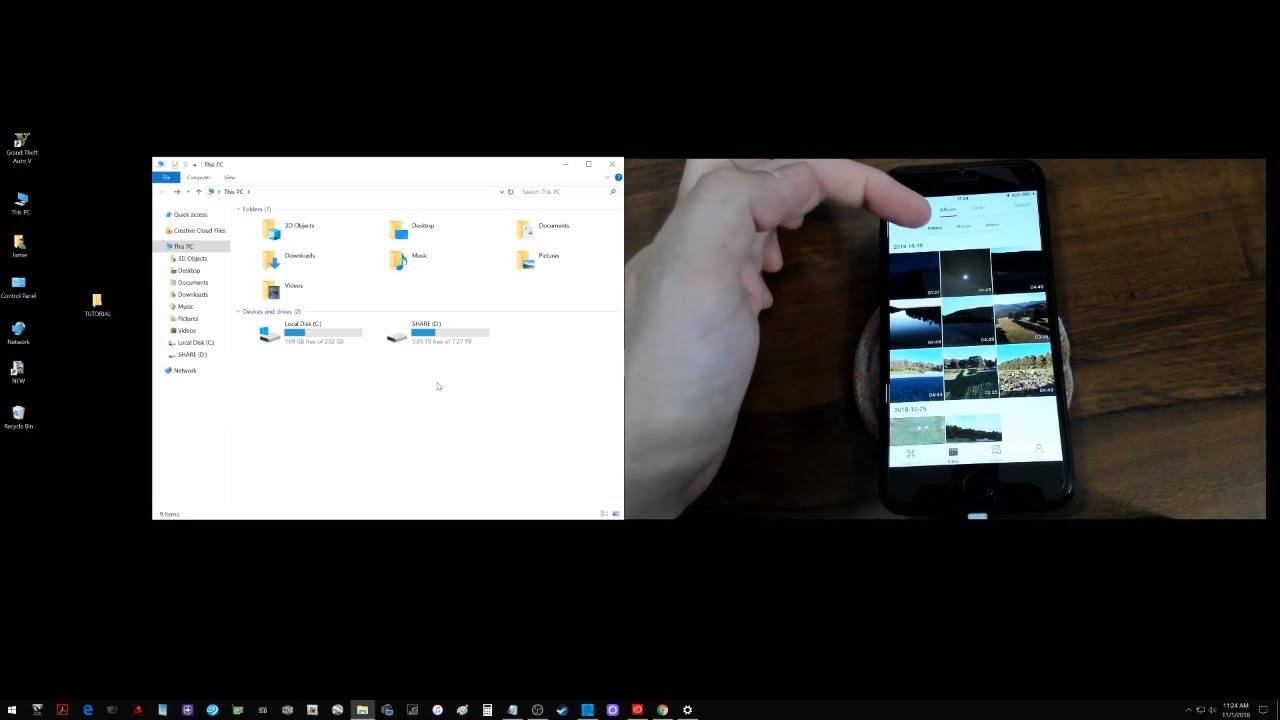
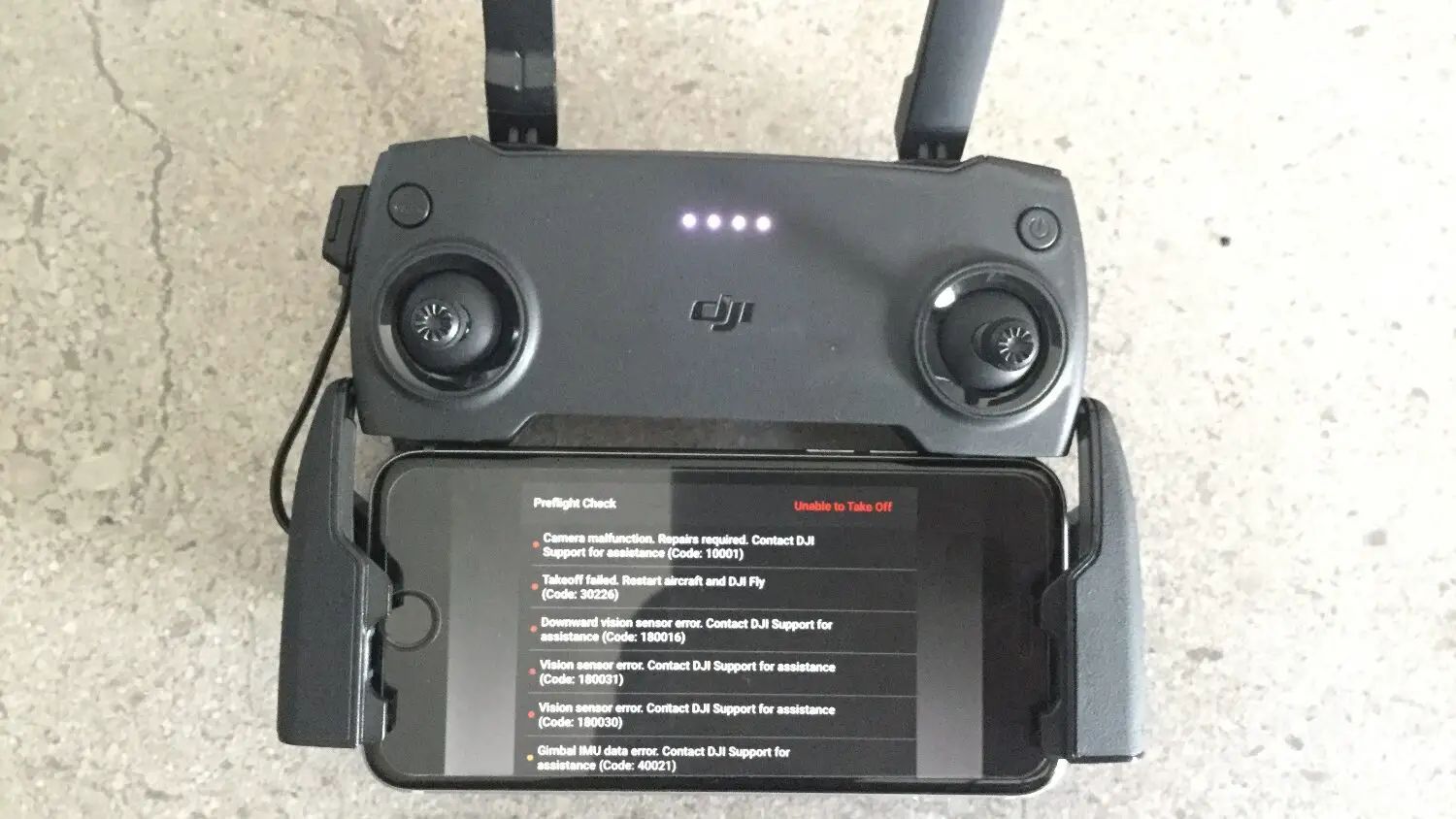
To successfully connect DJI controller to PC, you must first rule out the single biggest point of failure: a charge-only USB cable. Before opening any simulator or software, focus on the single connection point that causes the most frustration. The USB cable you use must be capable of data transfer. A cable that only charges will leave your controller powered but invisible to the computer. This is exactly the scenario when you see the error message DJI controller not showing up in DJI assistant 2. The software is running and the controller has a battery, but the PC simply never sees it. To rule out the cable as the culprit, plug it into a phone or external drive and confirm that your computer recognizes a device. If it does not, the cable is the problem, not your controller. Another common symptom of a charging-only cable is that the DJI RC USB connection only charges but no data transfer. The controller lights up but the PC offers no notification sound or new device in the device manager. If a data-capable USB-C cable was included with your controller, use it; otherwise, buy a known data-capable USB-C cable. Avoid using a hub or extension cable during this first test. Connect directly to a motherboard USB port on the back of a desktop, or to the port on a laptop. Once the cable is confirmed to pass data, the physical layer is solved, and you can move on to software and driver checks. The one mistake no other guide will name is that a fully functional DJI controller will appear completely dead to a PC if the USB cable lacks the physical data wires inside.
Connect your controller wirelessly
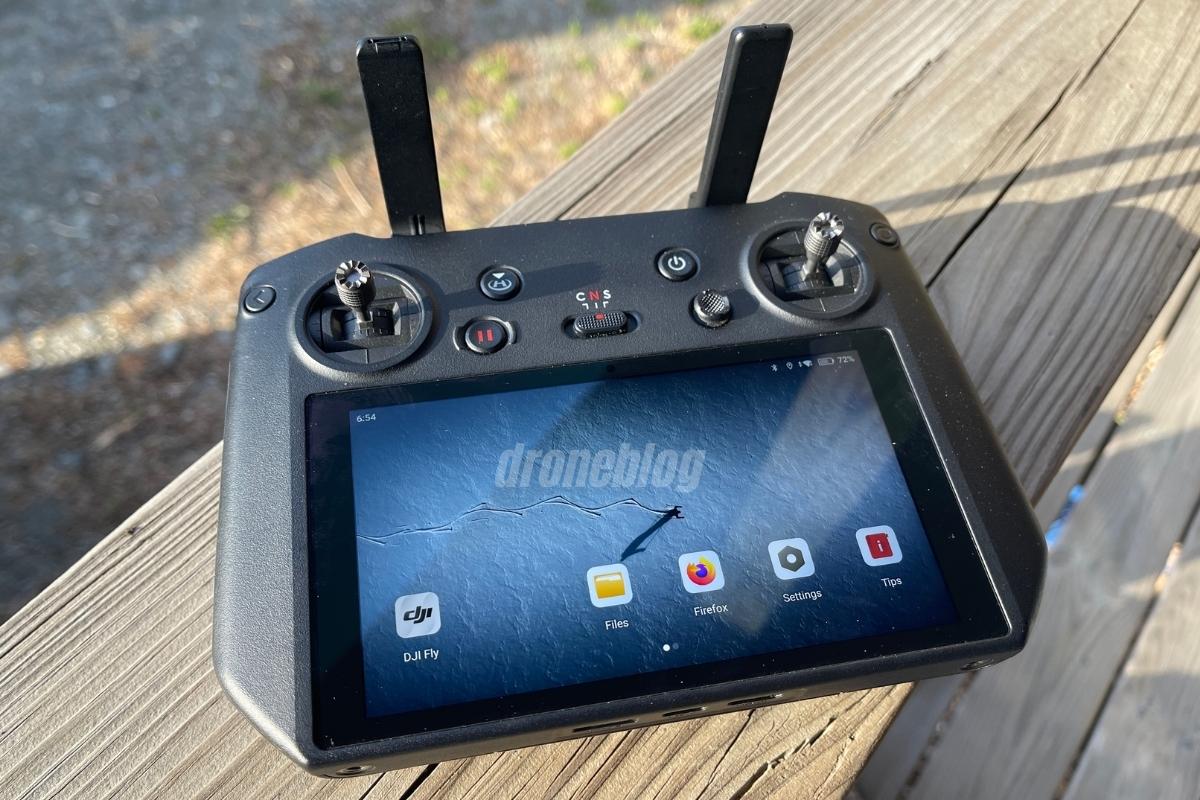
Before you begin, make sure your controller is fully charged. Your PC's Wi-Fi adapter must be capable of hosting a connection. Many desktop machines require a USB wireless dongle for this. On the controller, swipe down to open the control center, then tap the Wi-Fi icon to access network settings. From here, you can connect DJI controller to Wi-Fi as you would any other device. You will likely want to create a direct connection by selecting "Wi-Fi Access Point" mode on the controller. Your PC should then see the controller's network in its list of available wireless connections. Select it and enter the password displayed on the controller's screen. Once linked, open your simulator software to test the link. If the connection drops during use, the most common culprit is signal interference or a weak Wi-Fi card in the PC. If you find that your DJI controller Wi-Fi connection keeps disconnecting from PC, try moving the controller closer to the computer and closing other bandwidth-heavy applications. For a more stable alternative, you can also connect dji rc to wifi through a dedicated router. This often provides a more consistent link for screen mirroring or simulator sessions. Unlike a standard tablet, the DJI controller broadcasts its own network for a direct PC link without requiring an existing wireless infrastructure.
Pair everything together for flight
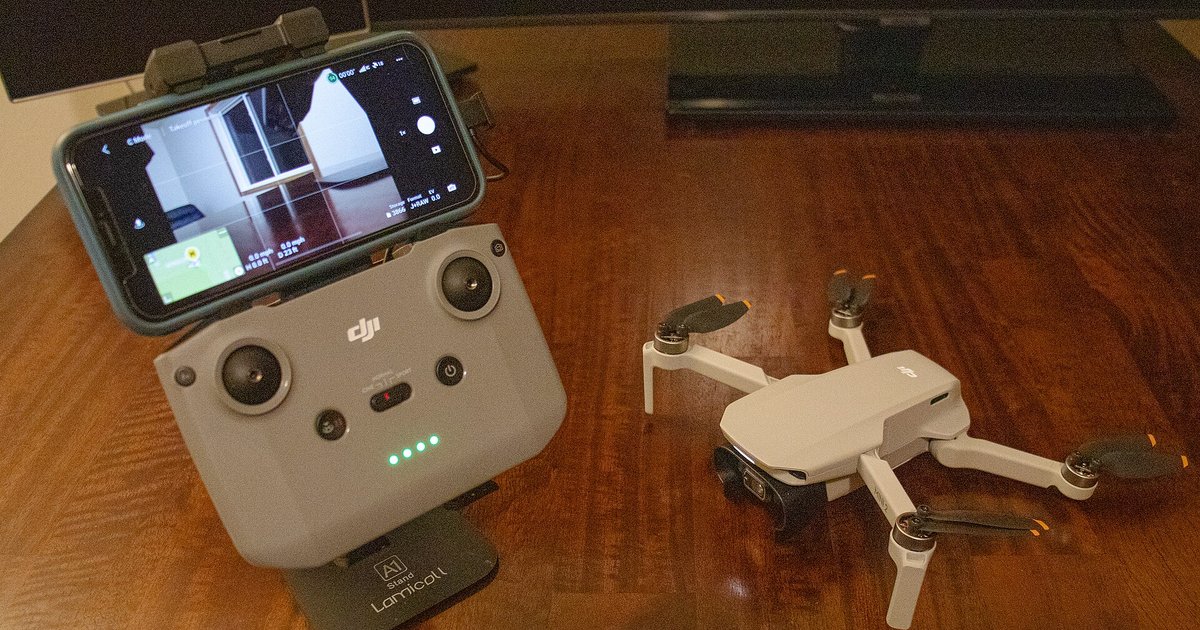
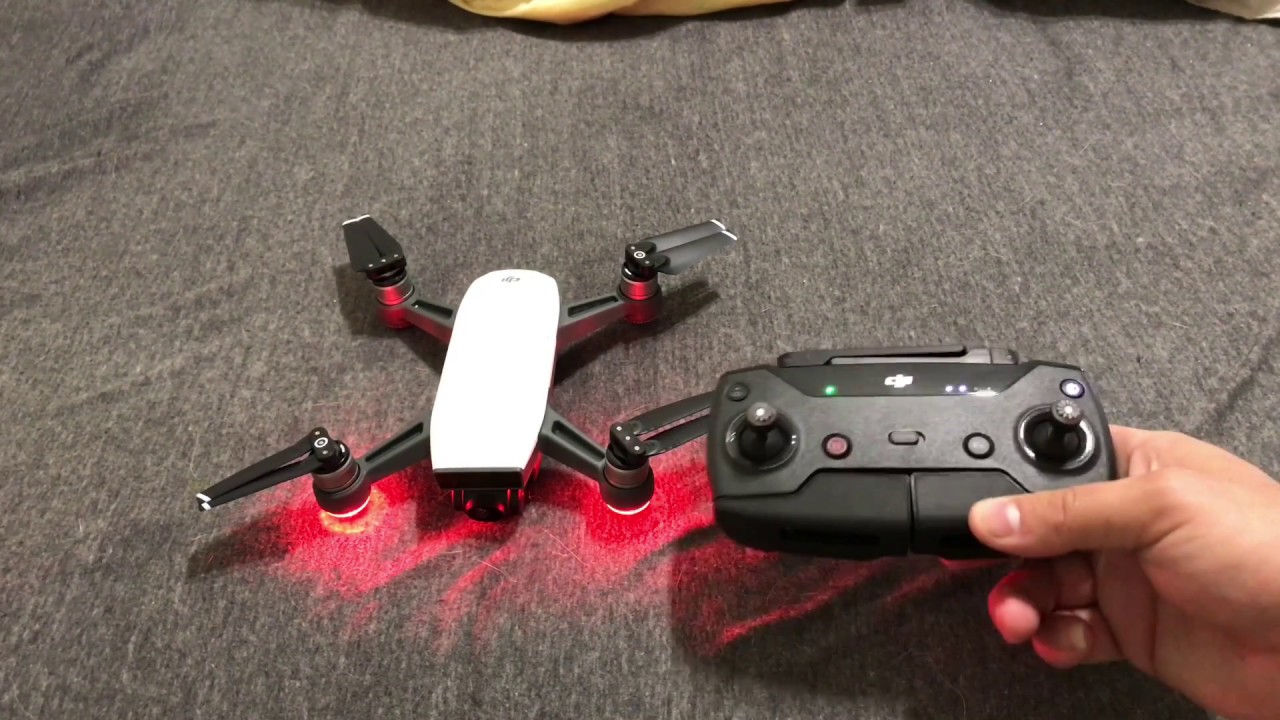
Once your controller is connected to the PC via a verified data-capable USB cable, the next step is to ensure the drone and controller are speaking to each other. You may need to pair drone with remote controller if your simulator setup requires the aircraft to be linked, but this is not universally required for all DJI simulators. The controller’s link status LED should blink slowly, then turn solid green once the pairing succeeds. If you’re using a different model later, the process to pair a drone with controller is essentially the same. Follow the specific pairing procedure for your drone model, which typically involves pressing the drone and controller link buttons in sequence until the controller beeps and the drone’s lights change pattern. After the PC connection is active, confirm your specific controller appears on the DJI simulator compatible controller list. This step helps ensure compatibility within DJI’s official ecosystem. Check the official DJI simulator compatibility list to confirm whether your specific controller model is supported. Without that confirmation, the simulator may launch but never detect your inputs. A quick check: open the simulator’s device menu. If no controller is listed, revisit your USB cable and the pairing sequence before assuming a driver issue. Only when both the drone and controller are linked and the remote appears in the simulator’s list are you ready to calibrate and fly.