The quickest way to convert a PDF to Word is to upload it to an online converter, download the DOCX it produces and open that in Word. If you already have Microsoft Word, you can also open the PDF directly and let Word convert it. Either way, a PDF made from a text document converts well, while a scanned PDF needs OCR first before you get anything editable.
Converting back from Word to PDF is the easy direction. Every current version of Word can save as PDF without extra software.
Convert PDF to Word with PDFBEAR
The recommended route is PDFBEAR's PDF to Word tool, which runs in any browser on Windows, Mac, Linux, phones and tablets. The site states that converting a standard text-based PDF is free, and that it accepts files up to 50 MB. You can convert PDF to Word online with PDFBEAR in a few steps:
- Open the PDF to Word page and drop your PDF onto the upload area, or click it to browse for the file.
- Check the page thumbnails. You can drag pages into a different order or add more files if you want to combine documents into one Word file.
- Under Conversion method, leave Standard selected. It is the free option and is described as fast and layout-preserving. The AI-powered option is part of the paid Premium plan and is the one to use for scanned PDFs.
- Click Convert to Word.
- When the result page appears, download the DOCX file and open it in Word, Google Docs or another word processor.
A few practical notes from using it. Free downloads can sit in a short queue before the link appears, and the site says Premium subscribers skip it. Guests get a limited number of free conversions per day, and a free account lifts that limit. The site also lists a page cap per conversion on the free tier, so for a long manual it is quicker to split out the pages you need first.
In a test with a simple text PDF, the Standard method kept the look of the page by placing each line of text in a positioned text box. That keeps the layout faithful, but it makes long rewrites fiddlier than editing ordinary paragraphs. If you plan to rewrite large parts of the document rather than fix a few lines, compare the result with Word's own conversion, described below, which flows text into normal paragraphs.
What converts well and what does not
Whatever tool you use, the result depends on how the PDF was made. A PDF exported from Word, Google Docs or another text editor contains real characters, and a converter can rebuild them into paragraphs, headings and tables with reasonable accuracy.
Several things commonly go wrong:
- Multi-column layouts such as newsletters can come out as one long column, or as a set of text boxes that are awkward to edit.
- Complex tables with merged cells may need rebuilding.
- Fonts that are not installed on your computer are swapped for the closest match, which shifts line breaks.
- Page breaks land in different places, so page references in the text may no longer match.
- Charts and diagrams usually arrive as images rather than editable objects.
Scanned PDFs are the biggest source of disappointment. A scan is a picture of a page, so a standard converter has no text to extract and can only give you a Word file full of images. You need OCR first to recognize the letters. On PDFBEAR, OCR and the AI-powered conversion method that handles scans are Premium features with a free trial, while the standard free converter does not read scans.
Convert a PDF to Word in Microsoft Word
Word 2016 and later, including Word for Microsoft 365, can open a PDF and convert it into an editable document. Microsoft's instructions are:
- In Word, go to File then Open.
- Find the PDF and open it. You may need to click Browse.
- Word tells you it will make a copy of the PDF and convert its contents. Accept that message.
- Edit the document, then save it as a Word file or as a PDF.
Your original PDF is not changed. Microsoft says this works best for PDFs that are mostly text, and warns that documents like book chapters or pages that look like photocopies will not be formatted well, and that lines and pages may break in different places from the original.
Convert a PDF with Google Docs
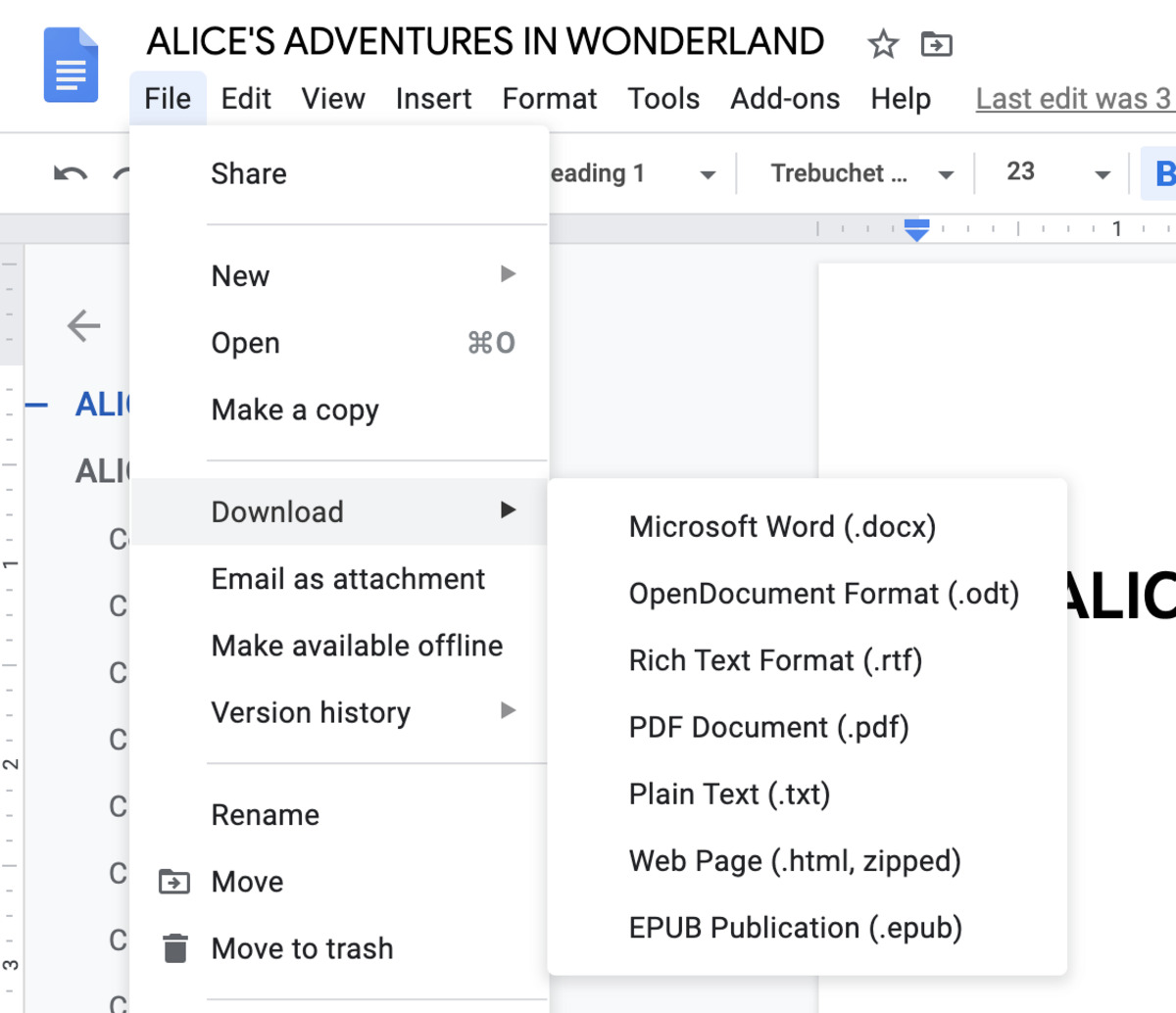
If you do not have Word, Google Drive can open a PDF as a Google Doc. Upload the PDF to Drive, right-click it, and choose Open with then Google Docs. From there you can edit it and use File then Download then Microsoft Word (.docx) to get a Word file.
Google's help pages are frank about the limits. Bold, italics, font size, font type and line breaks are likely to be kept, but lists, tables, columns, footnotes and endnotes are not likely to be detected. For scanned files the conversion uses OCR, and Google says the file should be 2 MB or smaller and the text at least 10 pixels high. This route is good for recovering the words from a simple document and poor at keeping a designed layout.
Convert Word to PDF
To go from Word to PDF on Windows, following Microsoft's steps for saving a Word file as a PDF, choose File then Save As or Export, pick a location, choose PDF as the file type and click Save. Under More options then Options, Word lets you export only a page range, choose Minimum size (publishing online) for a smaller file, encrypt the PDF with a password, or produce an archival PDF/A file. Word for Mac and Google Docs both have their own save or download as PDF options.
If you do not have Word, PDFBEAR also has a Word to PDF tool that accepts DOC and DOCX files and converts several at once.
Which method to use
| Situation | Best option |
|---|---|
| Text PDF, no Word installed, need a DOCX quickly | PDFBEAR PDF to Word, Standard method |
| Text PDF you plan to rewrite heavily | Open it in Word, or compare Word's result with an online converter |
| Scanned PDF | Run OCR first, or use a converter with OCR built in |
| Confidential contract, medical or financial file | Word on your own computer, so nothing is uploaded |
| You only need the words, not the layout | Google Docs, or copy and paste the text |
A note on privacy
Any online converter means uploading your file to someone else's server. PDFBEAR states that uploads travel over HTTPS, that files are deleted automatically after a period, and that no person reviews them. That is a reasonable arrangement for everyday documents. For anything you are not allowed to share, such as client records or a document under a confidentiality agreement, convert it locally in Word instead.
Before converting, keep a copy of the original PDF. Then check the converted document page by page against it, paying attention to tables, numbers and anything in columns, because those are where conversions slip. If the result is a mess, the problem is usually the source file rather than the tool, and a cleaner original or an OCR pass will do more than trying another converter.
\nRelated reading: How to Convert PDF to JPG and JPG to PDF, PDF Guide: Convert, Compress, Merge, Sign and Edit PDFs, and How To Download Google Form As Word.