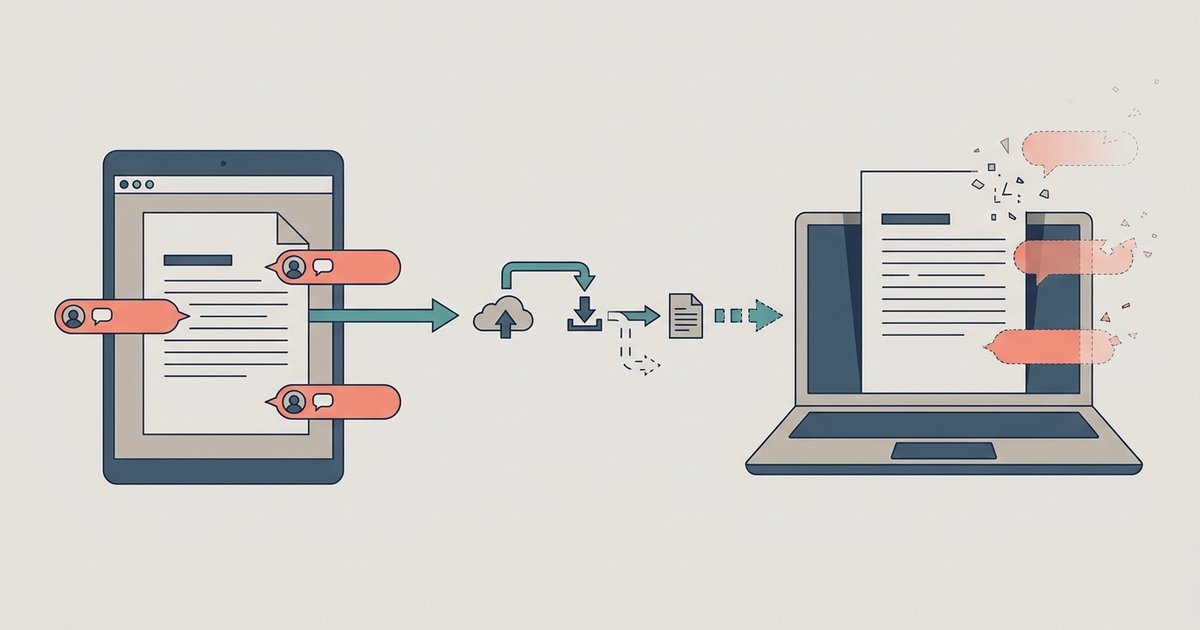
Google Docs comments generally export to Word's native comment system, though some may appear as inline text suggestions or be hidden if resolved. To recover them, you must either copy the comments manually before exporting or use Google's 'Email draft' workaround to capture the thread as a separate document.
Why exporting strips your Google Docs comments
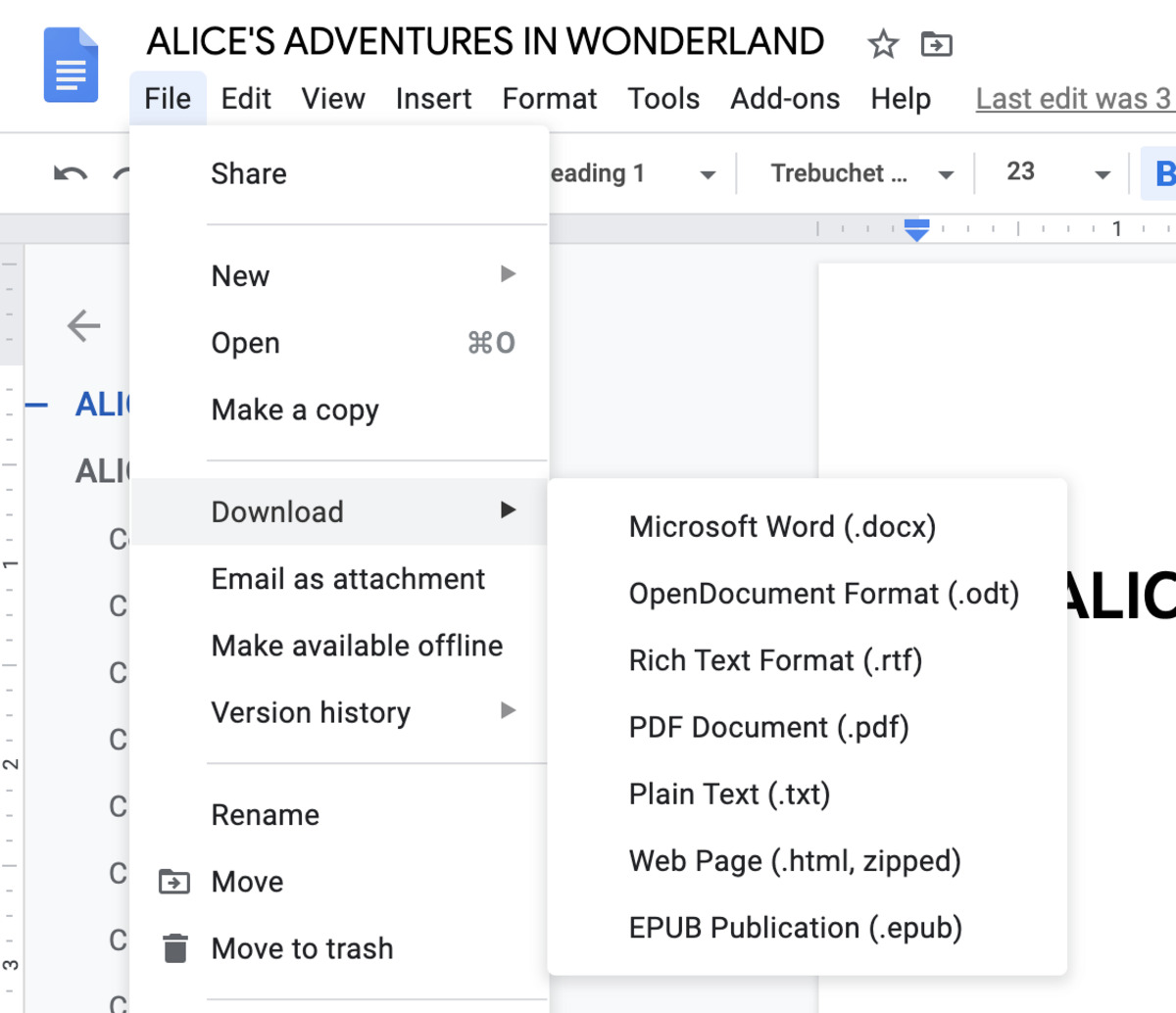
Google Docs and Microsoft Word use incompatible comment architectures. Google stores threaded replies as separate objects attached to a document’s revision history. Word’s .docx format uses a proprietary XML structure for sidebar comments that cannot interpret Google’s reply nesting. When you choose "File" > "Download" > "Microsoft Word (.docx)," Google’s conversion engine tries to map each comment thread to Word’s "Track Changes" system. Replies are generally preserved as Word comments, though some may appear as inline text suggestions. Word has no concept of a threaded reply chain. The result is a document where resolved comments may not appear. Unresolved ones are generally preserved as comments. Most of the sidebar conversation is preserved in Word's comment system. You can generally "download Google doc" and expect the threaded feedback to survive, though some issues may occur. The underlying data models simply do not align.
Recover comments from the exported file
If you have already exported and lost the sidebar, open the .docx in Word. Look for inline markers like "[Comment: ...]" or square-bracketed notes that Google sometimes inserts as a fallback. These markers may appear for some types of comments. Threaded replies may not produce such text. You can also check Word’s "Review" tab and turn on "Show Markup" to see if any comments were converted into tracked changes. Often they appear as strikethrough or inserted text with a comment balloon attached. This partial recovery may work for some comments that were still unresolved at the time of export. For some threads with multiple replies, the text may be lost. If you need a reliable export that preserves all discussion, you should instead download Google Docs with comments as a PDF. That format captures the entire document including sidebar comments as static annotations, though you lose editability.
Preserve the full thread before exporting
The only reliable method to keep every comment is to copy the thread manually before you export. In Google Docs, open the "Comments" panel by clicking the speech-bubble icon in the top-right corner. Click the three-dot menu at the top of the panel and choose "Copy all comments to clipboard." Then paste that text as a numbered appendix at the very end of your document. This preserves every reply, timestamp, and author name as plain text. After pasting, you can safely "download Google form as word" (if you are working with a form’s response document) or export any other file type. The appendix will survive the conversion because it is just body text. This method may work for resolved comments, though Google normally hides them from the panel. You must do this before any export. Once the file is downloaded, the original thread is gone.
When you cannot get them back
If you resolved comments before exporting, or if the original Google Doc has been deleted, the threaded feedback is permanently unrecoverable in any format. Google does not store a separate comment archive. Once a comment is resolved, it is removed from the active document and from the clipboard copy. Similarly, if the document was deleted from Google Drive, all associated comments are destroyed with it. There is no "undo delete" for comments in a deleted file. For users who frequently need to "download Google sheets to desktop" alongside Docs files, note that Sheets comments also vanish during .xlsx export. The same architecture mismatch applies. In these failure cases, your only recourse is to check if a collaborator still has access to the original Doc and can re-export it before deletion. Otherwise, the conversation is gone, and you must rebuild feedback from memory or email threads.
Unlike Word, Google Docs has no native comment export feature, so every recovery method depends on manual steps taken before you convert the file.