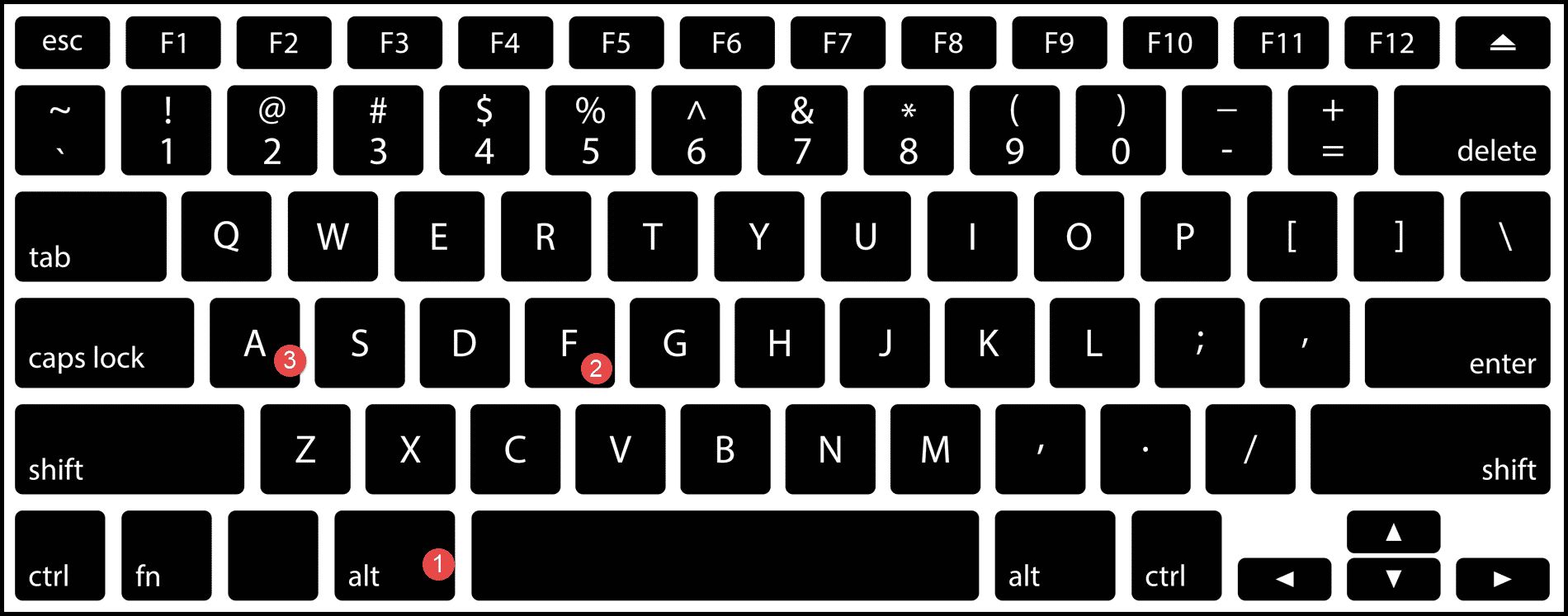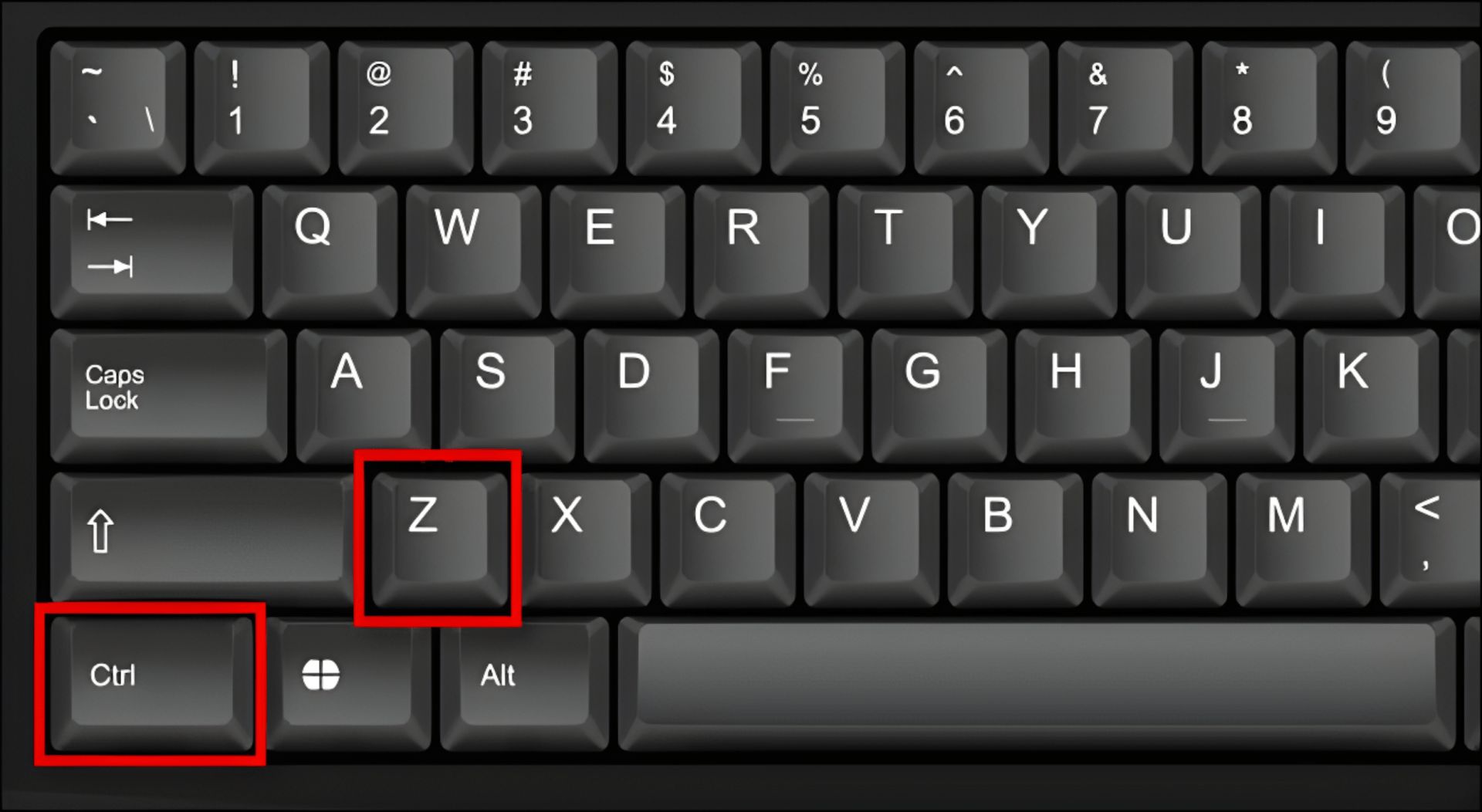
To make a bullet point on keyboard, press Ctrl+Shift+L in Microsoft Word to start a bulleted list, or press Ctrl+Shift+8 in Google Docs on Windows. On a Mac in Google Docs, use Command+Shift+8 instead.
How to make a bullet point on keyboard in Microsoft Word
In Microsoft Word for Windows, the keyboard shortcut Ctrl+Shift+L applies the default bullet list style to selected text. This is the fastest way to turn any line or paragraph into a bullet point without using the mouse. To turn off bullet formatting and return to normal text style in Microsoft Word, press Ctrl+Shift+N. This removes the bullet and restores the default paragraph formatting, so you can continue typing without interruption.
How to make a bullet point on keyboard in Google Docs
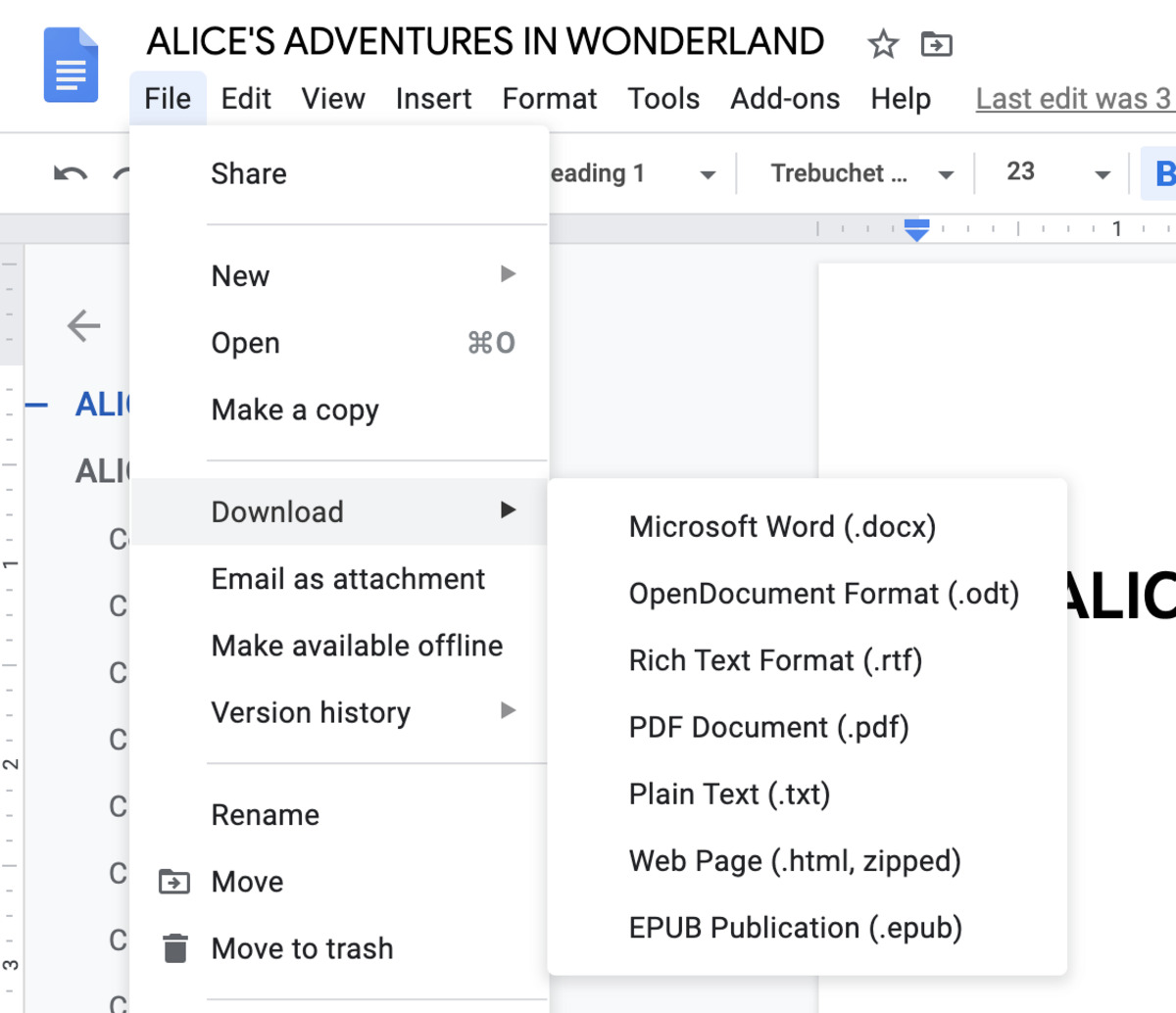
In Google Docs on a PC (Windows/Chrome OS), press Ctrl+Shift+8 to create a bulleted list. This shortcut works immediately, turning the current line into the first bullet point. In Google Docs on a Mac, press Command+Shift+8 to create a bulleted list. Both shortcuts toggle the list on and off, so pressing the same combination again will remove the bullet formatting.
How to type the bullet point symbol (•) with Alt codes
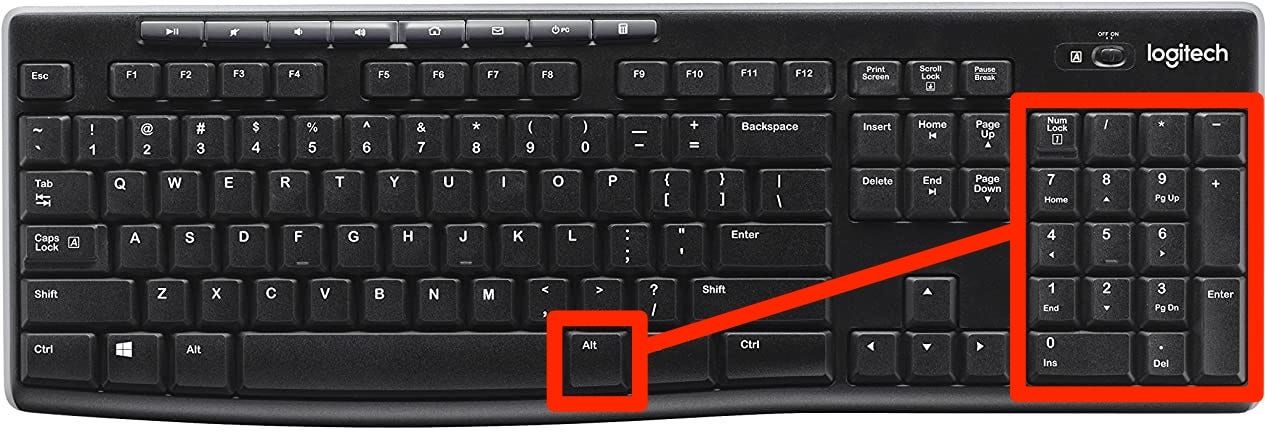
If you need to insert the actual bullet character rather than start a list, you can use an Alt code. Ensure Num Lock is turned on, then hold the Alt key and type 0149 on the numeric keypad. Release the Alt key, and the bullet point symbol (•) appears. This method works in most Windows applications, including Word, Notepad, and email clients, as long as your keyboard has a dedicated number pad.
How to create sub-bullets and nested lists
To create a sub-bullet (indent an item) in Google Docs, press Tab after a bullet point; to decrease the indent (make it a parent item), press Shift+Tab. The same Tab and Shift+Tab keys work in Microsoft Word to indent or outdent list items. In LibreOffice Writer, pressing Tab indents a list item to create a sub-item, and Shift+Tab outdents it to a parent item. For toggling a bulleted list on or off in LibreOffice Writer, Shift+F12 is the dedicated shortcut. Most word processing applications, including Microsoft Word, Google Docs, and Pages, offer options to customize bullet styles through their respective formatting menus, allowing you to change the symbol, size, or color of your bullets.
How to insert bullet points without a number pad
If your keyboard lacks a numeric keypad, you can use the Character Map on Windows. Open the Character Map application, select a font, scroll to find the bullet point symbol, click it, and then copy it. Paste the symbol into your document using Ctrl+V. This method works on any Windows computer and gives you access to many other special characters as well.
The universal copy and paste method
For a reliable fallback on any device, copy a bullet point symbol from a web page or this article. Select the bullet point symbol (•), copy it with Ctrl+C or Command+C, and paste it where you need it with Ctrl+V or Command+V. This method works on phones, tablets, and computers regardless of operating system or software, making it the most universal solution.
\nRelated reading: What Is The Keyboard Shortcut To Save A Document, How To Attach Google Doc To Email, and How To Undo On Keyboard.