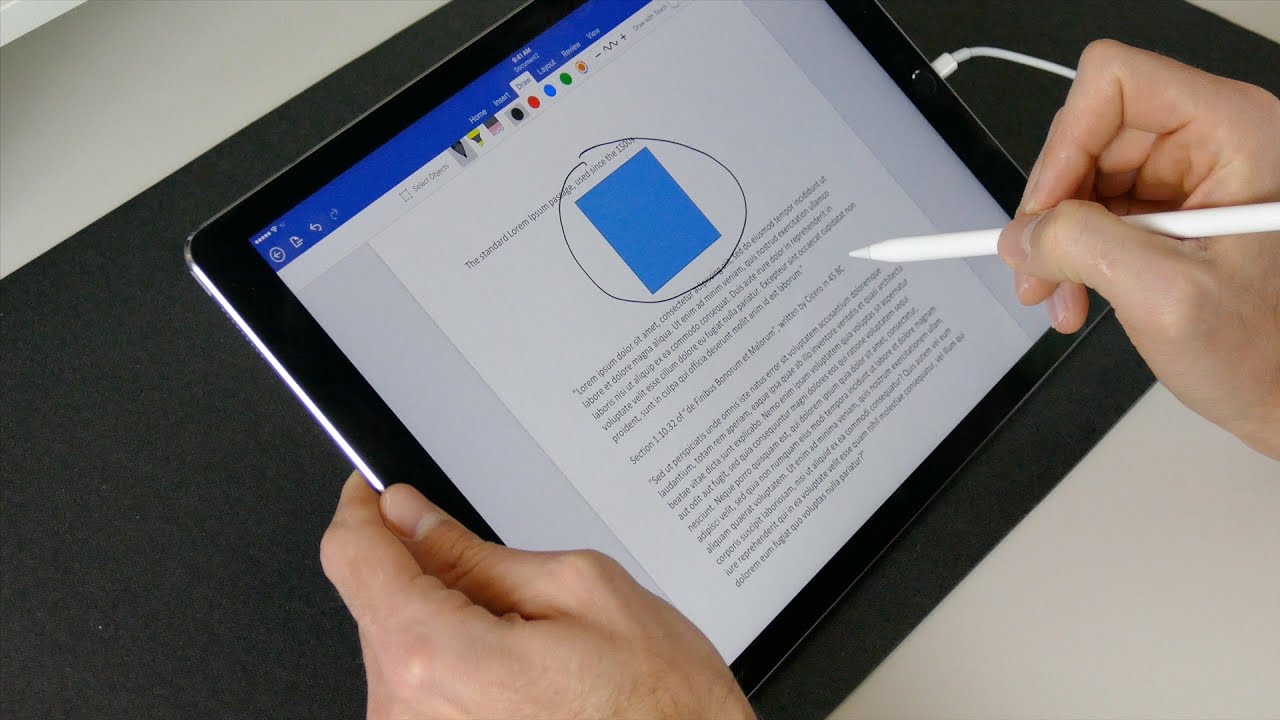
The blunt truth is that you cannot use Apple Pencil handwriting-to-text (Scribble) directly inside Google Docs on an iPad. While you can use the Apple Pencil as a stylus to tap, select, and format text, the app does not convert your handwritten strokes into typed words in the document body. You can, however, view and toggle existing markups on iOS, and you can export your doc to a dedicated note-taking app for full handwriting support.
The blunt truth about Apple pencil Google docs
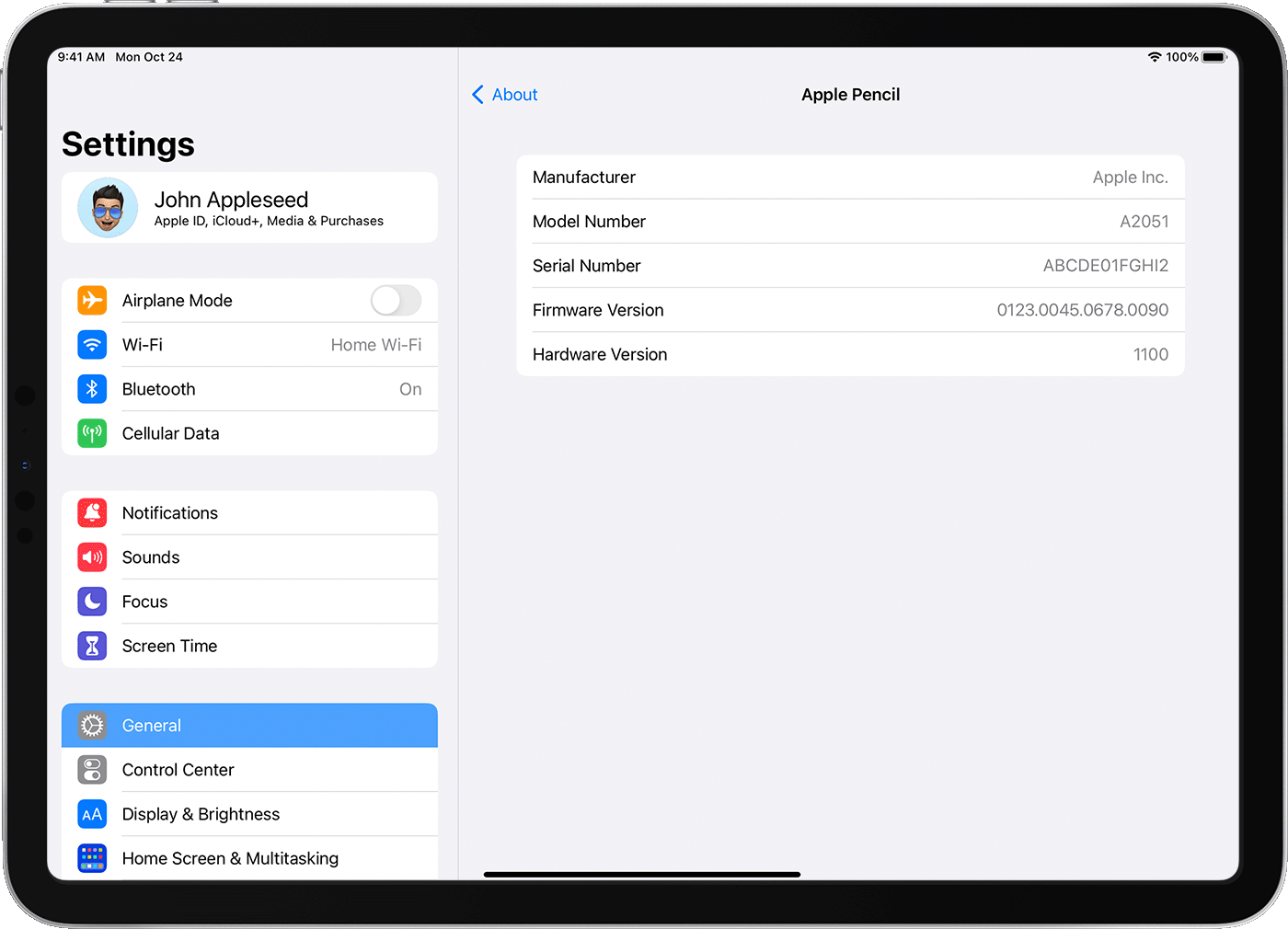
If you searched for "apple pencil Google docs" hoping to write by hand and see it magically turn into typed text, stop here. Google Docs on iOS does not support Scribble-to-text in the main document flow. This means you cannot use your Apple Pencil to write naturally in the canvas and have it converted to editable text. On Android, Google rolled out a stylus handwriting mode in March 2024, but that feature is not available on iPads. On iOS, the only handwriting-related feature is "Markups," which is severely limited: you can view, delete, or toggle the visibility of existing markups, but you cannot create new pen or highlighter annotations directly in the Google Docs app. Before troubleshooting further, you may want to identify your Apple Pencil model to confirm its Scribble compatibility. So, if you need to handwrite inside a Google Doc on an iPad, you must use a workaround, or switch to a dedicated note-taking app where you can write in notability without Apple pencil using just your finger or a passive stylus.
Compatibility check: Which iPads and pencils work
Before you try anything, confirm your iPad supports Apple Pencil. Apple Pencil (1st generation) works with: iPad (6th, 7th, 8th, 9th, 10th generation), iPad Air (3rd generation), iPad mini (5th generation), and iPad Pro 12.9-inch (1st and 2nd generation) and 9.7-inch (1st generation). Apple Pencil (2nd generation) works with: iPad Air (4th and 5th generation), iPad mini (6th generation), and all iPad Pro 11-inch and 12.9-inch (3rd generation and later). Apple Pencil does not work with iPhones. If you are unsure about pairing or calibration, see our calibrate Apple pencil guide for step-by-step instructions.
Workaround 1: Markups mode for simple annotations
On iOS, the Markups feature in Google Docs is not a full annotation tool. You can only view, delete, or toggle the visibility of markups that were added on another device (usually Android). To access Markups on iPad: open your document, tap the three-dot menu, and look for "Markups." If you see existing markups, you can turn them on or off, or delete them. But you cannot use your Apple Pencil to draw, highlight, or write new annotations. This is a read-only management feature, not a handwriting tool. If you need to add your own handwritten notes, skip this and use Workaround 2.
Workaround 2: Export your doc for real handwriting
The primary verified solution for real handwriting with Apple Pencil is to export your Google Doc and open it in a third-party app that fully supports Apple Pencil. Here is the exact workflow:
- Open your document in the Google Docs app on your iPad.
- Tap the three-dot menu (top right corner).
- Select "Share & export" → "Send a copy."
- Choose PDF or Microsoft Word (.docx) as the format. PDF is best for annotations; .docx is best if you want to keep editable text.
- Save the file to Files, or directly open it in GoodNotes, Notability, or OneNote.
- In the third-party app, import the PDF or .docx file.
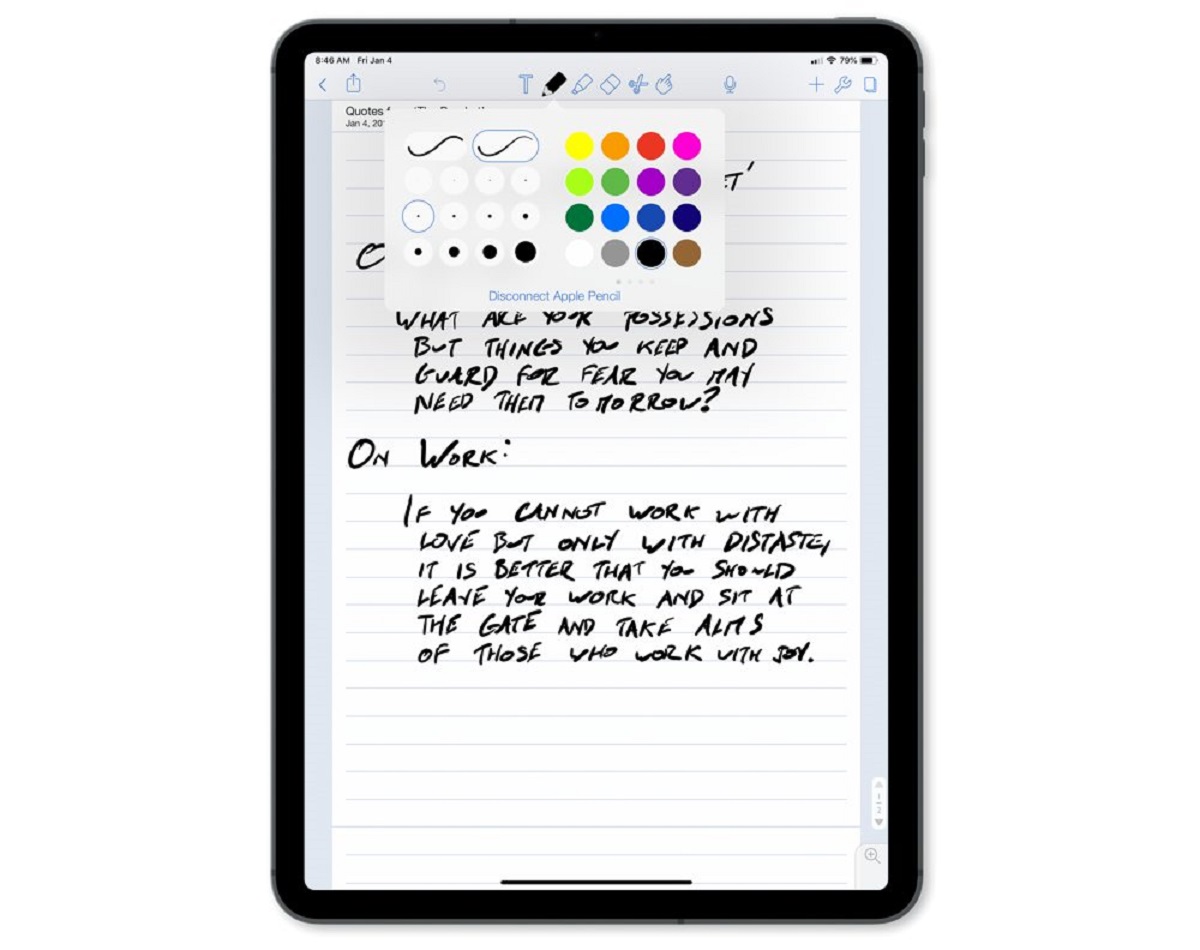
- Now you can use your Apple Pencil to handwrite, highlight, and annotate freely. These apps convert your handwriting to typed text (if you enable that setting) or keep it as digital ink.
This method works reliably because GoodNotes, Notability, and OneNote all have native Apple Pencil support with Scribble-to-text. You lose live collaboration in Google Docs, but you gain real handwriting capability. If you need to get the annotated file back into Google Docs, export the annotated PDF from the note-taking app and upload it to Google Drive, then attach it to your doc or replace the original.
How to select, highlight, and insert media
While you cannot handwrite in Google Docs on iPad, you can use your Apple Pencil as a precise stylus for these tasks:
Select and highlight text
Tap and hold the tip of your Apple Pencil on the starting point of the text you want to select. Drag to the end of the desired text. Release to see the selection toolbar. From there, you can bold, italicize, underline, change color, or delete. To highlight, tap the highlighter icon in the toolbar and choose a color. This works exactly like a finger, but with more precision.
Insert images and tables
Tap the "+" (plus) icon in the top menu. Choose "Image" to insert from your photo library, or "Table" to add a grid. After insertion, tap and hold the image or table with your Apple Pencil to drag and reposition it. You can also resize by dragging the corner handles. These actions are fully supported with Apple Pencil as a stylus.
Bulleted and numbered lists
Place your cursor with a tap, then tap the bulleted list or numbered list icon in the formatting toolbar. To create sub-items, tap "Increase indent." To exit the list, tap the same icon again. This is all stylus-compatible.
Troubleshooting pencil pairing and app glitches
If your Apple Pencil is not working in Google Docs, first check the basics:
- Bluetooth: Go to Settings → Bluetooth and make sure it's on. Your Apple Pencil should appear under "My Devices." If not, reconnect it.
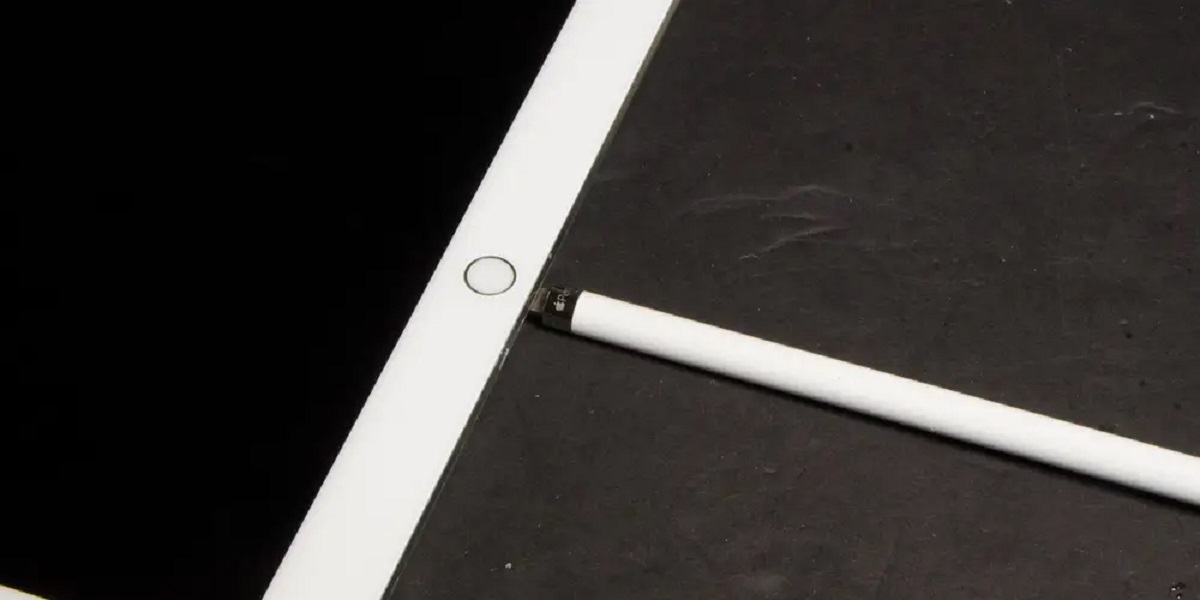
- Battery: Apple Pencil 1st gen: plug it into the Lightning port of your iPad for 15 minutes. Apple Pencil 2nd gen: attach it magnetically to the side of your iPad to charge. Low battery causes intermittent connectivity.
- Restart: Close Google Docs completely (swipe up from the app switcher). Then restart your iPad. Reopen Google Docs and test.
- App-specific glitch: If the pencil works in other apps but not Google Docs, uninstall and reinstall Google Docs. This clears corrupted local data.
- Internet: Google Docs requires a stable connection. If you're offline, some features may not respond to stylus input. Check your Wi-Fi or cellular data.
If the pencil still fails, see our How To Tell If Apple Pencil Is Dead guide for battery diagnostics, or visit the calibrate Apple pencil hub for sensor issues.
Send feedback to Google for better integration
If you want Google to add proper Apple Pencil Scribble support to Google Docs on iOS, you must tell them. Here's how:
- Open the Google Docs app on your iPad.
- Tap the three-dot menu (top right corner).
- Scroll down and tap "Help & feedback."
- Tap "Send feedback" (not "Help").
- Write a concise message: "Please add Apple Pencil Scribble-to-text support in Google Docs on iOS. Android has stylus handwriting, but iPad users cannot write directly in the document."
- Optionally, include a screenshot of the Markups limitation.
- Tap "Send" (the paper plane icon).
Google has acknowledged similar requests in public support threads. While there is no timeline, more feedback increases the priority. Until then, use the export method for real handwriting.
Final practical workflow
To summarize: You cannot handwrite in Google Docs on iPad. For quick text edits, use your Apple Pencil as a stylus for selection and formatting. For actual handwriting, export to PDF and open in GoodNotes, Notability, or OneNote. For collaboration, keep the original in Google Docs and share the annotated PDF separately. This is the only verified way to get "apple pencil Google docs" handwriting today.
For the wider topic, see calibrate Apple pencil.