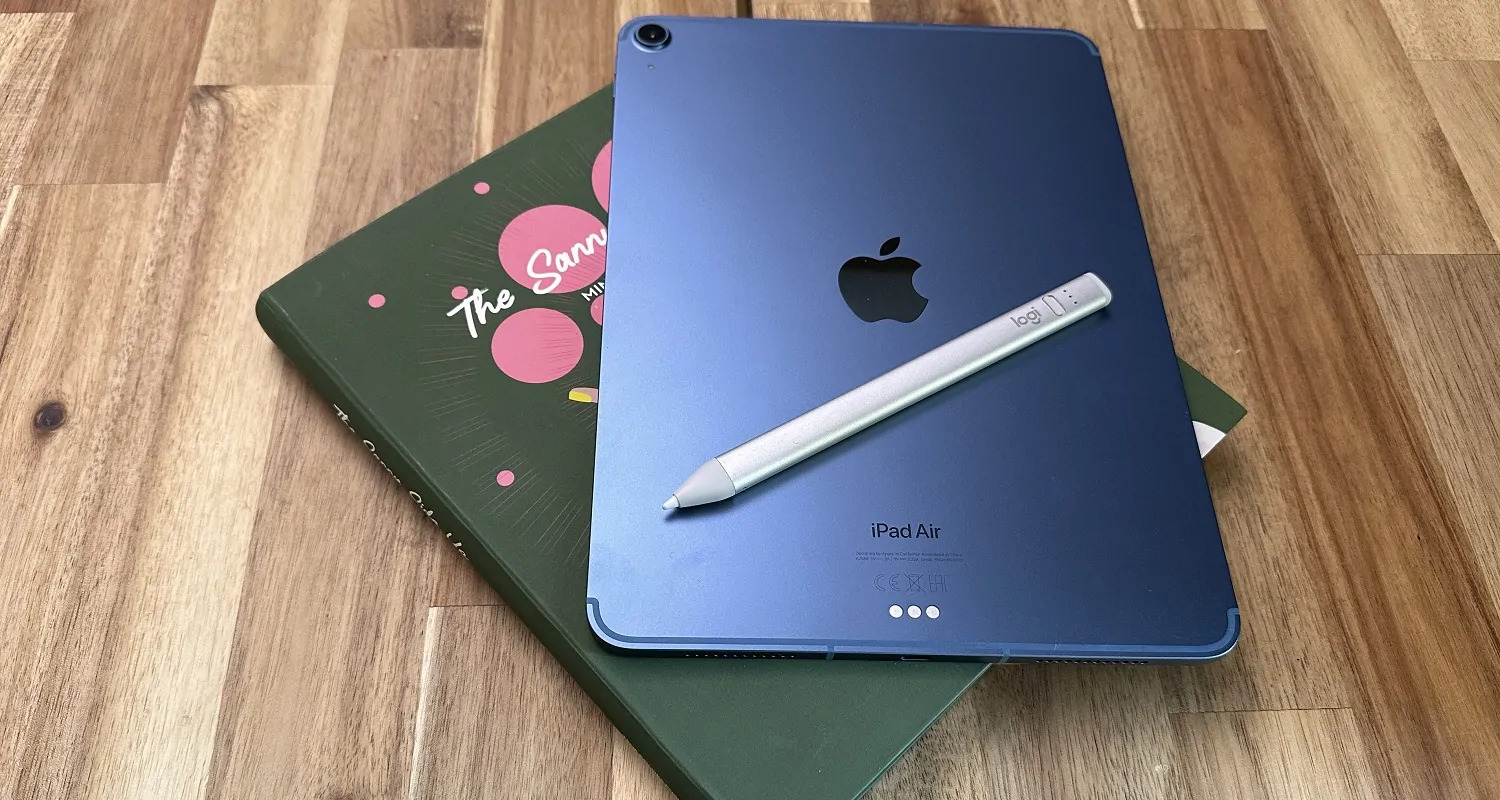
How to connect Logitech Crayon to iPad: the instant method
To connect Logitech Crayon to iPad, simply turn the Crayon on and start using it immediately, no Bluetooth pairing, menus, or setup screens required. Press and hold the power button for one second until the LED light turns green, and the Crayon is instantly ready to write, draw, and navigate on your iPad screen.
Check your iPad compatibility
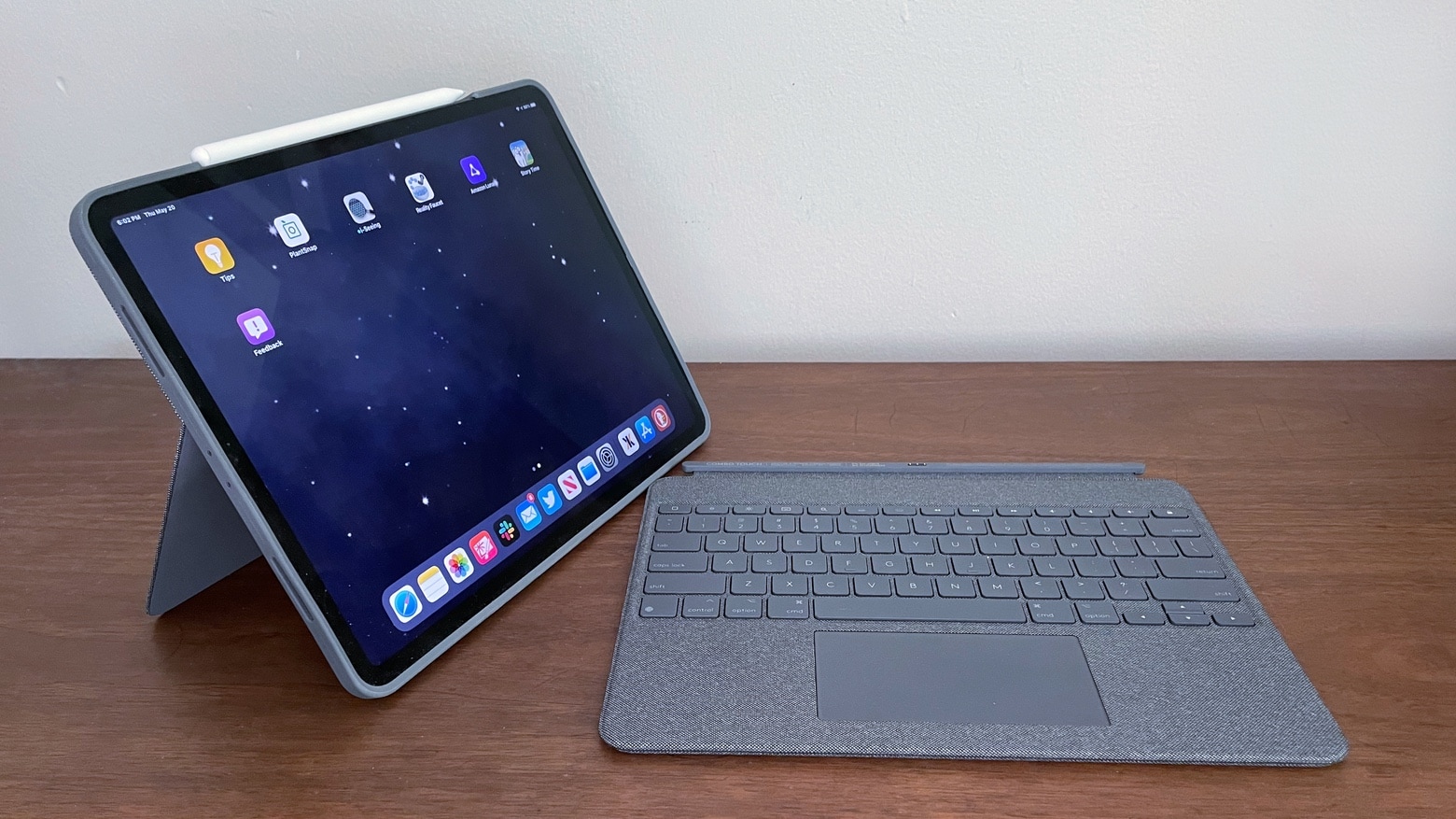
Before you connect Logitech Crayon to iPad, confirm your device is supported. The Crayon works with all iPad models released in 2018 and later, including iPad Pro 12.9-inch (3rd, 4th, 5th, 6th generation), iPad Pro 11-inch (1st, 2nd, 3rd, 4th generation), iPad (6th, 7th, 8th, 9th, 10th generation), iPad Air (3rd, 4th generation), and iPad Mini (5th, 7th generation). Your iPad must also be updated to iOS 12.2 or a later version for the Crayon to function properly.
Prerequisite: disconnect your Apple Pencil
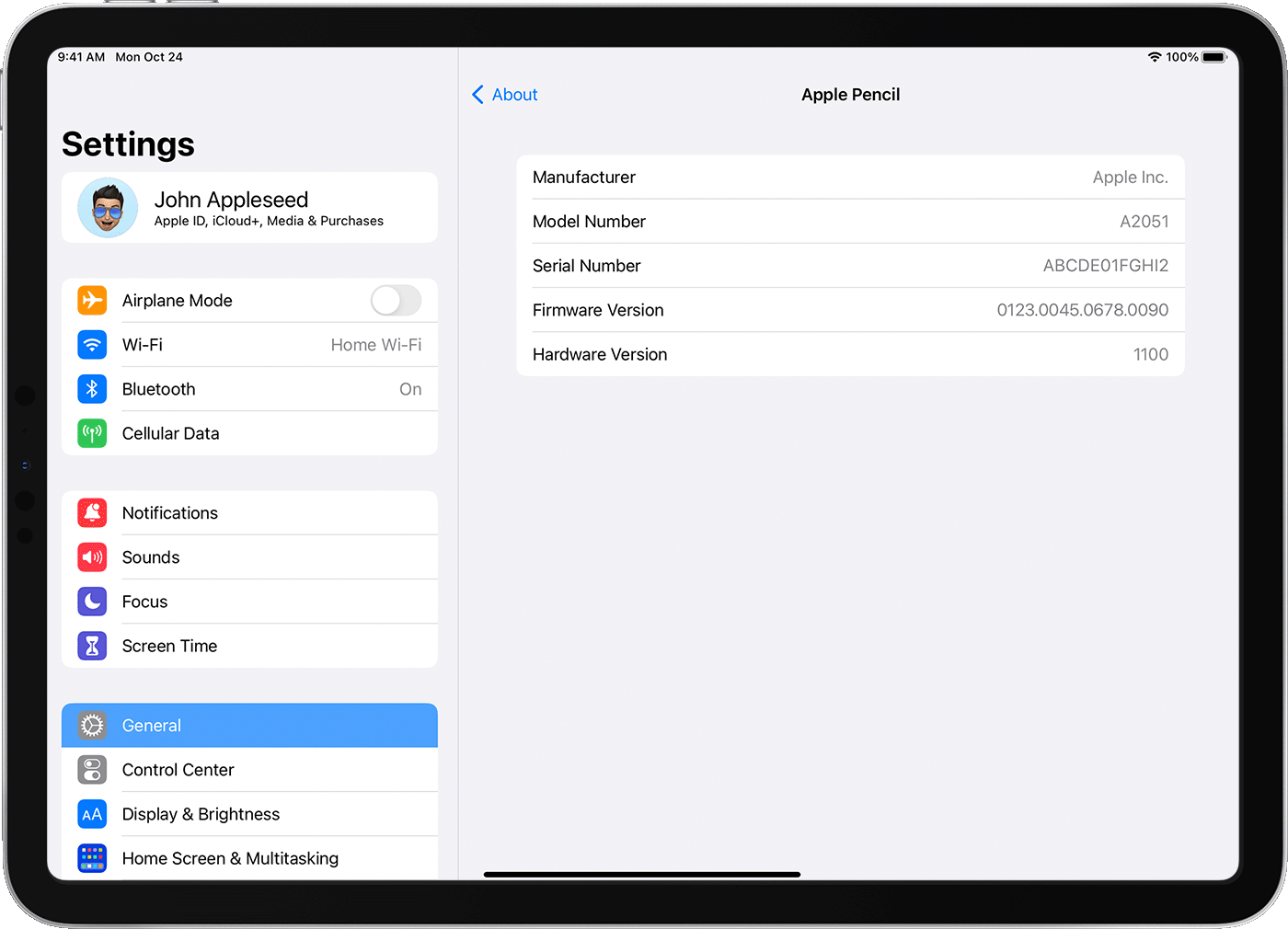
If you have previously used an Apple Pencil with your iPad, you must disconnect it before the Crayon will work, the iPad can only recognize one stylus at a time. To disconnect your Apple Pencil, open Settings on your iPad, tap Bluetooth, find "Apple Pencil" in the device list, and select "Forget This Device." Alternatively, you can simply turn off Bluetooth entirely, though forgetting the device is the more thorough option. This step is essential because a paired Apple Pencil will block the Crayon's instant connection.
Charge and prepare your Logitech Crayon
Your Logitech Crayon charges via a USB-C cable for newer models or a Lightning cable for older models, using the same type of cable as your iPad. A full charge provides up to 7.5 hours of continuous writing time, so you can work through long sessions without interruption. Charging from 0 to 100% takes approximately 30 minutes for USB-C models and 50 minutes for Lightning models, making it quick to top up between uses. The LED indicator on the Crayon shows red while charging and green when fully charged. Note that the Crayon will not function while it is charging, so unplug it before you begin your work.
Turn on and start using your Crayon
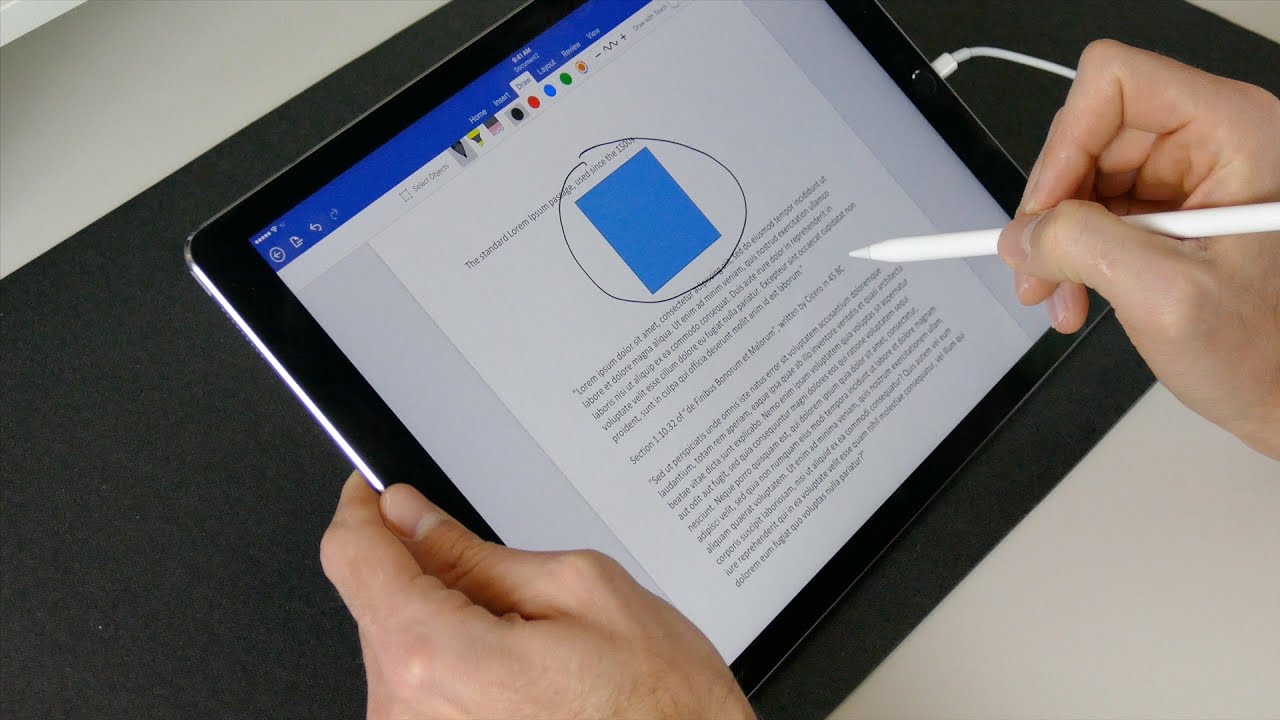
To connect Logitech Crayon to iPad and begin using it, press and hold the power button for one second, that's all it takes. The LED light will turn green, confirming the Crayon is active and ready. There is no pairing mode, no Bluetooth menu to navigate, and no waiting for detection. Once the green light appears, the Crayon is immediately usable on the iPad screen, allowing you to write, draw, or navigate apps right away. This instant-on design is one of the Crayon's biggest advantages over traditional Bluetooth styluses.
Test functionality and key features
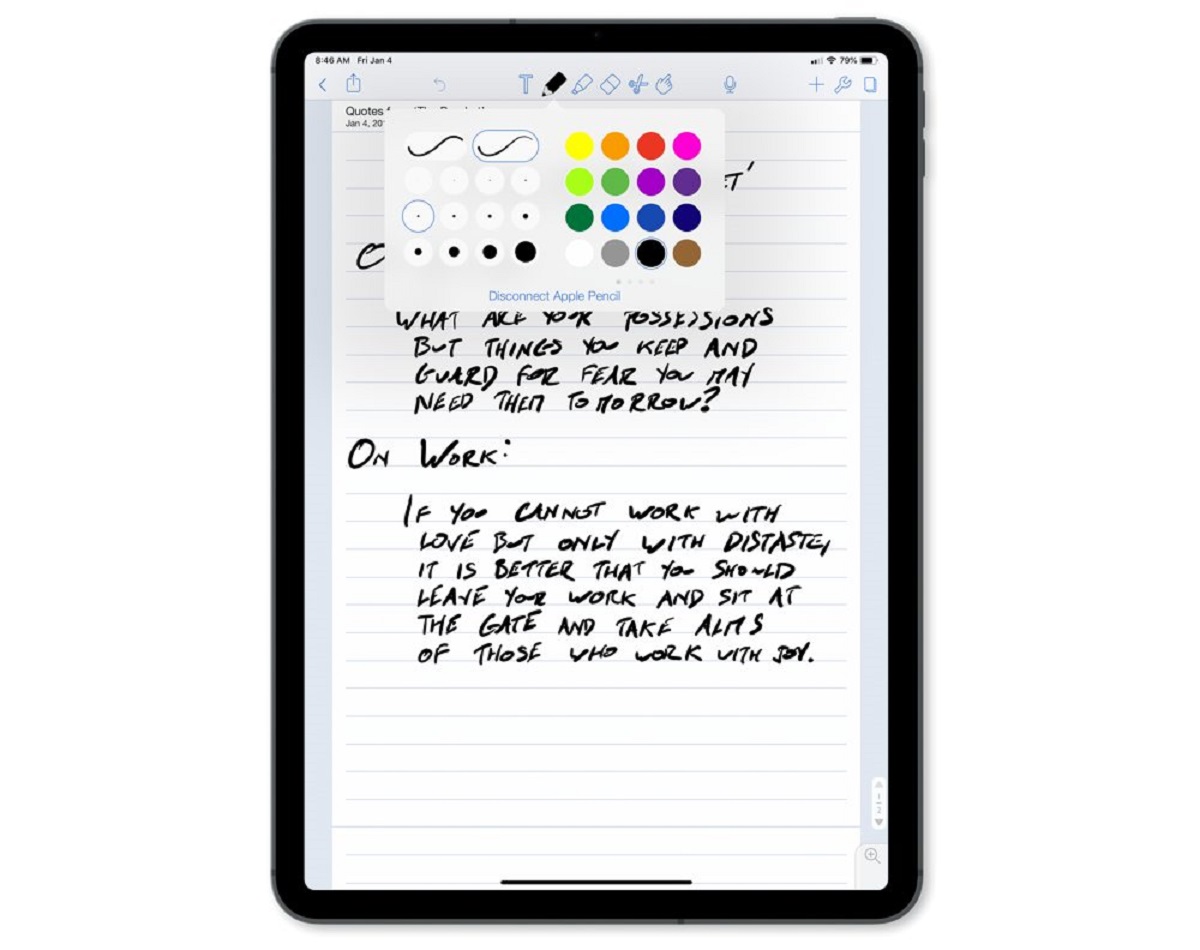
After connecting, test the Crayon's tilt sensitivity by angling the stylus while drawing a line, you should see the stroke width change dynamically, which is perfect for shading and artistic effects. The Crayon also supports palm rejection, so you can rest your hand on the screen while writing without causing accidental marks. However, the Crayon is not pressure sensitive, meaning pressing harder won't produce thicker lines; instead, you'll need to rely on tilt and app settings for line variation. The Crayon automatically powers off after 30 minutes of inactivity to conserve battery life, so you don't need to worry about turning it off manually.
Troubleshooting: what to do if it's not working
If your Crayon isn't responding, first check that the tip is screwed on tightly, a loose tip is the most common cause of connection or input issues. Next, verify the Crayon has sufficient charge by connecting it to a power source and checking the LED indicator; if it flashes red, it needs charging. Finally, confirm that no Apple Pencil is still paired to your iPad, as outlined in the prerequisite section above. If these steps don't resolve the issue, restart your iPad and try again. The Crayon works with hundreds of apps compatible with Apple Pencil, available in the App Store, so once it's functioning, you'll have a wide range of tools at your disposal.
\nRelated reading: How To Tell Which Apple Pencil I Have, How To Calibrate Apple Pencil, and How To Write In Notability Without Apple Pencil.