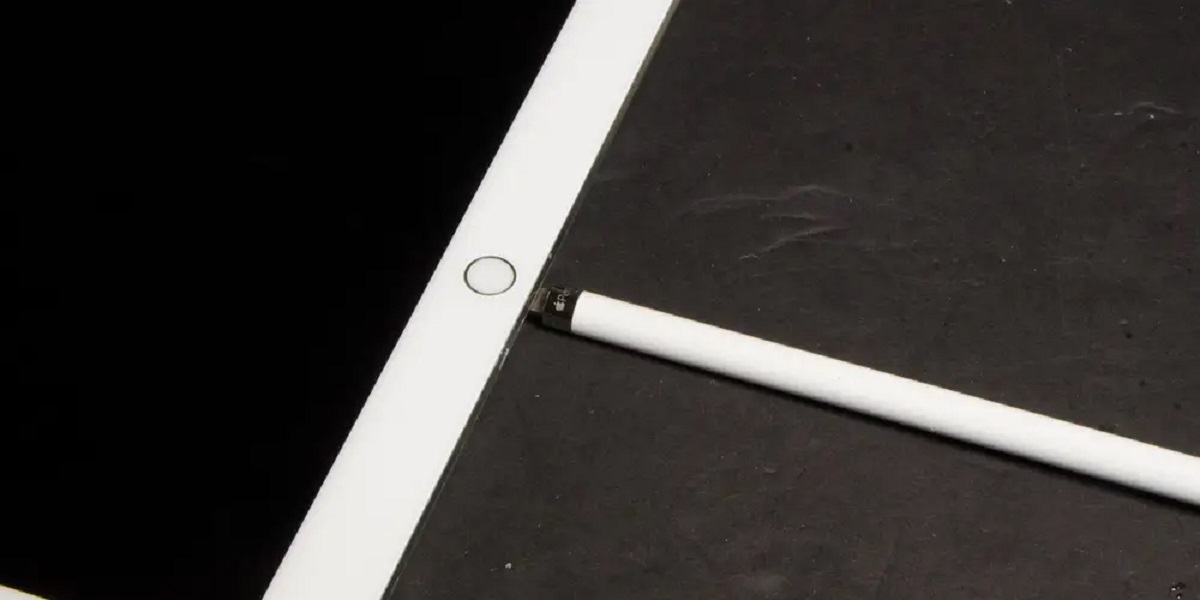
To tell if your Apple Pencil is dead, start by checking its battery level in the iPad’s Settings app or via the Batteries widget, if it shows 0% or won’t appear at all, that’s your first confirmation. A truly dead Apple Pencil will show no charge, no Bluetooth connection, and no response to taps or drawing, but many “dead” pencils are simply drained or mispaired. While you troubleshoot, you can still write in notability without Apple pencil using your finger or a third-party stylus.
How to tell if your Apple Pencil is dead, check the battery first
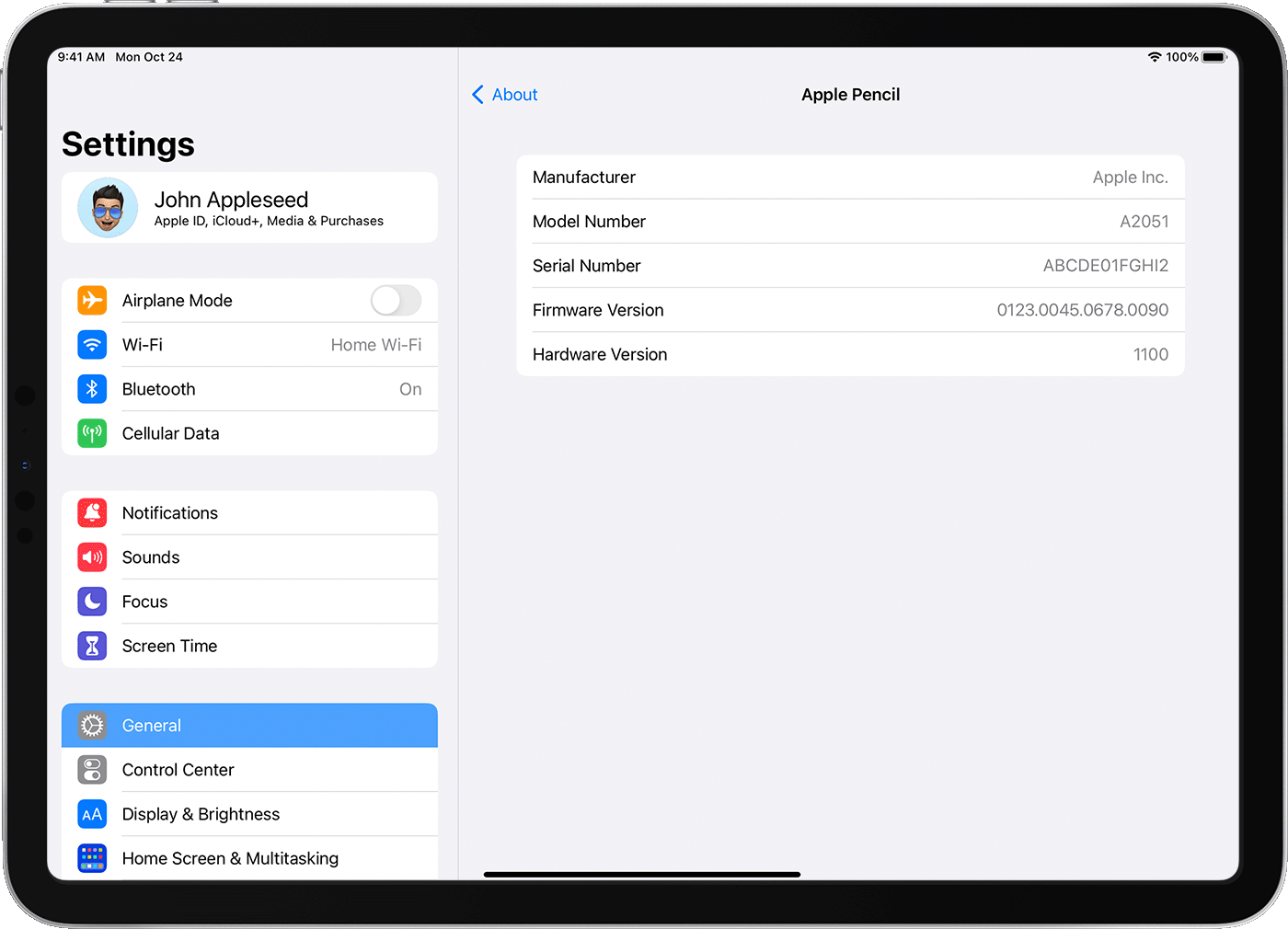
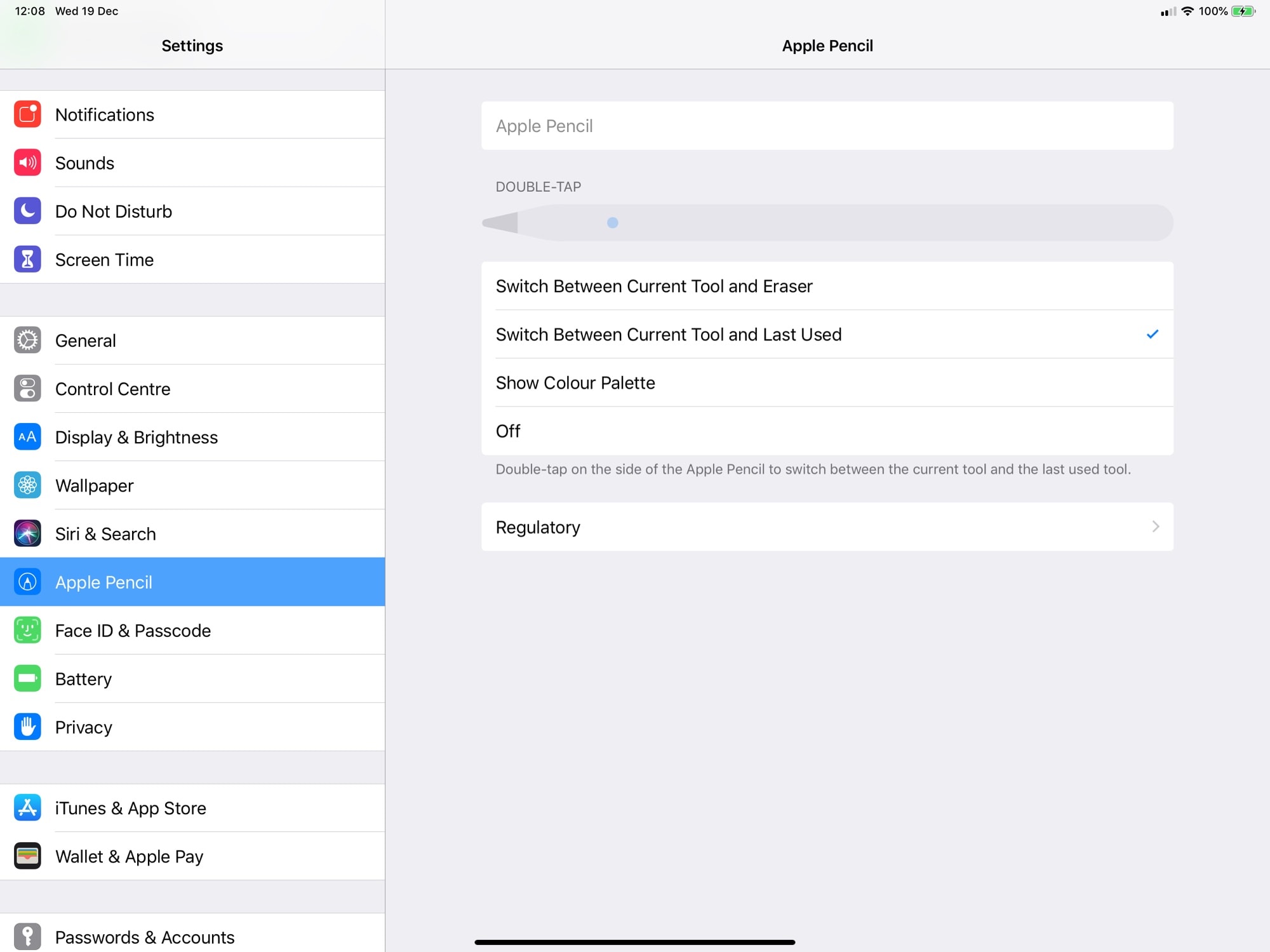
Immediately open the Batteries widget on your iPad’s Home Screen or Today View, press and hold the wallpaper, tap the plus icon, search for “Batteries,” and add it. This widget displays the Apple Pencil’s exact percentage alongside your iPad’s battery. Alternatively, go to Settings > Apple Pencil, where the battery level appears at the top of the screen. If the percentage reads 0% or the pencil doesn’t show up at all, you’ve found the likely cause of the dead behavior. Charge it for at least 15 minutes, then re-check the widget, if the number climbs, the pencil wasn’t dead, just drained.
Signs your Apple Pencil may be dead or failing
Beyond a 0% battery reading, several symptoms point to a dead or failing Apple Pencil. No response when tapping or drawing on the screen is the most obvious sign, the iPad simply ignores every stroke. A missing Bluetooth connection is another red flag: open Settings > Bluetooth and look for the pencil; if it’s absent or stuck on “Not Connected,” the device isn’t communicating. No charging indicator when you attach the pencil to the iPad (either via Lightning or magnetic snap) suggests a dead battery or a broken charging circuit. Frequent disconnections during use, even after a full charge, indicate internal failure. Unresponsive buttons, the flat side on the 2nd generation or the tip/eraser on the 1st, also signal that the pencil’s electronics are failing. If you see any combination of these, treat the pencil as suspect but not yet confirmed dead, because several fixes can revive it.
Troubleshooting why your Apple Pencil won’t charge
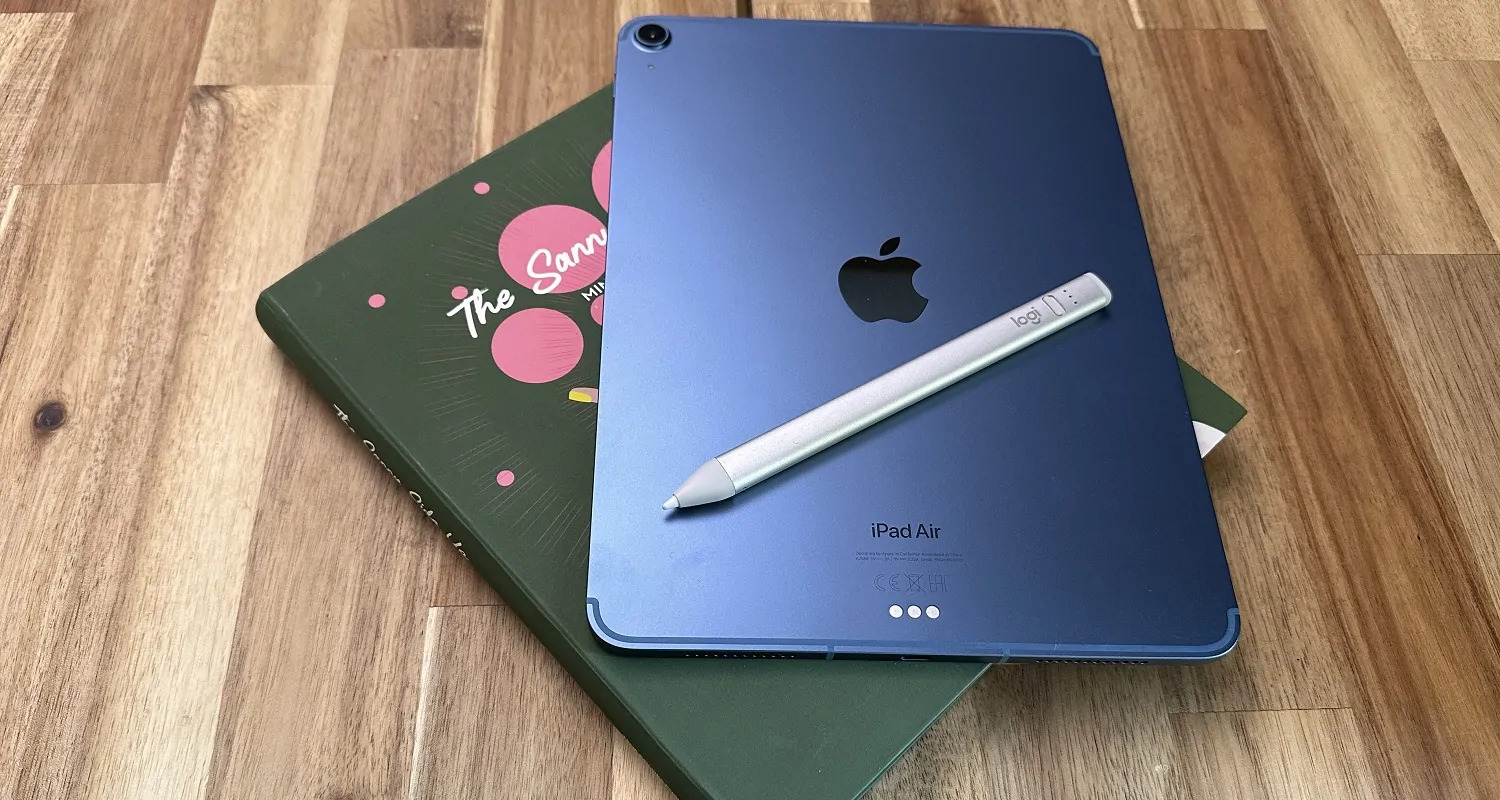
Charging failures usually stem from a few common culprits, and fixing them often brings the pencil back to life. First, confirm compatibility: the 1st generation Apple Pencil only works with older iPad models that have a Lightning port, while the 2nd generation requires a compatible iPad Pro, iPad Air, or iPad mini with magnetic charging. If the models don’t match, the pencil will never charge. Next, inspect the Lightning port on the 1st generation pencil for debris, lint, dust, or pocket fuzz can block the connection; use a soft, dry toothbrush or a wooden toothpick to gently remove it. For the 2nd generation, check that the magnetic attachment on the iPad’s side is clean and that the pencil snaps on flush; a misaligned magnet or a case interfering with the attachment will prevent charging. Also, verify Bluetooth is on, go to Settings > Bluetooth and toggle it off and on. If none of that works, restart your iPad by holding the power button until the slider appears, then slide to power off and turn it back on. Finally, forget the pencil in Bluetooth settings (tap the “i” icon, select “Forget This Device”), then re-pair it by attaching it to the iPad or plugging it in; this clears any software glitch blocking the charge circuit.
Physical damage and tip issues to inspect
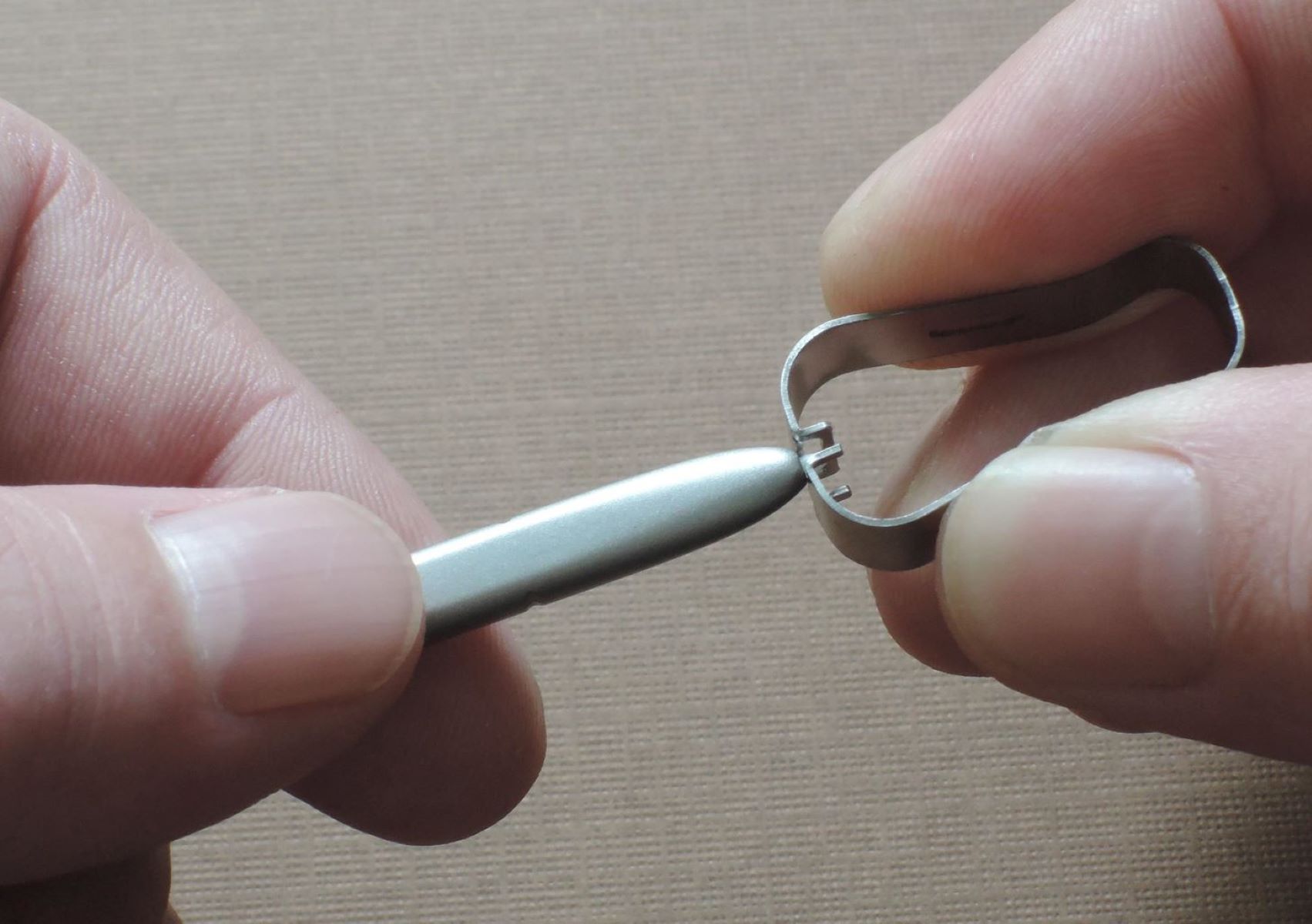
If charging still fails, examine the pencil’s physical condition. Look for cracks, dents, or bent areas along the barrel, any impact damage can break the internal battery or the charging connector. On the 1st generation, unscrew the cap and inspect the Lightning connector for bent pins, corrosion, or debris; clean it with a lint-free cloth. On the 2nd generation, check the flat magnetic edge for scratches or foreign objects that might interrupt the connection. The tip is a common failure point: if it’s worn down, chipped, or loose, the pencil won’t register input even when charged. Unscrew the tip counterclockwise, inspect the threads, and replace it with a new one, Apple sells four-packs of replacement tips. If you want to make sure the tip is the problem, try swapping it with a known-good tip from another pencil. Also, clean the iPad’s charging area, both the Lightning port (for 1st gen) and the magnetic strip (for 2nd gen), with a dry, soft cloth to remove any oily residue that could block the connection. After cleaning, reattach the pencil and check the battery widget again.
Resetting your Apple Pencil as a last resort
When physical inspection and charging fixes fail, a full reset can clear persistent software issues. Start by unpairing the pencil: go to Settings > Bluetooth, tap the “i” icon next to the Apple Pencil, and choose “Forget This Device.” Then charge the pencil for at least 15 minutes, attach it to the iPad’s magnetic connector or plug it into the Lightning port (whichever applies to your model) to ensure it has enough power for the reset process. Restart your iPad completely by holding the power button until the slider appears, sliding to power off, waiting a few seconds, then powering back on. After the iPad boots, re-pair the pencil: for the 1st generation, plug it into the Lightning port; for the 2nd generation, snap it onto the magnetic connector. A pairing prompt should appear, tap “Connect.” Test the pencil immediately by drawing in any app; if it responds, the reset worked. If it still shows no charge or no connection, the pencil is likely dead at the hardware level. Note that this reset also clears any custom double-tap settings on the 2nd generation, so you’ll need to reconfigure those in Settings > Apple Pencil afterward.
When to contact Apple Support
If you’ve tried every step above and the pencil remains unresponsive, it’s time to get professional help. Visit the Apple Support website (support.apple.com) and navigate to the iPad or Apple Pencil section, where you can start a chat or schedule a call. Alternatively, open the Apple Support app on your iPad or iPhone, select “Apple Pencil,” and choose “Chat” or “Call” to speak with a specialist. For hands-on diagnosis, book an appointment at an Apple Store or an authorized service provider, they can run diagnostic tests and determine if the pencil needs repair or replacement. Before you contact them, have your iPad model and Apple Pencil generation ready, plus a list of the troubleshooting steps you’ve already tried. If your pencil is still under warranty or covered by AppleCare+, the repair or replacement is typically free; if not, they’ll quote a price. While you wait, you can also check your iPad’s serial number to confirm which generation you own, or use the Settings > Apple Pencil screen to verify compatibility, which can help you identify your Apple Pencil model if you’re unsure, and it also allows you to calibrate Apple pencil settings like double-tap actions once the device is working again. Apple Support will guide you through any remaining fixes or arrange a replacement, so don’t give up until they’ve given you a definitive answer.