A CPU-GPU bottleneck is the performance limit created when one component reaches 100% utilization before the other, forcing the slower part to dictate your system's overall speed. It's unavoidable because every system always has a slowest link, and a zero-bottleneck system does not exist, so the goal isn't elimination but management.
What is a CPU GPU bottleneck and why it's unavoidable
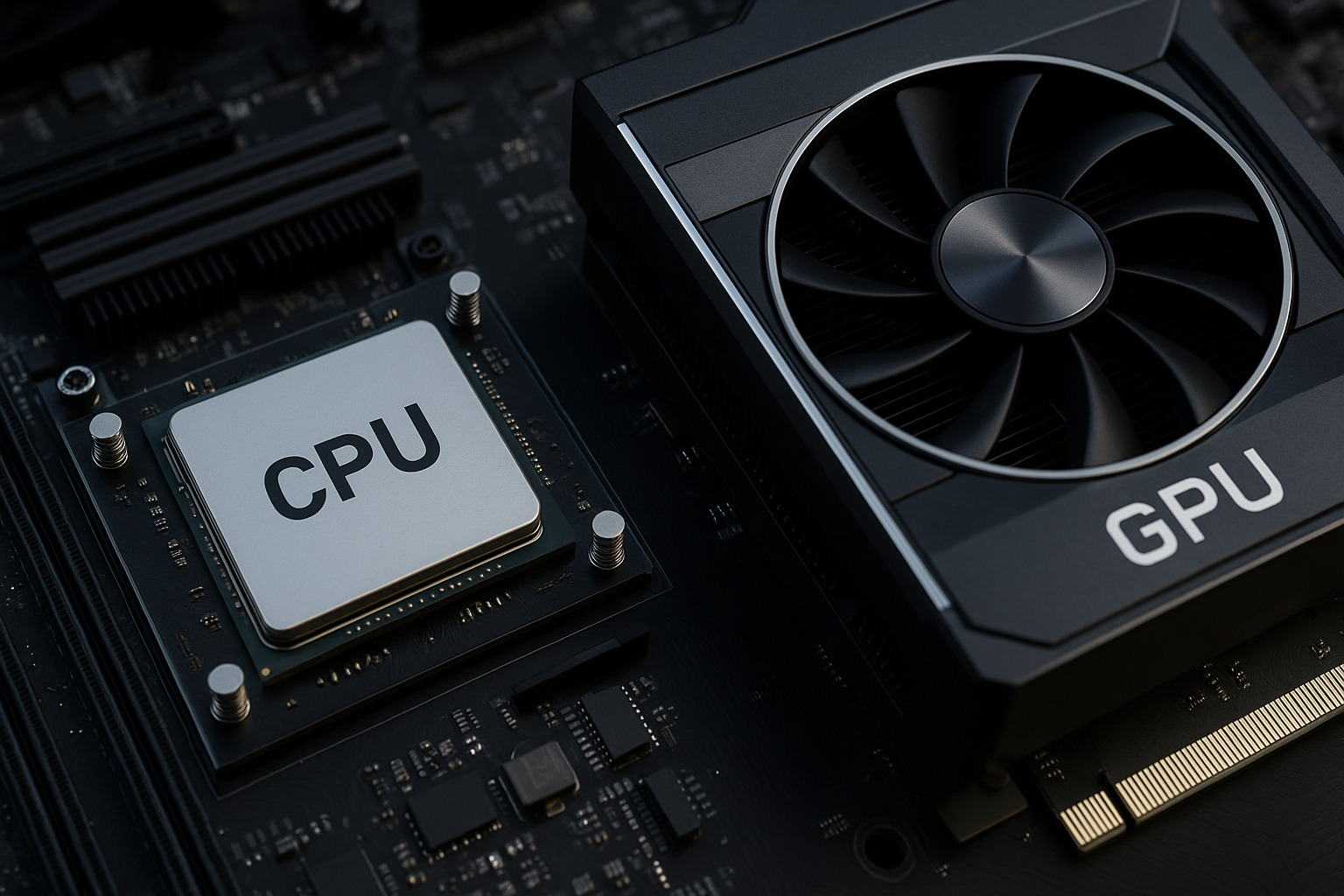
A bottleneck occurs when one component maxes out its capacity while the other waits for work. In gaming, the CPU prepares frames, handling game logic, physics, and AI, while the GPU renders those frames into pixels. This imbalance is inherent to computing: no two components process data at identical speeds in every scenario. Even a perfectly matched CPU and GPU will bottleneck differently across games, resolutions, and workloads. Accepting this reality helps you focus on reducing the impact rather than chasing an impossible zero-bottleneck setup.
How to instantly identify your bottleneck with usage monitoring
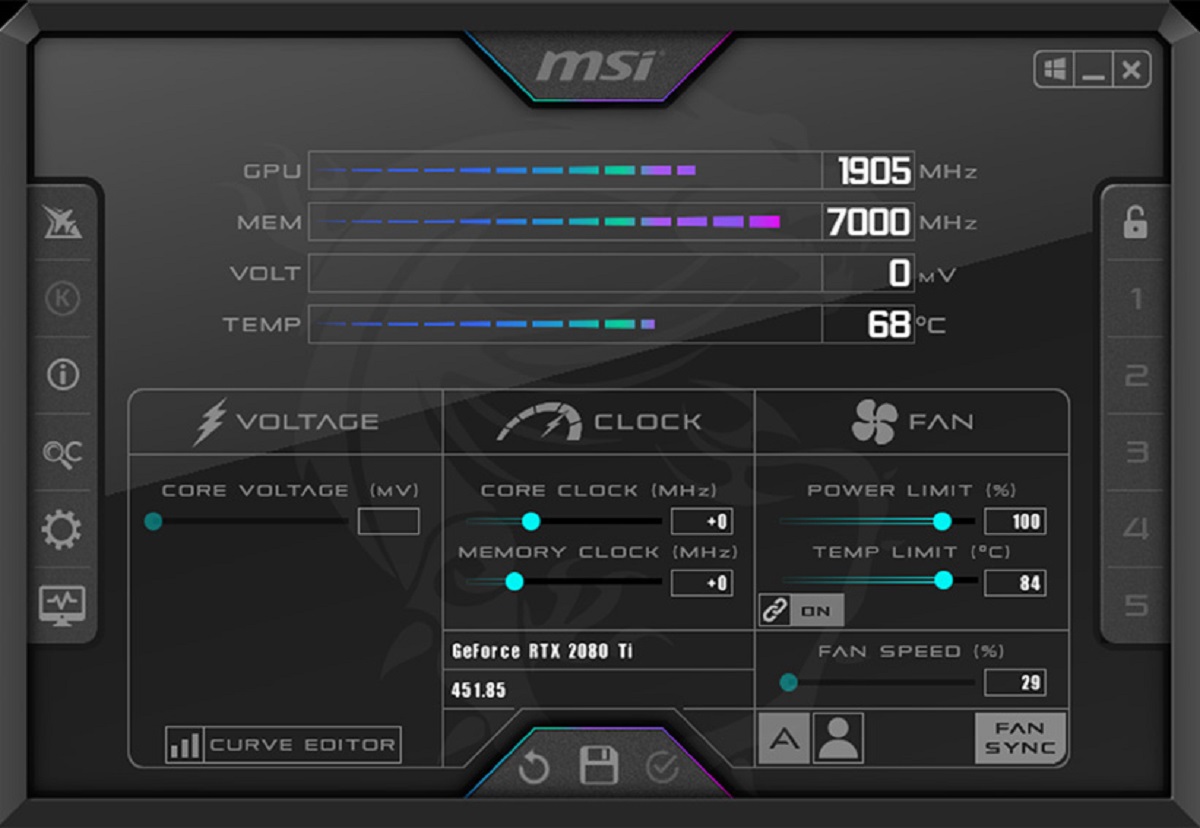
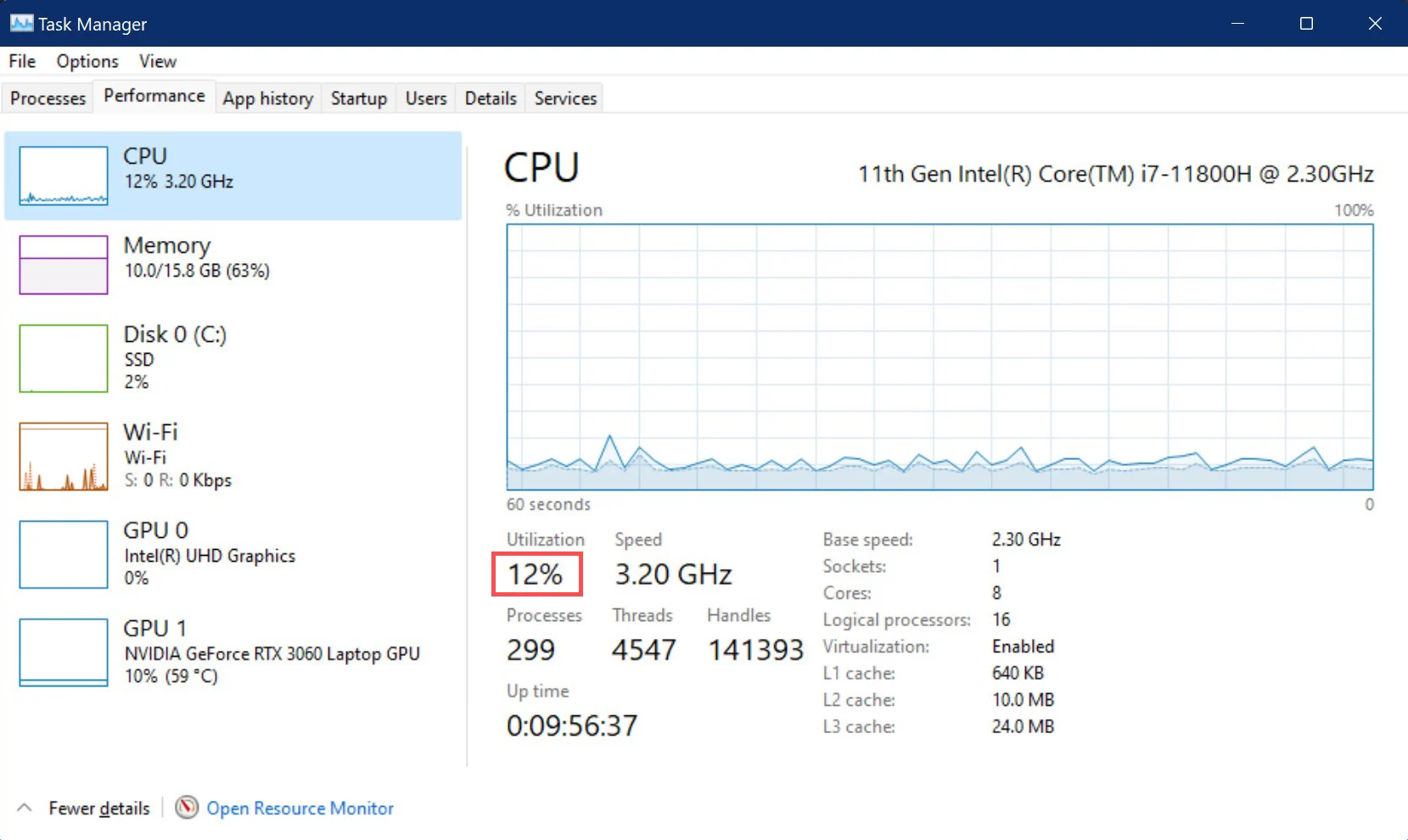
A bottleneck calculator gives a quick estimate of whether your CPU and GPU are well matched, but real testing gives the most reliable answer. The fastest way to diagnose which component is limiting your system is to monitor usage percentages during real workloads. Open MSI Afterburner or Task Manager while running a game or demanding application, then check both CPU and GPU utilization. If the GPU sits at 95-100% while the CPU stays below 80-90%, you have a healthy GPU bottleneck, the graphics card is working at full capacity, which is the ideal gaming scenario because it means your visuals are maximized. If the CPU hits 100% while the GPU usage drops below 90%, the processor is your bottleneck; it cannot feed frames fast enough, leaving graphics power unused. Run the same test across different games, as a CPU-heavy title like a strategy game may show different results than a GPU-heavy shooter. For a quick check, Task Manager's performance tab gives real-time graphs, but MSI Afterburner offers more detailed per-core data and frame time tracking. If you confirm a CPU bottleneck, you can often allocate more CPU to a game by adjusting process priority to reduce background interference.
The resolution test and what settings load each component
Resolution directly shifts the workload between CPU and GPU, making it a reliable diagnostic tool. Lower the resolution to 720p or 1080p, if your frame rate stays roughly the same, the CPU is the bottleneck because it cannot prepare frames faster regardless of how little work the GPU has. Raise the resolution to 1440p or 4K, if frame rates drop proportionally, the GPU is the limiting factor, as it struggles to render more pixels. Beyond resolution, specific settings target each component. CPU-intensive settings include draw distance, crowd density, physics calculations, and AI behavior, these increase the number of objects and calculations the processor must handle. GPU-intensive settings include ray tracing, textures, ambient occlusion, high-resolution shadow maps, and anti-aliasing, these demand more from the graphics card's rendering pipeline. Insufficient VRAM on the GPU also creates a bottleneck because the card constantly streams assets in and out of memory, stalling rendering even when the core is fast.
Common causes for each type of bottleneck
CPU bottlenecks typically stem from low clock speed, outdated architecture with low instructions per cycle (IPC), insufficient core or thread count for the workload, thermal throttling that reduces performance under sustained load, or slow RAM speed and memory bandwidth. These factors limit how quickly the processor can process game logic and feed the GPU. GPU bottlenecks arise from demanding visual settings such as high resolution, ray tracing, ambient occlusion, high-resolution shadow maps, anti-aliasing, and high texture quality. Insufficient VRAM capacity also causes a GPU bottleneck by forcing constant asset streaming. A CPU bottleneck is more common at lower resolutions like 1080p because the GPU finishes rendering quickly, exposing the CPU's frame-preparation limits. A GPU bottleneck dominates at higher resolutions where pixel rendering becomes the primary workload.
How to fix a CPU bottleneck
- Upgrade the CPU or platform, moving to a newer generation with higher IPC and more cores directly addresses the root cause.
- Install faster RAM with higher clock speeds and lower latency; memory bandwidth directly affects CPU frame-preparation speed.
- Close background applications that consume CPU cycles, including browsers, streaming software, and antivirus scans.
- Lower CPU-heavy game settings like crowd density, view distance, and physics detail to reduce the processor's workload.
- Ensure adequate cooling to prevent thermal throttling, which silently reduces CPU clock speeds under sustained load.
These steps reduce the CPU's frame-preparation time, allowing it to feed the GPU more consistently. If you play at 1080p with a high-refresh-rate monitor, a CPU upgrade often yields bigger gains than a GPU upgrade because the processor is the limiting factor at that resolution.
How to fix a GPU bottleneck
- Reduce resolution or texture quality to lower the GPU's rendering load, dropping from 4K to 1440p or from ultra to high textures often restores smooth frame rates.
- Upgrade the GPU to a model with more VRAM and higher rendering throughput, especially if you play at high resolutions with large texture packs.
- Ensure the power supply unit meets the GPU's power demands; an underpowered PSU causes instability and performance drops.
- Update GPU drivers regularly, as new driver versions often include optimizations for recent game releases.
- Lower ray tracing and shadow settings, which are among the most GPU-intensive options and can cut performance significantly.
A GPU bottleneck at high resolution is often acceptable because visual fidelity takes priority over maximum frame rates. However, if frame rates drop below playable levels, reducing settings or upgrading the graphics card becomes necessary.
Quick comparison table for CPU GPU bottleneck scenarios
| Scenario | Typical Signs | Fix Approach |
|---|---|---|
| CPU-limited | GPU usage below 90%, CPU cores at 100%, frame rate drops at lower resolutions | Upgrade CPU, faster RAM, lower CPU-heavy settings, close background apps |
| GPU-limited | GPU at 95-100%, CPU below 80%, frame rate scales with resolution | Lower resolution/textures, upgrade GPU, update drivers, reduce ray tracing |
| Mixed | Both CPU and GPU at high usage, stutter during intense scenes | Balance workload, close background tasks, optimize settings for both components |
How to prioritize your fix for real-world gaming and work
Prioritize fixing a CPU bottleneck that causes stutter and inconsistent frame pacing, as this directly harms gameplay smoothness. A GPU bottleneck at high resolution is often acceptable because visual quality matters more than raw frame rates in many games. For productivity tasks like video editing or 3D rendering, identify which component your software actually uses, some tools are CPU-bound, others GPU-accelerated. A balanced system prevents either component from consistently limiting the other, but perfect balance is unnecessary. If you play at 1080p, invest in a stronger CPU; if you play at 4K, invest in a stronger GPU. Monitor both components under load with performance tools, compare benchmark scores against expected results, and adjust hardware or settings so that neither component consistently limits the other. Keep all firmware and drivers updated, and build systems with components that complement each other instead of pairing extremes. The most practical approach is to target the bottleneck you actually experience in your primary use case, not to chase theoretical balance across every possible workload.
\nRelated reading: Mortal Kombat 9 PC Emulation Minimum System Requirements and What Does 8 Core CPU Mean.