To download Sublime Text, visit the official Sublime Text website and select the appropriate installer for your operating system. This text and source code editor, not a full Integrated Development Environment (IDE), is prized for its speed, cross-platform compatibility, and extensive plugin ecosystem, making it a top choice for both coding and general text editing.
Before you download sublime text
Sublime Text is a sophisticated text editor designed for code, markup, and prose. Unlike a full Integrated Development Environment (IDE), it focuses on fast editing and relies on plugins for features like debugging. It runs on Windows, macOS, and Linux operating systems, offering a consistent experience across platforms. Sublime Text can be downloaded and evaluated for free indefinitely, but a license must be purchased for continued use. For Windows, Sublime Text requires Windows 7 or later, a 64-bit processor, and at least 2 GB of RAM. Sublime Text 4 for Mac includes native support for both Intel (x86_64) and Apple Silicon (arm64) processors. Note that 32-bit builds of Sublime Text have been discontinued and do not include Git Integration.
How to download sublime text
- Open your web browser and navigate to the official Sublime Text website.
- On the homepage, you will see download options for Windows, macOS, and Linux.
- For Windows, most users should download and run the normal installer; a portable version is also available. Choose the 64-bit installer.
- For macOS, download the .dmg file.
- For Linux, select the appropriate package for your distribution or download the archive.
How to install sublime text on your system
Windows installation
Run the downloaded .exe installer. Follow the on-screen prompts to complete the installation. The default settings are suitable for most users.
macOS installation
To install on macOS, download the .dmg file, open it, and drag the Sublime Text application bundle into the Applications folder. This places the editor in your system's application directory.
Linux installation
Use your distribution's package manager (e.g., apt for Ubuntu, dnf for Fedora) to install Sublime Text, or download the .tar.bz2 archive and extract it to a desired location.
Launching and understanding the interface
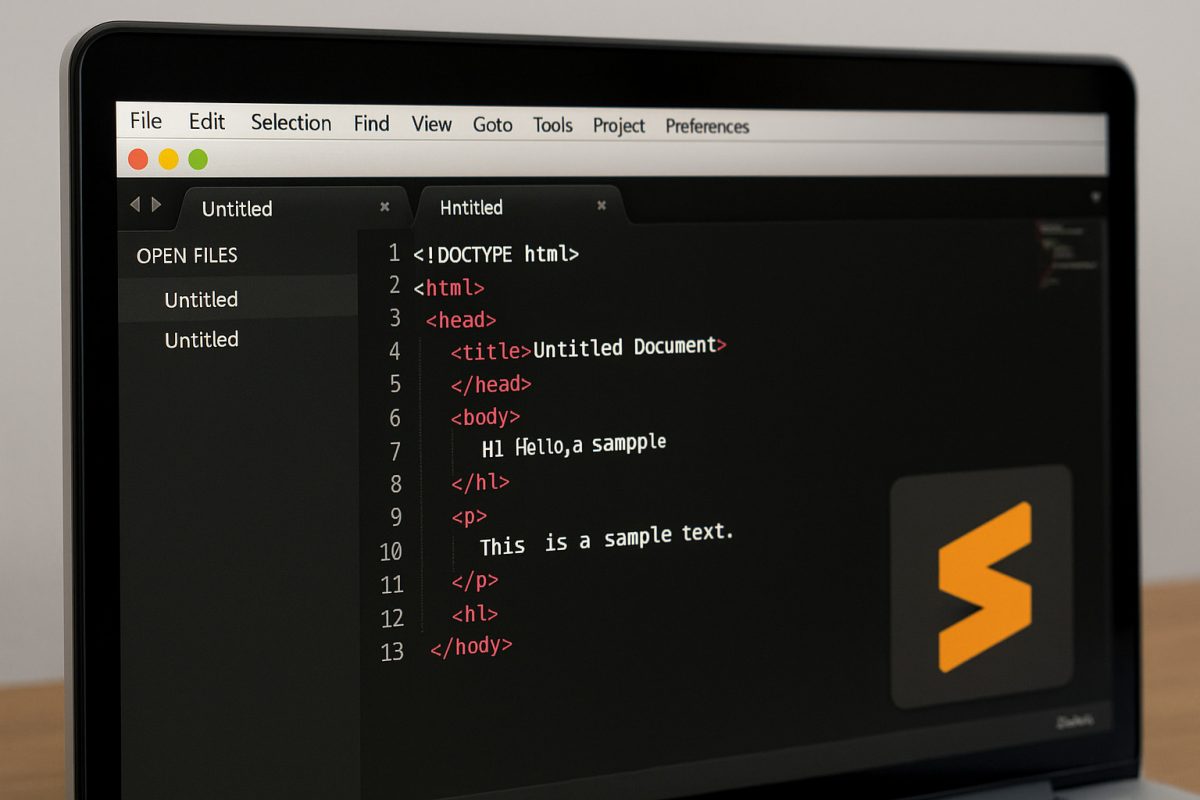
After installation, launch Sublime Text. You will see a clean, minimal interface. The Menu Bar at the top provides access to file operations, editing commands, and tools. The Sidebar can display folders and files for easy project navigation. The Tab System lets you work on multiple files simultaneously. The Minimap on the right provides an overview of your code structure, allowing you to scroll and jump to sections quickly.
Opening, creating, and saving files
Use the File menu to open existing files or create new ones. You can also drag and drop files directly into the editor from your file manager. Essential keyboard shortcuts include Ctrl/Cmd+N for a new file and Ctrl/Cmd+S to save. When saving a new file, specify the filename and extension (e.g., .html, .py, .txt) to enable proper syntax highlighting.
Essential features and shortcuts for beginners
Multiple Cursors allow you to edit multiple lines or points simultaneously. Hold Ctrl (Windows/Linux) or Cmd (macOS) and click in different places, or use Ctrl/Cmd+D to select the next occurrence of a word for bulk editing. The Command Palette (Ctrl/Cmd+Shift+P) is your gateway to every command in Sublime Text; you can search and run actions without navigating menus. Go To Anything (Ctrl/Cmd+P) lets you jump to files, lines, or symbols instantly by typing their names. Split Editing arranges files side by side using View > Layout options, which is ideal for comparing code or working on multiple files. Syntax Highlighting automatically detects file types and applies color coding; you can change it manually via View > Syntax.
How to set up the subl command-line tool
To use the subl command-line tool, you may need to manually add the Sublime Text installation directory to your system's PATH environment variable on Windows or create a symbolic link on Mac. On macOS, open a terminal and run ln -s /Applications/Sublime Text.app/Contents/SharedSupport/bin/subl /usr/local/bin/subl. On Windows, add the Sublime Text installation folder (e.g., C:\Program Files\Sublime Text\) to your system's PATH variable through System Properties.
Installing and managing packages with package control
Package Control is a crucial tool for easily installing plugins and extending Sublime Text's functionality. To install it, open the Command Palette, type "Install Package Control", and press Enter. After restarting, open the Command Palette again and type "Package Control: Install Package". Search for packages like Emmet for faster HTML and CSS workflow, or SublimeLinter for real-time code analysis. To manage installed packages, access Preferences > Package Control to disable, remove, or update them.
Customizing your settings and key bindings
Go to Preferences > Settings to edit user preferences. The right panel contains your custom settings, while the left shows defaults. Common customizations include adjusting the font size with "font_size": 14 and changing the color scheme with "color_scheme": "Monokai.sublime-color-scheme". Modify shortcuts via Preferences > Key Bindings to create a personalized workflow, overriding default key bindings with your own.
Tips for better productivity and keeping updated
Enable auto-save by adding "save_on_focus_lost": true in your user settings. Organize large projects by adding folders to the sidebar with Project > Add Folder to Project. Use distraction-free mode via View > Enter Distraction Free Mode for focused writing or coding. Sublime Text checks for updates automatically, and you can also visit the official website to download the latest version. Package Control updates installed plugins automatically when new versions are available.
Related reading: How To Find Ethernet Ip Address, Where Is Discord Installed, and AULA Keyboard RGB Not Working On Mac Or Linux.