To check battery level on Logitech MX Keys, you can quickly glance at the LED indicator near the On/Off switch or open the Logi Options+ software on your computer. These methods give you the exact remaining percentage so you never face an unexpected power loss during important work.
How to check battery level on Logitech MX Keys: An introduction explaining the importance of monitoring battery life and
Monitoring your keyboard's battery life ensures you stay productive without interruptions. The Logitech MX Keys offers three reliable ways to check its power status: the physical LED on the keyboard itself, the Logi Options+ software, and your computer's Bluetooth settings. Each method provides a different level of detail, from a quick color-coded glance to an exact percentage.
Method 1: Check the LED indicator on the keyboard
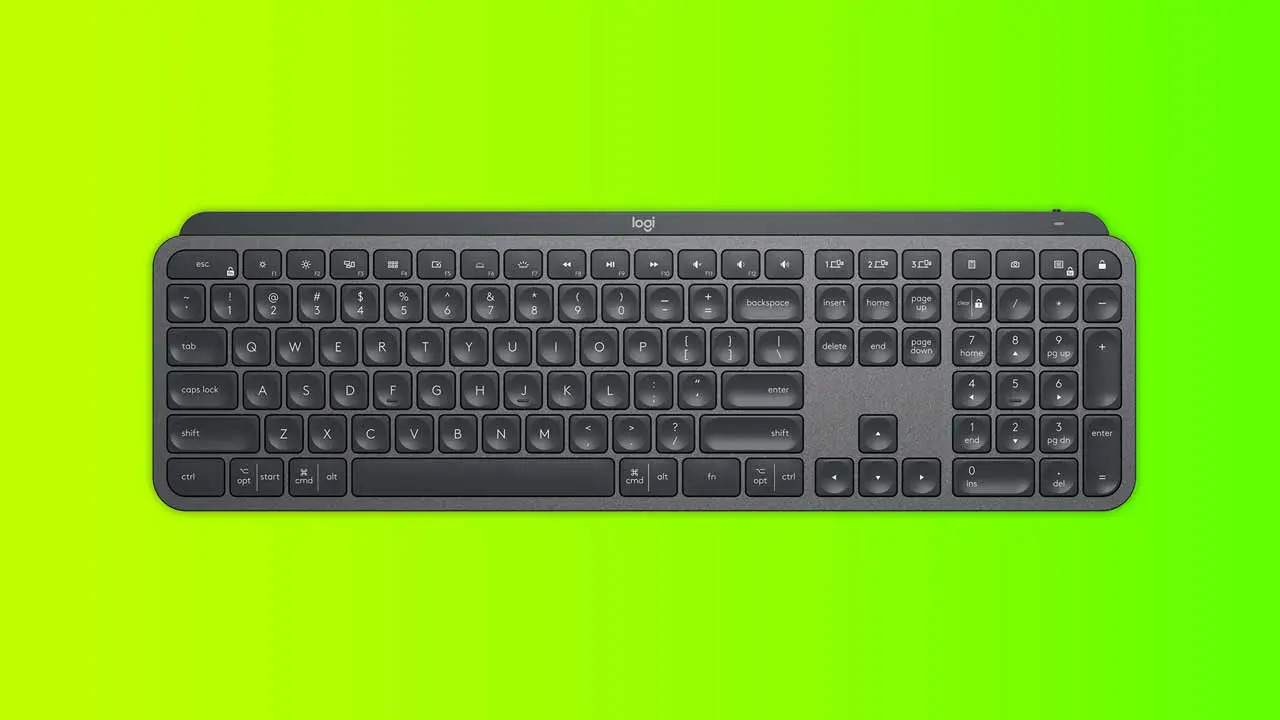
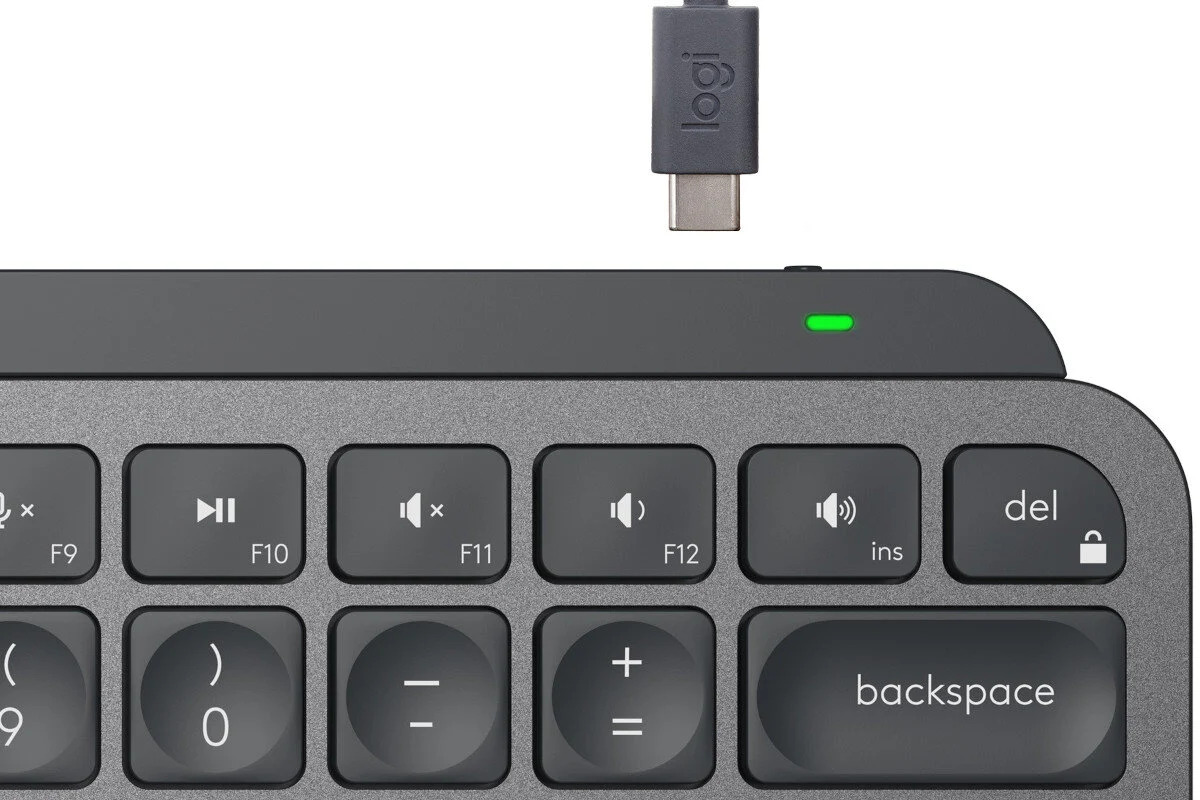
The fastest way to gauge your battery is by looking at the small LED near the On/Off switch on the keyboard's top edge. This LED uses two colors to communicate the charge level at a glance:
- Green LED: Battery level is between 11% and 100%.
- Red LED: Battery level is at 10% or below.
When the battery level reaches 10% and below, backlighting on the keyboard will turn off automatically to conserve power. This visual cue helps you know it's time to recharge without needing to open any software.
Method 2: Use the Logi Options+ software
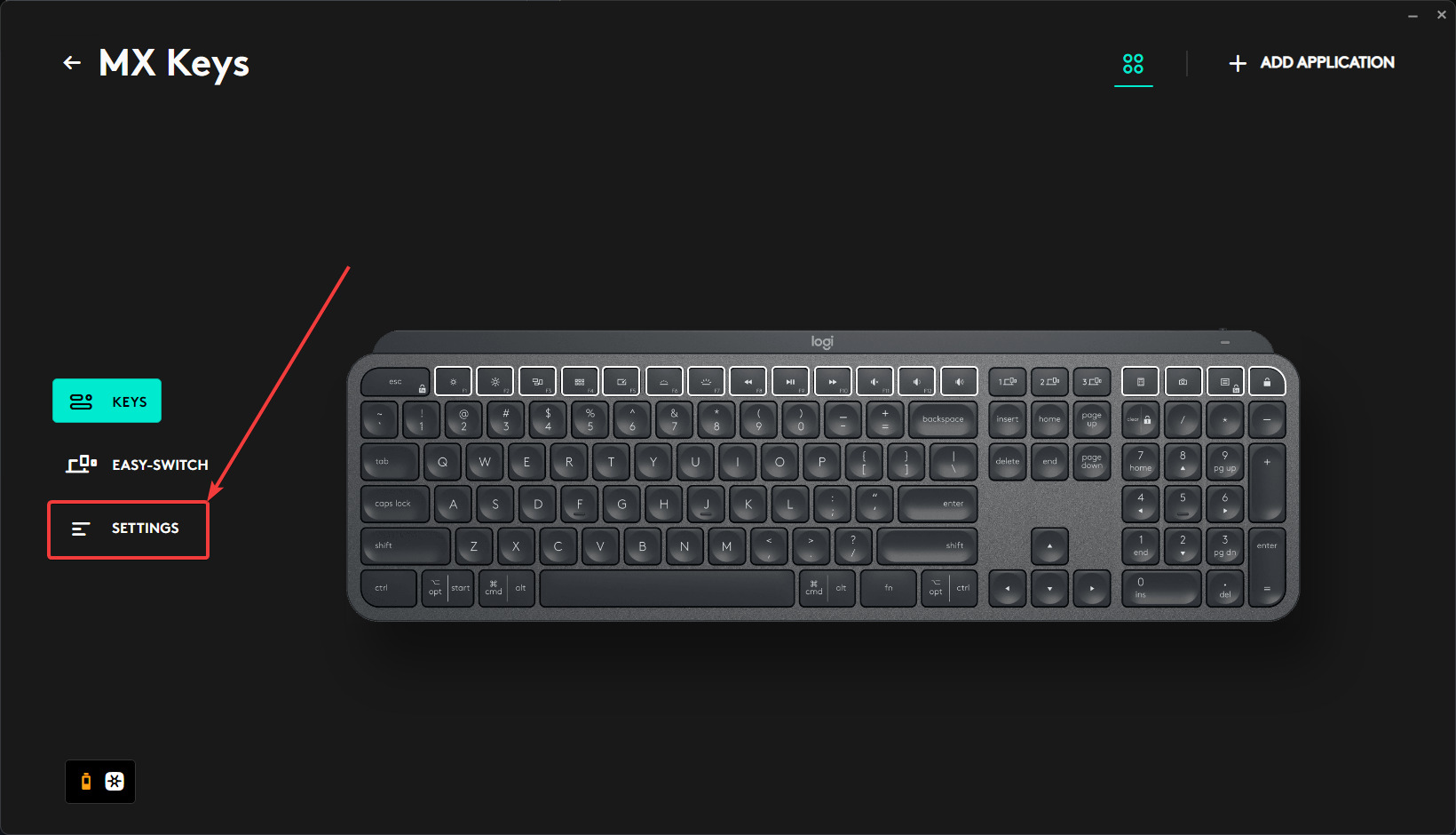
For a precise percentage, open the Logi Options+ application on your computer. The home screen will display a list of your connected devices, and under the MX Keys image you will see its battery level. The level can appear as a numeric value from 0-100% or as 1-3 pips. If you see the pip indicator, here is what each pip means:
- 1 pip: 0-10% battery
- 2 pips: 11-80% battery
- 3 pips: over 81% battery strength
Using Logi Options+ gives you the most accurate readout so you can plan your charging schedule precisely.
Method 3: Check your computer's Bluetooth settings
Your operating system also displays the battery level of connected Bluetooth devices. The battery level displayed in Bluetooth settings will update every time the computer and Bluetooth peripherals are connected.
On Windows
- Press Win+R to open the search bar.
- Type "Bluetooth" and select "Bluetooth and Other devices".
- Locate your MX Keys in the device list and check its battery level.
On macOS
- From the menu bar, right-click the Bluetooth icon and select "Bluetooth Settings…".
- Alternatively, go to Apple menu > System Settings… > Bluetooth.
- Find your MX Keys and view its battery level.
What to do when your battery is low
When the LED shows red or the software reports a low percentage, recharge the keyboard using the included USB-C cable. Plug one end into the keyboard and the other into a USB port on your computer or a compatible power adapter. Keep a habit of monitoring the level to avoid interruptions during your workflow.
\nRelated reading: How To Connect Logitech Mx Keys, How To Pair Logitech Mx Keys Mini, and How To Reset Logitech Mx Keys Keyboard.