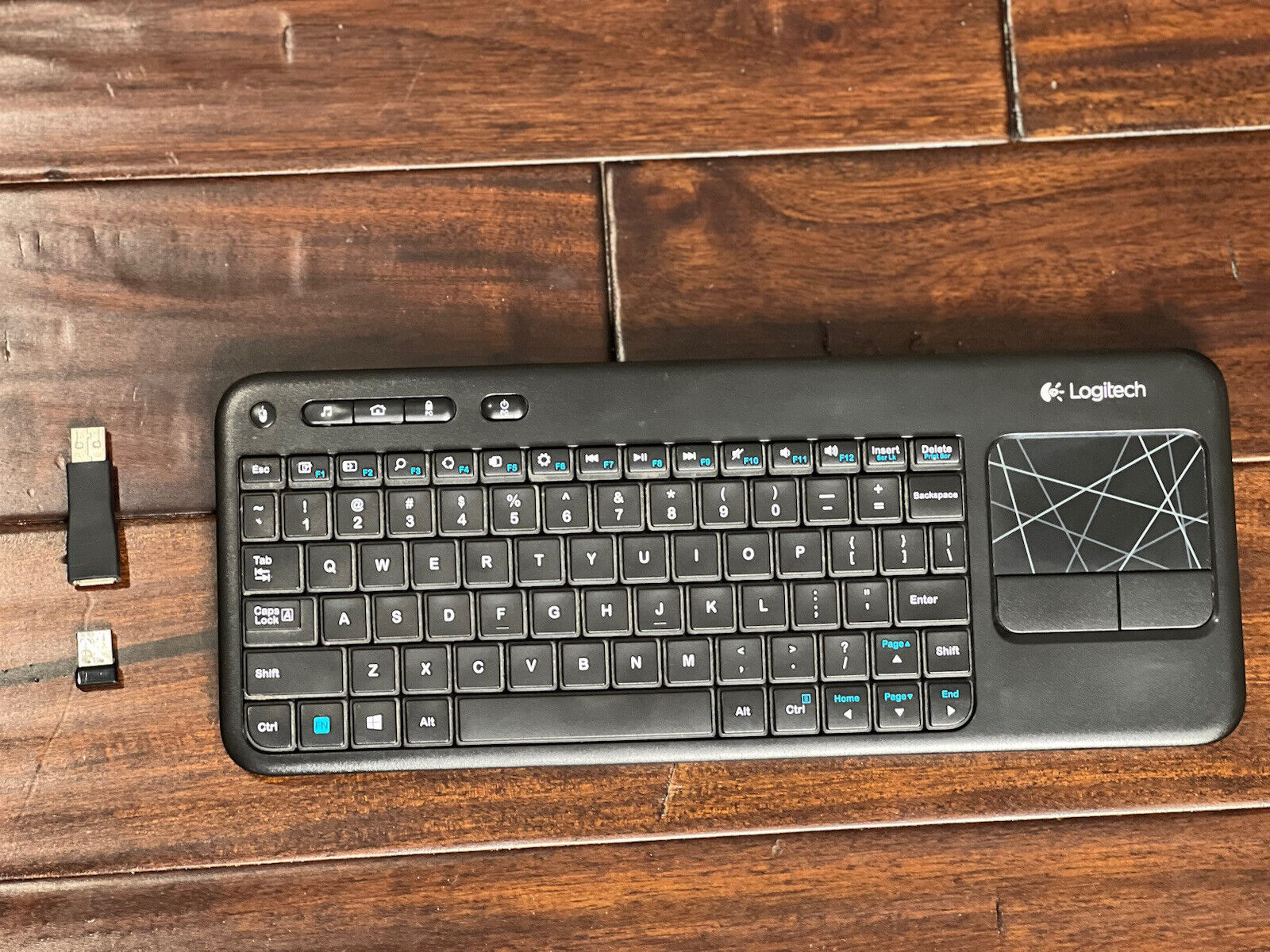
The Logitech Connection Utility is officially available on Logitech's support site under 'Downloads' for your specific keyboard model, but it only works on Windows 7, 8, and 10. If you're on Windows 11 or macOS, the utility won't install and you'll need to use the manual reset key combination instead.
Resetting a Keyboard With the Logitech Connection Utility
The one sentence no other guide will give you: the Connection Utility is the only tool that can force a re-pair of an older LIGHTSPEED gaming device that has lost its link, and it will not install on Windows 11 or macOS.
The Logitech Connection Utility is officially available on Logitech’s support site under ‘Downloads’ for your specific model. It only works on Windows 7, 8, and 10. On Windows 11 or macOS, the utility won’t install and the manual reset key combination becomes the only path forward.
Finding the Correct Download
Open Logitech’s support site and type the model number into the search bar. That number lives on a sticker under the battery cover. On the product page, click the “Downloads” tab and filter by “Software” or “Utilities.” The Logitech Connection Utility appears as a small standalone installer, usually under 5 MB. Avoid third-party download sites. They often bundle adware or supply corrupted files that fail to run. If the utility is missing under your specific model, try searching for a generic “Unifying Receiver” page. Logitech sometimes hosts the tool there for all compatible devices. The utility’s sole purpose is to pair a wireless peripheral with a Logitech LIGHTSPEED receiver. That is why it is also the tool you use to reset a Logitech wireless keyboard when it stops responding, and if a simple re-pair fails, you may need to reset Logitech mx keys keyboard to factory settings first.
When the Utility Won’t Install
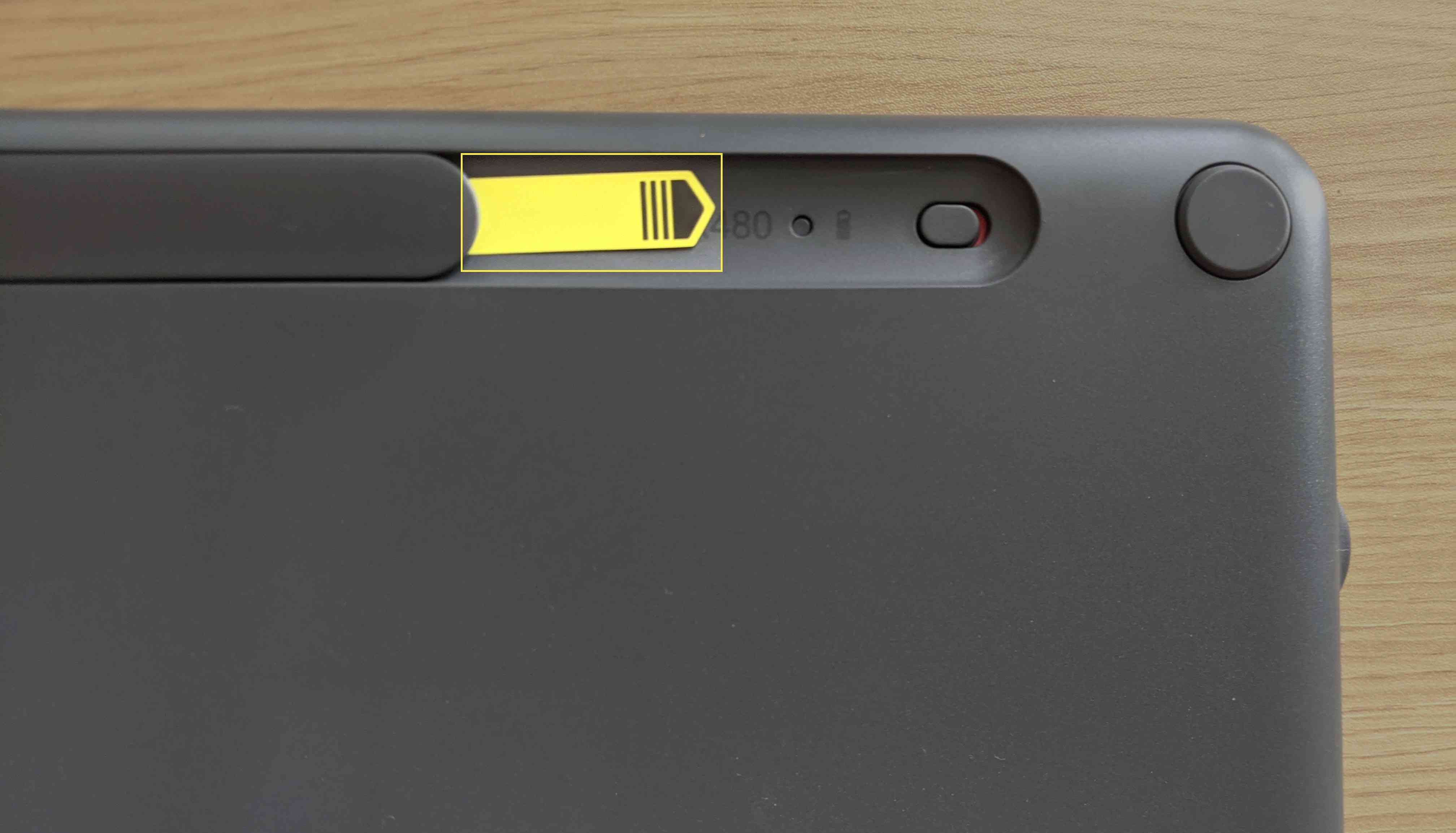
On Windows 11, the installer typically halts with a “This app can’t run on your PC” error. Logitech never updated the utility beyond Windows 10. macOS users face the same block because the .exe file cannot open at all. In these cases, the manual reset key combination takes over. For most Logitech wireless input devices, press and hold the Connect button for five seconds, then release. This button is often a small recessed circle on the bottom or near the battery compartment. If there is no Connect button, try the Fn + Esc sequence for 3 seconds. If the keyboard remains unresponsive, you may need to unlock a Logitech wireless keyboard before it will accept new pairing commands. After the reset, re-pair the device by pressing the Connect button on the receiver and then on the hardware again.
Connection Utility vs Logi Options+
Logi Options+ is a modern driver suite for Bluetooth and Logitech Flow-enabled products. It does not replace the Connection Utility for older non-Bluetooth hardware that uses a Unifying receiver. A tiny USB receiver marked with an orange Unifying logo requires Logi Options+, not the Connection Utility. Options+ only recognizes devices that connect via Bluetooth or use the newer Bolt receiver. Installing Options+ for an older model yields a “No compatible device found” message. Check the receiver’s logo to confirm which software you need. An orange star means Unifying and Logi Options+. A green circle with a lightning bolt means Bolt or direct Bluetooth and Options+. If Options+ is already installed and failed, uninstall it before running the Connection Utility. The two can conflict. The Connection Utility’s interface is plain. It is a single window with “Connect” and “Unpair” buttons. It remains the only tool that can force a reset or re-pair of an older LIGHTSPEED gaming device that has lost its link.