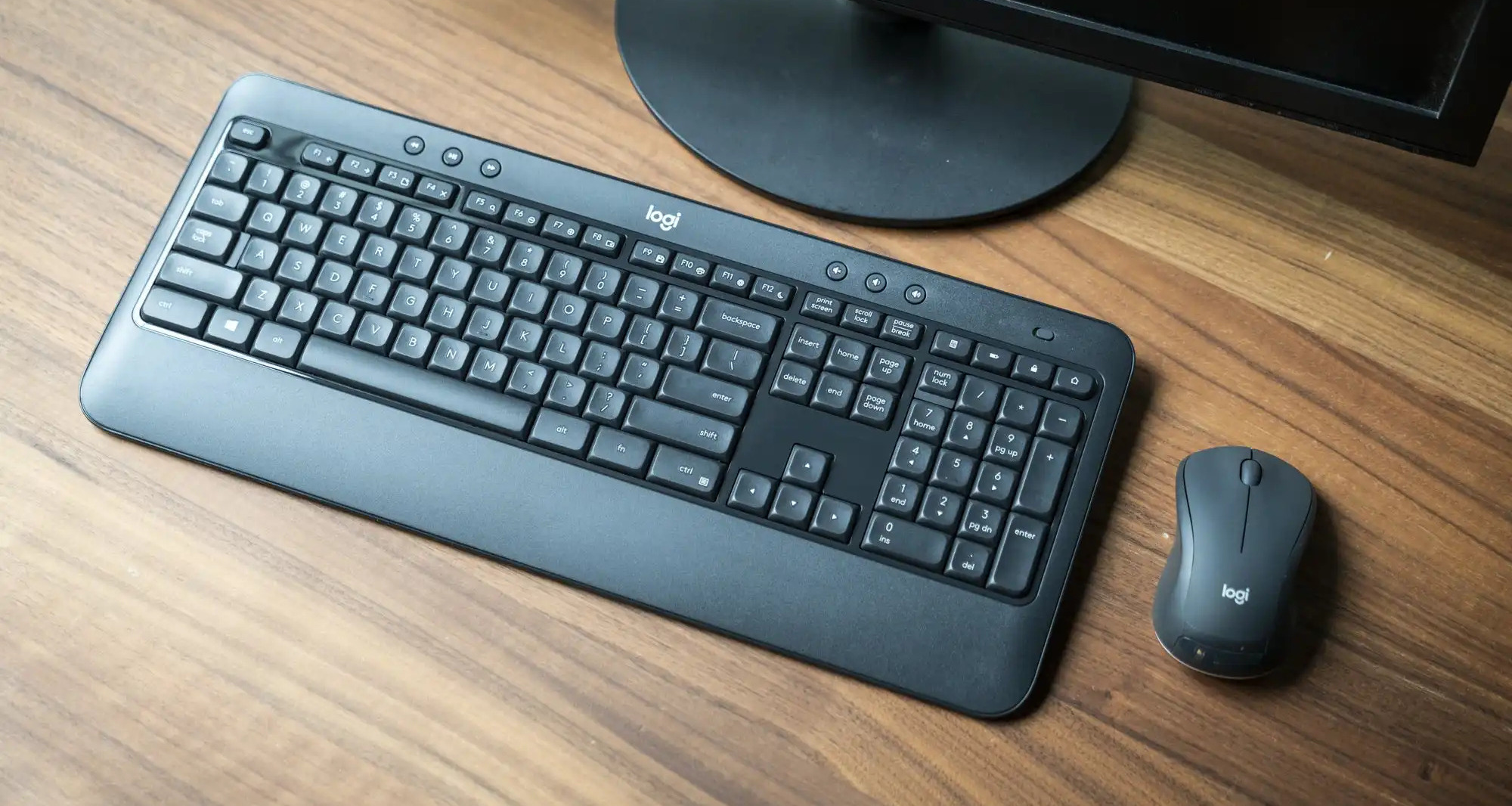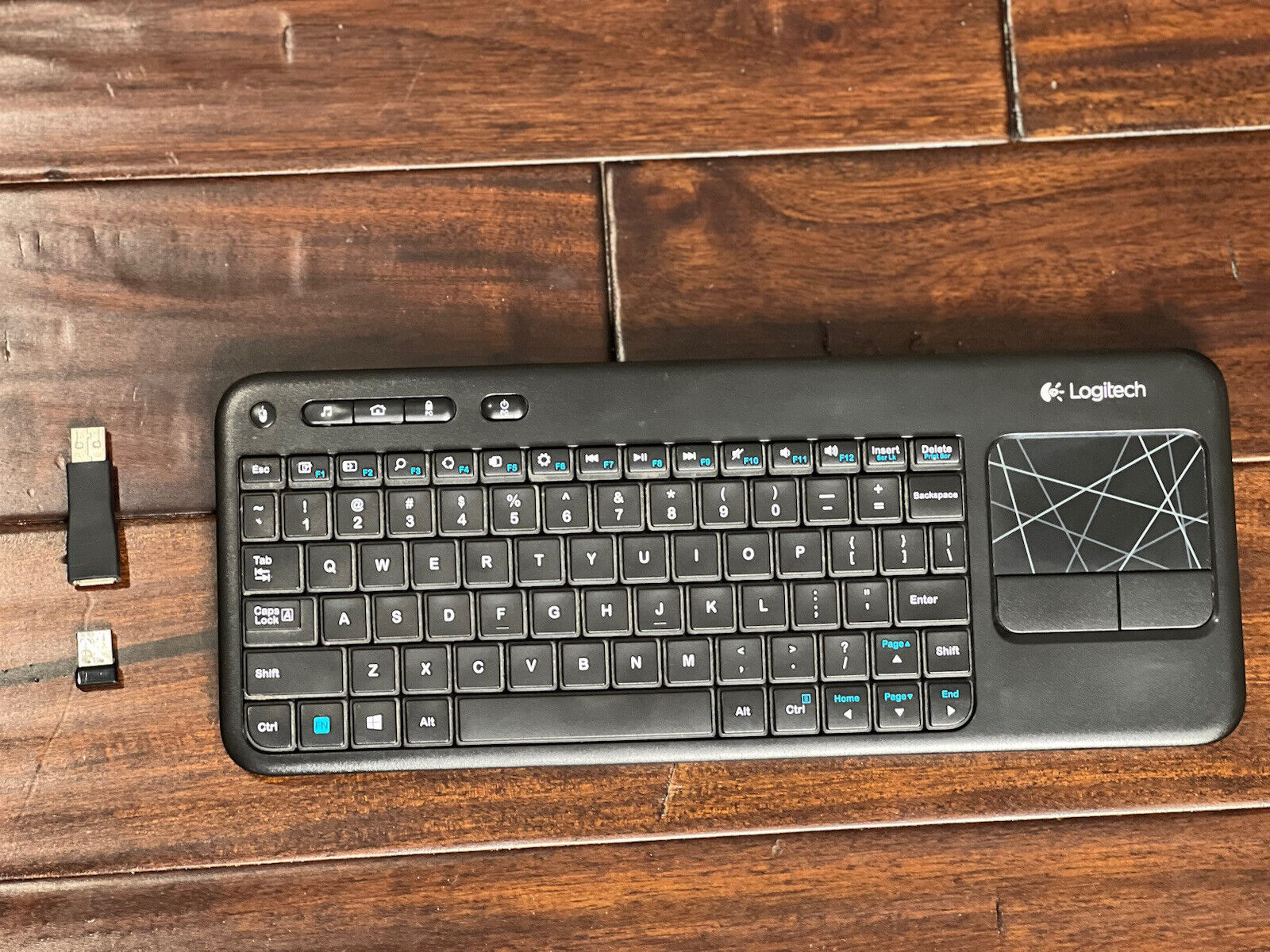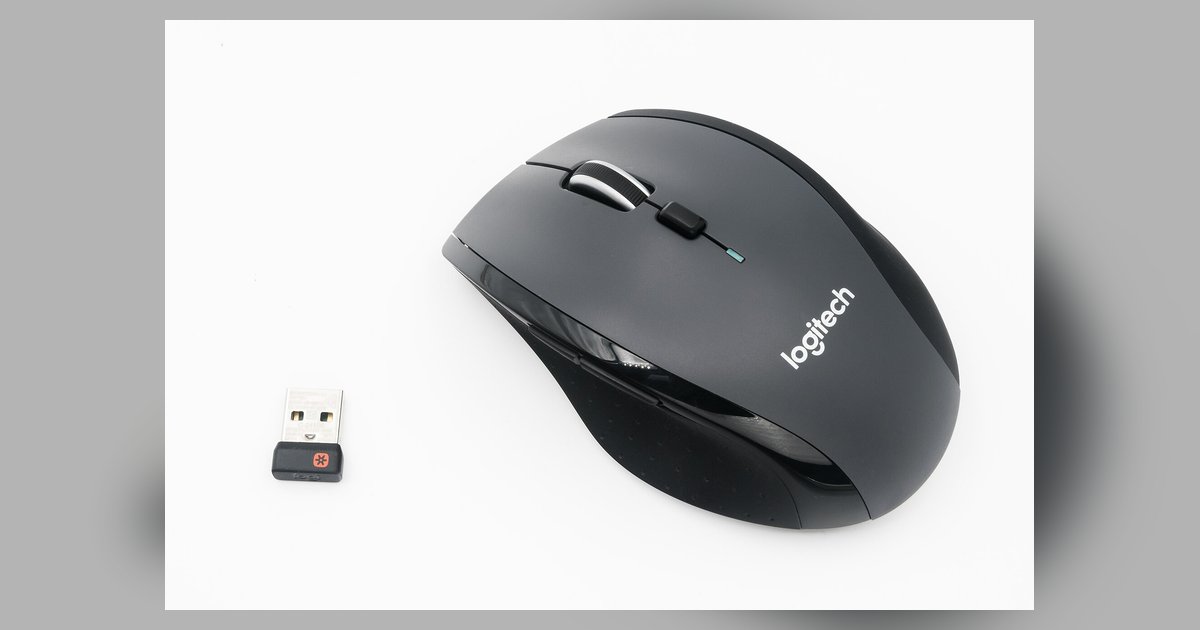
One Unifying receiver can pair a maximum of six devices. If you try to connect a seventh, the software will either reject the pairing or silently overwrite the oldest connection.
The Logitech unifying receiver limit is six devices
The six-device cap is enforced by Logitech’s Unifying utility, not by any physical radio limitation. Each Unifying receiver contains a single chip that can maintain up to six simultaneous connections. But the pairing tool checks the slot count before allowing a new device to join. If you attempt to pair a seventh device, the program will display a message that the receiver is full. Or it will quietly overwrite the oldest paired device to make space. This is why your third device either fails to connect or causes your original peripheral or mouse to stop working. The receiver cannot exceed six active pairings.
What happens when the receiver is full
When the receiver reaches its six-device limit, the Logitech Unifying Software will show a specific error: “Maximum number of connections reached.” If you proceed anyway, the utility may unbind the oldest paired device without any notification. It effectively drops that unit from the receiver. This is the most common cause of a suddenly unresponsive input device after adding a new peripheral. If you need to reset a Logitech wireless keyboard to restore its connection, you must first remove an existing device from the receiver’s slot list using the Unifying tool. Then re-pair the unit. Similarly, to reset Logitech MX Keys keyboard, you would open the Unifying application, select the MX Keys from the list, and click “Unpair” before attempting to add the new device. The receiver does not automatically prioritize which device to drop. It always removes the one that has been paired the longest.
Checking your current slot usage
Before adding another peripheral, open the Logitech Unifying Software (or Logi Options+ for compatible devices). Click the “Advanced” tab to see a list of all currently paired devices and the number of occupied slots out of six. If you see five or six entries, you must unpair one device first. To unlock a Logitech wireless keyboard that has been dropped due to a full receiver, you need to run the Unifying utility, locate the unit in the device list, and re-pair it after freeing a slot. If the peripheral is not listed at all, use the “Pair a new device” option and follow the on-screen instructions. For users who need to unlock a Logitech keyboard after it was silently unpaired, the process is identical: open the program, click “Pair,” and hold the unit’s Connect button (usually on the underside) until the LED blinks rapidly. This will assign it to the first available slot. Always check your slot count first. If all six are full, the pairing will fail again until you remove an unused device.
Unlike generic Bluetooth receivers, each Unifying receiver permanently stores its pairings on internal flash memory, which is why a device unpaired by a full slot does not automatically reconnect when a slot opens later.