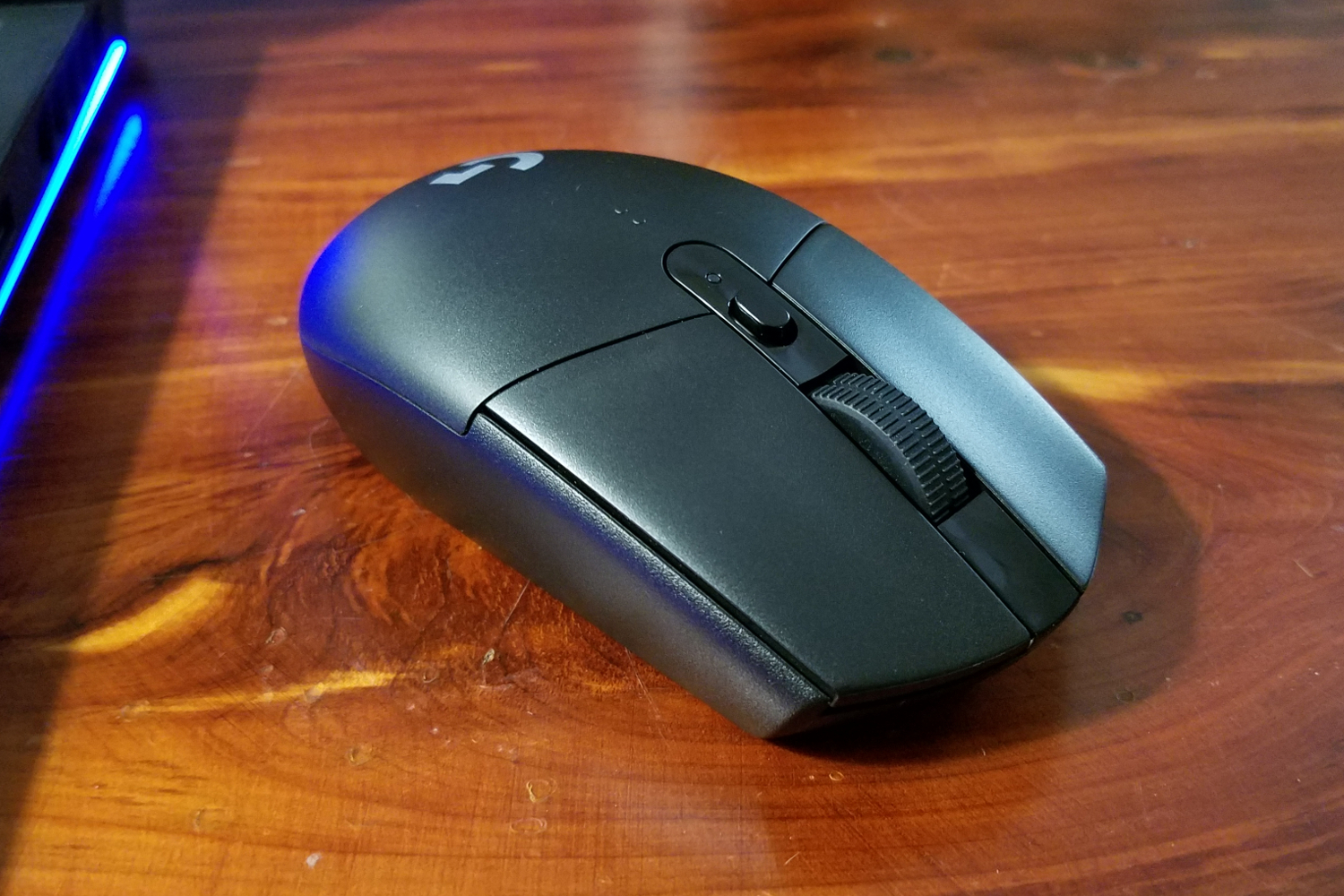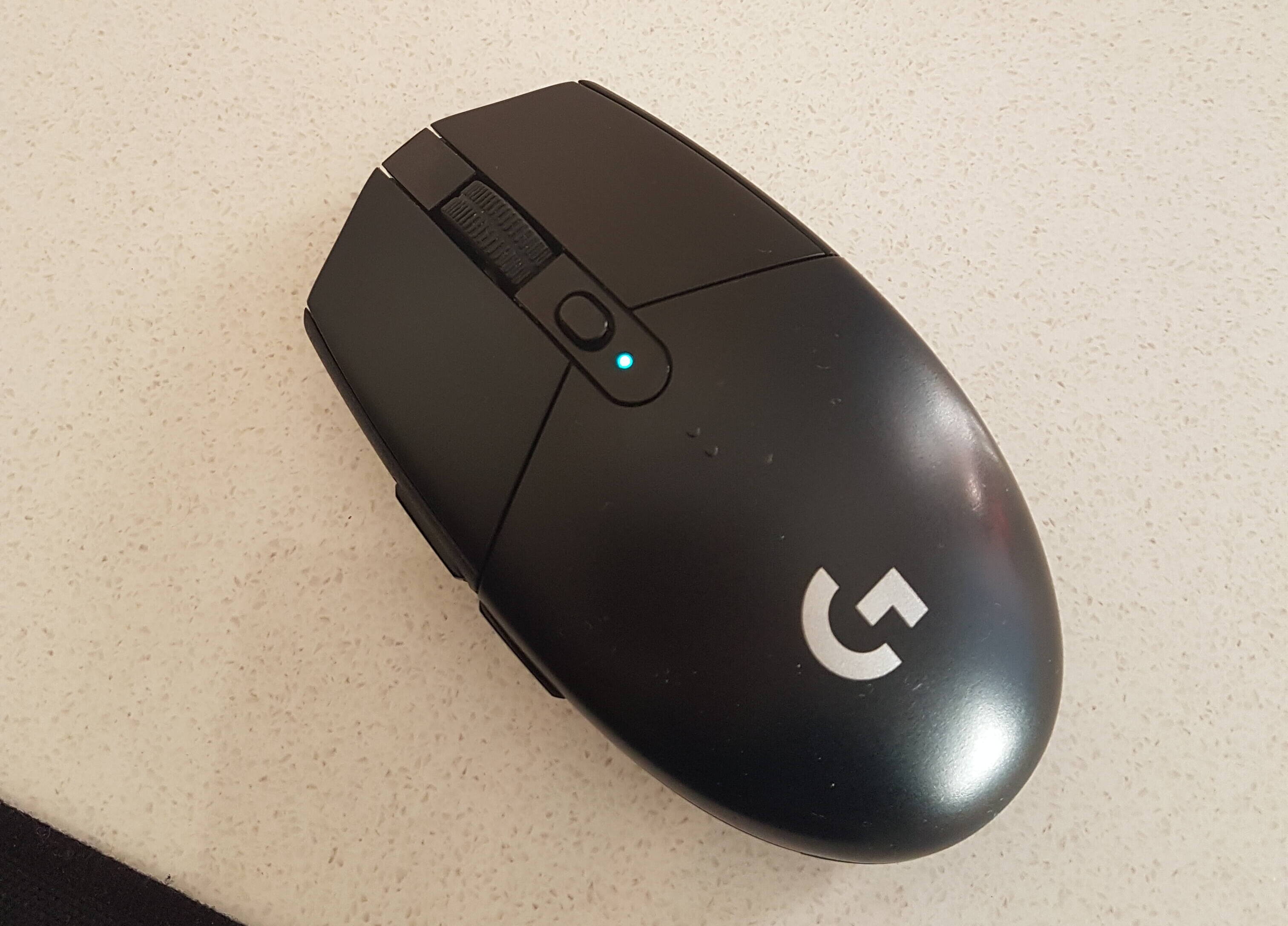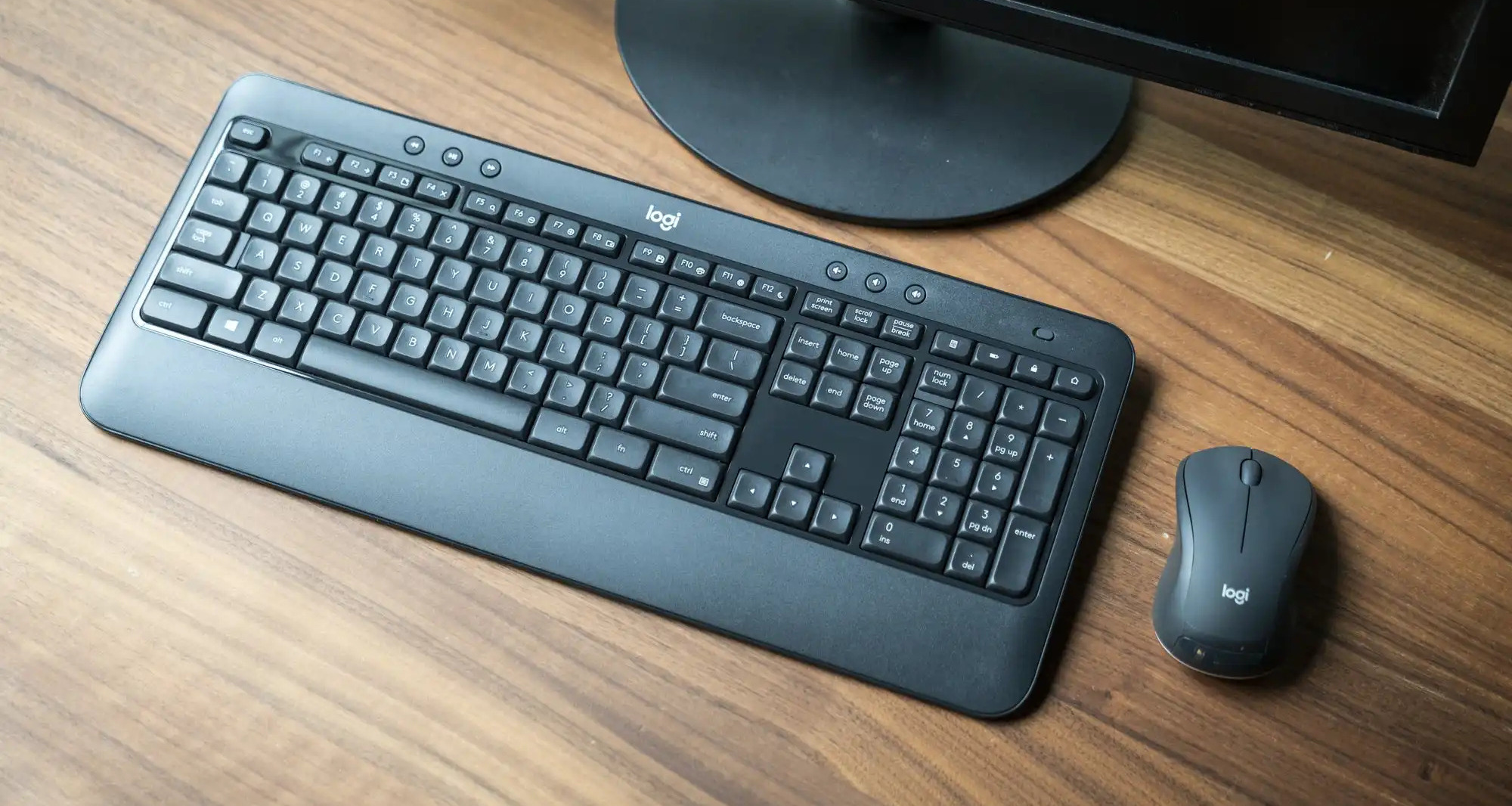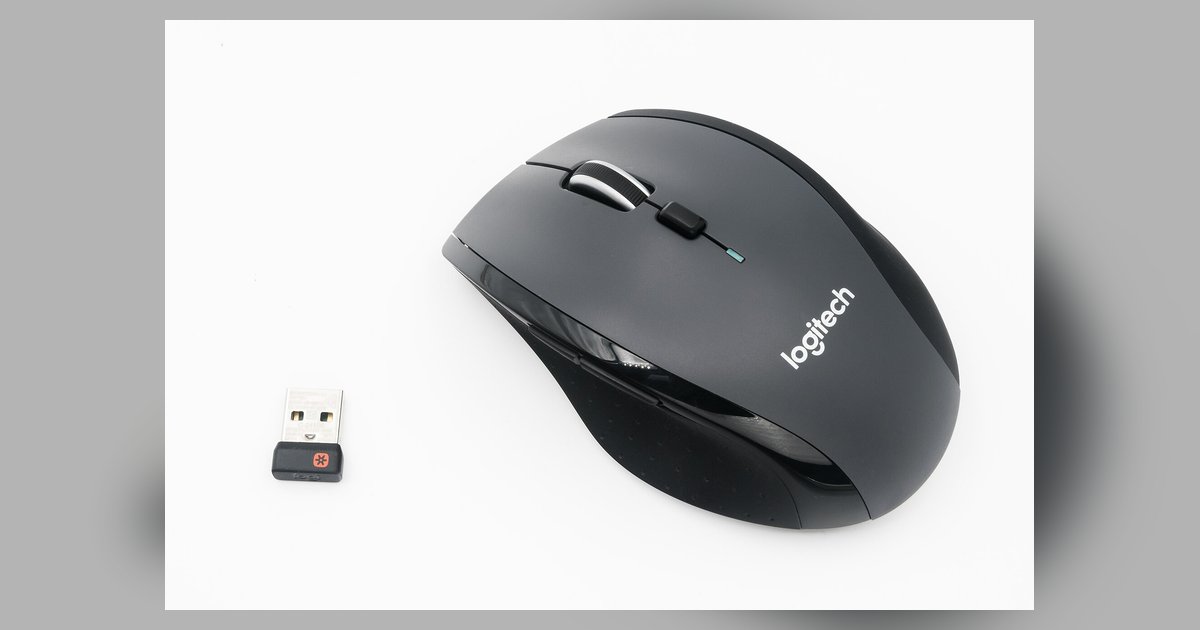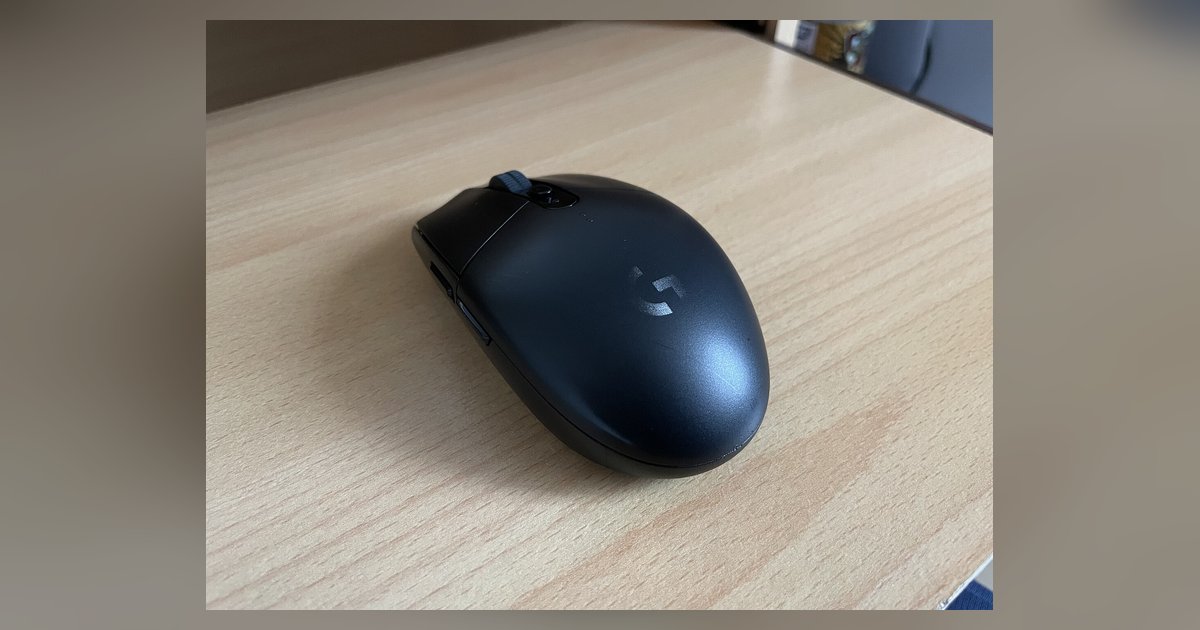
The G305 is a Lightspeed-only mouse and has no Bluetooth radio; the button on top is a DPI cycle button, not a Bluetooth connect button, so it will never enter pairing mode or appear in a Bluetooth menu.
The G305 is not a Bluetooth mouse
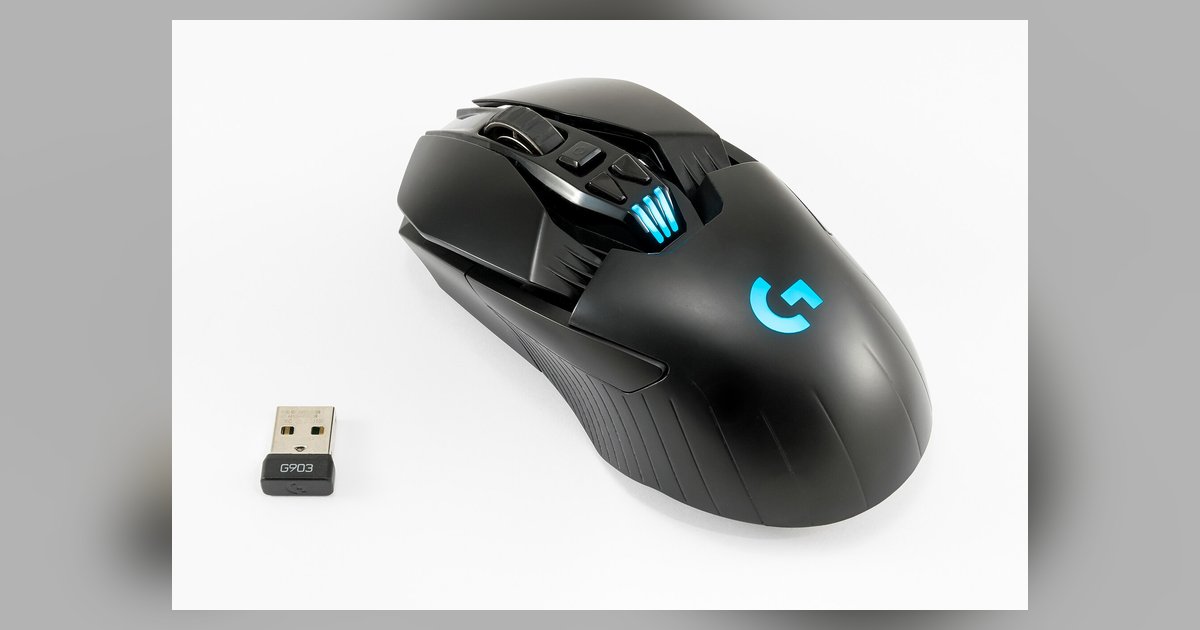
The G305 uses Logitech’s proprietary 2.4GHz Lightspeed wireless technology. It requires the tiny USB dongle that ships in the box. That dongle is the only way the mouse communicates with a computer. The bottom switch has three positions: Off, On (with a solid white LED), and a battery-saving mode that still uses the dongle. The icon that looks like a Bluetooth symbol on the switch is actually a graphic for the “sleep” or “power-save” position. It is not a Bluetooth mode selector. The G305 lacks a Bluetooth antenna and controller chip. It cannot enter any pairing sequence. If you attempt to disassemble Logitech mouse hardware to find a Bluetooth module, you will find only the Lightspeed radio and the optical sensor.
The G305 is a purely Lightspeed-dependent mouse with zero Bluetooth hardware inside, so the switch icon labeled with a Bluetooth-like symbol is a power-save toggle, not a radio selector.
Why the button does not start pairing
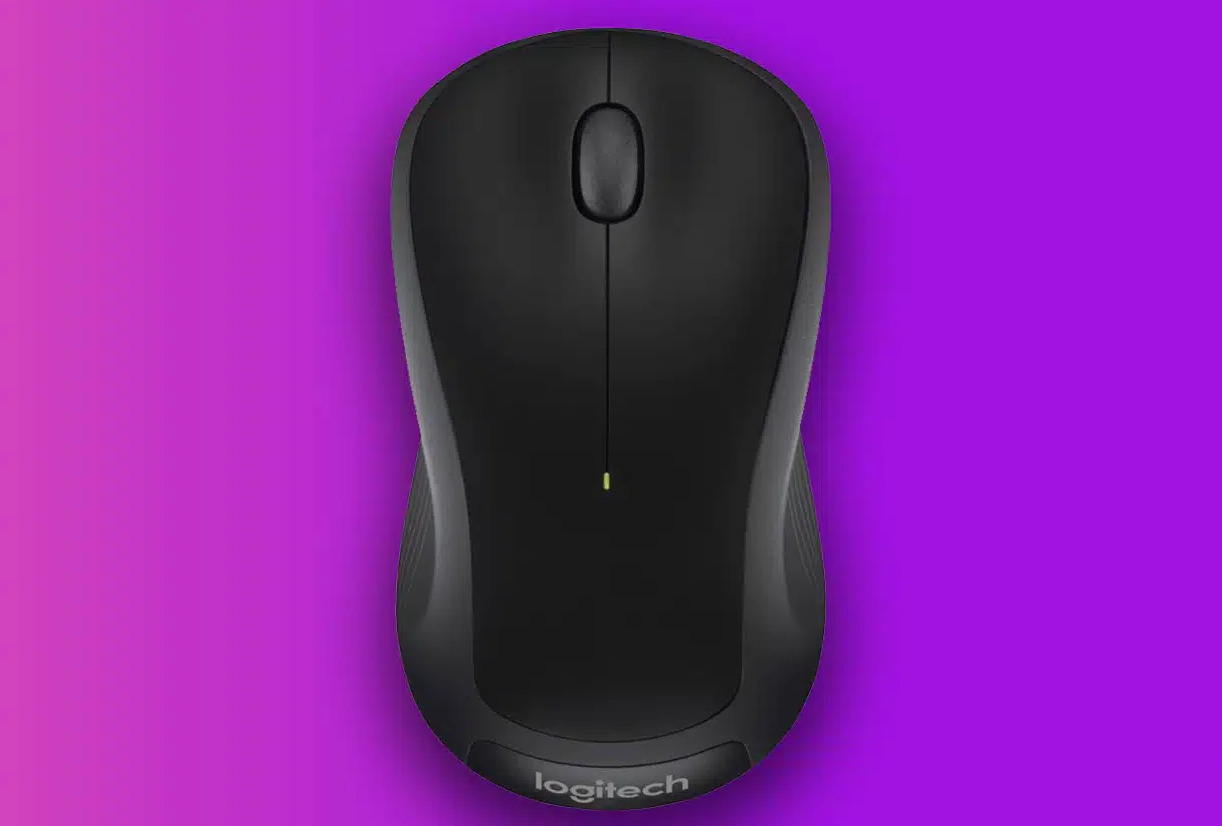
The small oval button behind the scroll wheel is a DPI cycle button. It is not a pairing button. Pressing it changes the cursor sensitivity between four preset levels (default 400, 800, 1600, 3200 DPI). The LED on the side of the mouse blinks a different color briefly to indicate the selected DPI step. It never flashes rapidly or continuously as a Bluetooth pairing indicator would. Many users mistake this button for a connect trigger. Other Logitech mice use a similar location for a Bluetooth button. On the G305 it serves only sensitivity adjustment. If you need to connect Logitech G305 mouse to mac, you must use the included USB receiver since the mouse lacks Bluetooth entirely. If you need to connect Logitech m310 wireless mouse or other Bluetooth models, the process involves a dedicated pairing button and a Bluetooth-ready radio. The G305 possesses neither.
What to do instead
For more detailed guidance on this process and related solutions, see the broader topic of how to connect and set up a Logitech mouse, which includes instructions for setting up a Logitech mouse across different connection types. Use the included Logitech G USB Lightspeed adapter. Plug it into a USB port. Turn the mouse on by setting the switch to the top position, not the sleep position. The mouse works immediately. If you lost the adapter, you can sync Logitech mouse to new receiver using the Logitech G HUB software. This works only with a genuine Logitech Lightspeed component (part number 910-005287 or compatible). The utility will detect the G305 when the replacement unit is inserted and the mouse is within a few inches. If you need to connect Logitech mouse without USB entirely, the G305 cannot do that. You must use a dedicated wireless link. For a wireless mouse that truly supports Bluetooth, exchange the G305 for a model such as the G309, G705, or the MX Master series. All of those include a Bluetooth radio and a dedicated pairing button. Do not attempt to force the G305 into a mode it was never designed to support. The hardware simply lacks the Bluetooth stack.