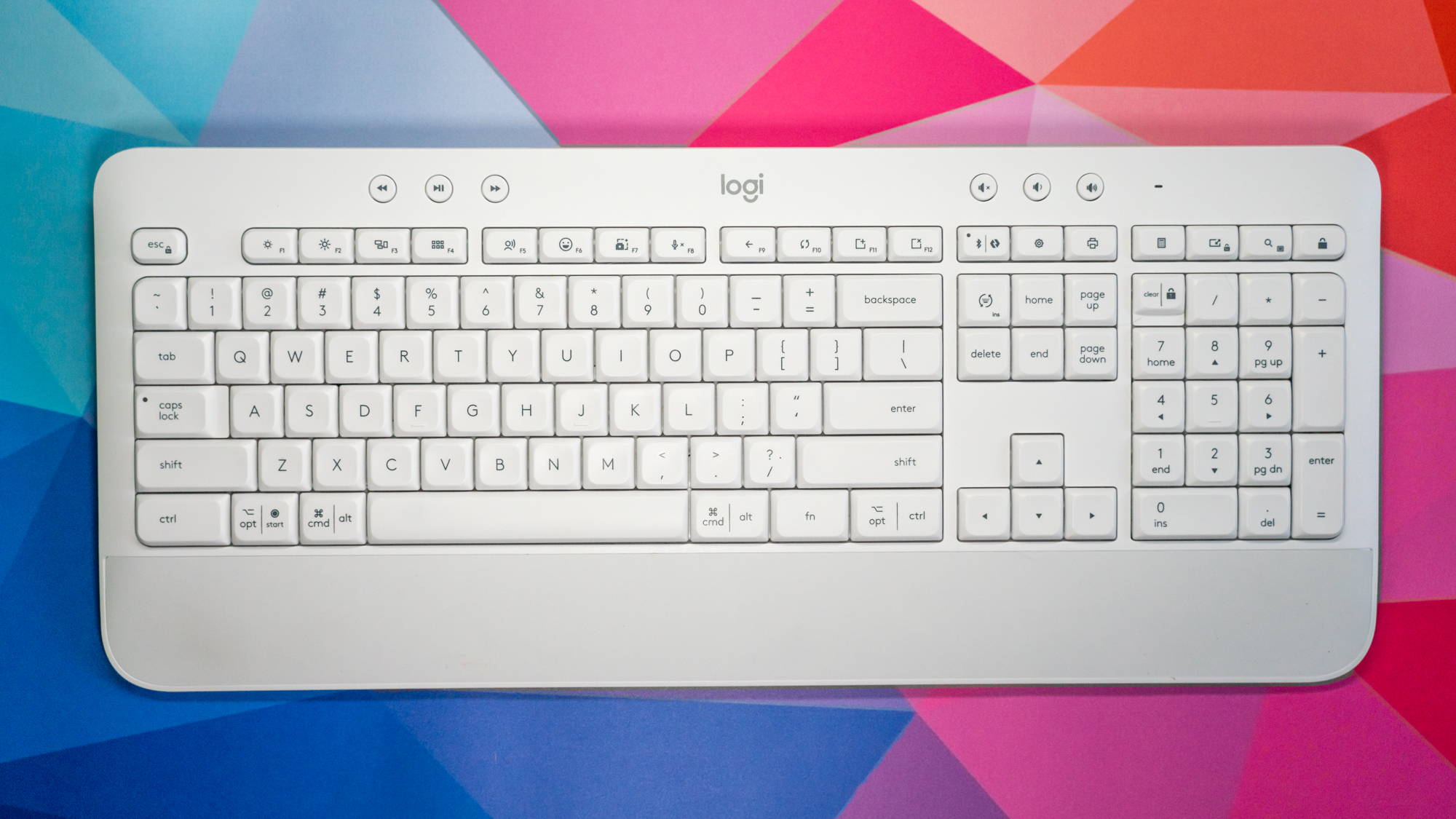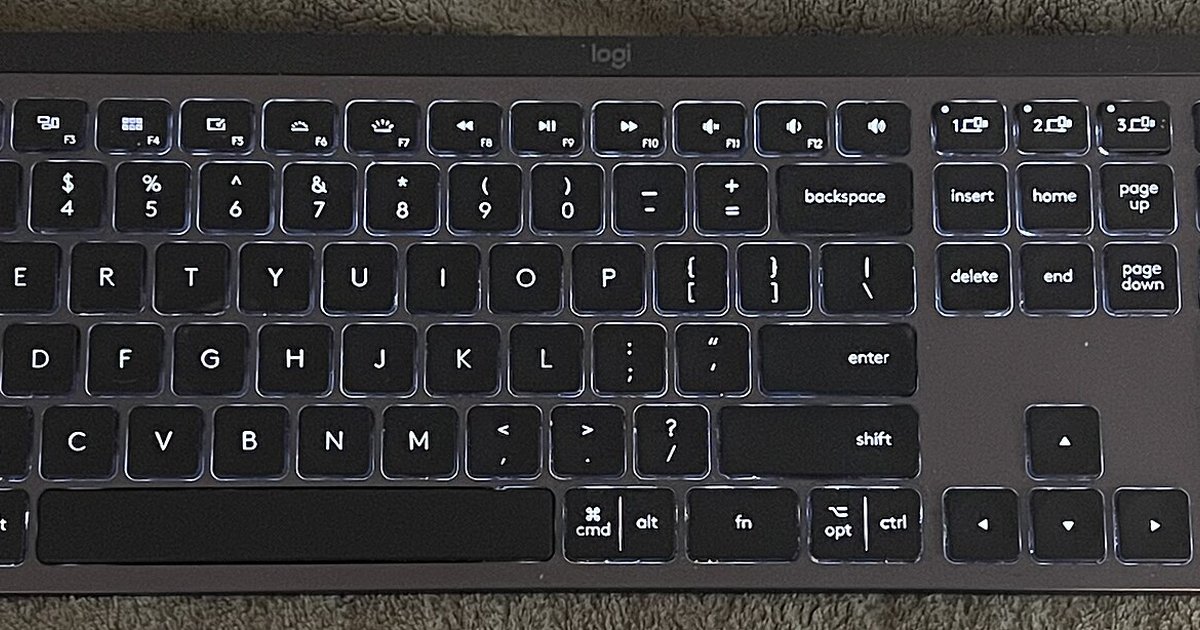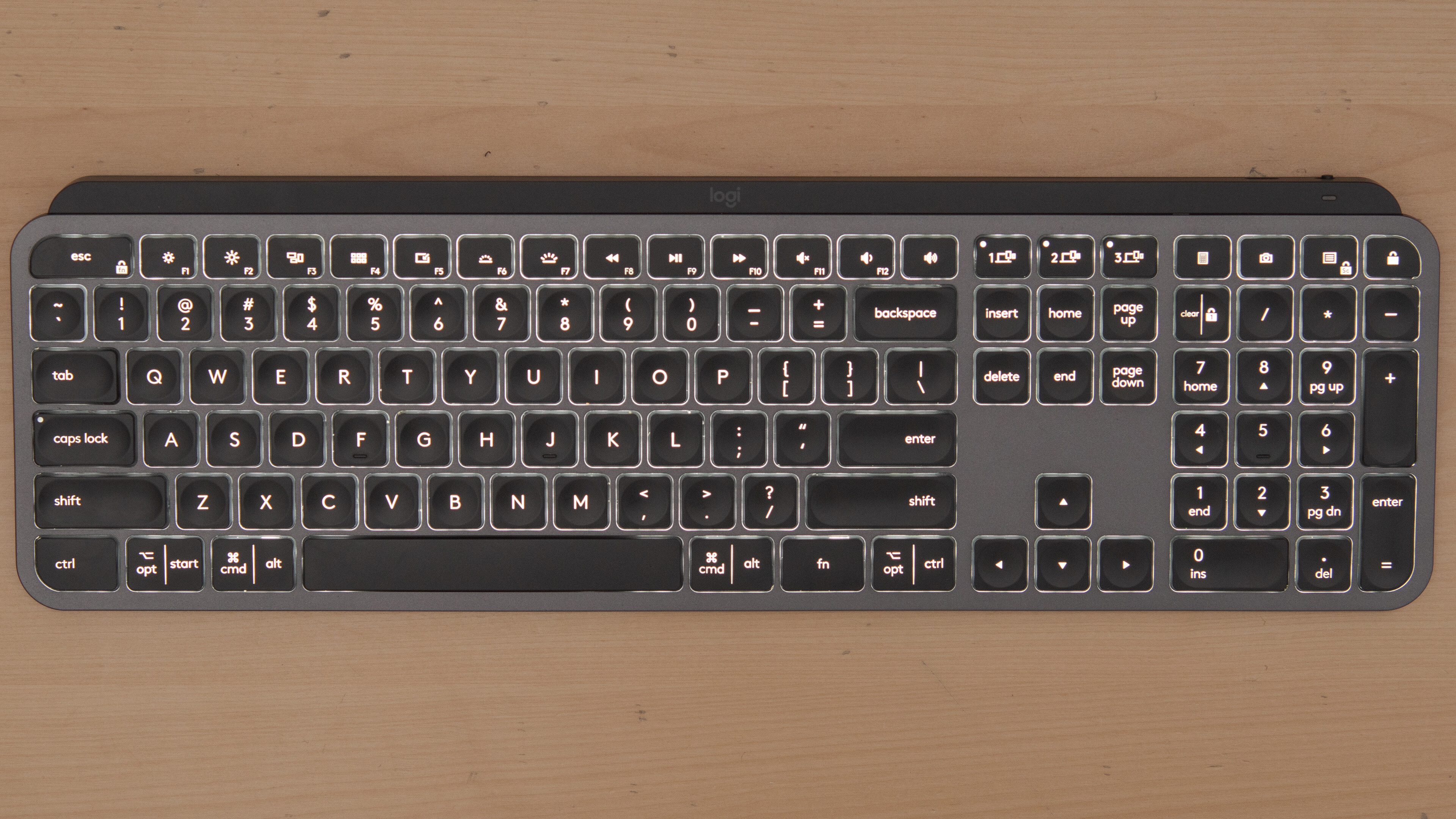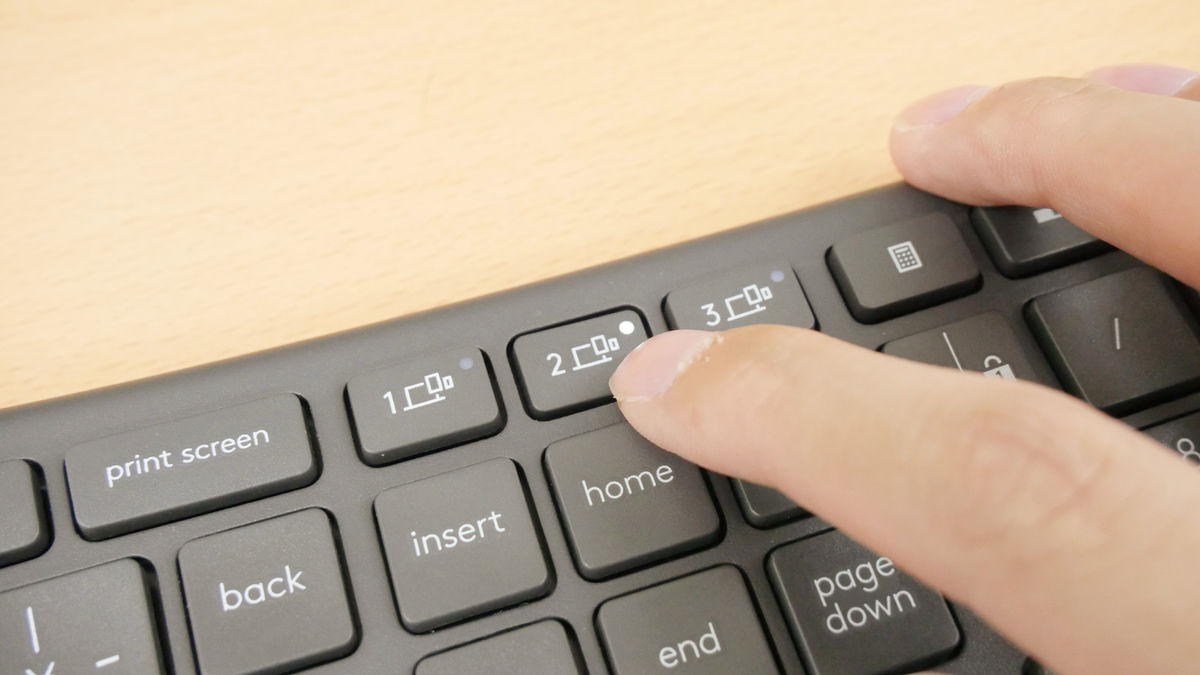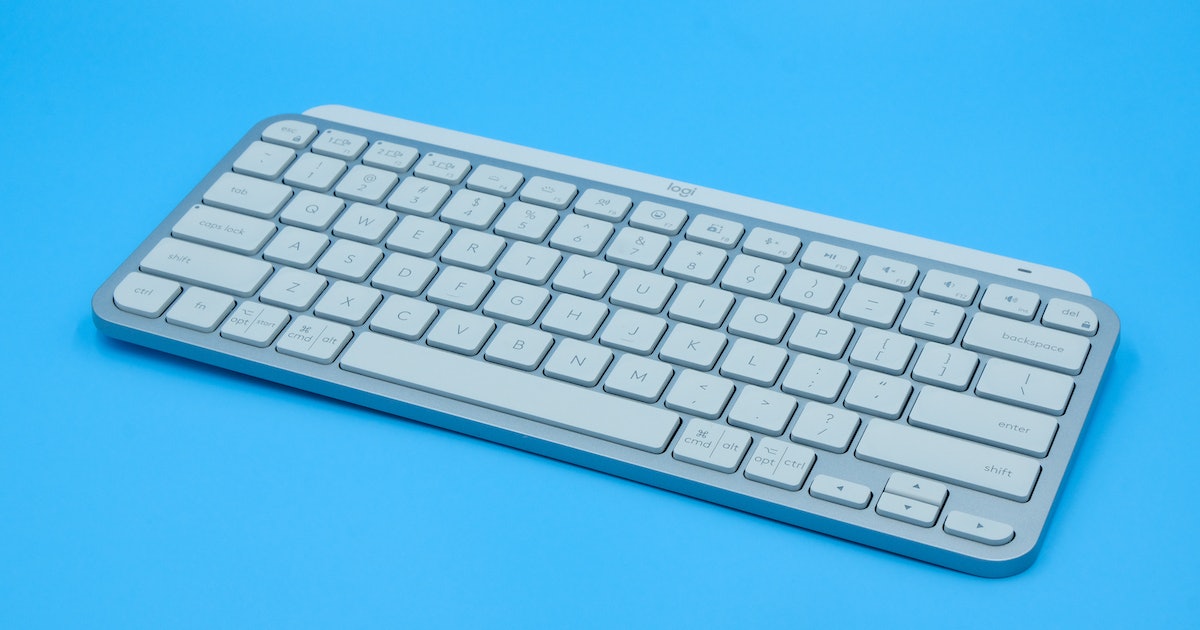
To print screen on Logitech MX Keys, press the key with the camera icon (usually F7 or F8) to open the Windows Snipping Tool, or remap any key to the classic Print Screen function using Logi Options+ software. This keyboard lacks a dedicated PrtScn key, but these two methods cover every screenshot need on Windows and macOS.
Why there's no print screen key on your Logitech MX Keys
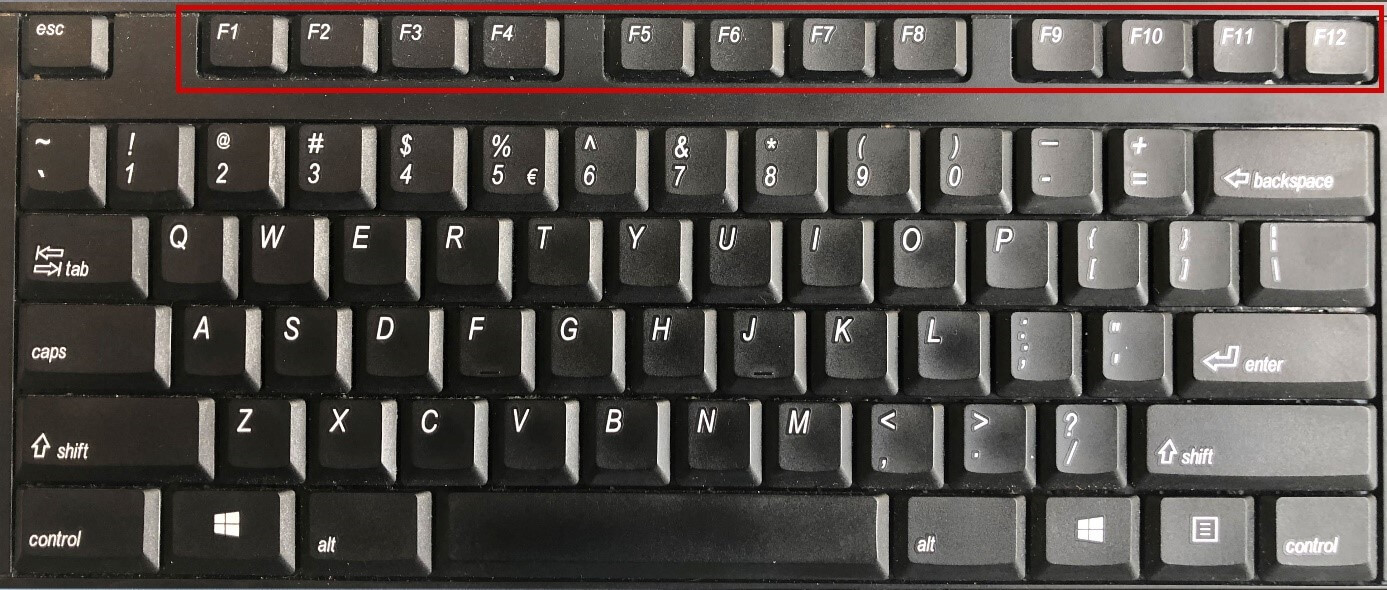
The Logitech MX Keys keyboard does not feature a dedicated "Print Screen" (PrtScn) key, which can be confusing if you are used to traditional keyboards. Logitech designed the top row of F-keys to serve dual purposes, with the camera icon key (often F7 or F8) defaulting to screen snipping rather than a full-screen clipboard capture. This design choice prioritizes quick region selection over the older full-screen method, but it also means you need a different approach for taking a screenshot on a laptop or desktop that relies on the classic Print Screen workflow. If you are using a different Logitech model, the steps to print screen with Logitech wireless keyboard can vary by layout.
The quick way: use the built-in camera key for screen snipping
By default, the key with the camera icon on the MX Keys activates the system's screen snipping tool. On Windows, this triggers the Windows + Shift + S shortcut, which lets you select a rectangular region, a freeform area, a window, or the full screen. The captured image is copied to your clipboard, ready to paste into any application. This is the fastest method if you only need a portion of your screen and do not require the full-screen clipboard behavior of a traditional Print Screen key.
The traditional way: remap a key to Print Screen in Logi Options+
If you prefer the classic Print Screen function that copies the entire screen to the clipboard, you must remap a key using Logi Options+ software. Logi Options+ is essential for customizing F-keys and remapping functions on the MX Keys keyboard, but you can also print screen with Logitech keyboard models that lack dedicated software. Follow these steps:
- Open Logi Options+ on your computer.
- Select your Logitech MX Keys from the list of connected devices.
- Choose the F-key you want to reassign (for example, F7 or F8).
- In the dropdown menu, select the "Print Screen" function.
- Save the changes. The "F-key priority" setting in Logi Options+ allows you to switch between using F1-F12 directly or accessing their secondary functions without pressing the Fn key, so you can set the remapped key to work without holding Fn.
After remapping, pressing the assigned key will copy the entire screen to the clipboard on Windows. You can then paste the screenshot into an image editor, document, or email.
How to save a full-screen screenshot directly as a file
To automatically save a full-screen screenshot to the Pictures > Screenshots folder on Windows, press the Windows Logo Key + the remapped PrtScn key. This combination bypasses the clipboard and writes the image directly to a file, which is useful when you need to capture multiple screenshots without pasting each one manually. This shortcut only works after you have remapped a key to the Print Screen function in Logi Options+.
Screenshot shortcuts for macOS users
For macOS users, standard screenshot shortcuts apply, as the MX Keys is a cross-platform keyboard. Use Command (⌘) + Shift + 3 for a full screen capture, Command (⌘) + Shift + 4 for a selection, and Command (⌘) + Shift + 5 to open the Screenshot toolbar. These shortcuts work immediately without any remapping, so Mac users can ignore the Logi Options+ configuration for Print Screen and rely on the familiar macOS commands.