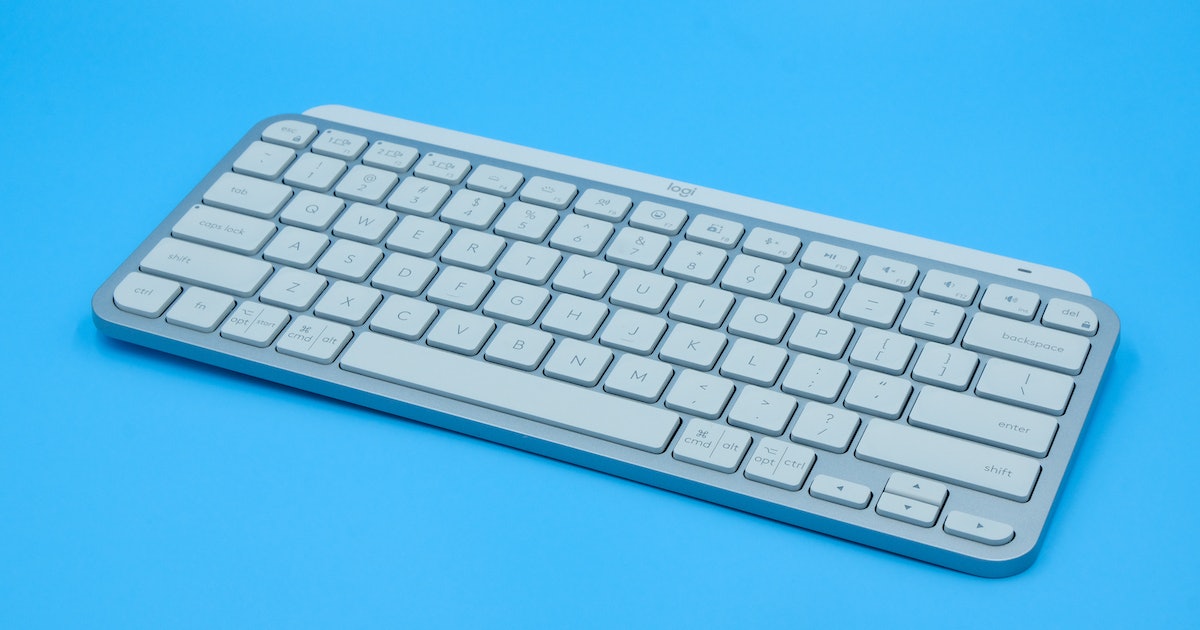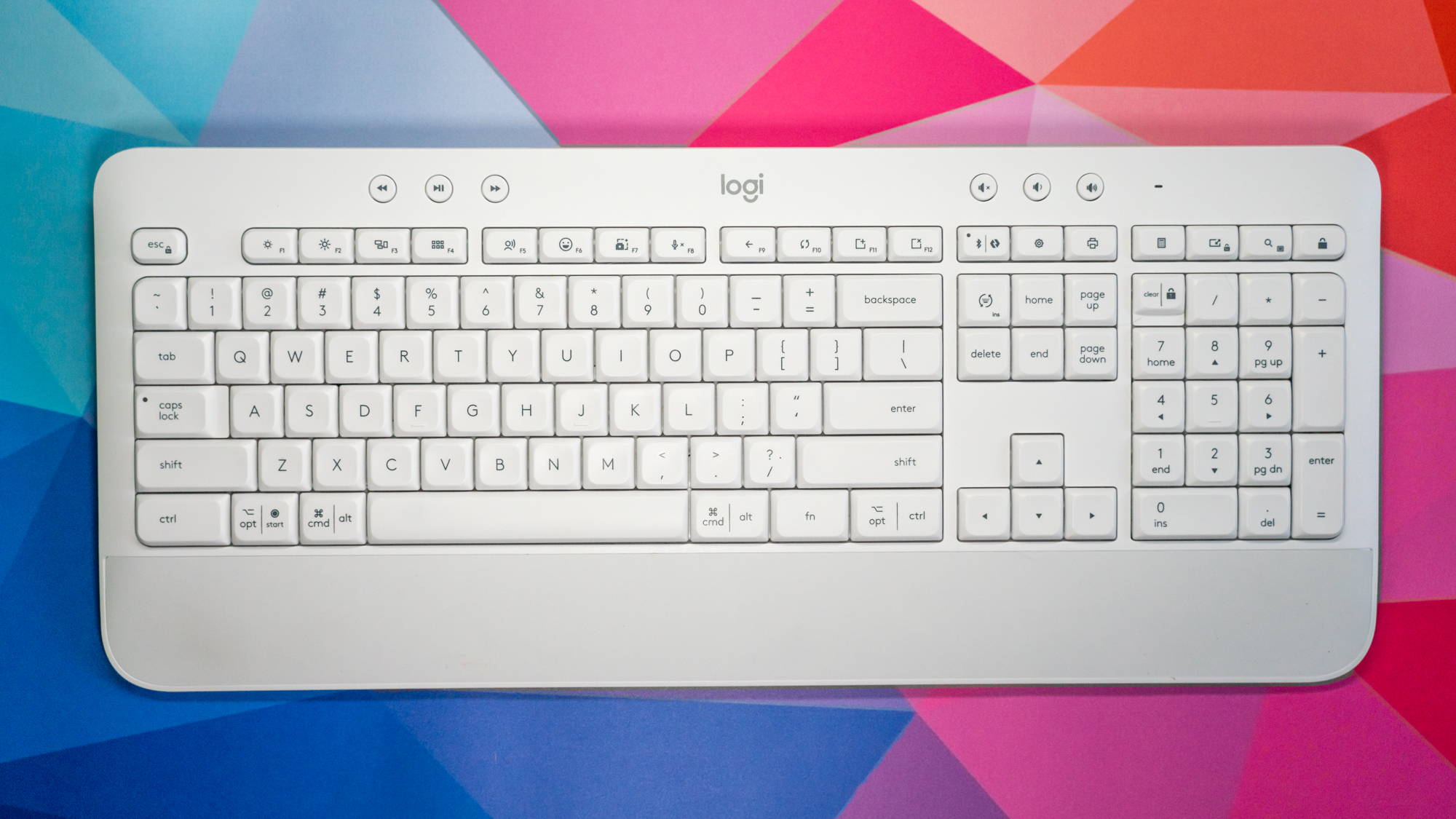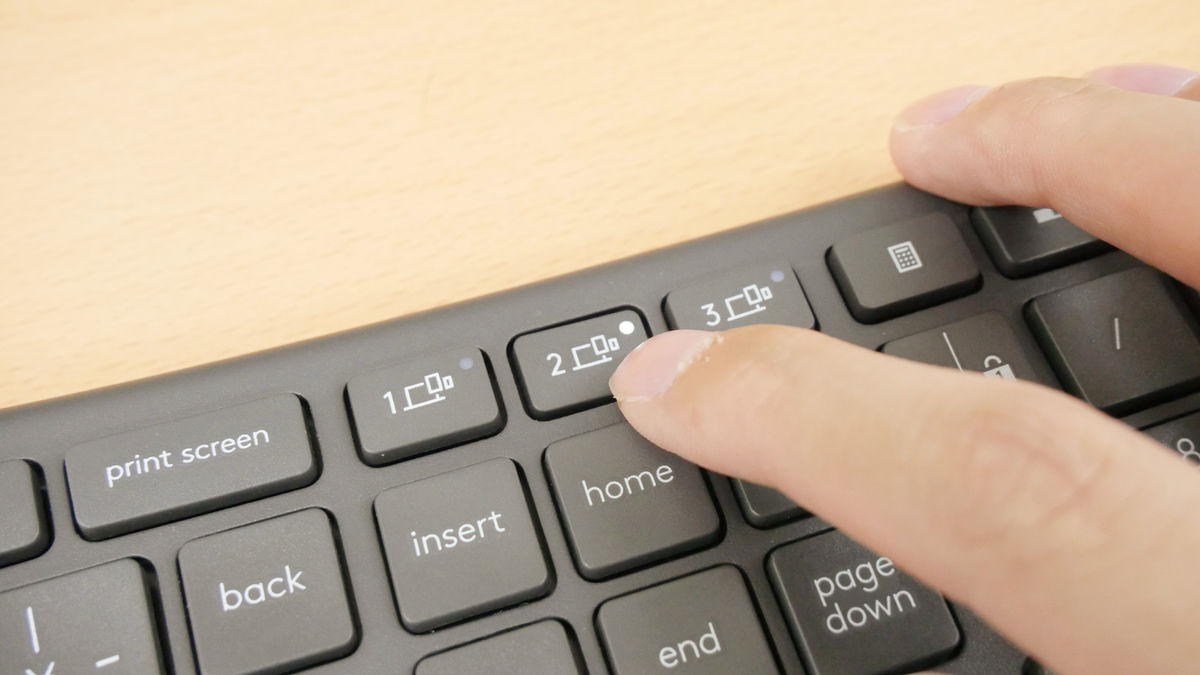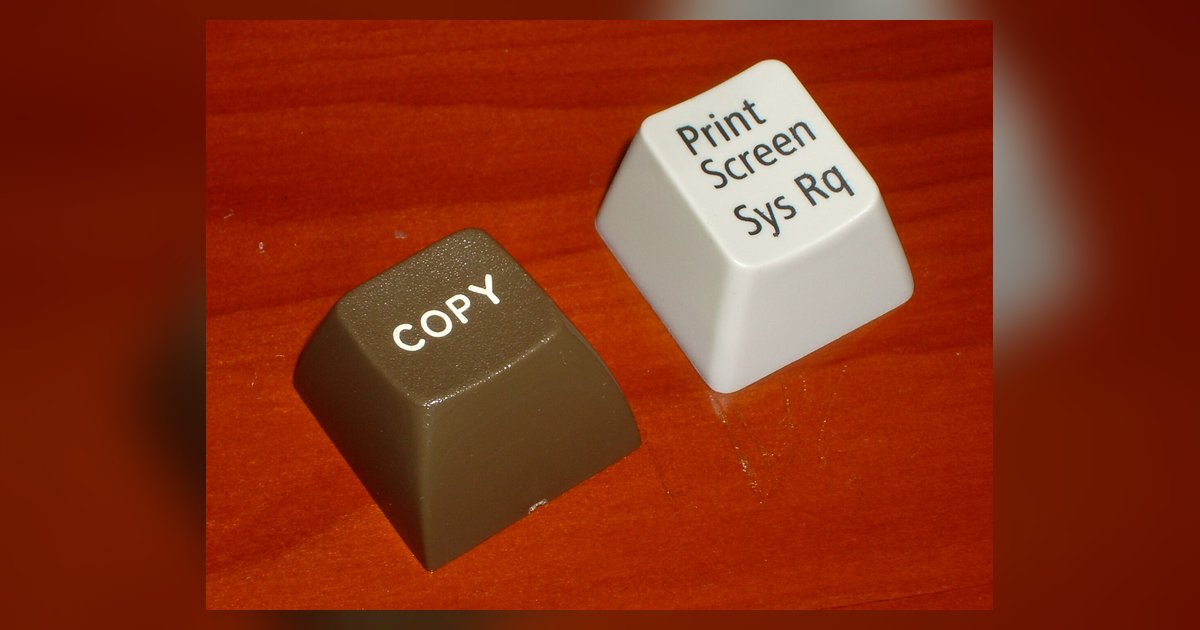
If your print screen emoji panel opens instead of capturing the screen, the shortcut for the emoji picker (Windows key + period) is being accidentally activated, often due to a keyboard firmware setting, a stuck Windows key, or a remapped key profile that sends Win+. instead of just Print Screen. This means your single key press is being interpreted as a two-key combination, and the system obediently opens the emoji picker rather than capturing your screen. If you're using a Logitech keyboard, you may need to adjust its specific function-key behavior to print screen with Logitech wireless keyboard correctly.
The real print screen emoji shortcut conflict
Windows maps the emoji panel to the combination of the Windows key and the period key (Win+.). When you press Print Screen, your input device might be sending a Win+period signal instead of the standard Print Screen scancode. This is not a screenshot setting within the operating system, it is a hardware or software remapping issue. Many decks, especially gaming models, allow you to reassign keys through onboard memory or dedicated software. If a macro, a profile, or a firmware bug has permanently bound Print Screen to the emoji shortcut, every press will launch the panel. The conflict is invisible in the system’s own input settings, because the operating system never sees a Print Screen press; it only sees the Win+. combination. To verify this, open the On-Screen Keyboard (osk.exe) and press your physical Print Screen key. If the on-screen input viewer shows the Windows key and period lighting up, the remapping is confirmed.
When it's not a stuck Windows key
A common misdiagnosis is assuming the left or right Windows key is physically stuck. However, the actual failure case is often a gaming peripheral profile that permanently rebinds Print Screen to Win+. For example, if you own a device covered by the hub page “how to take a screenshot on a gaming keyboard,” you may have accidentally activated a profile that reassigns the key. Similarly, if you use a Logitech wireless keyboard, the Logitech Options or G Hub software could have a default profile that maps Print Screen to the emoji shortcut. Even a Logitech MX Keys can suffer this conflict if the Logitech Options+ app applies a custom assignment. The same issue appears on laptops; for instance, on an ASUS TUF gaming laptop, the Armoury Crate software can remap keys without user intent, so you may need to fall back on taking a screenshot on a laptop using its built-in keyboard until the profile is cleared. In all these cases, the Windows key is not physically stuck; the peripheral’s firmware or driver is deliberately sending the wrong signal. To test this, disconnect the external panel and use the laptop’s built-in input surface. If the Print Screen key works normally, the external peripheral’s profile is the culprit. The one thing no other troubleshooting resource will tell you is that the emoji panel invasion is always a Win+. injection, never a screenshot tool failure.
Disabling the emoji shortcut in Windows settings
When the input device itself cannot be reconfigured, for example, if the firmware is locked or the manufacturer no longer supports the software, the permanent fix is to disable the emoji panel shortcut in Windows Settings. There is no GUI setting in Windows to disable the emoji panel shortcut. The permanent fix is to disable the shortcut via the Windows Registry Editor. This stops the operating system from responding to the Win+. combination entirely, so even if your peripheral sends that signal, nothing happens. For users who want a deeper system-level block, navigate to Registry Editor and go to HKEY_CURRENT_USER\Control Panel\Keyboard. Create a new DWORD value named “EnableExpressiveInputShellHotkey” and set it to 0. Reboot for the change to take effect. Note that disabling the shortcut also removes the ability to open the emoji panel intentionally via Win+., but you can still access emojis through the touch input surface or the emoji button in supported apps.