If your Fn key is not working as expected, its behavior is likely reversed in the BIOS, meaning you must press the screenshot key without holding Fn. If the key is physically broken, use the on-screen keyboard or remap the shortcut to a different key.
Check if your fn key is locked in reverse
HP laptops include a BIOS setting called "Action Keys Mode" that controls how the Fn row behaves. When this mode is enabled, the top row of keys (including PrtSc) default to their secondary functions, such as brightness or volume, without requiring the Fn key. In this state, pressing Fn + PrtSc does nothing, while pressing just the PrtSc key triggers the screenshot. To verify, restart your laptop, tap Esc repeatedly to enter the Startup Menu, then press F10 to enter the BIOS, navigate to the System Configuration tab, and locate Action Keys Mode. If it is set to Enabled, change it to Disabled, save, and exit. After reboot, the Fn key will again be required for the screenshot shortcut. This same logic applies if you ever need to take a screenshot on a gaming keyboard, where many manufacturers invert the Fn row by default, or if you need to take a screenshot on asus tuf gaming laptop since ASUS gaming models often use a similar BIOS-level function key lock.
Test with the on-screen input panel
If the BIOS setting does not resolve the issue, the Fn key itself may be physically unresponsive. Use Windows' built-in on-screen keyboard to isolate the problem. Open the Start menu, type On-Screen Keyboard, and launch the utility. Click the Fn key on the virtual input panel (it appears as a blue key) and then click the PrtSc key. If the screenshot function works correctly through the on-screen utility, your physical Fn key is faulty. This test also works for troubleshooting a print screen issue with a Logitech wireless keyboard, where driver conflicts can mimic a broken key. If the virtual combination succeeds, the issue is hardware, not software.
When the fn key is physically broken
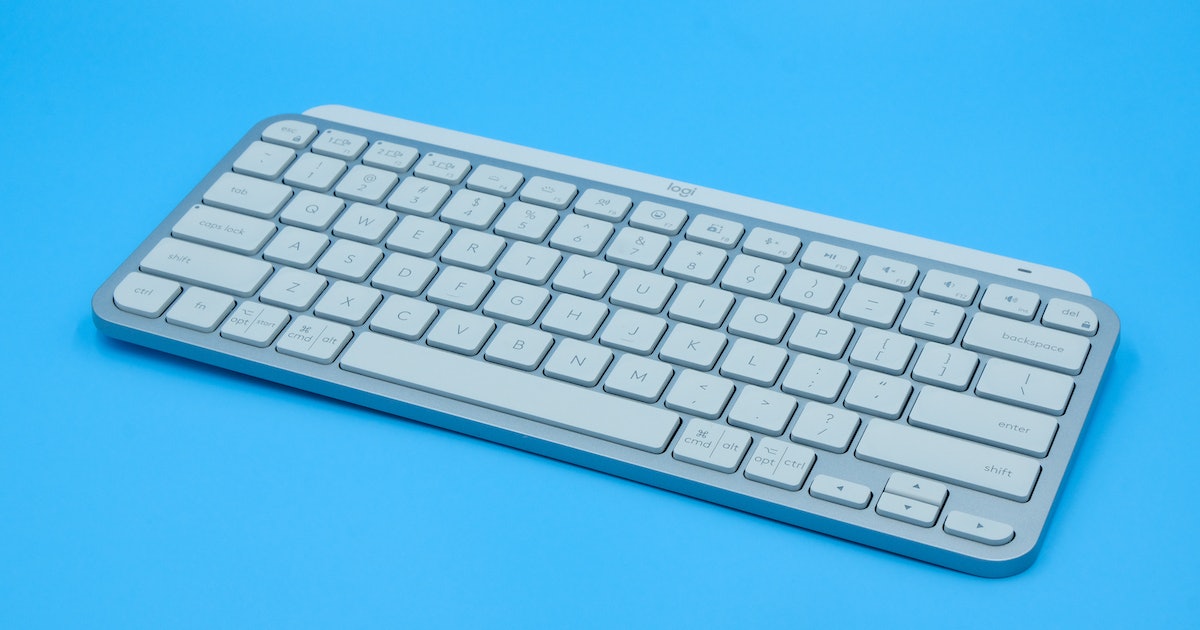
If the physical Fn key is dead, you have two reliable workarounds. First, use Microsoft PowerToys to remap the screenshot shortcut to a single key or a different combination. Install PowerToys, open Keyboard Manager, and remap the PrtSc key (or any other key) to Win + Shift + S, which opens the Snipping Tool directly. This bypasses the Fn key entirely. Second, the Snipping Tool has its own standalone hotkey, Win + Shift + S, which does not require the Fn key at all. This method works identically whether you need to print screen on a Logitech MX Keys or adjust for a different layout. In summary, if the Fn key is broken, remap or use the native Windows shortcut, do not rely on the physical key.
For a complete guide to taking a screenshot on a laptop, explore the broader topic of How to Take a Screenshot on Any Keyboard or Laptop.