Practical, hands-on guides for anyone configuring or troubleshooting the low-level firmware that starts their PC. It is aimed at home builders, upgraders, and owners of pre-built machines who need to change boot order, adjust memory settings, or get a new drive working. The articles assume no prior BIOS experience, but they do expect you to be comfortable opening your computer’s case or pressing a setup key at startup.
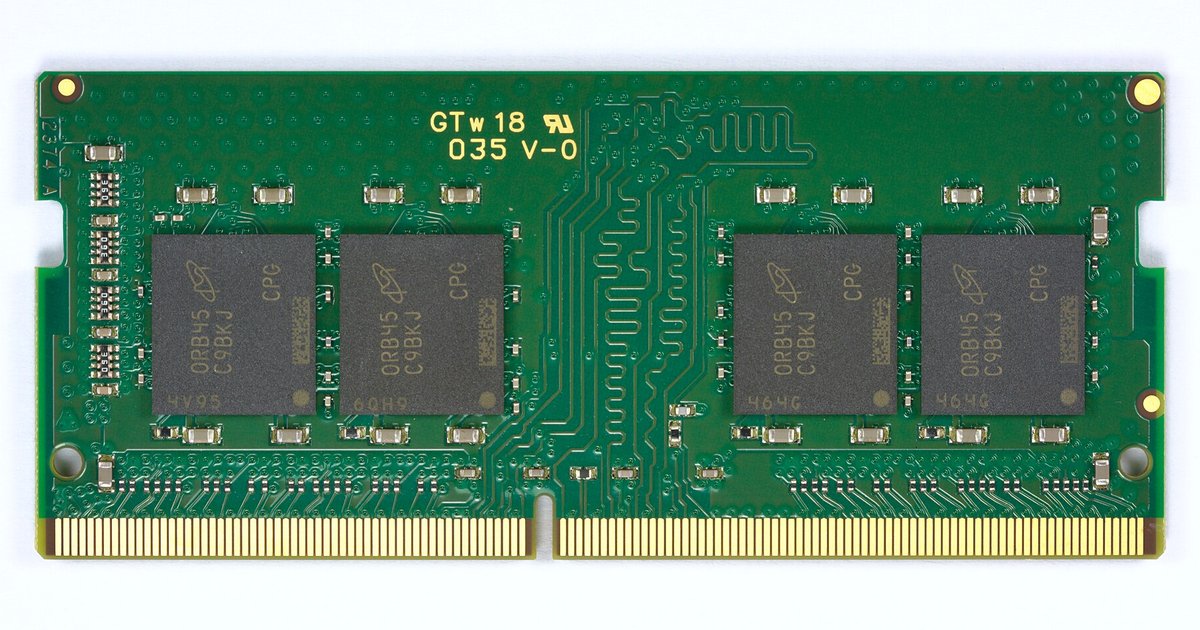
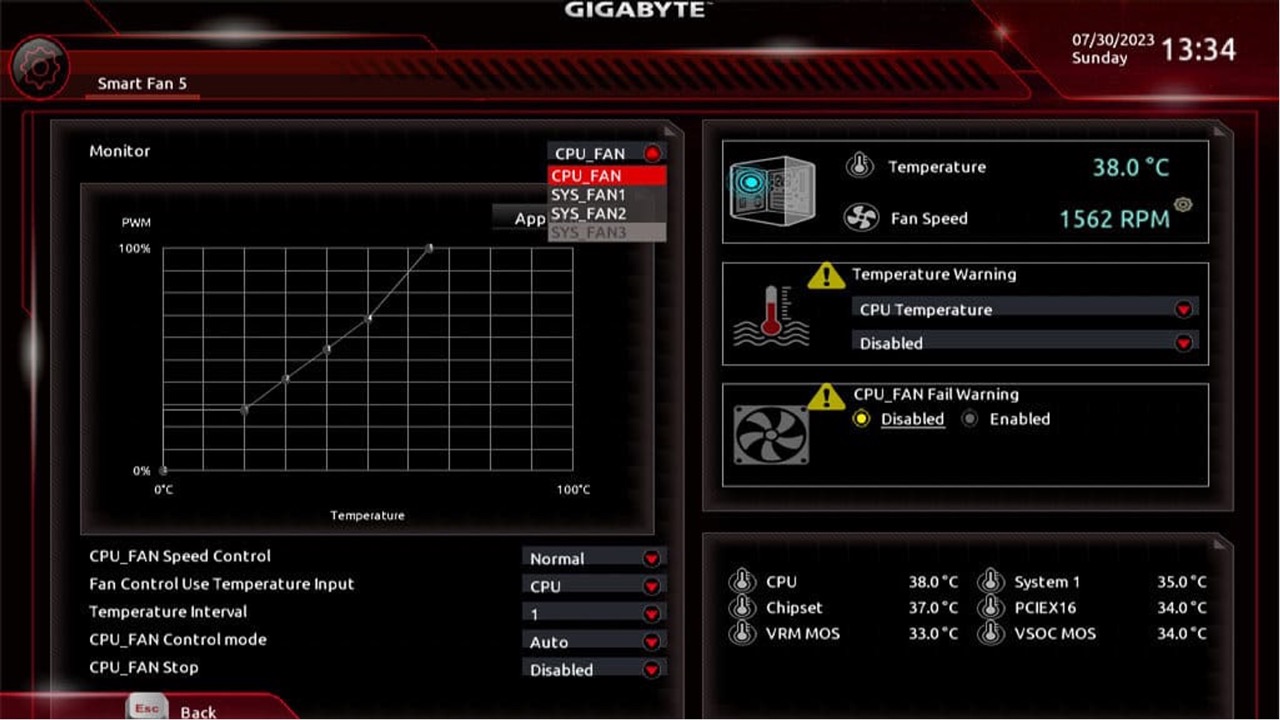
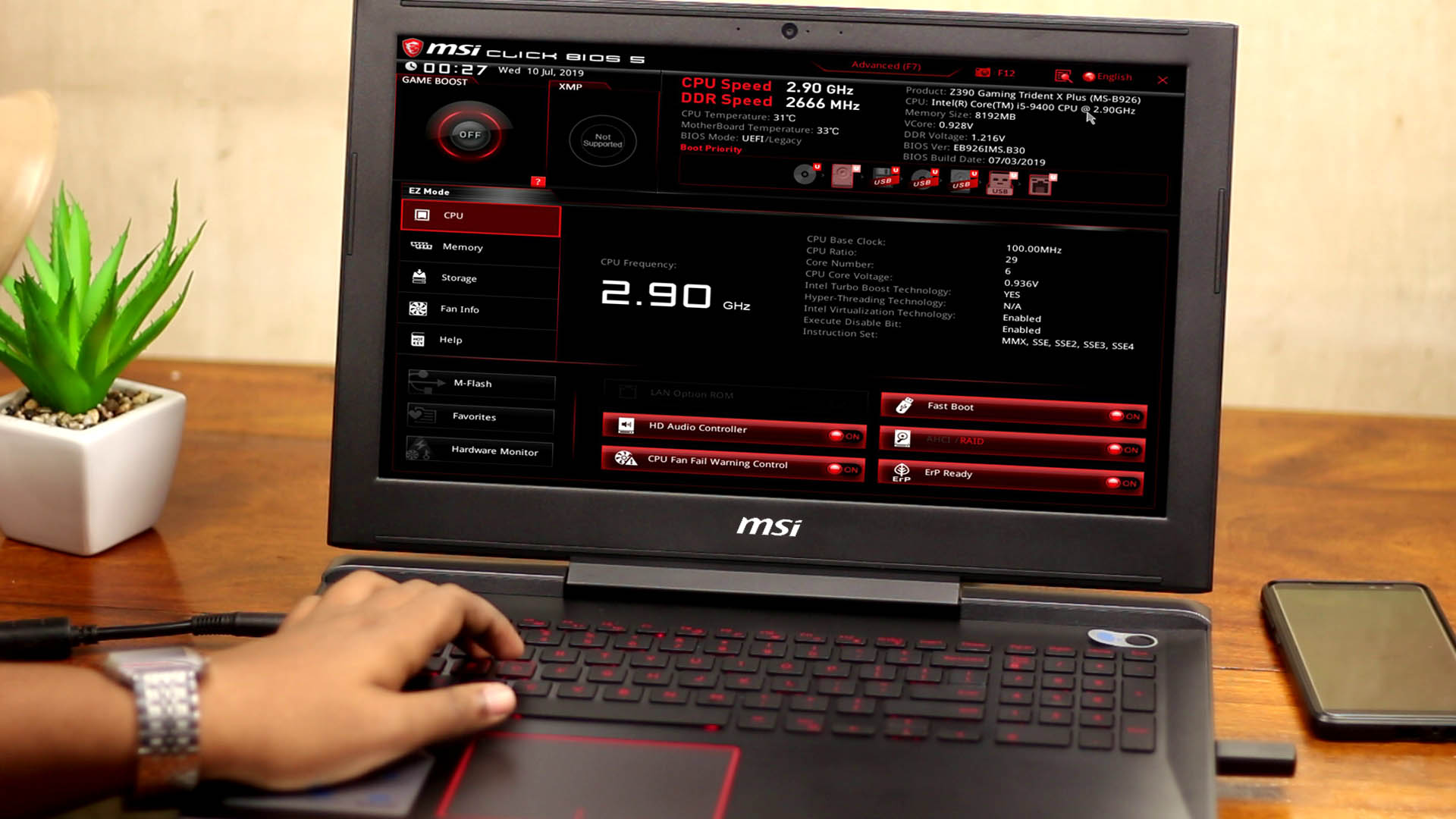
Most of the articles help you solve hardware setup problems. For example, you can learn how to configure an SSD in BIOS, check whether your motherboard supports NVMe boot, or find out how many SSD slots your system has. Several guides focus on RAM: changing its speed in a Gigabyte BIOS, diagnosing why it runs at 2133 MHz instead of 3200, and deciding whether mixing 8GB sticks of different speeds or brands is safe. Others deal with booting from a USB stick on an HP all-in-one or entering BIOS on an MSI gaming laptop.
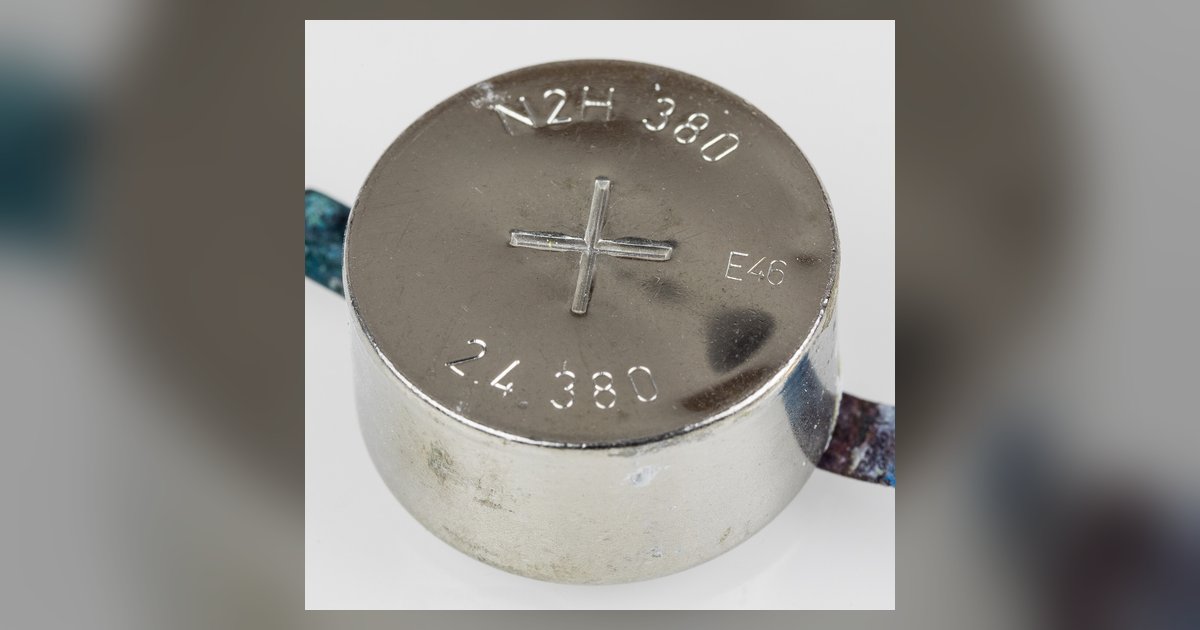
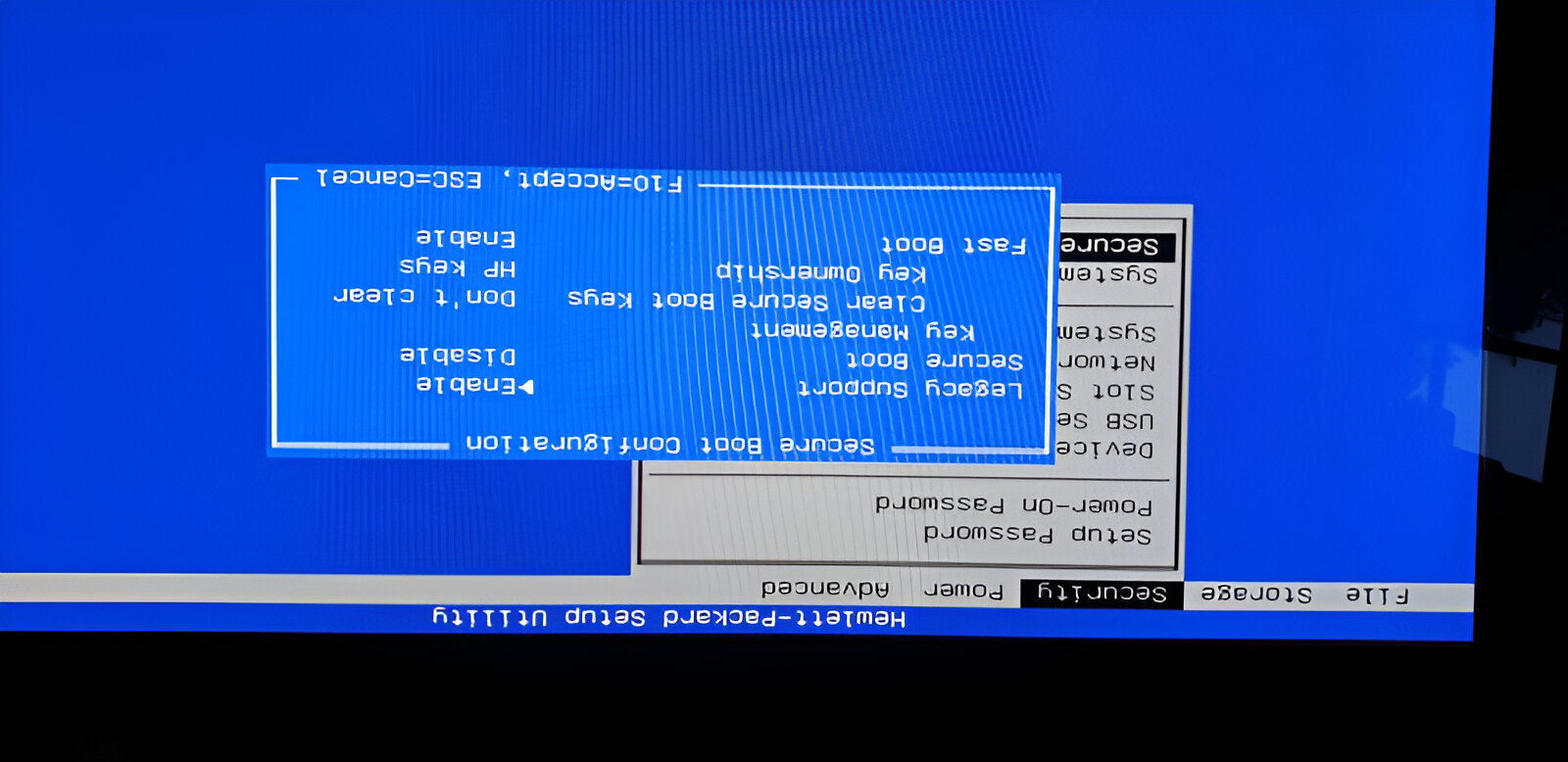
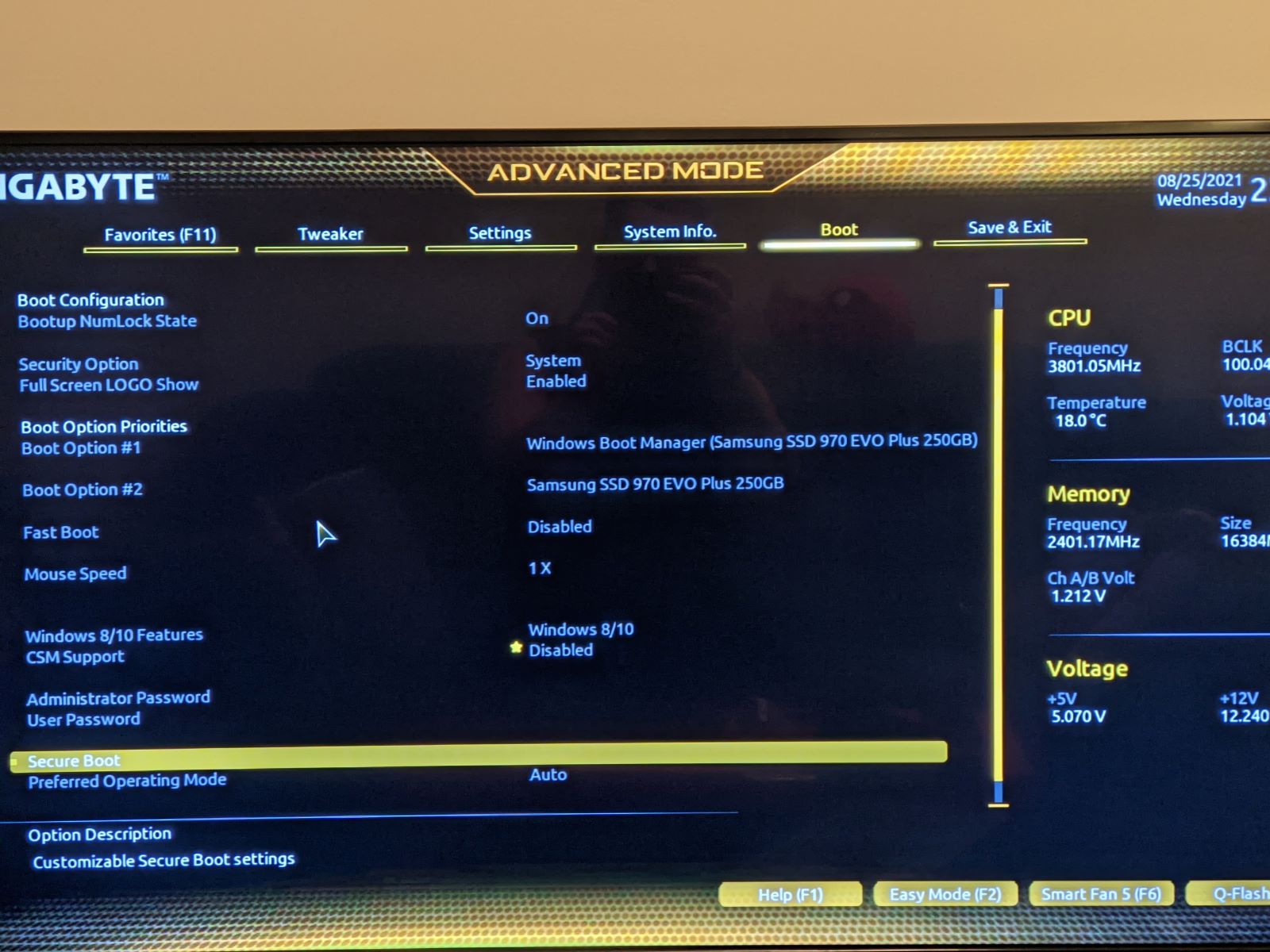
A second group covers recovery and security. You can read about resetting CMOS after a failed RAM overclock, removing an HDD or SSD password on a Toshiba laptop, or enabling Secure Boot on a Gigabyte motherboard. A few articles address everyday annoyances, like using function keys without the Fn button or fixing a non-working screenshot key on an HP laptop. The guides also include legitimate alternatives to risky actions: instead of bypassing a power button, you learn how to turn on a Dell convertible laptop through other means, and instead of downloading PS2 games from unofficial sources, the PCSX2 article explains the legal, user-owned disc backup process. Throughout, the focus is on safe configuration, not circumventing protections.