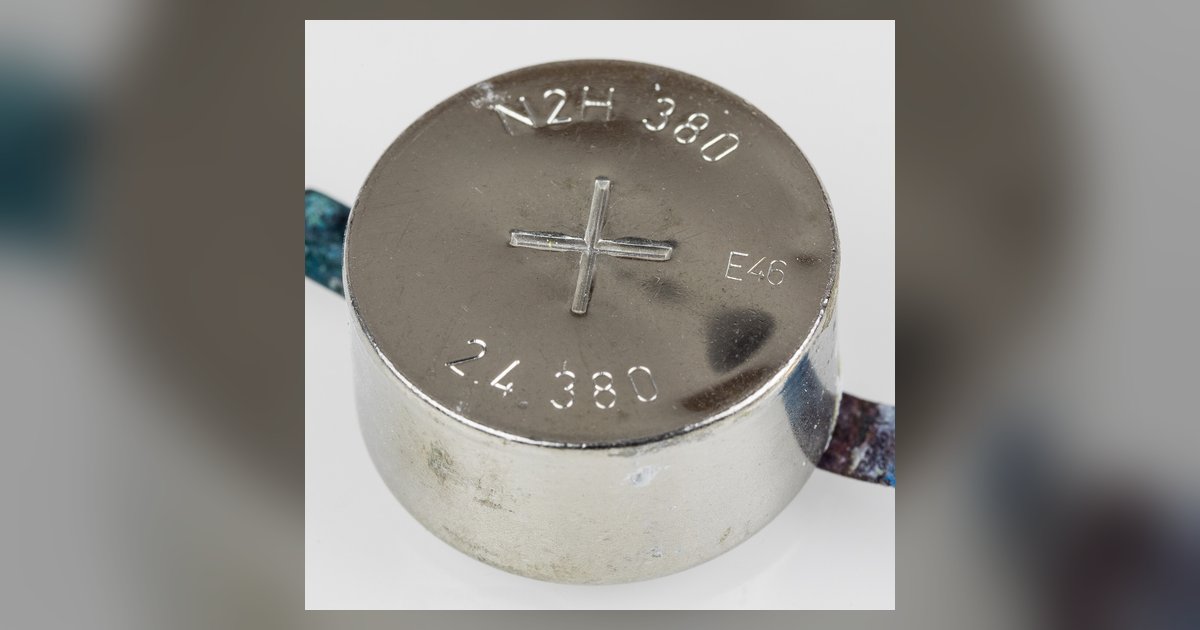
Locate the small silver coin-cell battery on your motherboard, remove it for 30 seconds, then reinsert it and power on. If your board has a dedicated Clear CMOS button or jumper, you can use that instead without removing the battery.
What you'll need to reset CMOS
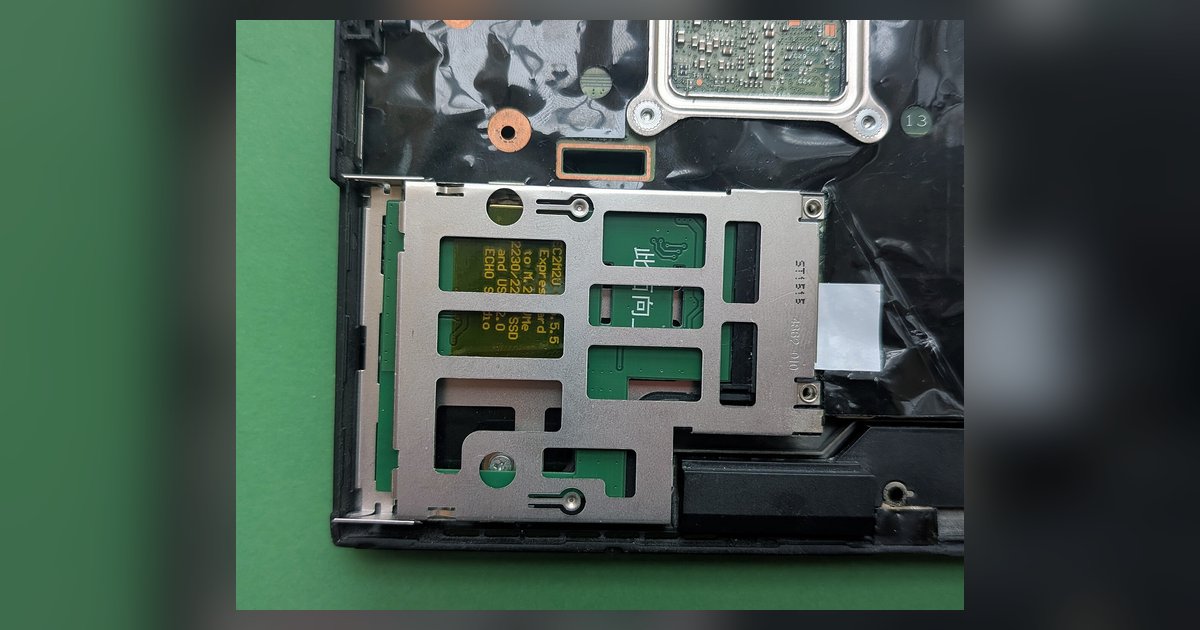
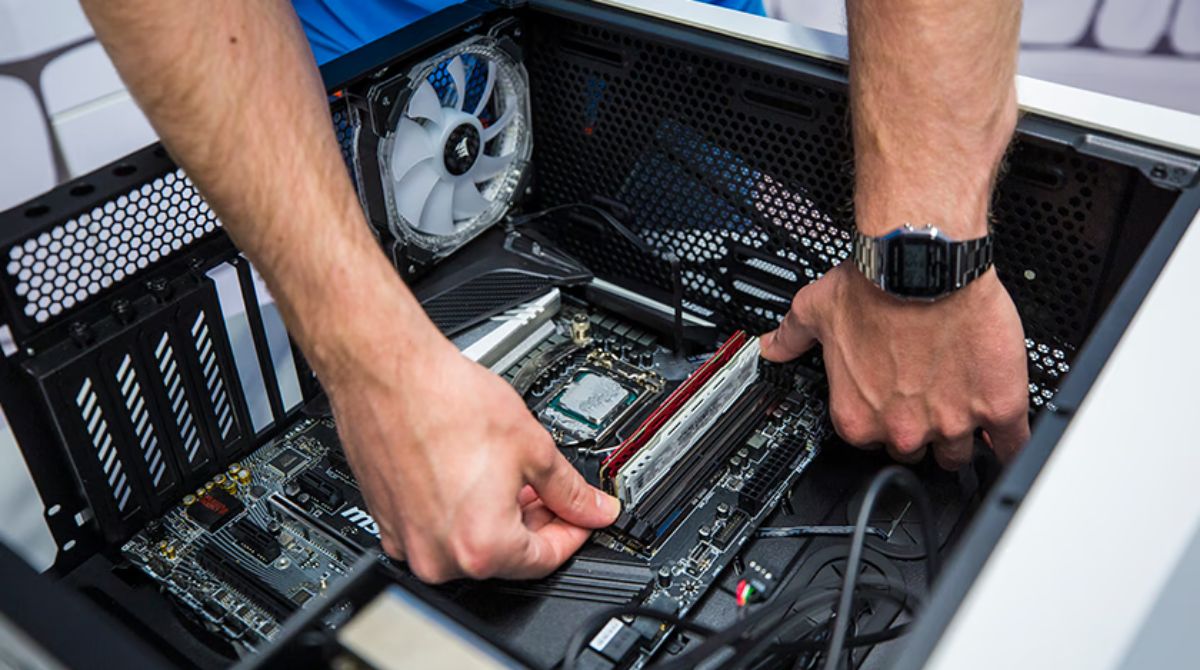
The only tool required is a non-conductive object like a plastic spudger or a flathead screwdriver to pop out the cell. The power supply must be switched off and unplugged for safety. You do not need to take out RAM for this procedure. If the motherboard hides the cell underneath a GPU or large heatsink, you may need to remove those components first. A pair of tweezers can help grip the cell edge. A credit card or plastic pry tool works just as well.
Clearing the CMOS with the onboard cell
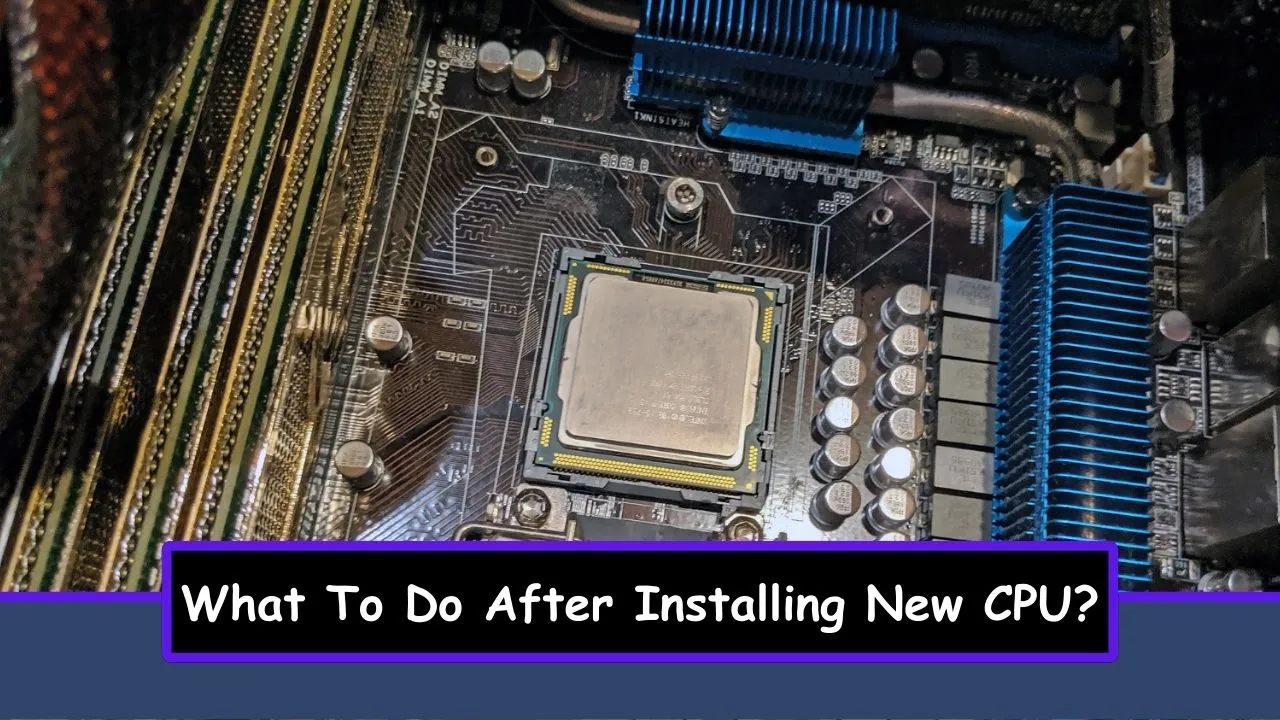
Flip the power supply switch to off and unplug the AC power cord from the wall. Wait five seconds, then press and hold the case power button for 10-30 seconds to drain any lingering charge. Locate the small silver coin-cell on the motherboard, typically near the bottom-right edge of the board. Press the metal retaining clip outward with your plastic spudger. The cell should pop up slightly. Lift it out with your fingers or tweezers. Leave the cell out for 1-5 minutes to ensure all capacitors discharge completely. If the cell sits under your GPU, unscrew the GPU bracket, gently unplug its power cables, and lift the card out. After 30 seconds, reinsert the cell with the positive (+) side facing up. Reinstall any removed components, plug in the power, and boot. You should see the POST screen asking to enter BIOS to reconfigure settings.
Using the jumper or button instead
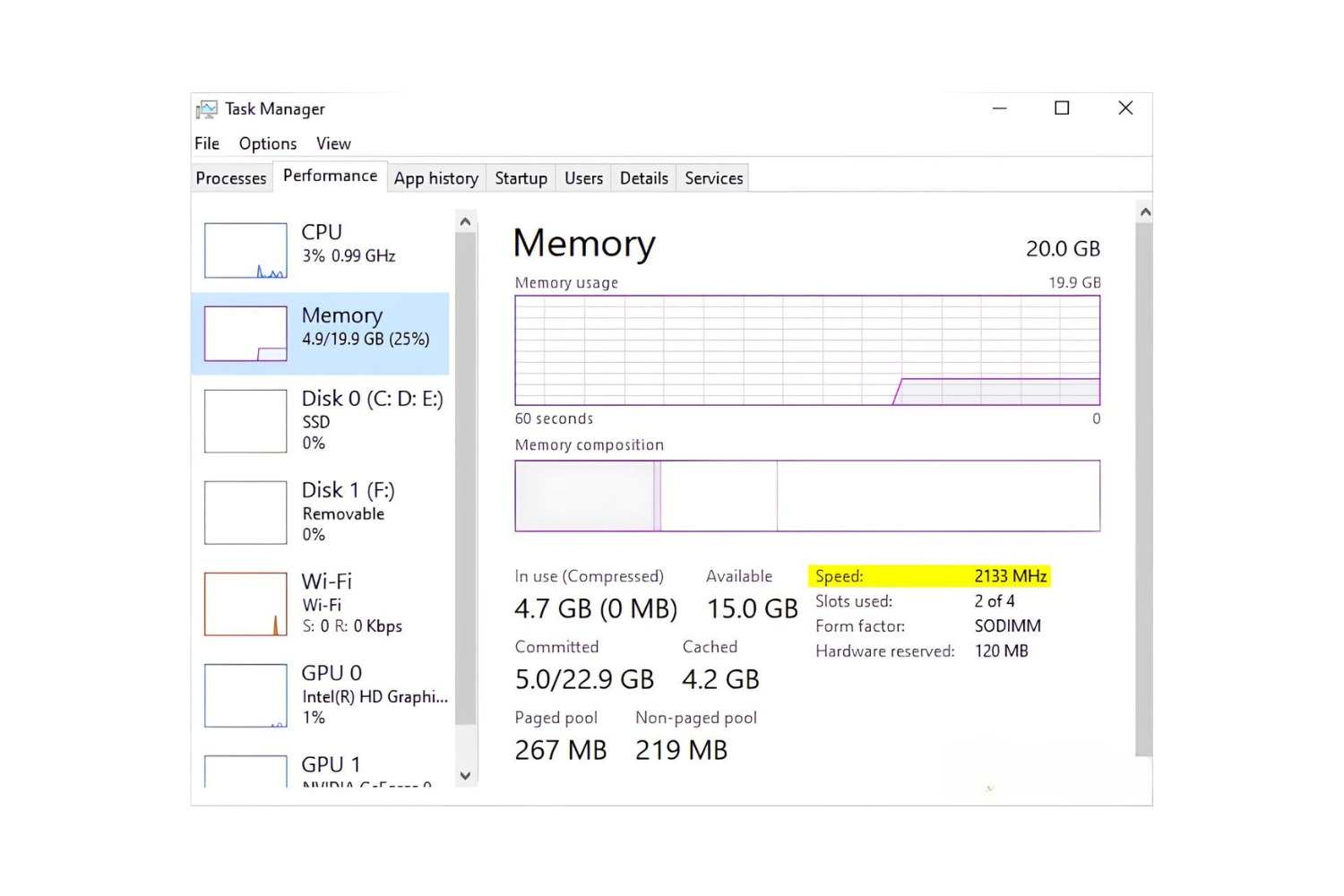
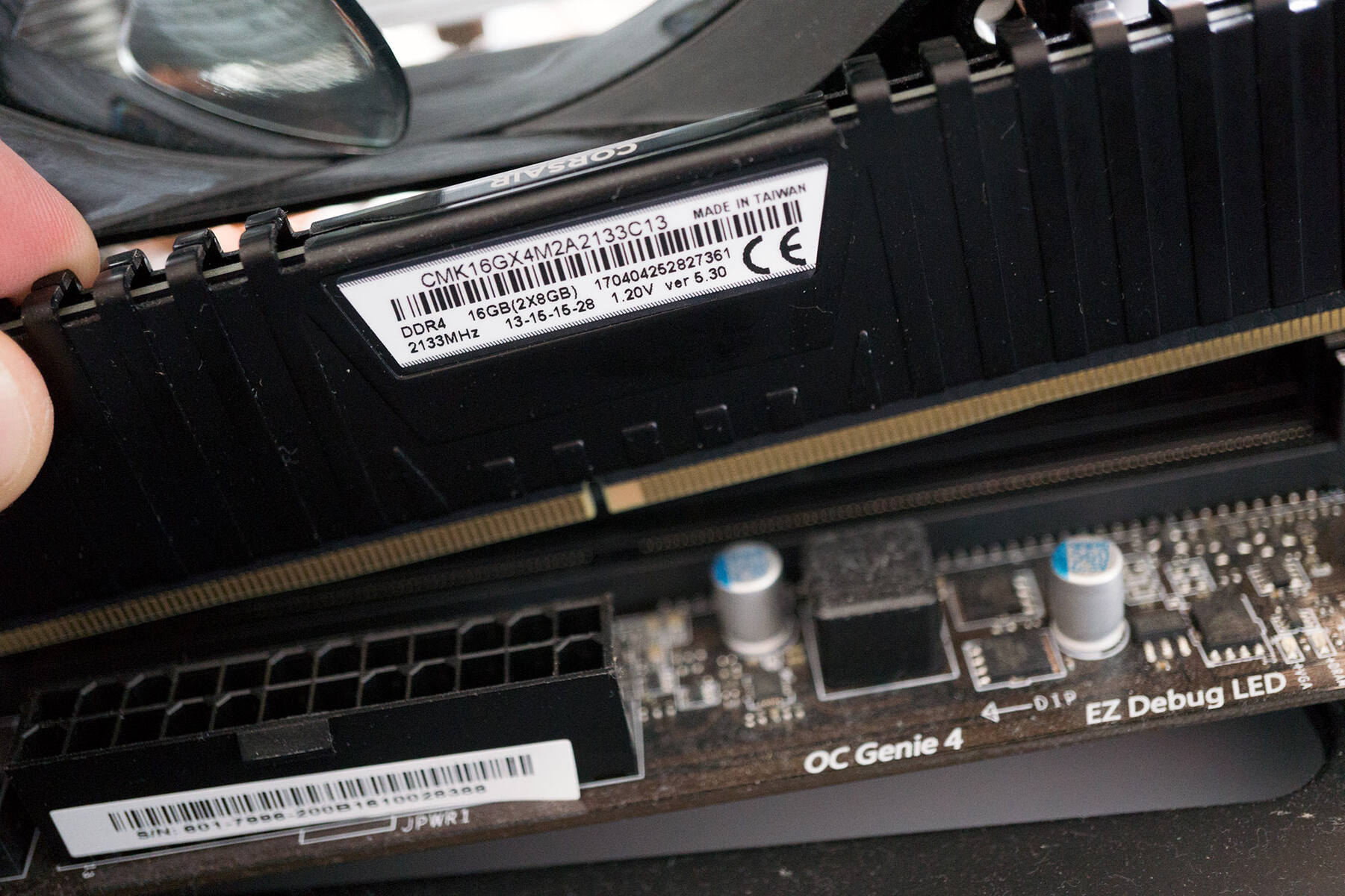
A faster method exists for boards where the cell is hard to reach. Look for a pair of pins labeled CLR_CMOS, CLRTC, or JBAT near the cell or the front-panel header. After draining residual power, with the power supply switched off and unplugged, touch both pins simultaneously with a flathead screwdriver for 5-10 seconds (or as specified by your motherboard manual). Some boards have a dedicated Clear CMOS button on the rear I/O panel. After draining residual power, press that with the system off and hold for 10-30 seconds depending on your motherboard manufacturer. A successful reset shows a black screen for a few seconds, then the motherboard logo appears with a message like “CMOS cleared” or “BIOS settings have been reset.” If you later want to change your RAM speed in the BIOS, you will need to re-enter the BIOS and reapply your memory frequency manually after this reset. Before pushing your kit again, consider your RAM RGB, speed and compatibility to avoid another failed overclock.
When the reset doesn't work
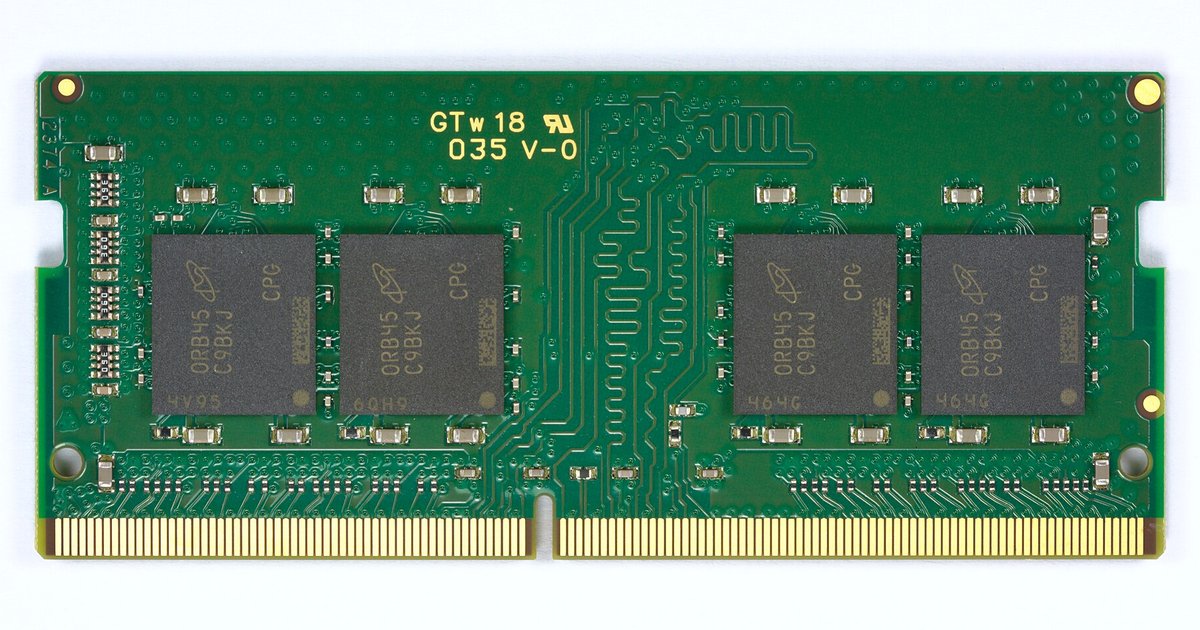
If the screen stays black after the reset, wait several minutes. The board may be performing memory training, which can take up to three minutes on some platforms. A failed reset often means the power was not fully drained. Leaving the PSU plugged in or forgetting to switch it off prevents the CMOS from clearing. Repeat the process with the power cord disconnected for two full minutes. A persistent black screen can also indicate physical damage. The overclock may have corrupted the RAM modules themselves, requiring you to test each stick individually. It may have damaged the memory controller on the motherboard. Try booting with a single RAM stick in slot A2. If you still see nothing, inspect the RAM slots for burnt pins or bulging capacitors. In rare cases, the board’s firmware may be corrupted beyond a simple reset, requiring a BIOS flashback or replacement.
This procedure forces the BIOS back to factory defaults by draining the residual charge from the capacitors, which is the only guaranteed way to clear a failed XMP profile that locks the screen black before POST.