Enable 'Function Lock' in your BIOS/UEFI settings or toggle Fn Lock by pressing Fn + Esc on keyboards that support it; if neither works, your keyboard lacks hardware-level function lock and requires the Fn key.
Use function keys by toggling Fn lock
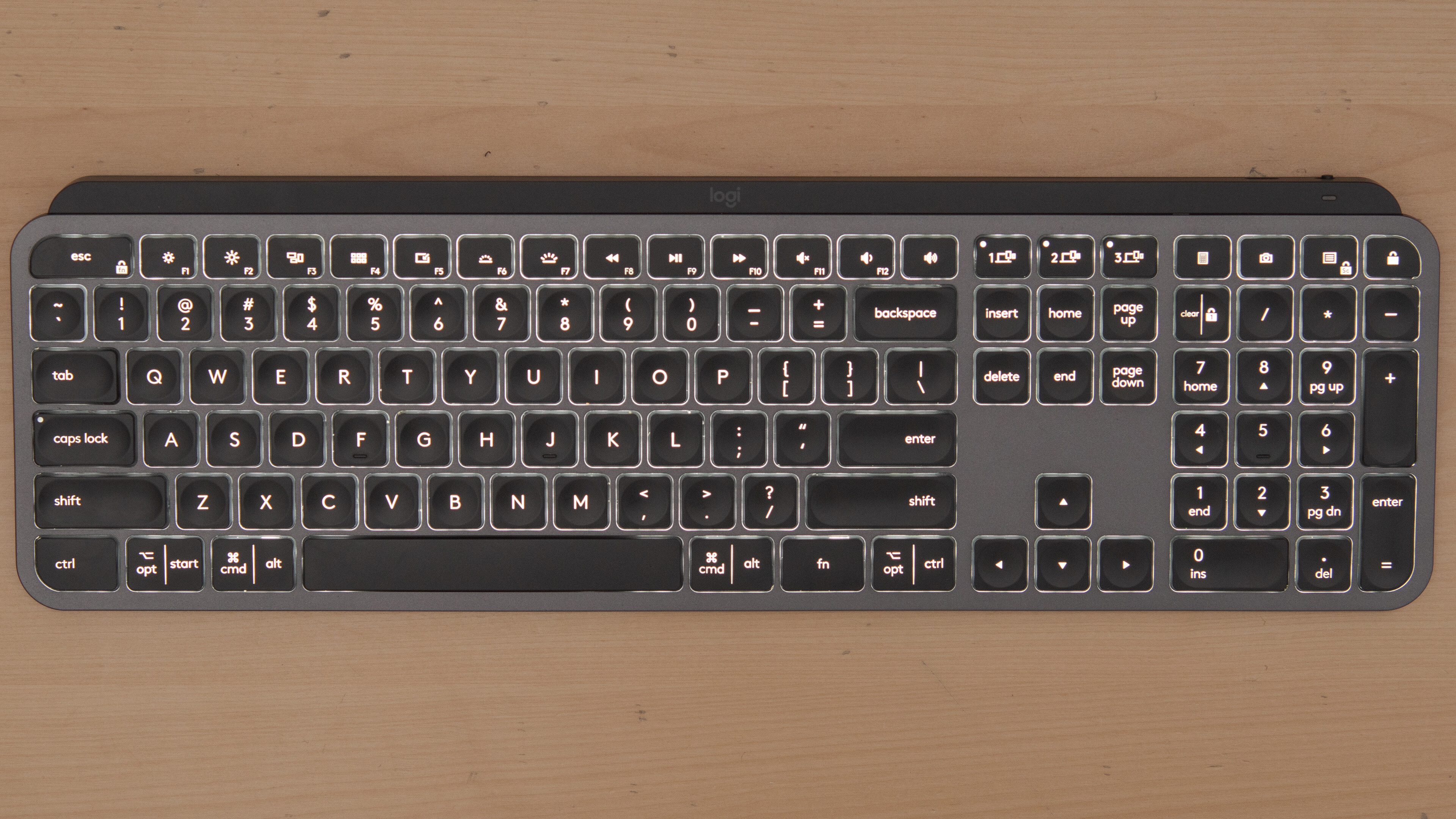
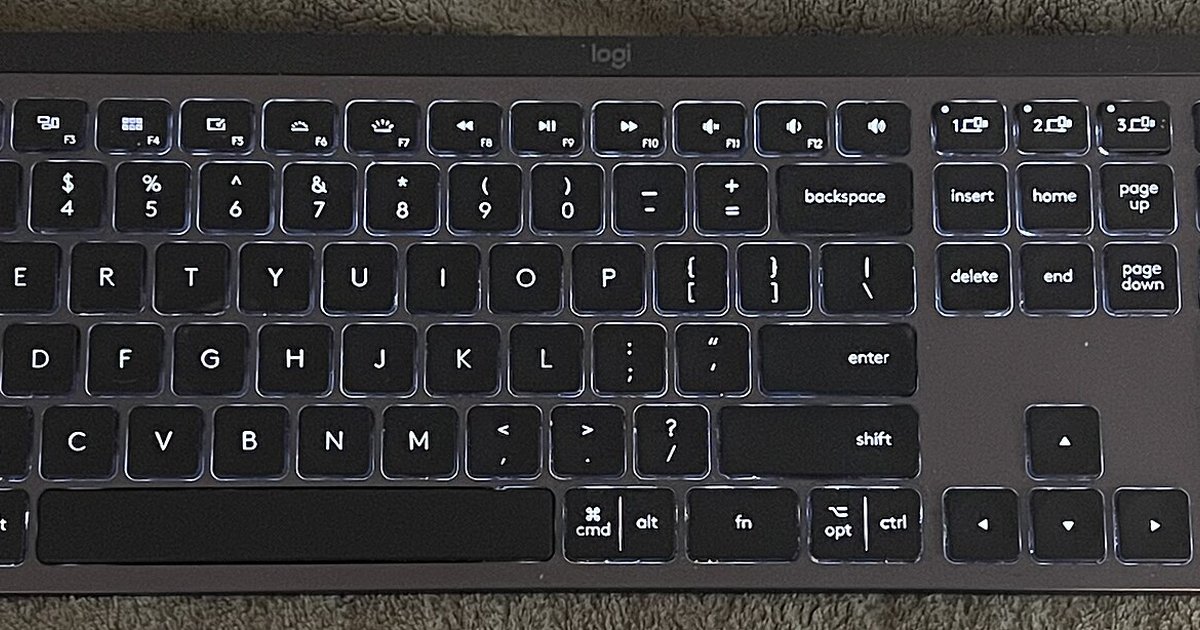
Many modern input devices include a hidden Fn Lock toggle. Look for a small lock icon on your Esc key, or a secondary symbol on Caps Lock. Press and hold the Fn key, then tap the key with the lock icon, usually Esc. If the icon lights up or stays lit, Fn Lock is enabled; function keys now work directly. To test, press F1 or F2 without Fn. If they trigger their standard function (e.g., F1 for Help), the toggle succeeded. This shortcut only works if your peripheral’s firmware supports it; check your manual or the manufacturer’s support page for the exact combination. For Logitech hardware, you can also use the Logitech Options+ software to reassign keys, but that’s per-app, not system-wide. If you want a global fix without software, the BIOS/UEFI method below is more reliable.
Change the setting in BIOS or UEFI
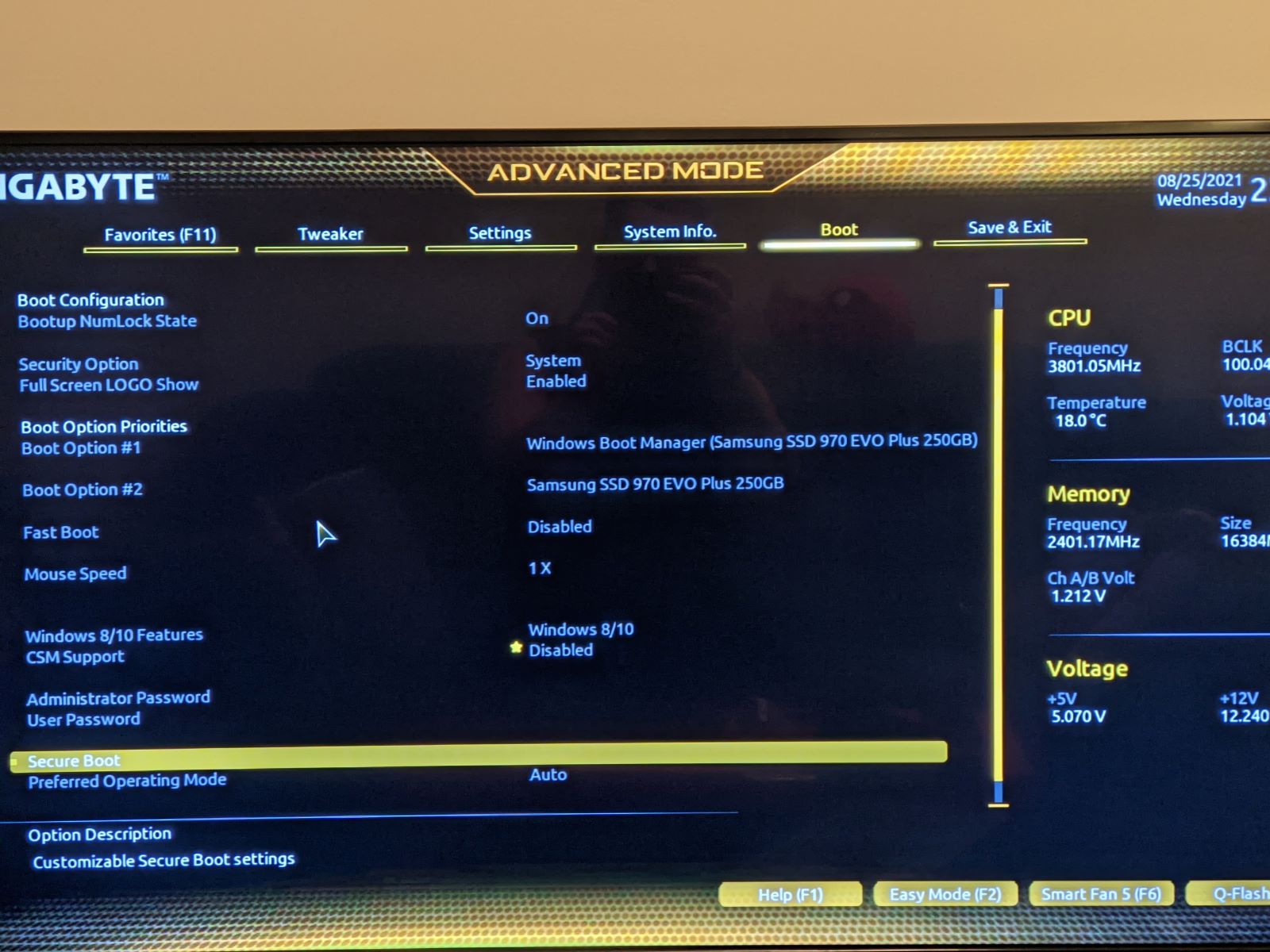
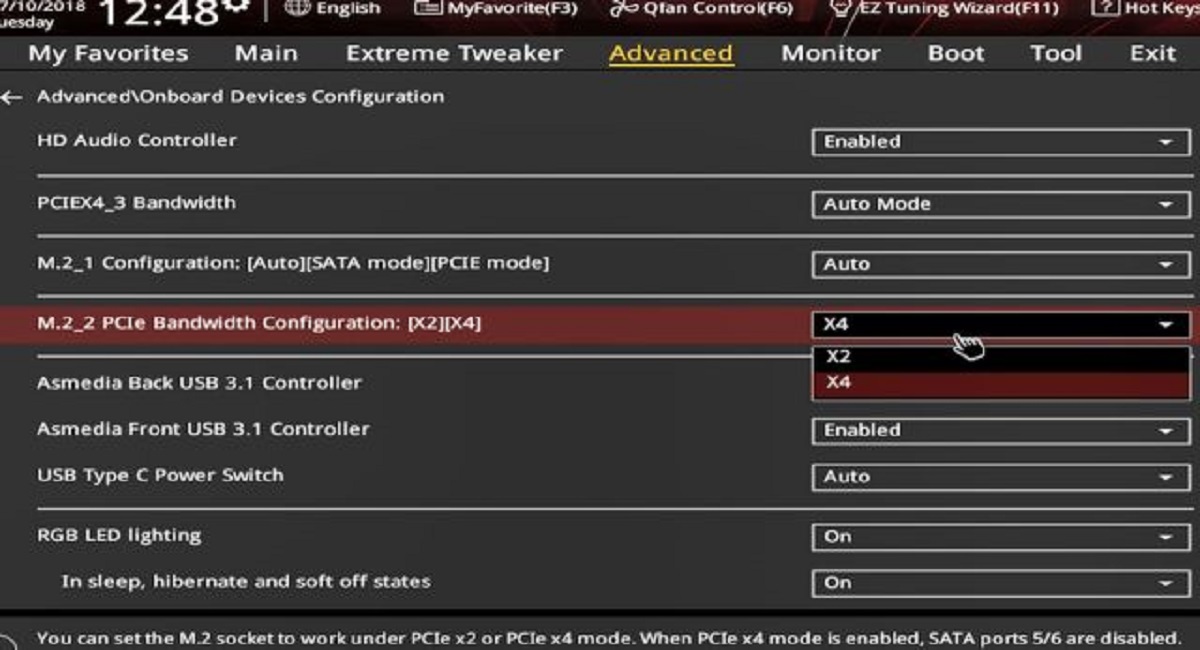
For a permanent, brand-agnostic solution, enter your computer’s BIOS or UEFI firmware during startup. Restart your PC and press the key shown on screen (usually Del, F2, F10, or Esc) to enter setup. Navigate to the “Advanced” or “System Configuration” menu. Look for an option named “Function Key Behavior,” “Action Keys Mode,” “Fn Key switch,” or “Hotkey Mode.” Change it from “Media Key” to “Function Key” or set it to “Disabled” for function lock. Save and exit (typically F10). This setting applies to any input device you plug in, because it changes how the motherboard interprets the key signals. Note: Some laptops may also expose this in Windows Mobility Center (press Win + X, select “Mobility Center,” then “Fn Key Behavior”), but that only works on OEM laptops with dedicated drivers, not on generic desktop peripherals. If you need to use function keys on Logitech mx keys, this BIOS method will also lock F1, F12 to standard functions regardless of the brand.
When there is no fix
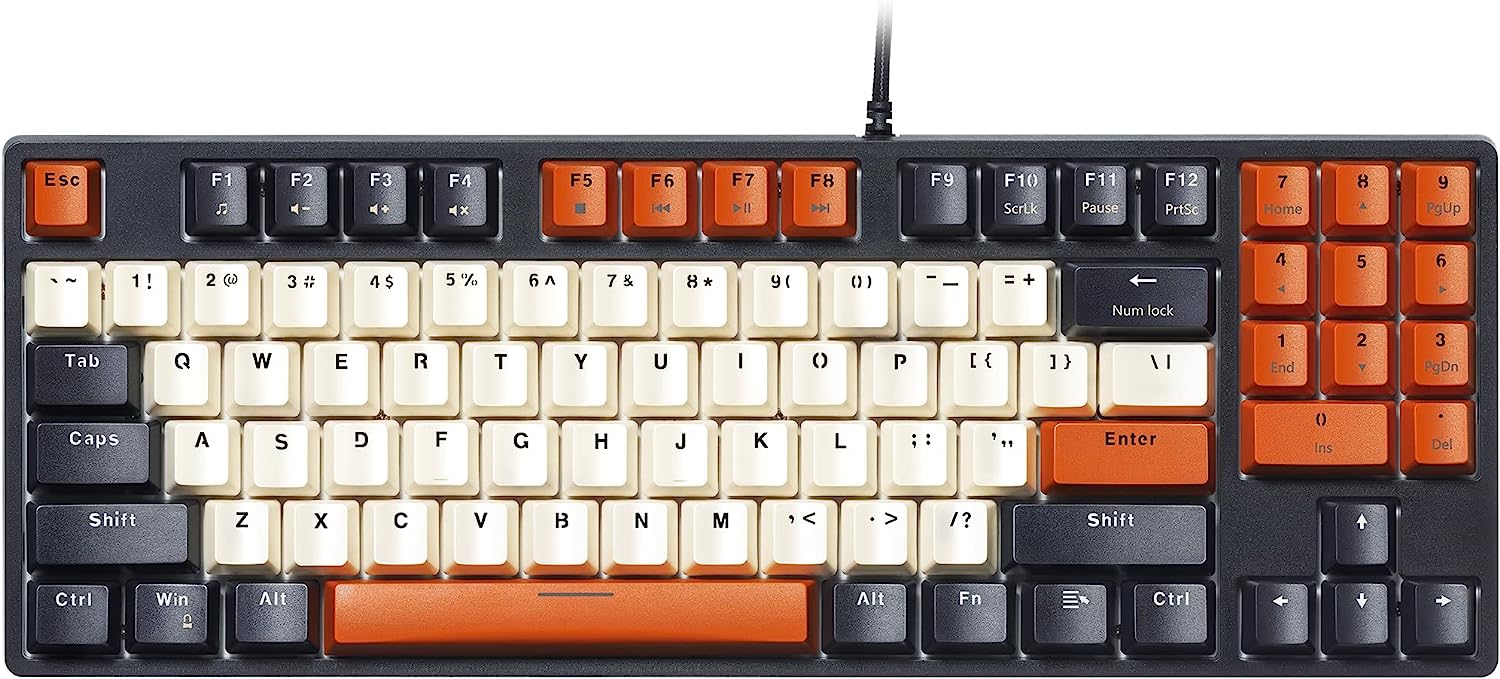
Some input devices, especially ultra-slim or mechanical models without a dedicated Fn Lock chip, will never let you bypass the Fn key. Their firmware permanently defaults to media keys, and no software or BIOS setting can override that hardware limitation. In that case, you must hold Fn to access F1, F12. This is common on older boards or those designed for macOS, where the command key on a Windows keyboard might be mapped to the Fn position. If your device has the easy switch button on Logitech keyboard (a physical button to switch between paired devices), that button does not control Fn Lock, it only manages Bluetooth connections. For a system-wide fix that works with any brand, you must rely on the BIOS/UEFI option. If that option is absent from your firmware, your only choice is to hold Fn or buy a peripheral with explicit Fn Lock support. Windows Mobility Center will not help unless your laptop manufacturer specifically provides the driver for it.
Enable function lock at the hardware level
This system-wide setting overrides the default behavior of the function keys on a keyboard, letting you press F1, F12 directly for their standard actions (like F5 to refresh) instead of media controls (like mute or brightness). If your device has a dedicated Fn Lock key or supports the shortcut, you can switch the default permanently without holding Fn. This approach differs from software remapping because it changes the signal the hardware itself sends to the operating system, making it the only method that works universally across every application and even before the OS loads. For a deeper look at what each key does across different systems, see the keyboard keys explained reference.