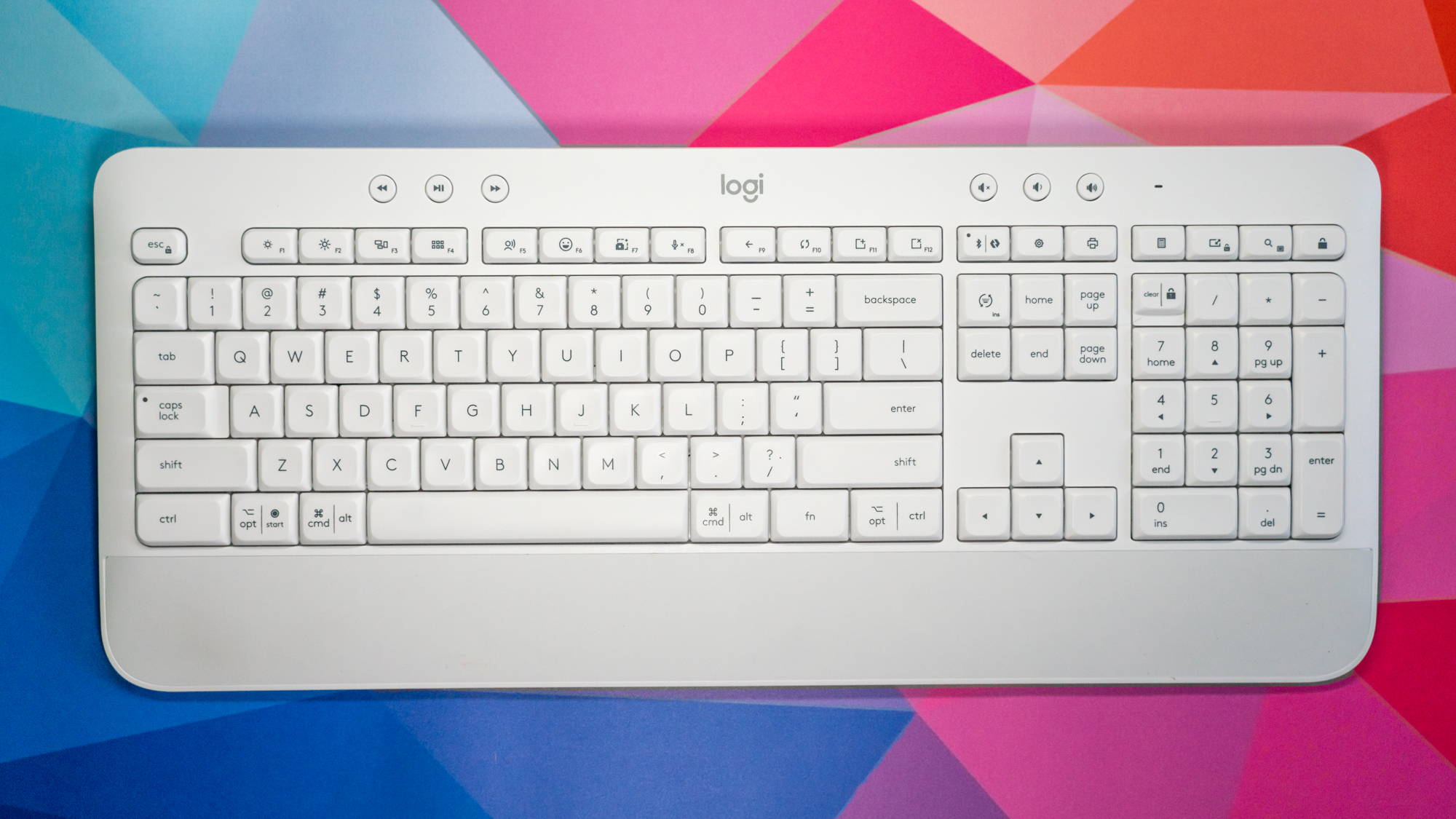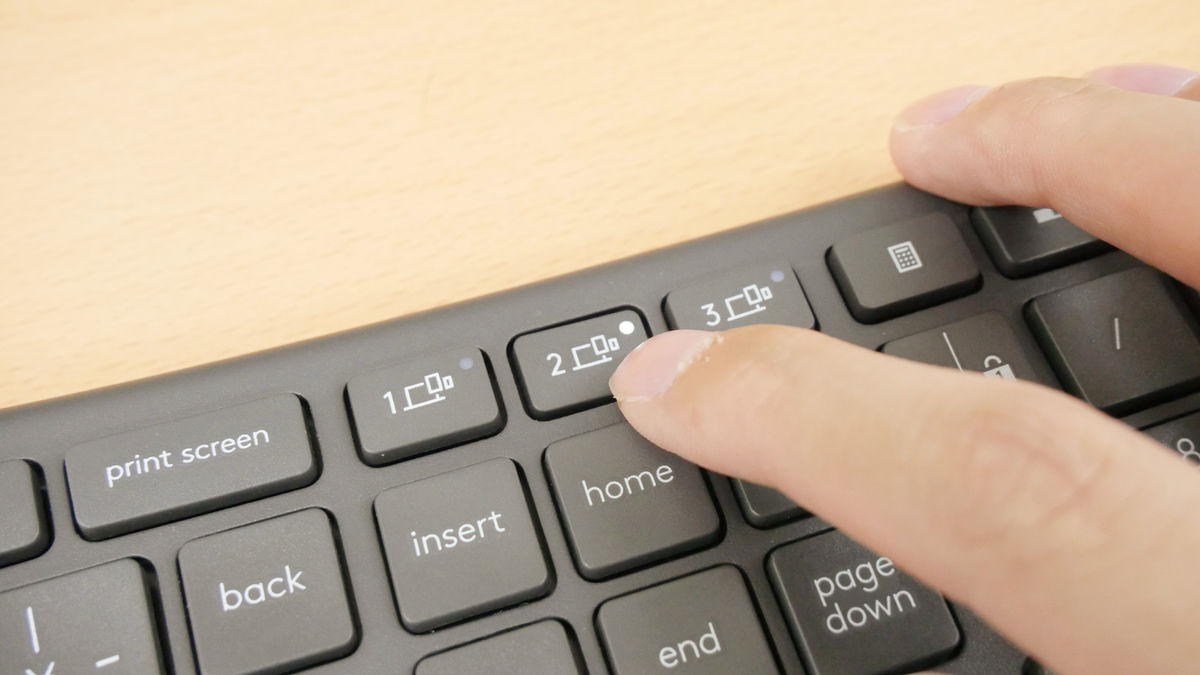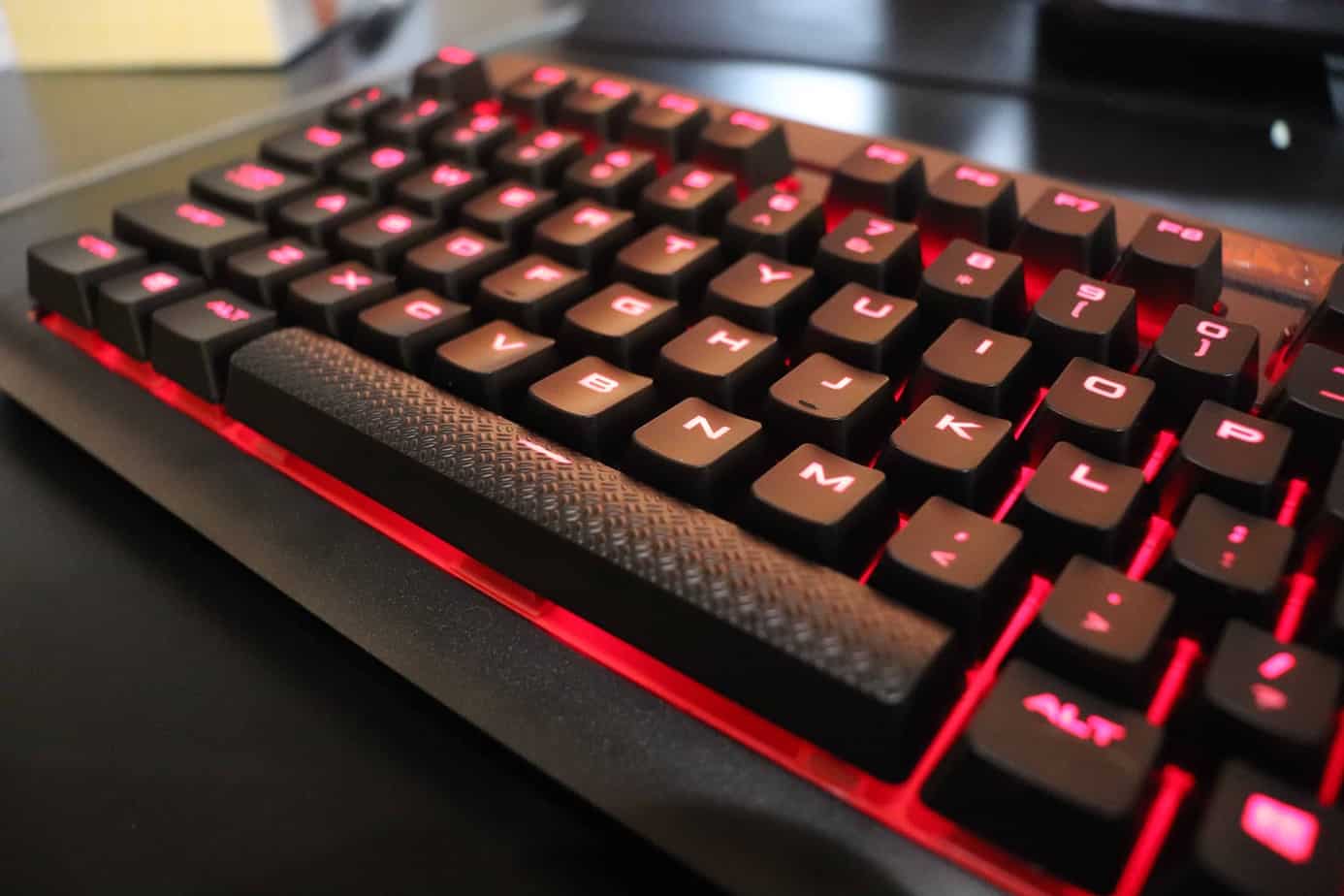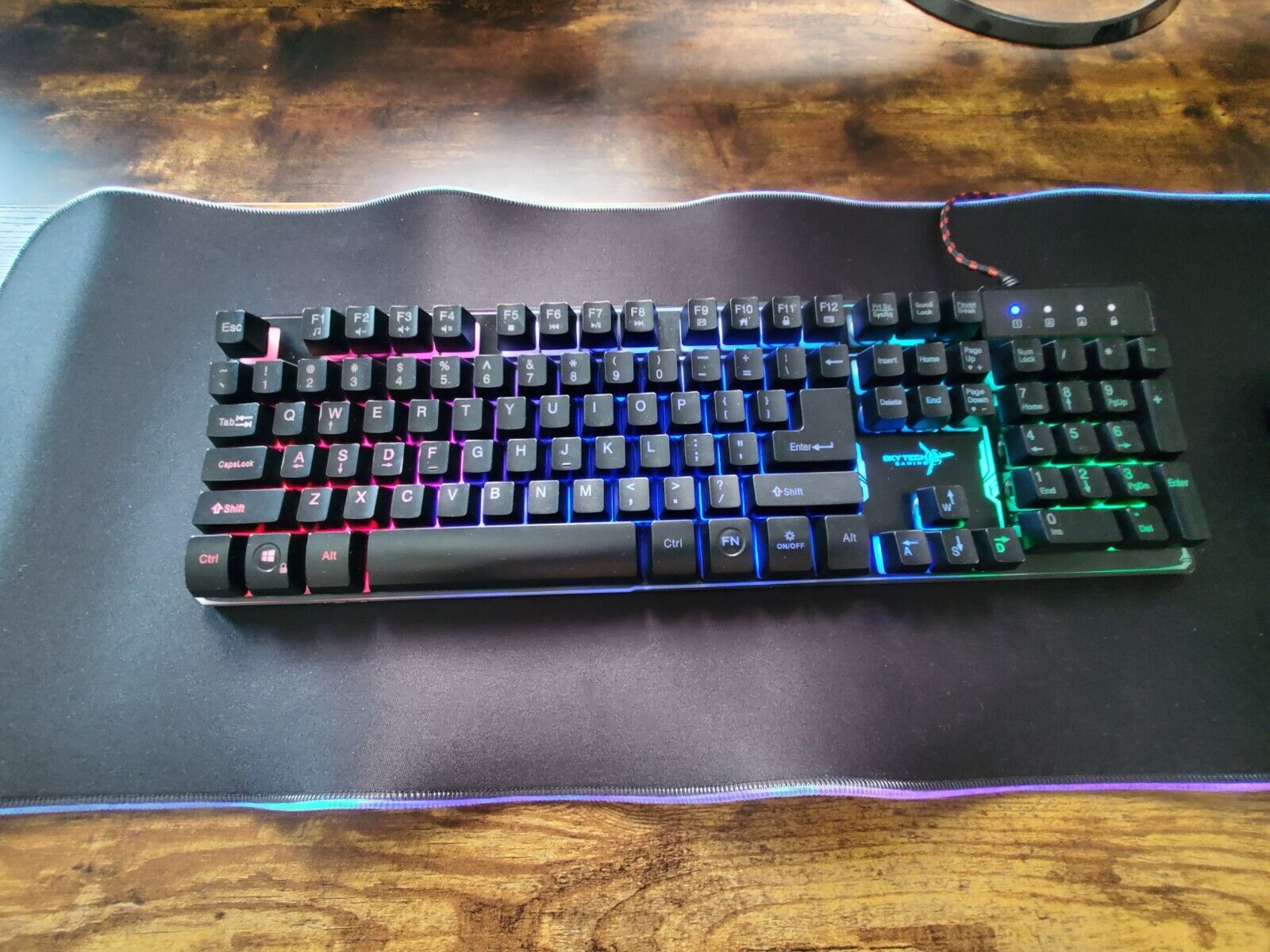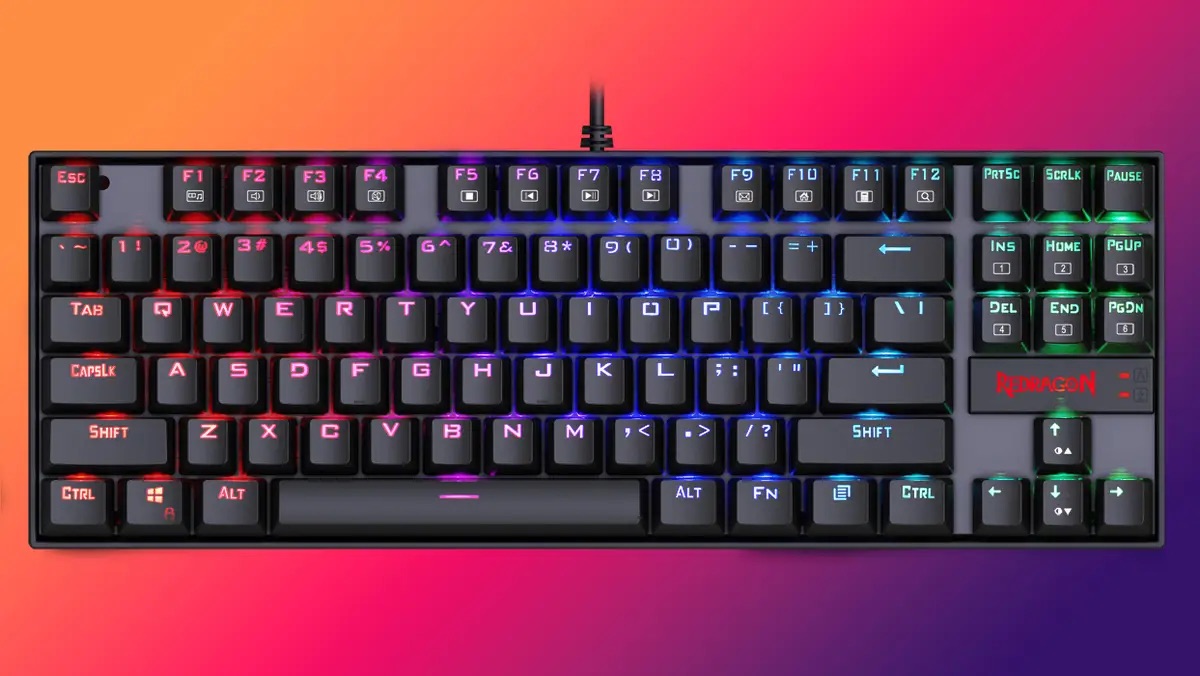
To take a screenshot on a gaming keyboard, press the Print Screen (PrtScn) key to copy your entire screen to the clipboard, or press Windows + Print Screen to save it automatically to your Screenshots folder. These built-in Windows shortcuts work on virtually any gaming keyboard and are the fastest way to capture gameplay moments without extra software.
How to take a screenshot on a gaming keyboard: The three core Windows shortcuts
Every gaming keyboard user should know these three shortcuts first because they require no setup and work with any game, launcher, or application. The Print Screen key is the most direct method: press it once, and Windows copies a full-screen image to your clipboard. From there, open Paint or any image editor and paste (Ctrl + V) to save the file. This is ideal when you want to review or edit the capture before sharing.
If you only need the active window, say, the game itself rather than your desktop or a second monitor, press Alt + Print Screen. This captures just the foreground window to the clipboard, saving you from cropping later. It’s the quickest way to grab a single game window without surrounding clutter.
For the most convenient option, press Windows + Print Screen together. Windows then automatically saves a full-screen screenshot as a PNG file in the Screenshots folder inside your Pictures directory. No pasting, no manual saving, just an instant, ready-to-share image. This is the shortcut most gamers use for daily captures because it eliminates extra steps.
What if your keyboard lacks a Print Screen key?
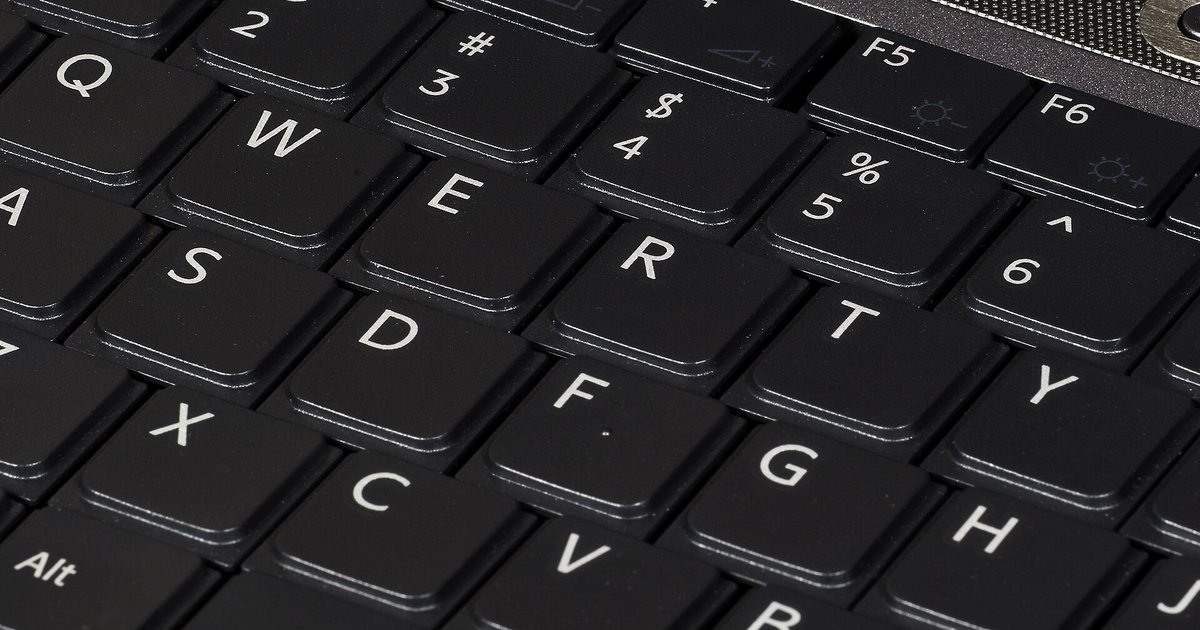
Many compact and 60% gaming keyboards omit a dedicated Print Screen key to save space. In that case, the function is usually hidden on another key, accessible via the Fn layer. Look for a secondary label printed in a different color on a key, often on the F11, F12, or a number row key, and press Fn + that key to trigger Print Screen. On some models, the combination is Fn + Windows Logo Key + Space Bar, so check your keyboard’s manual or the printed legends on the keycaps to identify the exact secondary function.
If your keyboard has a Fn key but you can’t find the Print Screen label, try pressing Fn + F11 or Fn + F12, as these are common placements. Once you locate it, the shortcut behaves exactly like a standard Print Screen key: it copies the screen to the clipboard, or you can combine it with the Windows key (Fn + Windows + PrtScn) for an auto-saved screenshot. This approach is especially useful when taking a screenshot on a laptop, where compact layouts often hide system keys behind the Fn layer, and the same Fn-key combinations apply if you need to take a screenshot on asus tuf gaming laptop models.
Capture a region or window with the Snipping Tool
When you need only part of the screen, a specific HUD element, a kill feed, or a map, the Snipping Tool (also called Snip & Sketch on Windows 10 and 11) gives you precise control. Press Windows + Shift + S to open the capture overlay immediately. Your screen dims, and a small toolbar appears at the top with four modes: rectangular, free-form, window, and full-screen.
Select rectangular to drag a box around the exact area you want, or free-form to trace an irregular shape. The window mode captures a single open window with a click, and full-screen grabs everything. After you make a selection, the image is copied to your clipboard, and a notification lets you open it in the Snipping Tool for annotation.
In the editor, you can draw, highlight, or crop before saving. This is the best method for sharing a specific detail without exposing unrelated on-screen information. It also works alongside your gaming keyboard’s shortcuts, you can assign Windows + Shift + S to a macro key for one-press region captures.
Assign a screenshot macro in gaming software
Gaming keyboards often come with software that lets you remap keys or create macros, which is perfect for turning a spare key into a dedicated screenshot button. In Corsair iCUE, for example, open the keyboard’s assignments tab, choose a key you don’t use during gameplay, and select “Keystroke” as the assignment type. Then enter the key combination “Win + PrtScn” (or “Alt + PrtScn” if you prefer clipboard-only captures). Save the assignment, and that key now takes an auto-saved screenshot every time you press it.
Logitech G HUB works similarly: select your keyboard, click the key you want to remap, choose “Keystroke Assignment,” and input the Windows + Print Screen combination. Razer Synapse offers the same functionality under its “Customize” tab, where you can bind macros to any key. The advantage of these software-based macros is that they work across all games and applications, and you can place the screenshot function on a thumb button or a macro row for faster access during intense moments.
This approach also complements other peripherals, if you’re already familiar with programming gaming mouse buttons and macros, the same logic applies to your keyboard. You can even create a two-step macro that takes a screenshot and opens it in an editor, though a simple keystroke binding is usually enough for most players.
Troubleshooting common screenshot problems
If your Print Screen key opens the Windows emoji panel instead of taking a screenshot, the issue is usually that your keyboard’s Fn layer is active or the key is mapped to a different function. On many laptops and compact keyboards, the Print Screen key shares its physical button with the emoji key or a brightness control. Press Fn + Print Screen to trigger the actual screenshot function, or check your keyboard’s software to remap it back to its default behavior.
When Fn combinations fail entirely, first verify that the Fn key is working by testing another secondary function, like volume control. If other Fn shortcuts work but Print Screen doesn’t, your keyboard may require a different combination, consult the manual or the on-screen display in your keyboard software. For keyboards with a dedicated Fn lock, make sure it isn’t toggled to the wrong state.
To fix this, reopen G HUB, select your keyboard, and reapply the keystroke assignment. If the issue persists, update the keyboard’s firmware through G HUB, then re-create the macro. The same troubleshooting applies to Corsair iCUE and Razer Synapse, after any update, check your assigned keys and re-save the profiles if necessary.