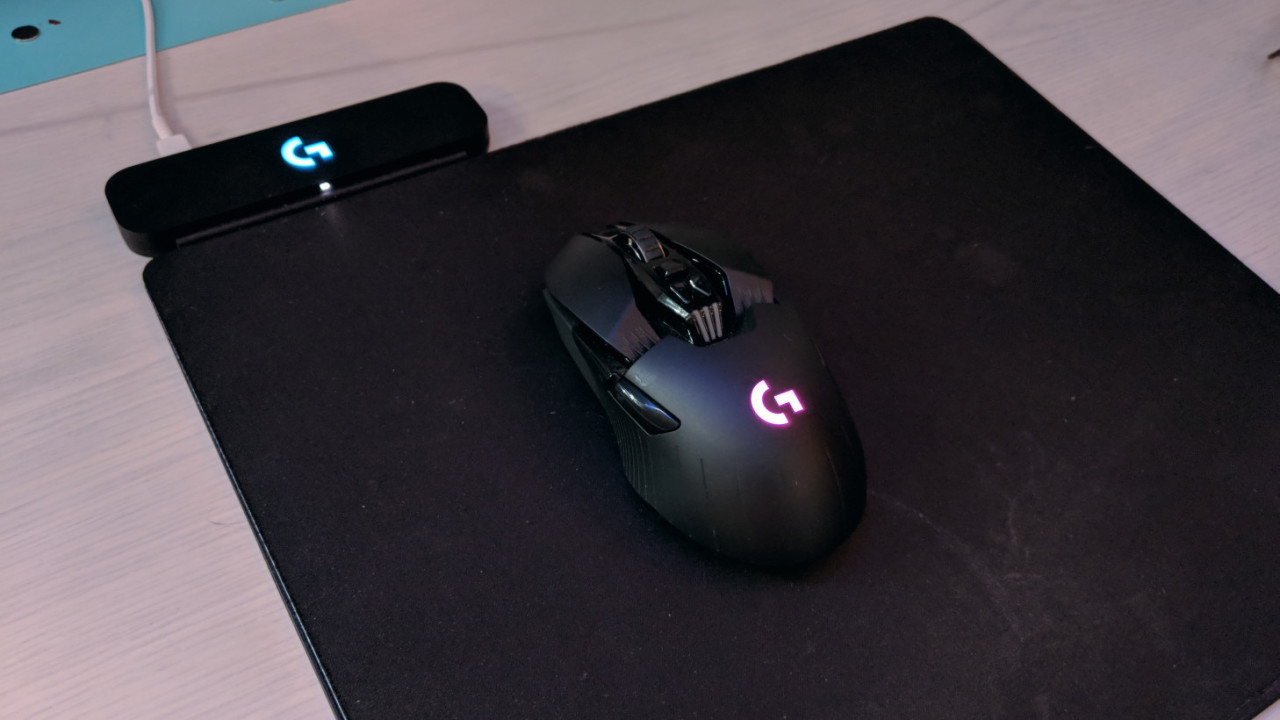
Your Logitech mouse battery is low when its indicator light blinks red, its paired software shows a low percentage or one pip, or your operating system’s Bluetooth settings report a low level. The fastest way to check is to open Logi Options+, G HUB, or SetPoint (depending on your model), look for the battery icon on the mouse itself, or glance at your system’s Bluetooth menu, and if you also use their keyboard, you can check battery level on Logitech mx keys in the same software. These three methods cover every Logitech mouse and take under ten seconds each.
Using Logi Options+, G HUB, or SetPoint
Logitech’s official software is the most reliable way to get an exact battery percentage. For most modern mice (MX series, M650, M185, etc.), install Logi Options+ from Logitech’s website. Once installed, open the app, the home screen shows your connected devices, and the mouse’s battery level appears as a percentage (0-100%) or as 1-3 pips. A single pip means 0-10% remaining, two pips mean 11-80%, and three pips mean over 81%. If you see one pip, treat it as critically low.
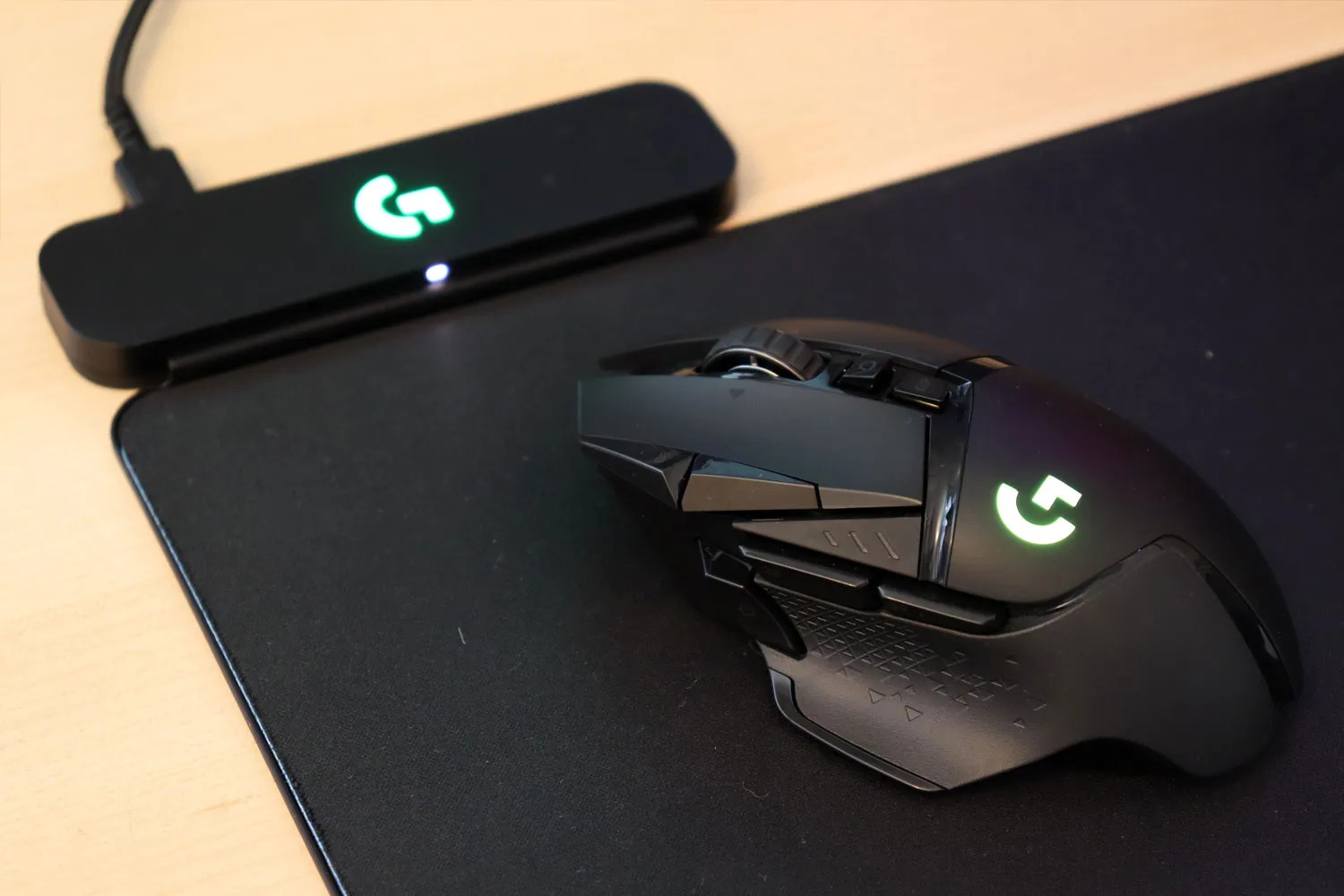
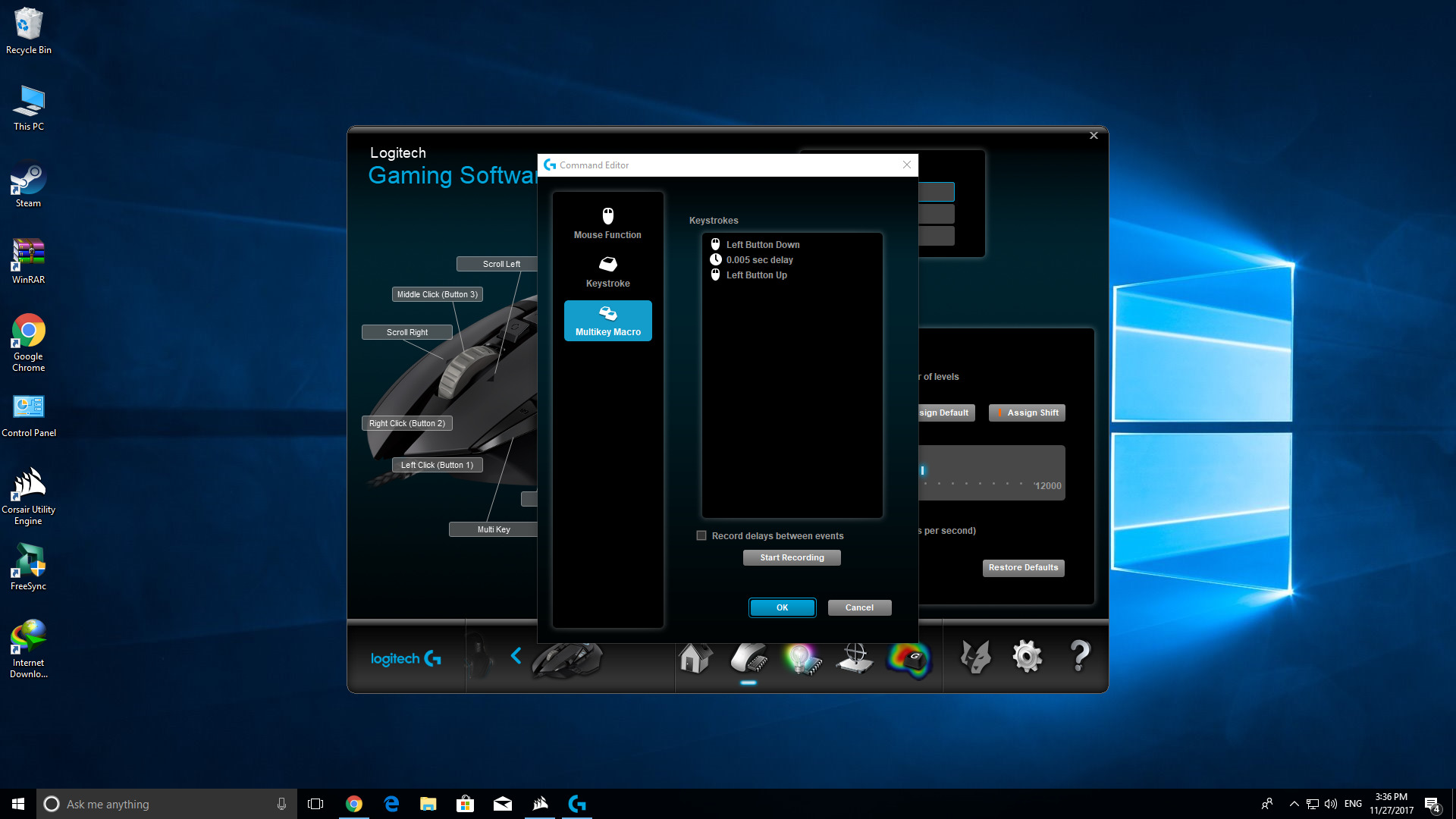
For gaming mice (G502, G305, G Pro), use Logitech G HUB.
For older mice (pre-2015 models like the MX Revolution or any mouse that uses SetPoint), download Logitech SetPoint. Launch the software, click the “My Mouse” tab, select your mouse from the list, and then click the battery icon on the left toolbar. SetPoint shows a percentage and also lets you enable a warning pop-up when the battery falls below a chosen level (e.g., 10%). Note that Logitech Options (the older software) has reached end of support, if you see that app, replace it with Logi Options+ for the same features plus better compatibility.
All three programs allow you to turn on low-battery alerts, which is the single best way to avoid sudden shutdowns. Enable them once, and you’ll get a clear on-screen notification before your mouse dies.
Indicator lights on the mouse
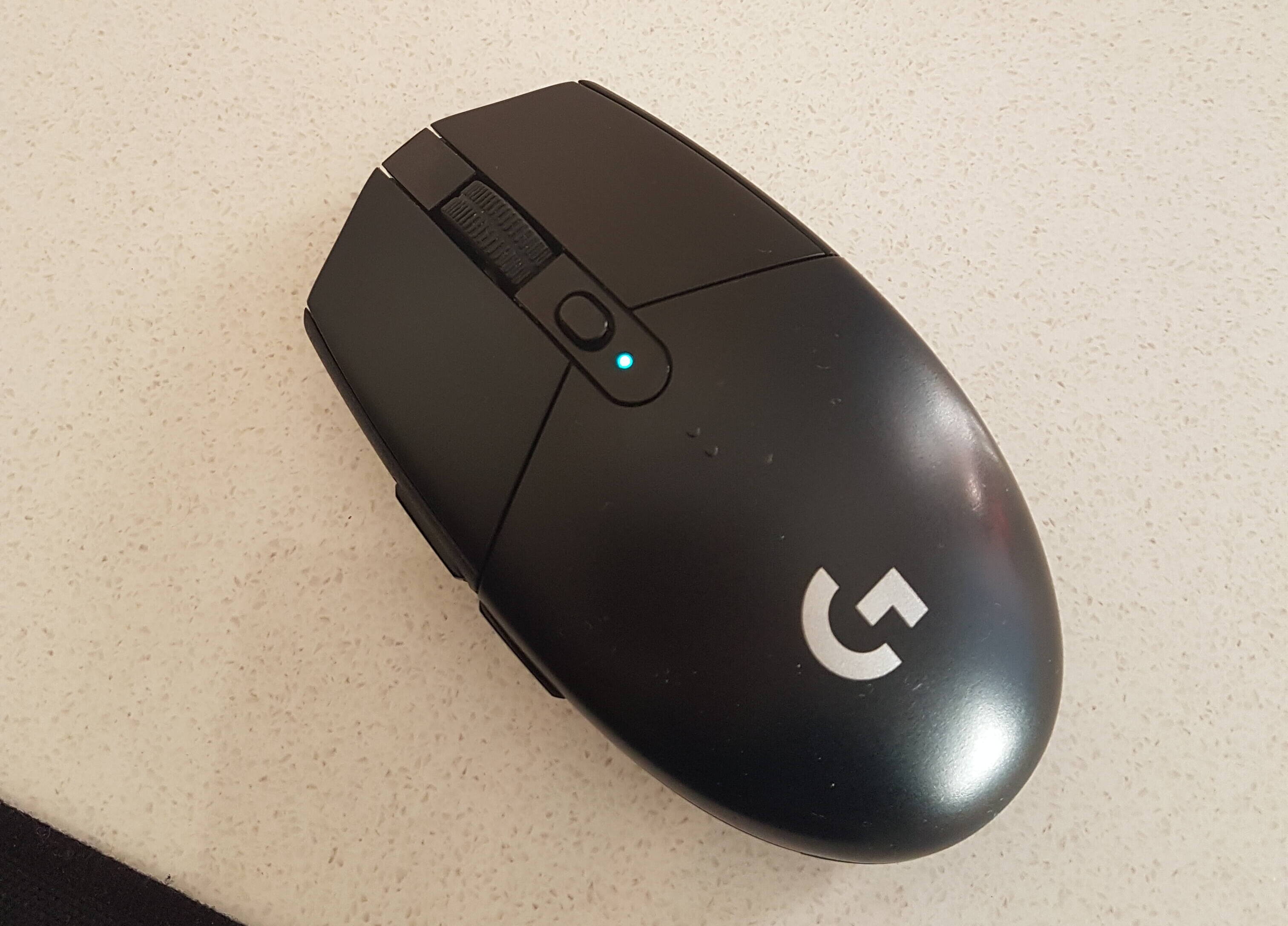
Many Logitech mice have a physical LED that changes color or blinks when the battery is low, no software needed. The exact pattern varies by model, but the most common behavior is a red light that pulses or stays solid when the charge is critical. For example, the Logitech M650’s LED lights up red for 5 seconds and then pulses for 3 minutes when the battery drops below 5%. If you see that red pulse, change the battery immediately or plug in the charging cable.
Other models may use a green-to-red transition: green means healthy, amber means low, and red means critical. Some mice (like the MX Master 3S) have a small LED near the scroll wheel that flashes red only when the battery is below 10%. Check your user manual for the specific pattern, most manuals list the indicator behavior on the first few pages. If you’ve lost the manual, search “your model number battery indicator” on Logitech’s support site.
Checking battery status in Windows and macOS Bluetooth settings
If you don’t want to install Logitech software, your operating system can show the battery level directly, provided your mouse is connected via Bluetooth (not the USB receiver). This is a quick, software-free fallback that works on any Logitech Bluetooth mouse.
On Windows: Press WIN + R, type Bluetooth, and press Enter. If you don’t see a percentage, click the mouse name to expand it, some Windows versions show a battery bar only when the level is below 20%.
Alternatively, go to the Apple menu → System Settings → Bluetooth, then hover over your mouse to see the percentage. macOS shows the battery as a small icon with a fill level, so you can tell at a glance whether it’s low.
This method works without any Logitech drivers, making it ideal for a work computer where you can’t install software. Just remember: it only works over Bluetooth, not with the Logitech USB receiver.
Changing batteries in a Logitech mouse
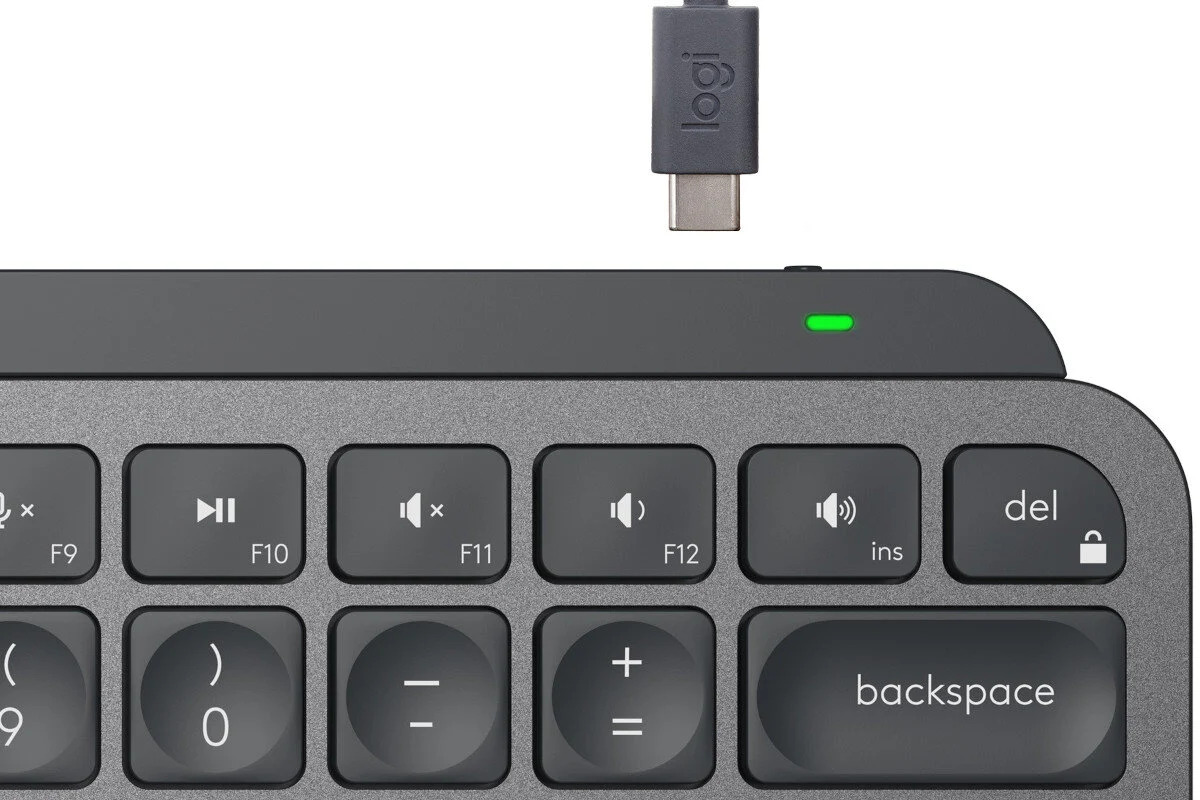
If your battery is dead or critically low, replace it now to avoid losing work. Most Logitech mice use either AA/AAA batteries or a built-in rechargeable pack. For AA/AAA models: flip the mouse over, slide or lift the battery compartment cover (usually near the bottom edge), remove the old batteries, and insert new ones with the + and − signs matching the diagram inside the compartment. Close the cover until it clicks. For rechargeable models (like MX Master series), plug the included USB-C cable into the front of the mouse and charge for 2-3 hours, the LED stops blinking when full.
After replacing batteries, give the mouse a gentle shake or press any button to wake it. If it doesn’t respond, double-check the battery orientation and the compartment latch. For model-specific instructions, search “your model battery replacement” on Logitech’s support page. Keeping a spare set of AA batteries in your desk drawer is the simplest way to stay productive, and if you’re setting up a Logitech mouse for the first time, the manual includes a battery diagram on the first page.
For the wider topic, see setting up a Logitech mouse.
\nRelated reading: How To Connect My Logitech Mouse To Ghub.