WhatsApp does not store your chat history on its servers, so the only copy that survives a lost or replaced phone is the backup you made yourself. On Android that backup goes to your Google Account; on iPhone it goes to iCloud. Restoring means installing WhatsApp on the same phone number, verifying it, and choosing to restore before you finish setting the app up.
Two rules cause most of the grief. Each backup overwrites the previous one, so there is no version history to fall back on. And anything sent after your most recent backup cannot be recovered at all, by you or by WhatsApp.
Back up on Android
Before you start, make sure you have a Google Account active on the phone, Google Play services installed, free space on both the phone and the Google Account, and a stable connection.
- Tap More options (three vertical dots), then Settings, then Chats, then Chat backup.
- Tap Chat backup, then Back up to Google Account.
- Choose a schedule other than Never or the tap-to-back-up option.
- Select the Google Account you want to use. If none is connected, tap Add account and sign in.
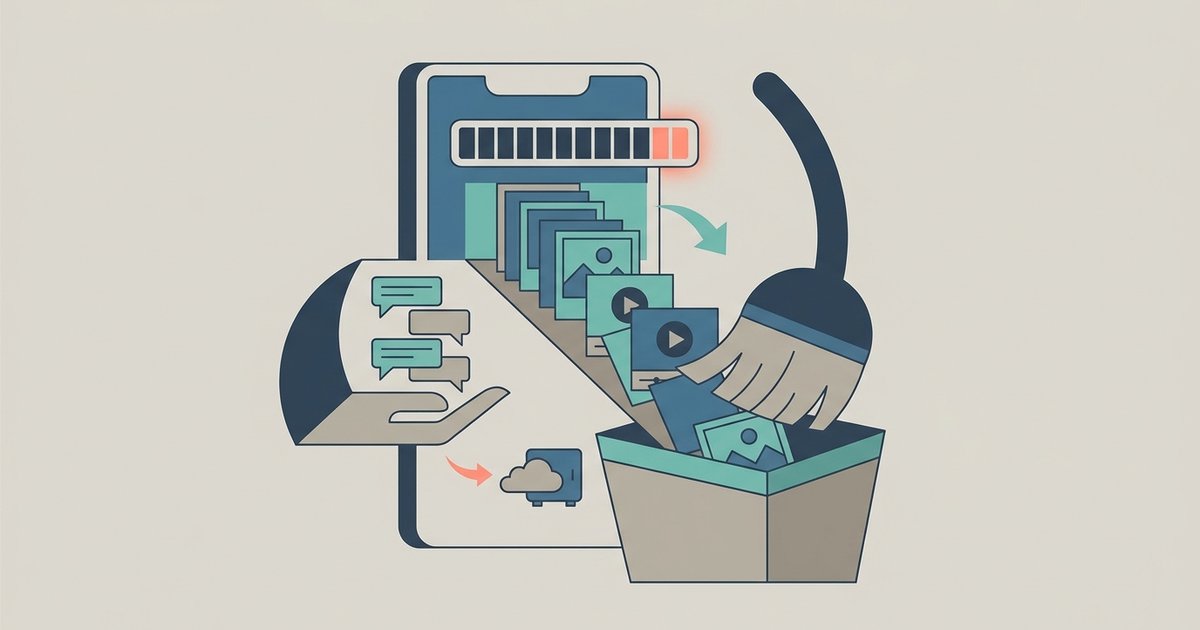
- Decide whether to turn on Include videos in chats, Back up using cellular and Include status archive.
To run one immediately, go to the same Chat backup screen and tap Back up. The first upload can take a long time, so leave the phone on a charger.
Back up on iPhone
iPhone gives you two separate mechanisms. WhatsApp's own in-app backup writes to iCloud, and the iPhone's whole-device iCloud backup includes WhatsApp as well. You can use either or both, but using both consumes iCloud storage twice, and if you turn on encrypted in-app backups your WhatsApp chat history will be excluded from the iPhone device backup.
For the in-app backup, open WhatsApp's settings, tap Chats then Chat backup, then Auto backup and pick a frequency. Back up now on the same screen runs one on demand. The toggles here are Include videos in chats and Include status archive.
WhatsApp asks for iCloud and iPhone storage of at least 2.05 times the size of the backup, which is a larger margin than people expect. Being on the latest version of iOS is also listed as a requirement.
Turn on end-to-end encrypted backup
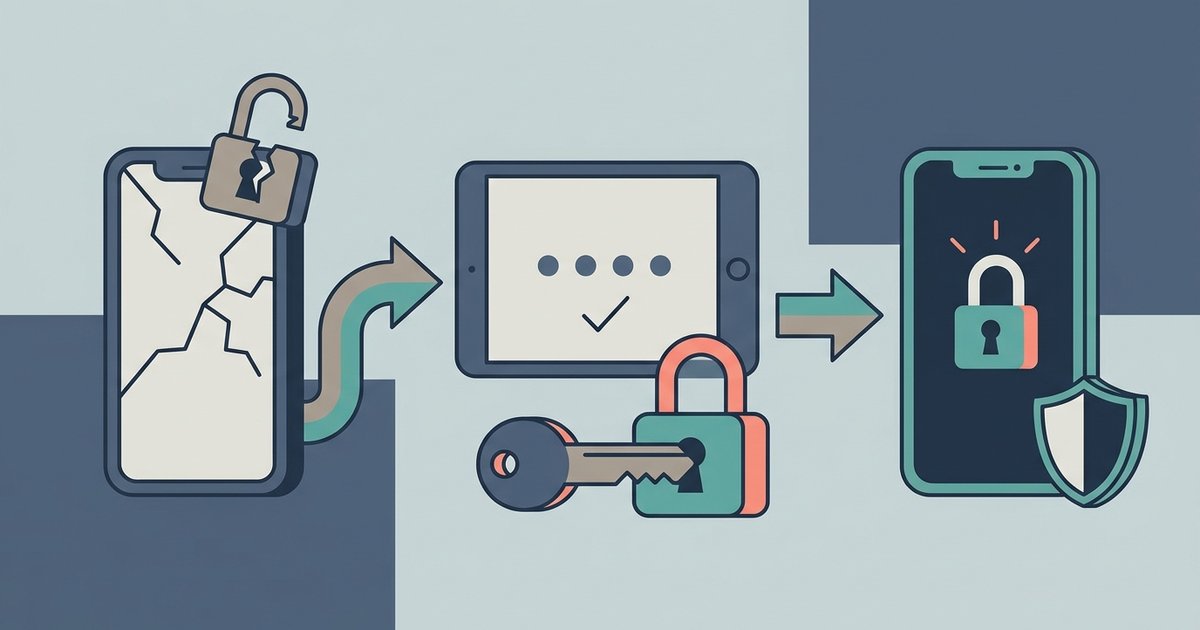
Chats you back up are not protected by WhatsApp's end-to-end encryption unless you turn on encrypted backup explicitly. Doing so is worth it, as long as you understand the trade.
- Go to Settings then Chats then Chat Backup.
- Tap End-to-end encrypted backup, then Turn on.
- Tap Create a passkey and follow the prompts, or tap More options to use a password you choose or a 64-digit key WhatsApp generates.
Passkeys require Android 9 or higher, a recent version of Google Mobile Services, and a screen lock set on the device. Switching from a password or key to a passkey later means turning encrypted backup off and then on again.
The trade is absolute: without your passkey, password or key, the backup is unreadable. WhatsApp cannot send you a copy, reset it or restore it for you. Write it down somewhere that is not the phone.
Local backups on Android
Android also keeps a backup on the phone itself. WhatsApp notes that when your Google Account backup frequency is set to daily, chats are saved to the cloud each night after the local backup runs. That local copy is useful when a cloud restore fails, but it lives on the device, which makes it worthless in exactly the scenario you are guarding against. Treat it as a convenience, not as your backup.
iPhone has no equivalent WhatsApp-managed local backup. The closest thing is the iPhone's own device backup, which you can make to iCloud or to a computer.
Restore your chats
Restoring happens during setup and cannot be triggered afterwards. On either platform, confirm a backup actually exists first by opening Chat backup and checking the time and size of the last one.
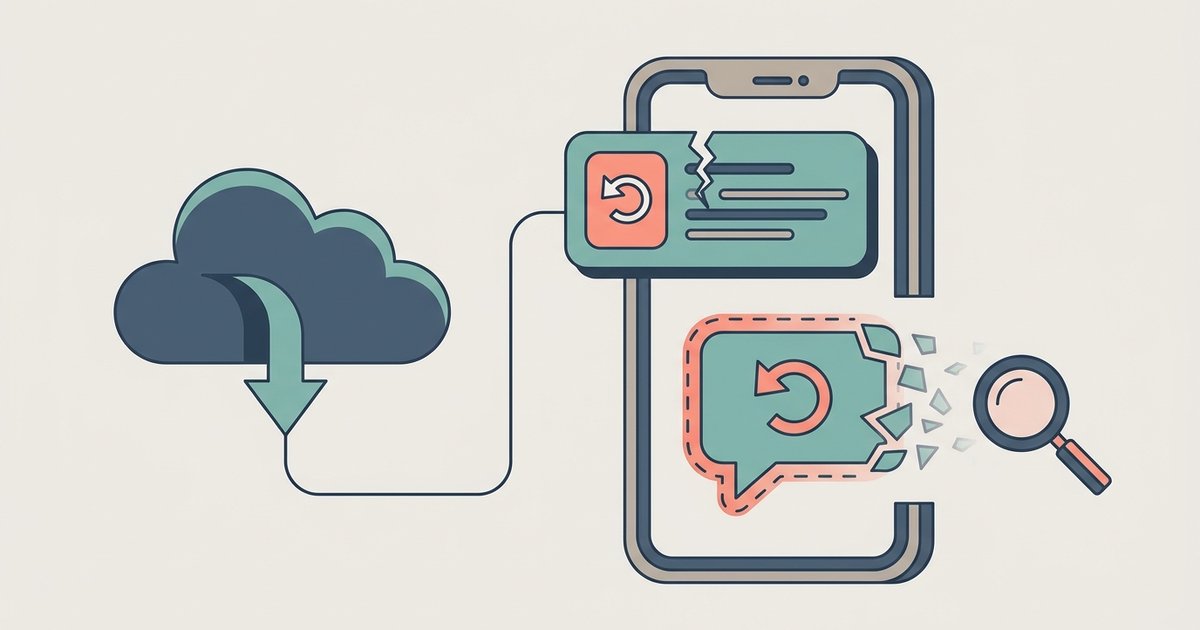
On iPhone: uninstall and reinstall WhatsApp, verify your phone number and Apple ID, then tap Restore Chat History. You may be asked to verify your identity with a code by text or call, unless you have two-step verification or encrypted backups turned on.
On Android, the process mirrors this. Reinstall WhatsApp, verify the same number, and accept the restore prompt when it appears. You must use the same phone number that was used to create the backup.
Moving between phones on the same platform
Android to Android has a direct transfer that beats a backup restore, because it moves everything rather than only what the last backup captured. Both phones need Android 6 or above, the same phone number, Wi-Fi turned on, power connected and physical proximity, and the new phone must not be registered on WhatsApp yet. On the old phone, go to Settings then Chats then Transfer chats and tap Start. On the new phone, choose Transfer from old phone under the restore options and scan the QR code it shows using the old phone's camera. Media received over Channels do not come across.
The cross-platform caveat
A Google Account backup cannot be restored on an iPhone, and an iCloud backup cannot be restored on Android. There is no setting that changes this and no supported third-party tool that does it safely. Switching between Android and iPhone requires a separate one-time migration, which runs through Apple's Move to iOS app in one direction and a comparable flow in the other, and which has to happen before WhatsApp is activated on the new phone.
Things that go wrong
- Backups tied to the wrong account. A backup belongs to one phone number and one Google Account or iCloud account. Change either and you cannot reach the old backup.
- Backups quietly expiring. Google may delete a WhatsApp backup that has not been updated in five months.
- Missing videos. Videos restore only if Include videos was turned on before the backup that you are restoring from.
- Not enough space. A partial backup can happen if storage runs out mid-restore. Free space, delete the app and restore again.
- Linked devices. You cannot back up or restore from WhatsApp Web, Mac or Windows. Backups only work from the phone.
- Long inactivity. WhatsApp deletes accounts after 120 days of inactivity, at which point you register as a new user.
The habit worth building is small: once a month, open Chat backup and look at the date on the last successful backup. That one glance catches a full Google Account, an expired iCloud plan and a schedule that quietly reset itself, which between them account for most of the backups that turn out not to exist at the moment someone needs one.