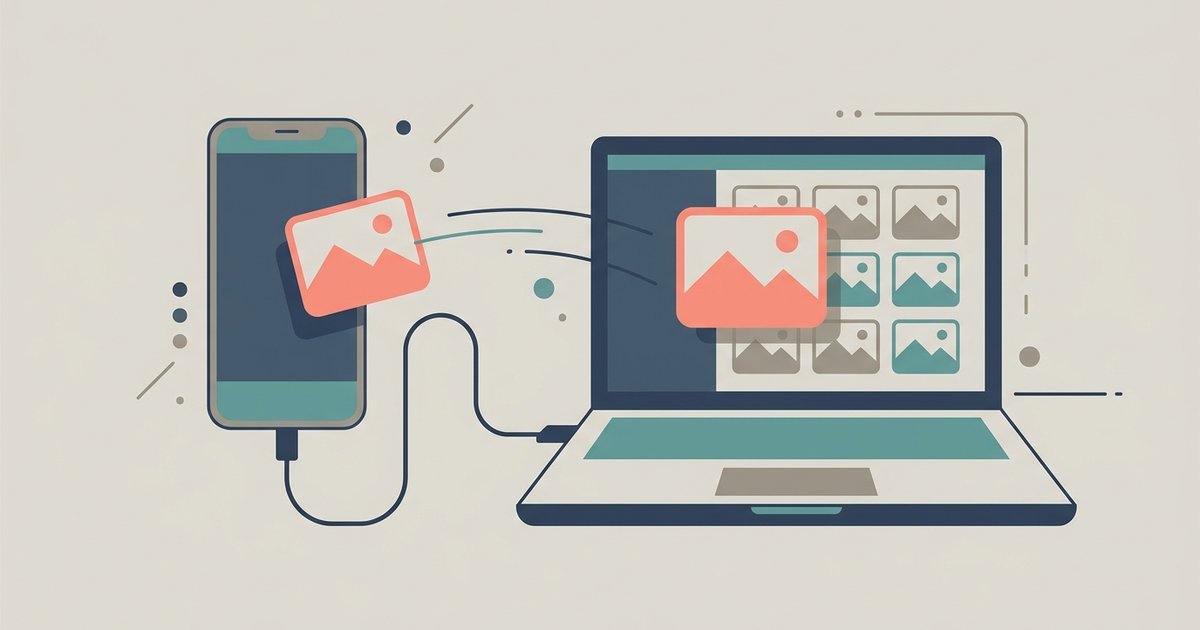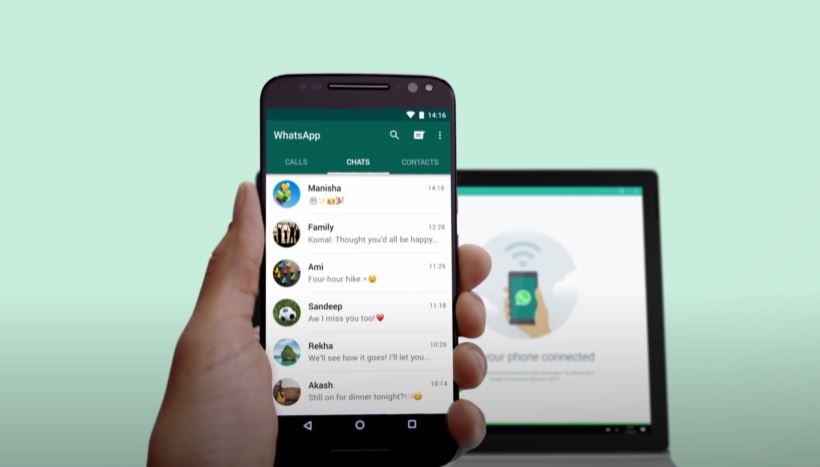
WhatsApp Web lets you use your WhatsApp account directly from a computer browser or a dedicated desktop app, giving you the benefit of a full keyboard and a larger screen for messaging and file sharing. To get started, you simply scan a QR code from your phone to link your account.
What is WhatsApp Web?
WhatsApp Web is the browser-based version of the popular messaging service, accessible by visiting web.whatsapp.com in any modern browser like Chrome, Firefox, Safari, or Microsoft Edge. There is also a separate WhatsApp Desktop application that you can download and install on your computer. Both versions mirror your mobile account, allowing you to type on a full keyboard and view conversations on a larger screen, making communication more comfortable and efficient.
How to connect WhatsApp Web
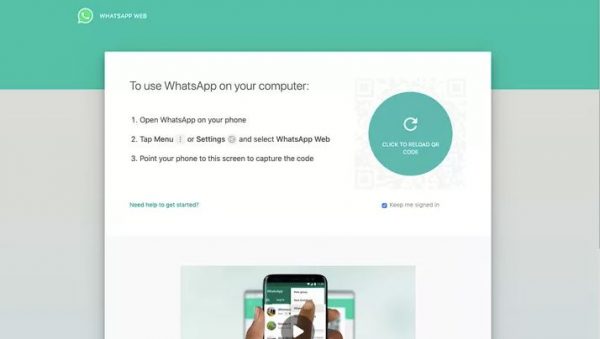
Before you can connect, you must have the WhatsApp mobile app installed and set up on your phone. To connect WhatsApp Web, follow these steps:
- Open a web browser on your computer and go to web.whatsapp.com.
- On your phone, open the WhatsApp mobile app.
- Tap the three dots or gear icon (depending on your device) to access the menu.
- Select "WhatsApp Web" or "Linked Devices."
- Point your phone’s camera at the QR code displayed on your computer screen.
- Your account will load automatically, mirroring your chats and contacts.
How to connect the WhatsApp Desktop app
To use the dedicated desktop application, download and install it from the official WhatsApp website, the Microsoft App Store (for Windows), or the Apple App Store (for Mac). Note that WhatsApp Desktop for Windows requires Windows 10 64-bit version 1903 or later. After installation, the connection process is the same as for WhatsApp Web:
- Launch the WhatsApp Desktop app on your computer.
- Open the WhatsApp mobile app on your phone.
- Scan the QR code displayed in the desktop app with your phone.
- Your account will sync and be ready to use.
How to use WhatsApp Web for messaging and calls
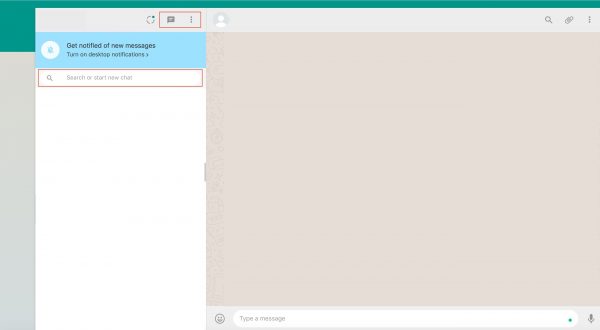
Sending text messages is straightforward: click the new chat icon or search for a contact, type your message, and press Enter to send. To share media, click the attach (paperclip) icon to send photos, videos, or documents from your computer. Both WhatsApp Web and the Desktop app now support voice and video calls directly, allowing you to make calls from your computer without needing your phone nearby.
How to manage groups and voice messages
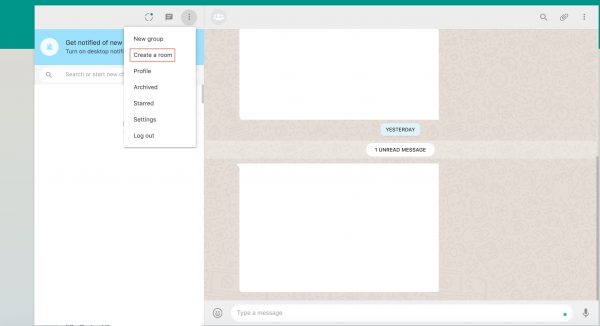
To create a new group chat, click the three vertical buttons on the left panel and select "New Group." Choose the contacts you want to add, and the group is ready. For voice messages, click the microphone icon in a chat. You will need to grant microphone permission to your browser or app. Once allowed, hold the microphone icon to record, then click the checkmark to send or the X to cancel.
How to edit your profile
Click your profile photo in the upper left corner of the screen. To change your display name or About section, click the pencil icon next to each field and save your changes. To update your profile photo, click your current picture and choose to upload a new one from your computer, take a photo with your webcam, or remove the existing image.
Frequently asked questions
Is WhatsApp Web free? Yes, WhatsApp Web and the Desktop app are free to use. The only cost is the internet connection required to send and receive messages.
How does the 'Keep me signed in' feature work? When you scan the QR code, you can check the "Keep me signed in" box to maintain a persistent login session. If you select this option, you will not be logged out after inactivity, as long as your phone remains connected to the internet and you do not manually log out from the web or desktop session.
\nRelated reading: How To Download Microsoft Project On Mac, How To Play Roblox In Your Browser, and A Complete Guide on How to Clear Your Downloads Folder.