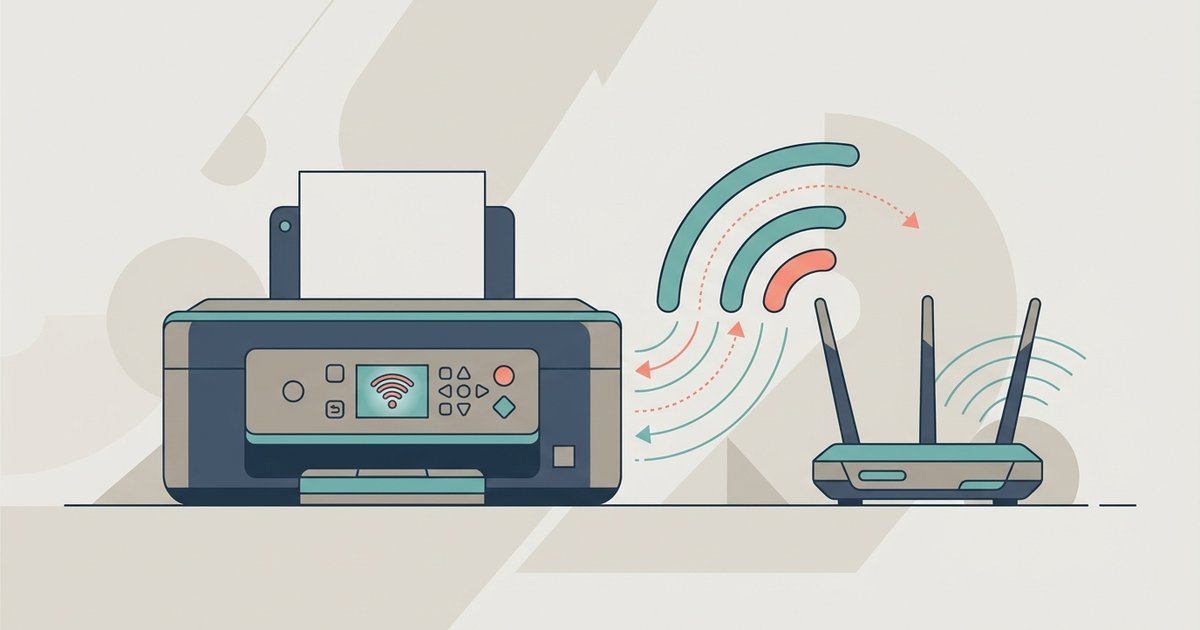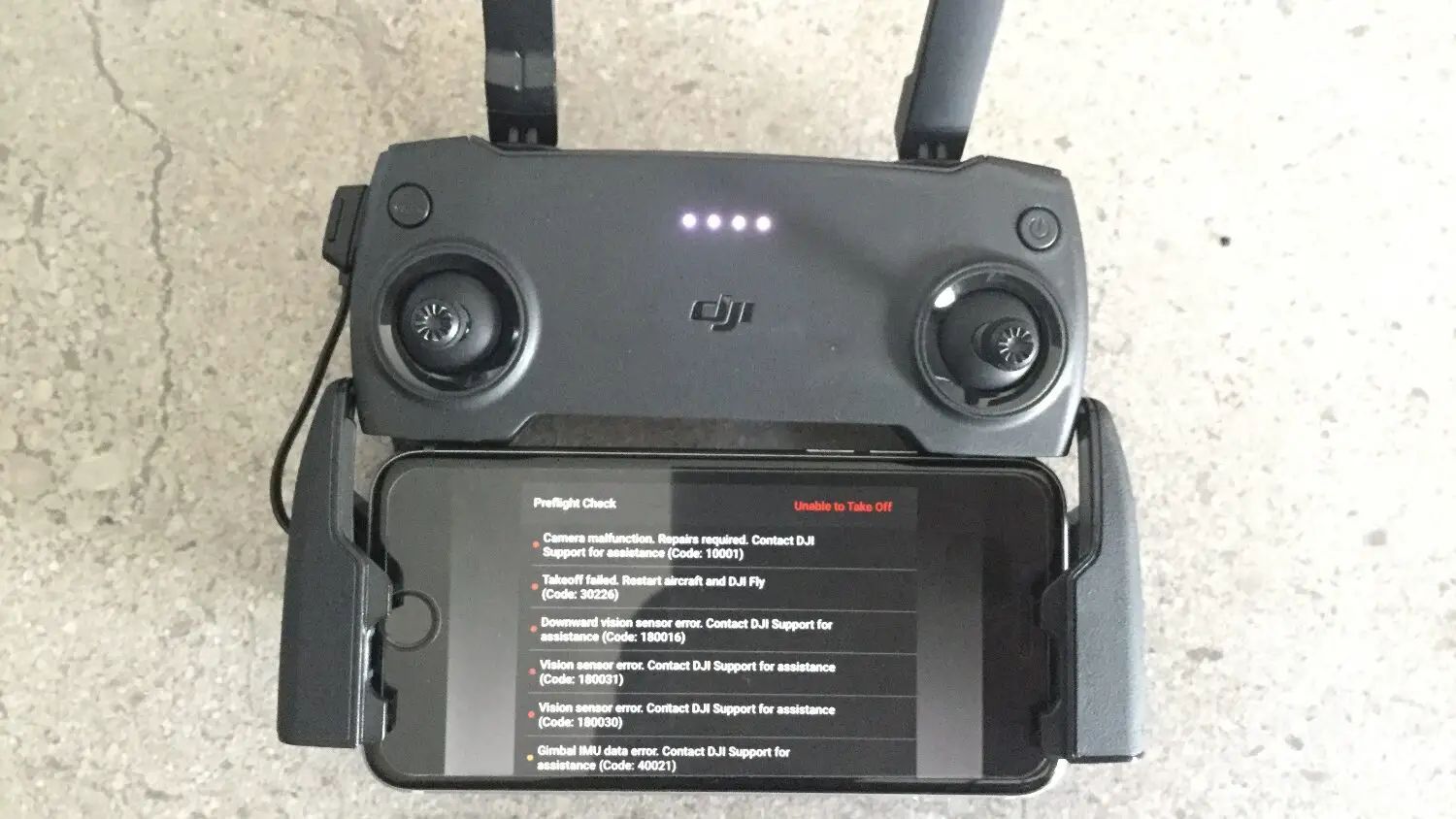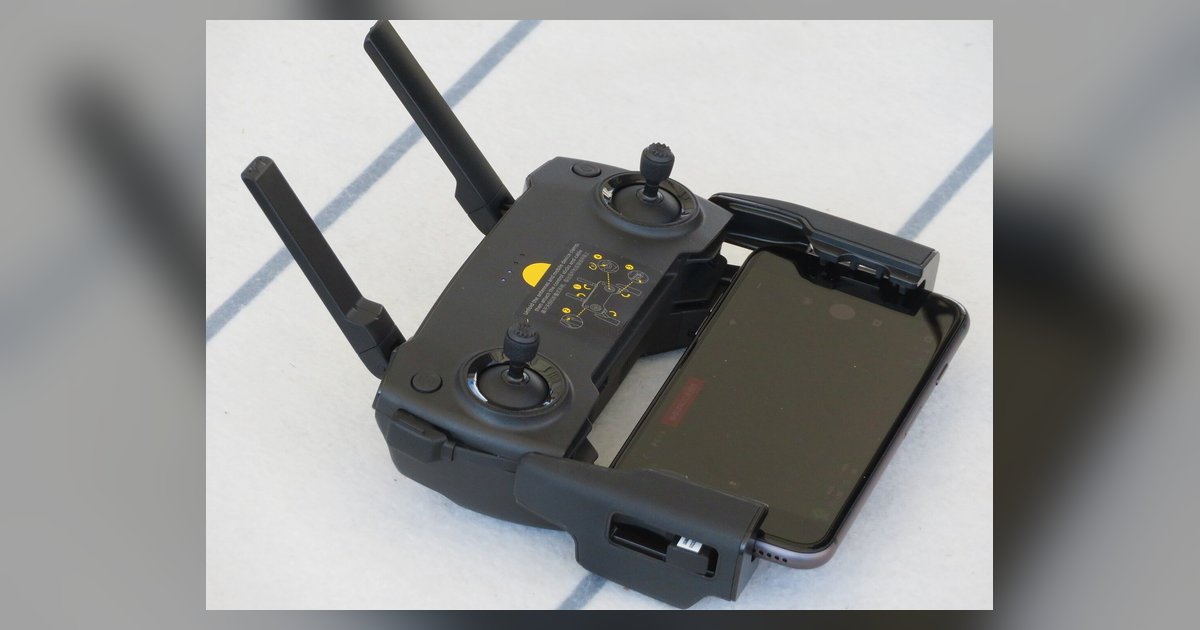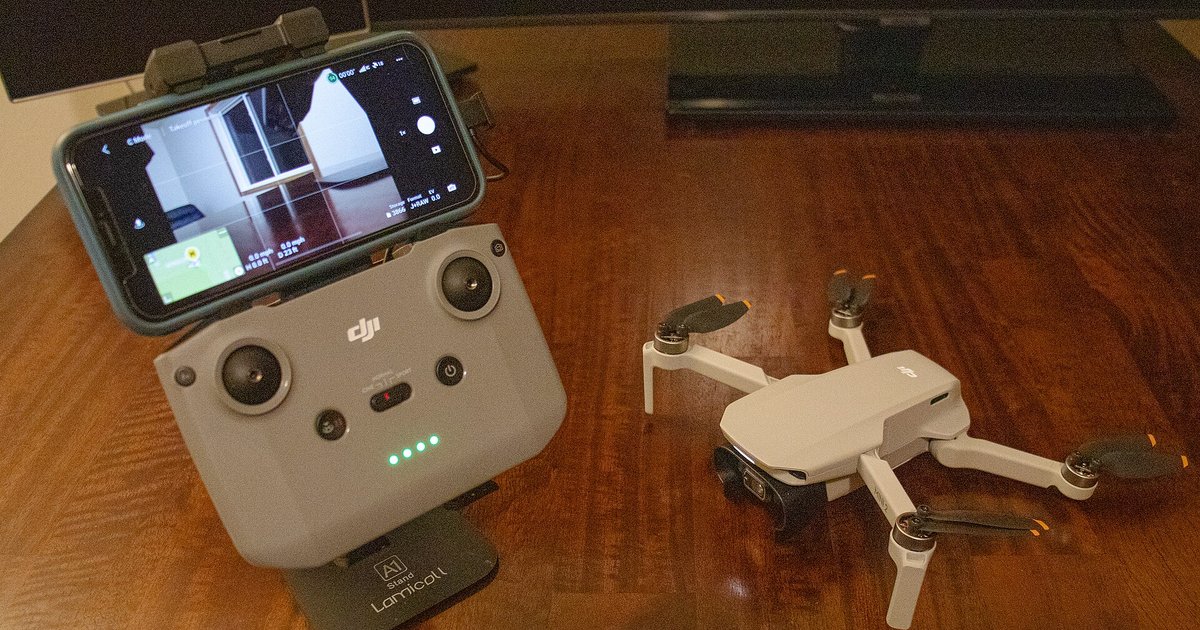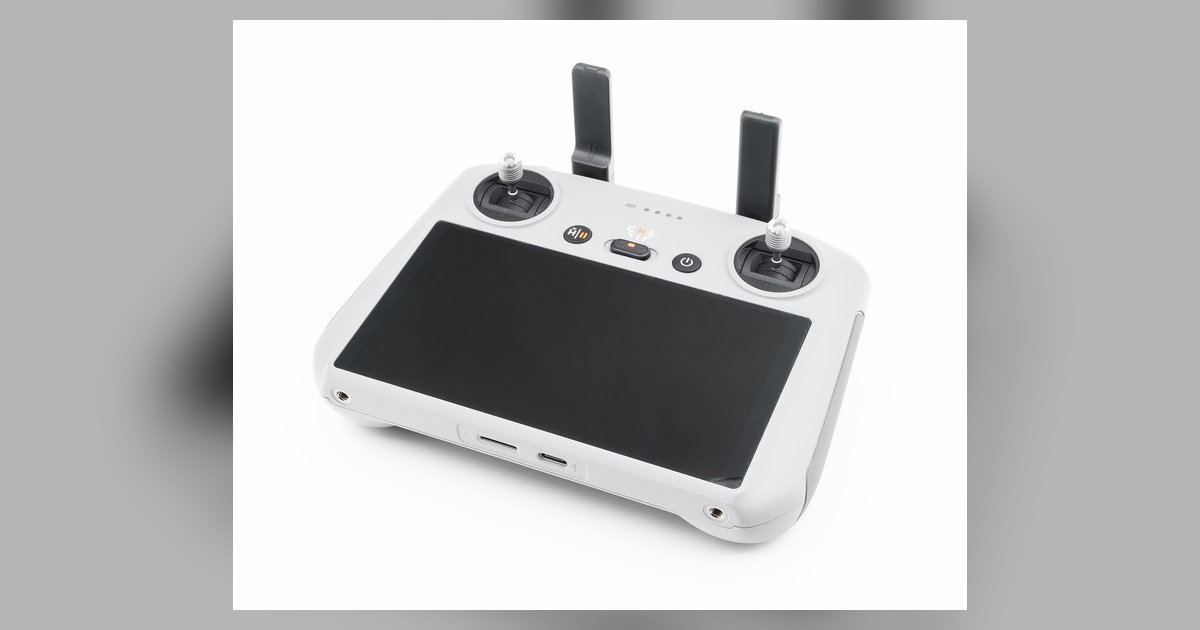
The disconnections are almost always caused by the PC's Wi-Fi power management or a band-steering conflict, not the controller itself. Disable the PC's 'Allow the computer to turn off this device to save power' setting for the Wi-Fi adapter and force the PC to broadcast on a dedicated 2.4GHz or 5GHz channel instead of a combined SSID.
Fix dji controller disconnecting by disabling power saving
Even if your PC is plugged in, the default power plan may enable "USB selective suspend" and a Wi-Fi adapter sleep timer that can interfere with network connectivity. These changes prevent the OS from dropping the UDP broadcast packets that the controller relies on to maintain a steady link. After applying them, restart the PC and re-establish the hotspot before you connect the DJI controller to the PC again.
Split your PC hotspot into separate 2.4ghz and 5ghz bands
A combined SSID (both bands under one name) forces the controller to constantly renegotiate bands and drop the connection. If a combined SSID is used, the controller may experience interruptions due to band steering, which can break the connection. To create a dedicated SSID for the controller, configure your PC's mobile hotspot to broadcast on either 2.4 GHz or 5 GHz only, picking the band with less interference in your area, and give it a unique name. This isolates the controller on one frequency. If your PC uses a third-party hotspot tool like Connectify, disable automatic band selection there too. Once the dedicated SSID is live, you can connect the DJI controller to Wi-Fi using that single-band network, and the renegotiation stops. For a simulator session, also ensure the PC's own Wi-Fi is not connected to a combined home network while the hotspot is active, or the PC itself may trigger a band switch.
Once you follow these two steps, the link will stabilize for file transfers and simulator sessions. Unlike other drone controllers, the DJI RC and RC Pro require a single-band hotspot because their firmware cannot complete a band handshake without dropping the UDP stream.
When the controller still won't stay connected
If the connection still drops after fixing power saving and band steering, the culprit is likely interference from a USB 3.0 port or a third-party firewall that blocks the UDP broadcast. USB 3.0 ports radiate 2.4GHz noise that can overwhelm the controller's Wi-Fi receiver. Move the controller away from any USB 3.0 cables or hubs, or plug the PC's Wi-Fi adapter into a USB 2.0 port if it is external. Check your firewall for rules that silently drop incoming UDP traffic on ports commonly used by DJI Assistant 2 and simulator software. Add an inbound allow rule for those ports. If the problem persists, the only reliable fallback is a wired connection: use a USB-C cable to directly link the controller to the PC. This bypasses Wi-Fi entirely and works for both file transfer and simulator mode. For file transfers, ensure you select "Transfer files" on the controller's pop-up window when prompted. Note that a wired link requires you to first pair drone with remote controller via the usual radio link, then plug in the cable; the USB connection does not handle the drone-to-controller pairing. Similarly, if you need to pair a drone with the controller before a flight, always do that over the dedicated RF link, not Wi-Fi, because the hotspot method only transfers data or simulator input, not flight control binding.