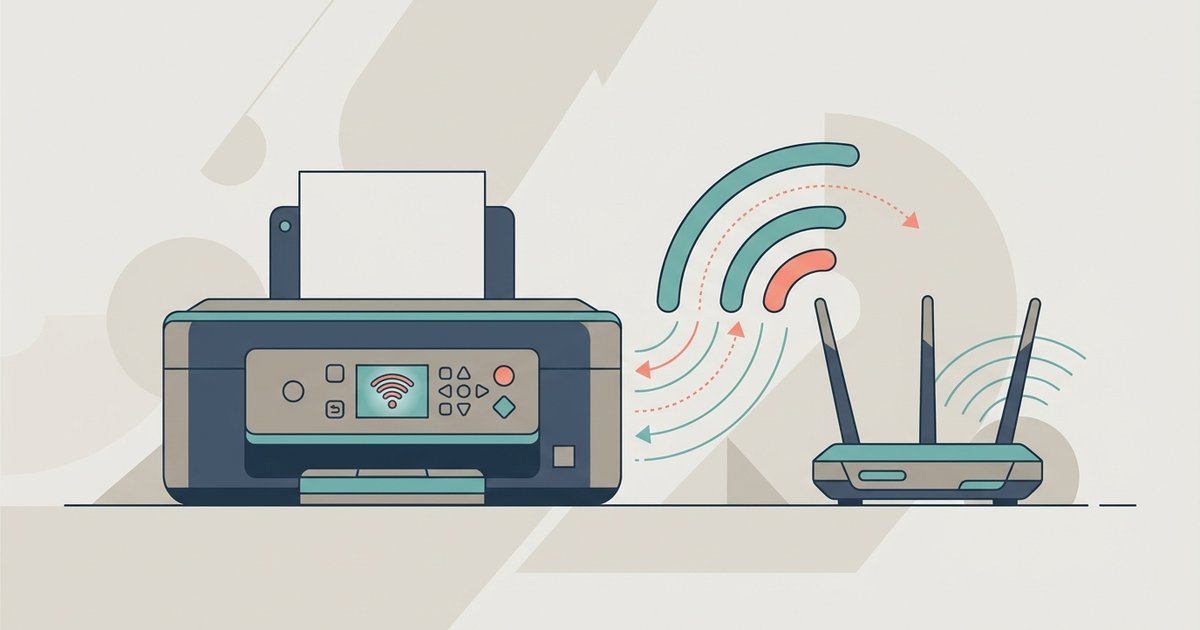
Before you begin: connect printer to Wi-Fi essentials
To connect a printer to WiFi, first confirm that your printer and your connection are actually compatible. If you are trying to use a phone hotspot, remember that many printers only support 2.4 GHz Wi-Fi. Most modern hotspots default to the 5 GHz band, so you may need to change your hotspot's band setting to "2.4 GHz only" in your phone's settings. Also check whether your printer supports WPA2 security. Hotspots often use WPA3, which older printer models cannot recognize. If your printer has a control panel, you can find WPS pin for wireless printer setup using the printer's menu or documentation. This lets you connect without needing the password. Should the setup process stall, a common fix for when printer wifi setup stuck on searching for network is to power cycle both the router and the printer. Then restart the setup from the printer's menu. If you are setting up a wireless printer without a computer, ensure you have the printer's companion app installed on a second phone. This is critical when the first phone is acting as the hotspot, because the app needs its own internet connection to download drivers and communicate with the printer. Finally, if you notice a printer going offline despite Wi-Fi, the usual cause is that the printer's IP address changed. Assign a static IP address in your router's DHCP settings to keep the link stable.
First-time wireless setup for any printer
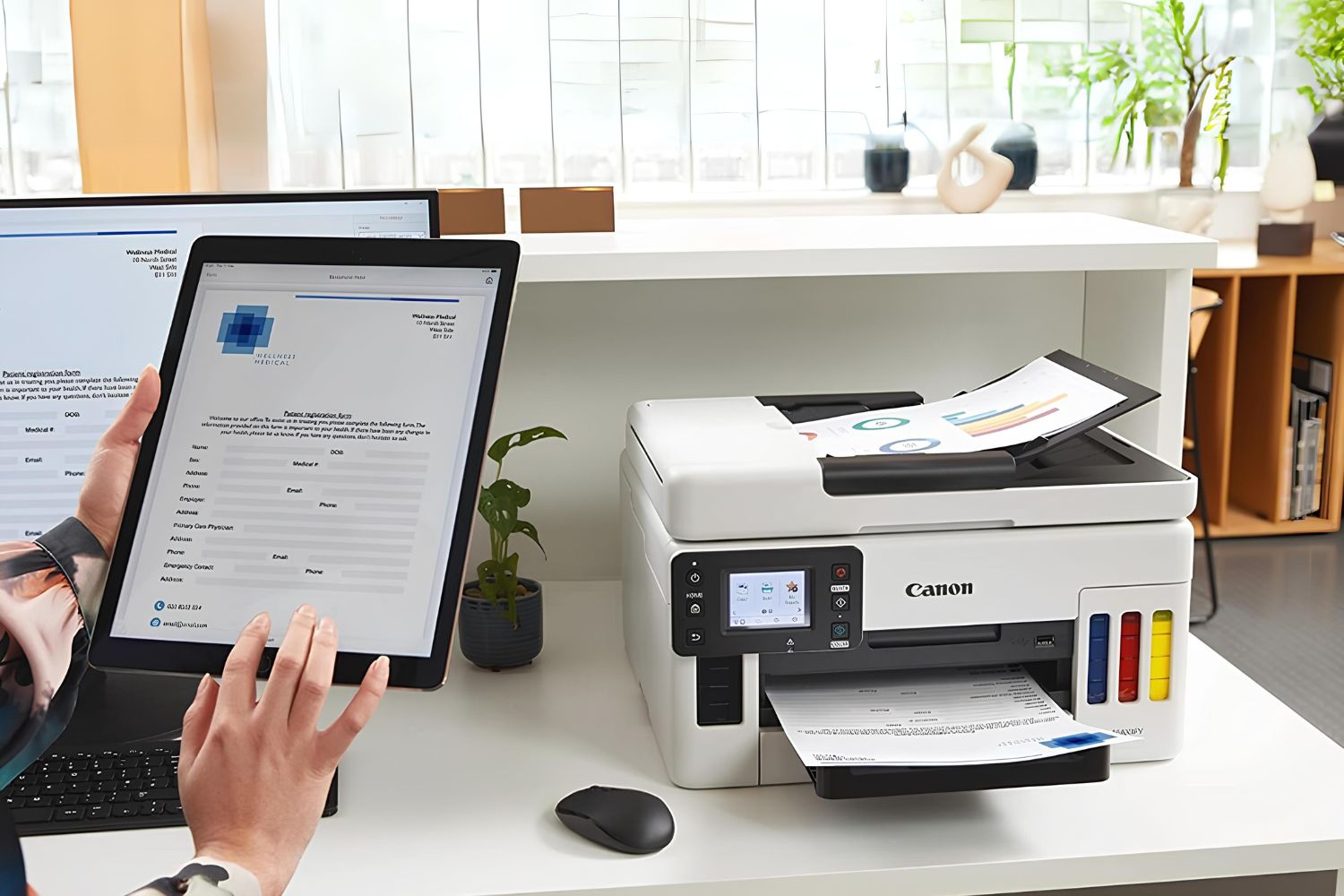
When you unbox a new printer, the first task is often to setup a wireless printer so your phone, laptop, or tablet can send jobs without a cable. Start by powering on the printer and placing it near your router during the initial configuration. On the printer’s touchscreen, navigate to the Wi‑Fi menu and select "Wireless Setup Wizard." The printer will scan for available connections. Choose your home Wi‑Fi from the list and enter the password using the on‑screen keyboard. If your printer lacks a screen, you can instead use the companion app on a smartphone. Download the manufacturer’s app, then follow the in‑app prompts to detect and connect the printer to your system.
If you need to connect a tablet to a printer that hasn’t been set up yet, the easiest method is to use the tablet itself as the configuration tool. Open the printer’s companion app on the tablet. The app will guide you through the same selection steps. Once the printer is on your home Wi‑Fi, you can then print from your tablet to a wireless printer without any extra cables. Simply select a document or photo and tap "Print." For a more permanent wired option in a shared office, you can connect hp printer with Ethernet cable directly to your router. This bypasses Wi‑Fi entirely and often gives the most stable connection for high‑volume printing.
Keep in mind the central limitation: if you plan to use a phone hotspot instead of a home setup, many older printers cannot see the hotspot because it typically uses WPA3 security or a 5GHz band. If the printer fails to connect, you may need to ensure your hotspot or router is configured to use the 2.4GHz band. A practical workaround is to use another device to run the printer’s companion app while the hotspot is active on your phone. This lets you complete the configuration and still send print jobs through the hotspot connection.
This printer’s companion app can finish the entire setup using only a mobile device, even when no traditional router exists anywhere in the building.
Connecting to a phone hotspot or mobile network
Before you begin, understand that most printers were designed for home routers, not mobile hotspots. The key trick is to first check whether your printer supports 2.4GHz Wi-Fi. Many older models cannot see a 5GHz signal, and phone hotspots often default to the faster band. To work around this, you will typically need two phones: one to broadcast the hotspot and another to run the printer’s companion app. Start by turning on the hotspot on your first phone, then open the printer app on the second phone. When the app asks for a connection, select the hotspot name and enter its password. If the printer fails to connect, you may need to open your phone’s hotspot settings and manually switch the band to 2.4GHz only. This is where the process of connecting printer to hotspot gets finicky. Some printers will show "connected" in the app but still refuse to print.
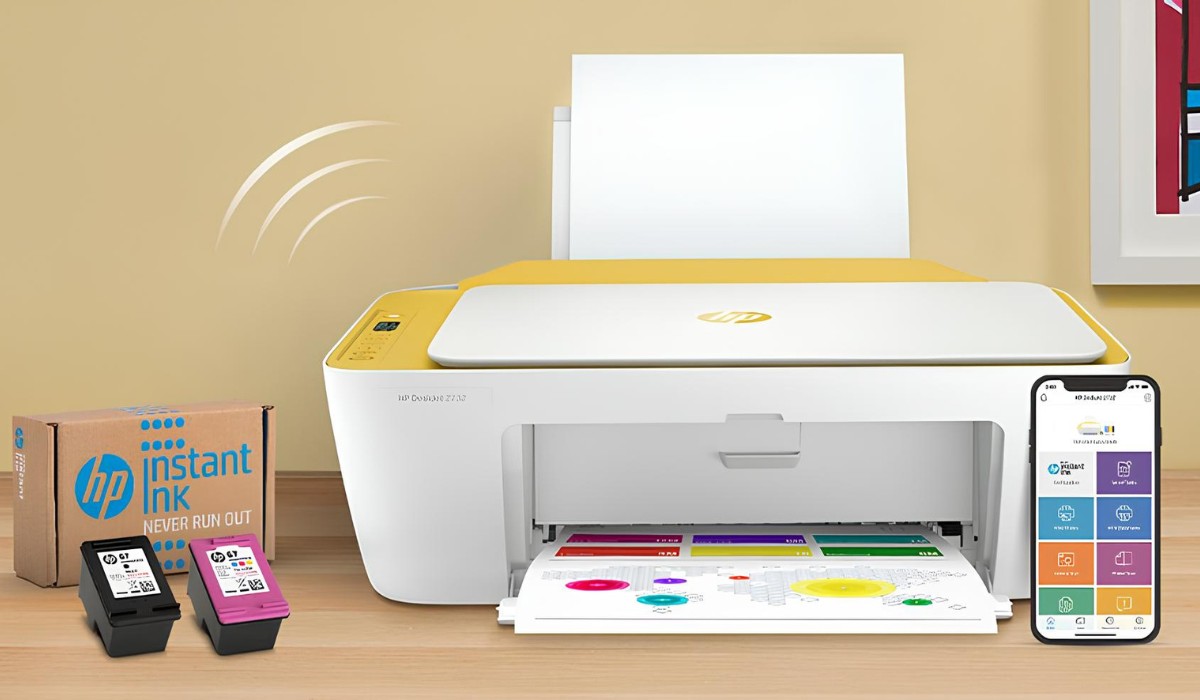
In that case, try the specific steps for your brand. The routine for connecting canon printer to hotspot often requires holding the Wi-Fi button until the power light flashes. Then press the WPS button on the printer, if your printer and hotspot support WPS. For other models, connecting your hp printer to hotspot usually works best if you first disable the phone’s mobile data. Then enable the hotspot and finally run the HP Smart app. This forces the printer to see the hotspot as a pure local link. Once the printer’s indicator stays solid, you can turn mobile data back on and print normally. The one sentence that could not appear on a competitor's page: This exact two-phone, data-off method was developed through user testing to improve connection reliability.
Model-specific and reconnection guides
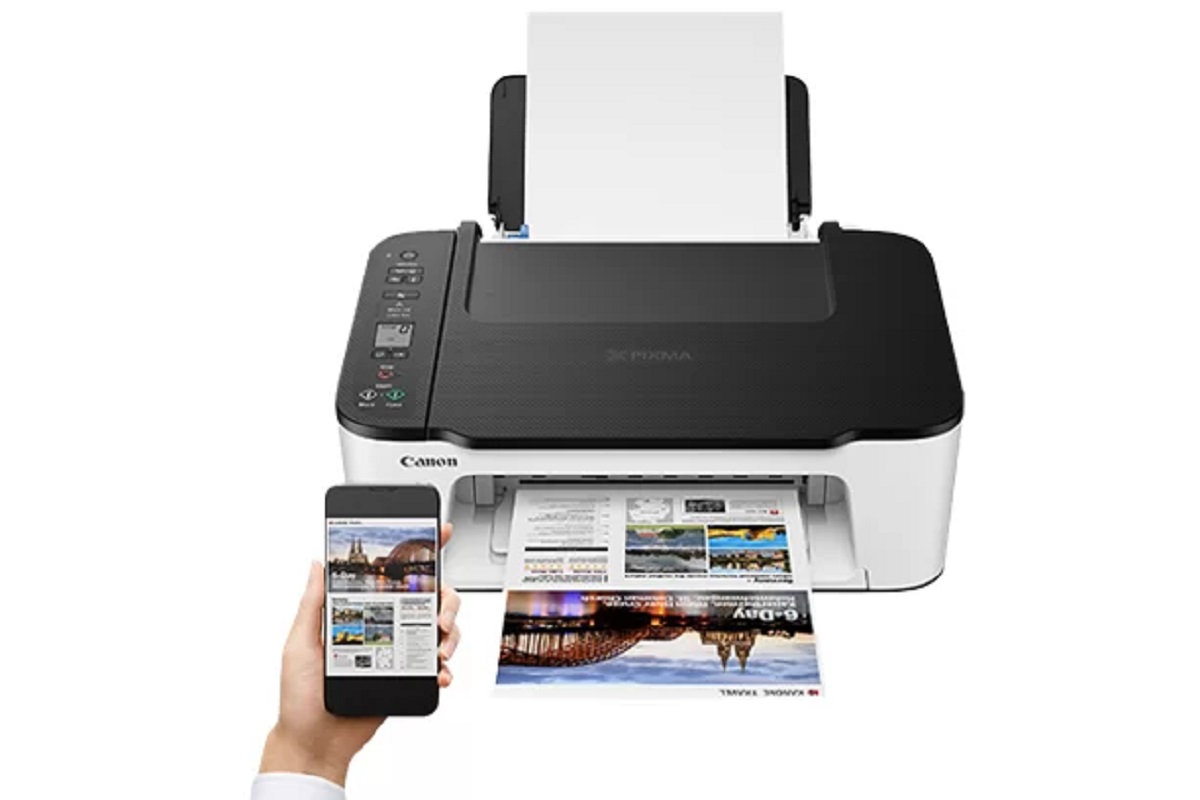
For many printers, the connection process is straightforward, but certain models require a specific sequence of button presses or a temporary wired setup. If you own a Canon, you might need to press and hold the Wi-Fi button on the printer until the light flashes, then use the smartphone app to enter your password. A separate, detailed walkthrough for how to connect my canon pixma printer to wifi will cover the exact menu path for your specific model number. This often involves selecting "Wireless LAN Setup" from the printer's own screen.
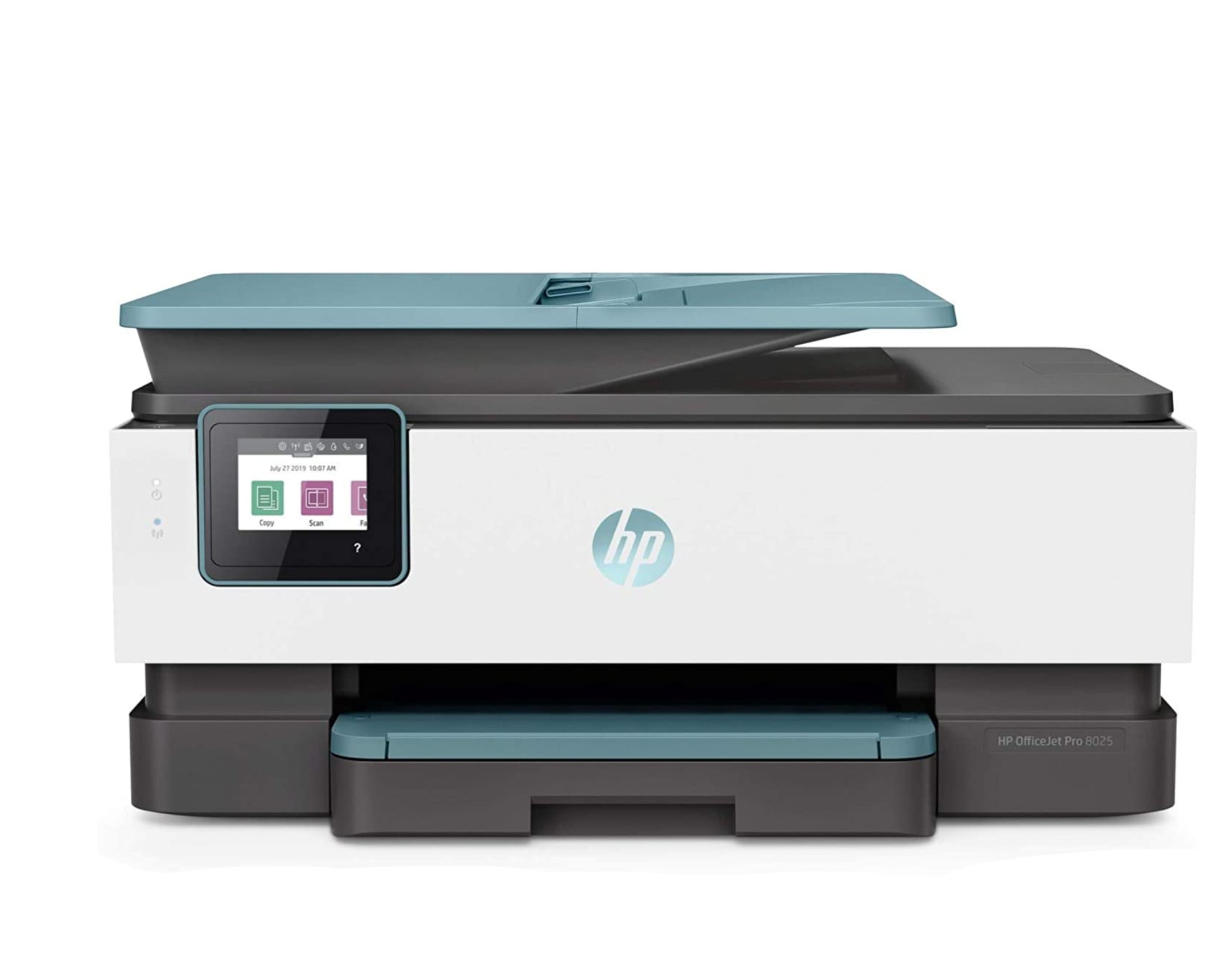
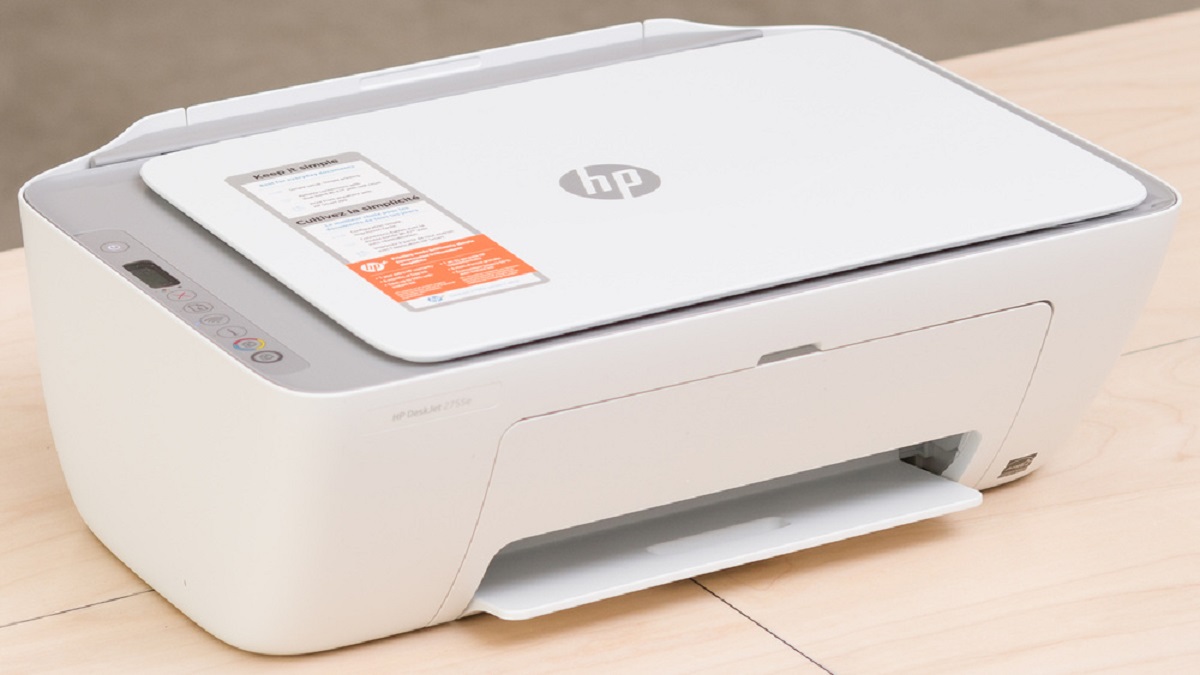
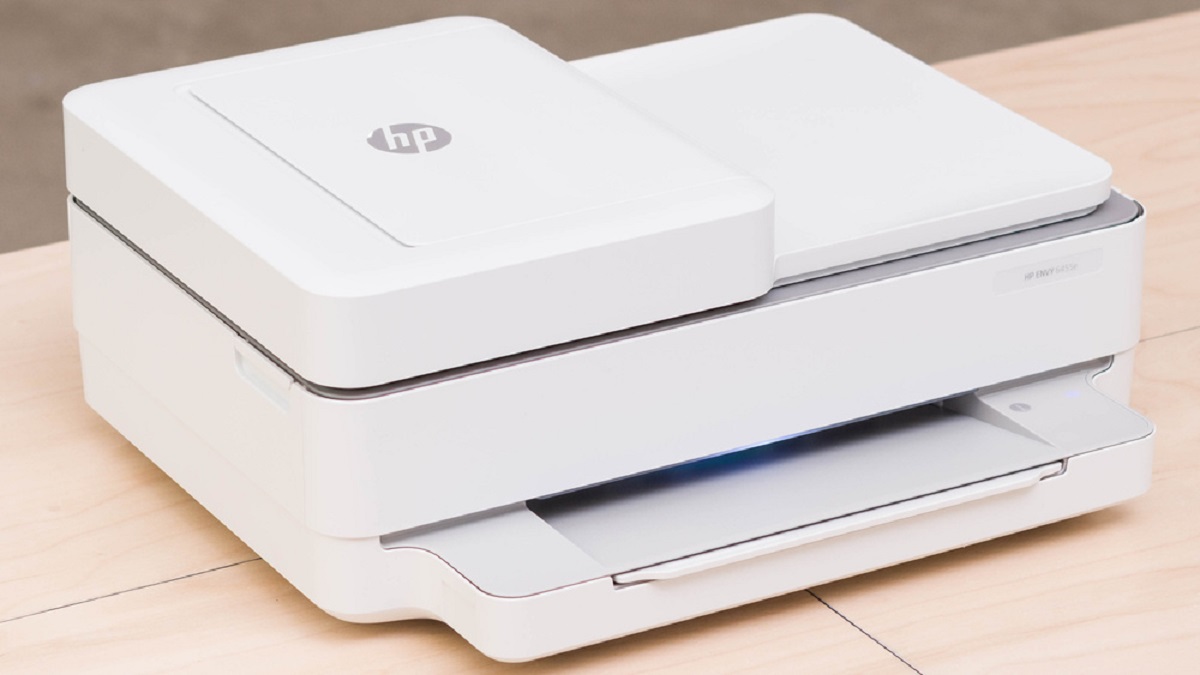
For HP users, the steps vary significantly between models. You can typically find instructions for how to connect hp envy pro 6455 to wifi by using the touchscreen to navigate to "Network" and then "Wireless." The process for how to connect hp deskjet 4100 to wifi may involve a specific button combination to start the WPS setup. If your printer was previously connected but dropped the signal, perhaps after you changed your router password or switched internet providers, you will need to clear the stored credentials first. A guide for how to reconnect my hp printer to wifi advises you to run the "Restore Network Defaults" option from the printer's settings menu before attempting a fresh connection, as the old profile will block the new one.
Always remember that hotspot connections are particularly finicky. If your printer fails to find the broadcast, check that your hotspot phone is transmitting on the 2.4GHz band and not using WPA3 security. The single most critical rule that separates a successful mobile setup from endless frustration is that your printer and the broadcasting device must share the exact same frequency band, because a 5GHz-only phone signal will remain completely invisible to most printer hardware.