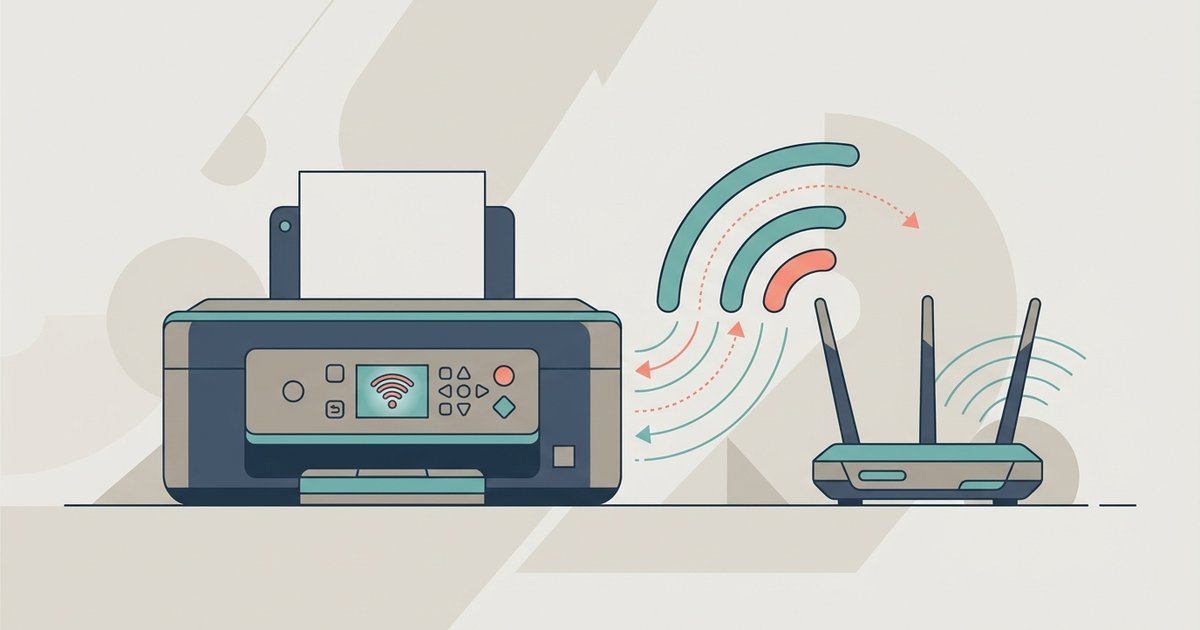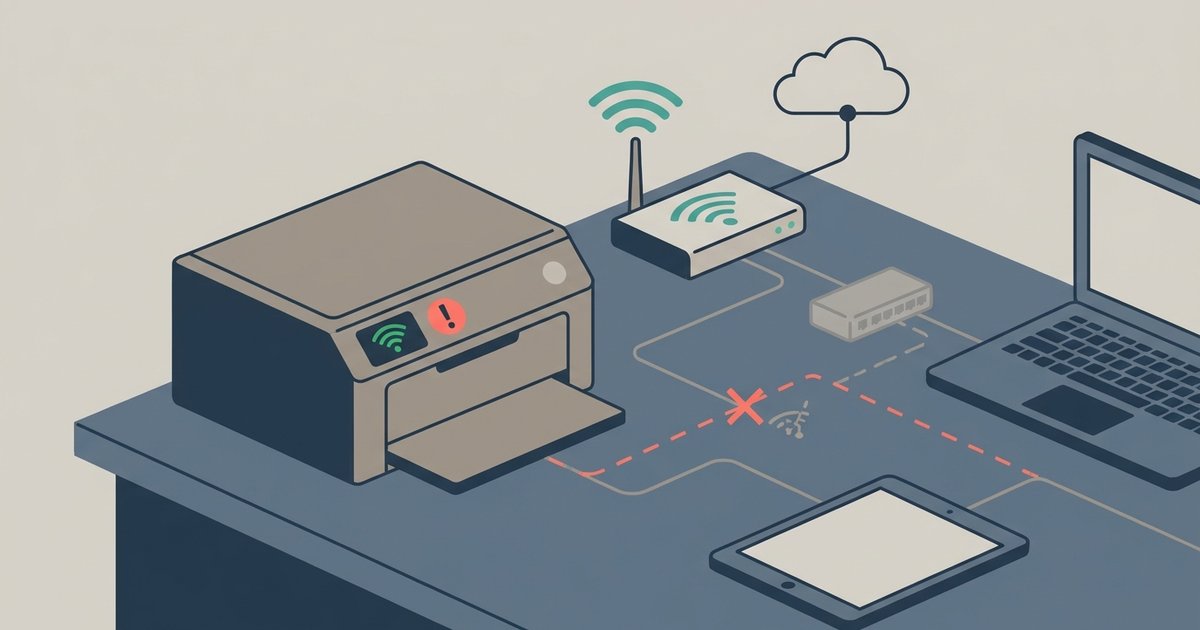
Your printer is likely dropping off the network due to power-saving sleep modes, a changing IP address assigned by your router, or weak Wi-Fi signal—not because it lost the Wi-Fi password. The connection looks active on the printer screen, but the communication channel between your computer and the printer has broken.
Printer keeps going offline due to IP address changes
Most home routers use DHCP (Dynamic Host Configuration Protocol) to automatically assign IP addresses to devices. When your printer first connected, it received a temporary lease, often 24 hours. When that lease expires, the router may hand the printer a different number. Your computer, however, still remembers the old IP and keeps trying to send data there. The printer appears offline because the path your computer uses points to a dead end. To fix this, log into your router’s admin panel. Find the DHCP reservation or static IP section. Assign a permanent address to your printer based on its MAC address. This ensures the printer always gets the same IP, so your computer never loses the connection. If you ever need to setup a wireless printer from scratch, reserving its IP at that stage prevents this exact offline problem.
2. Power-saving sleep settings are disconnecting the radio
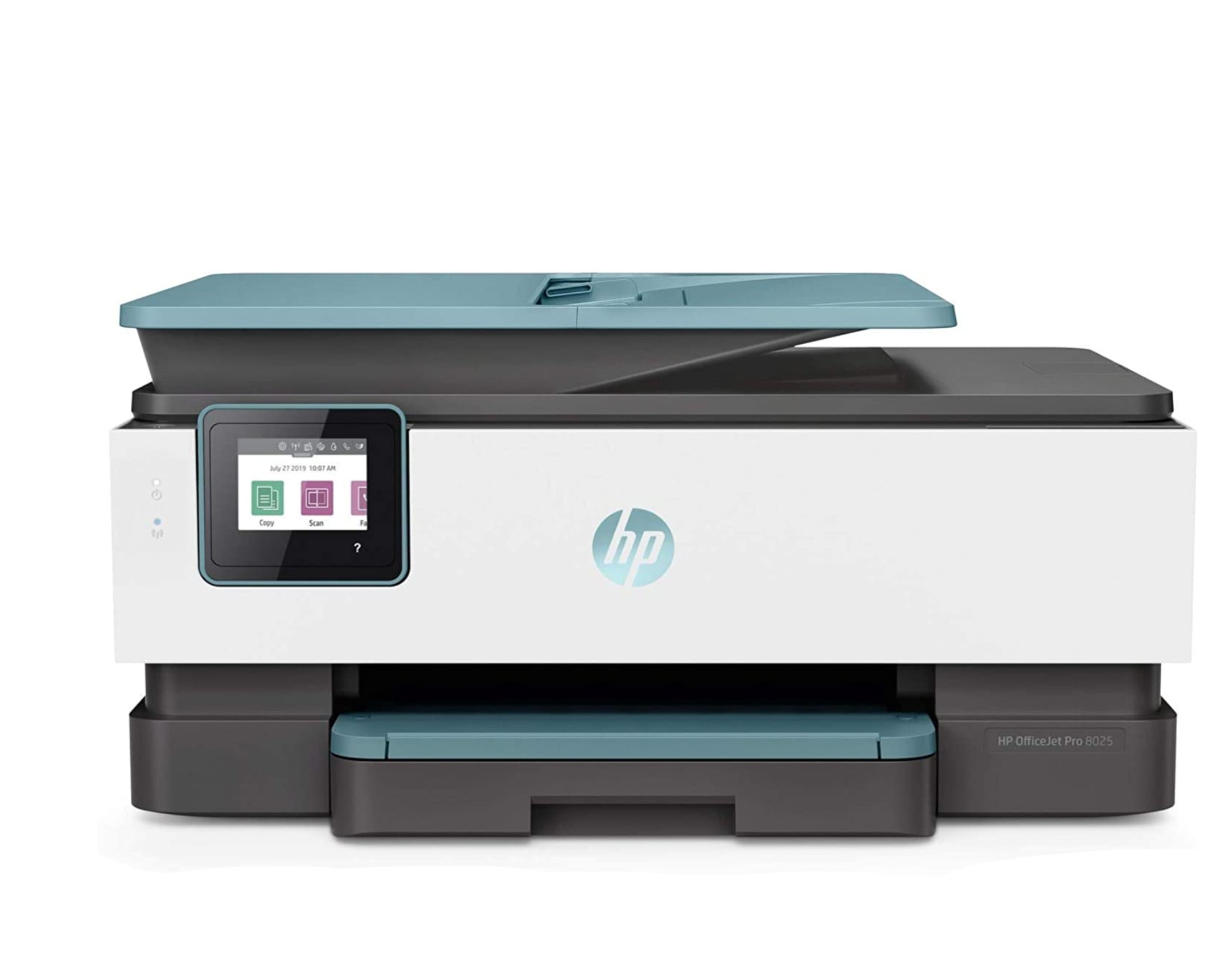
Modern printers aggressively save power. After a few minutes of inactivity, many models enter a sleep or deep-sleep mode that partially disables the Wi-Fi radio. The printer’s display still shows the network name and signal strength, but the radio stops responding to “are you still there?” pings from your computer. Your operating system sees no reply and marks the printer offline. To stop this, open the printer’s network or power settings menu, often under “Eco” or “Energy Save.” Set the sleep timer to the longest possible value, or disable deep-sleep entirely. On some HP models, you may also need to adjust power-related settings in the embedded web server. If you regularly need to reconnect your HP printer to Wi-Fi after it goes to sleep, the root cause is almost always this power-saving timeout, not a lost password.
3. When the fix isn't the network
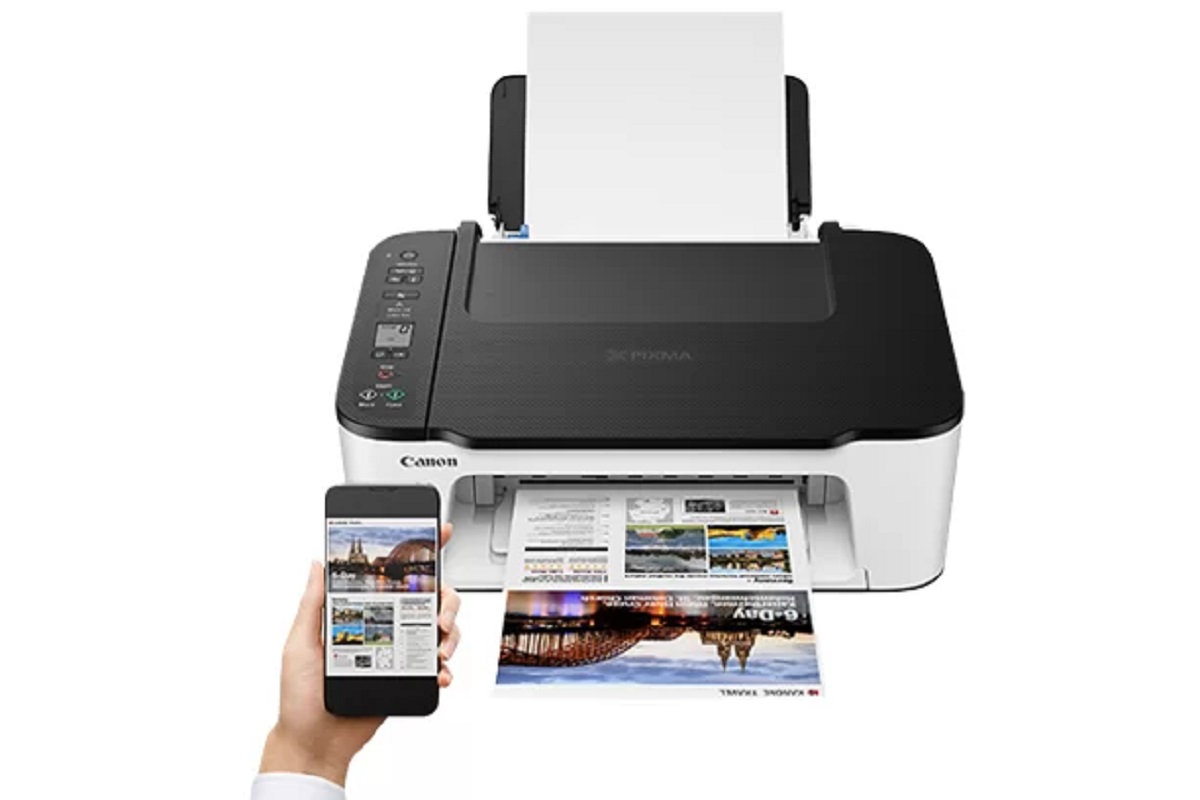
Sometimes the printer stays online but Windows or macOS marks it offline due to a stuck print queue, SNMP miscommunication, or a WSD port that needs switching to a standard TCP/IP port. A stuck queue occurs when a previous job fails and blocks all subsequent commands. Clear it by opening the print queue, right-clicking the stuck document, and selecting “Cancel.” SNMP (Simple Network Management Protocol) is used by Windows to check printer status. If the printer’s SNMP implementation is buggy or disabled, Windows assumes the printer is offline. You can turn off SNMP status polling in the printer’s port settings by unchecking “SNMP Status Enabled.” Finally, many printers default to a Web Services for Devices (WSD) port. This port relies on network discovery and can break after a reboot. Replace it with a standard TCP/IP port. Go to Devices and Printers, right-click the printer, select Printer Properties, click the Ports tab, and add a new Standard TCP/IP Port with the printer’s static IP address. If you instead need to connect a Canon PIXMA printer to Wi-Fi, using a static IP and a TCP/IP port from the start avoids these Windows-side offline errors entirely. For an older model, when you connect an HP DeskJet 4100 to Wi-Fi, the same principle applies. Skip the WSD port and manually configure a TCP/IP port with a reserved IP to keep it reliably online. If you haven't yet established that initial connection, connecting a printer to Wi-Fi correctly is the essential first step before you can assign it a static IP.