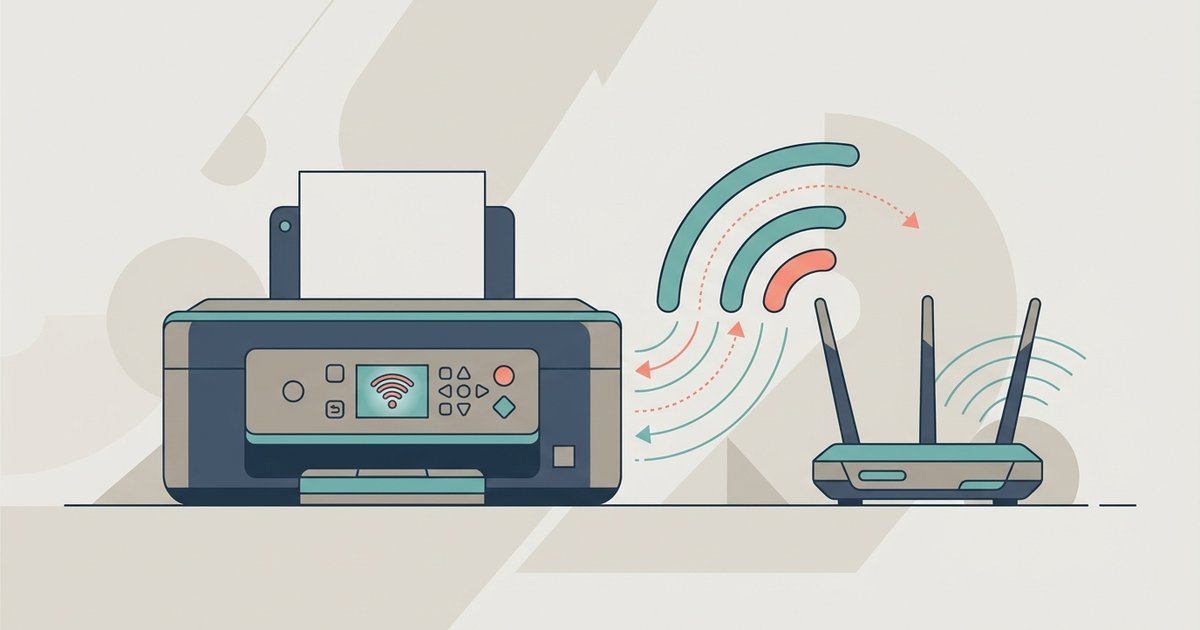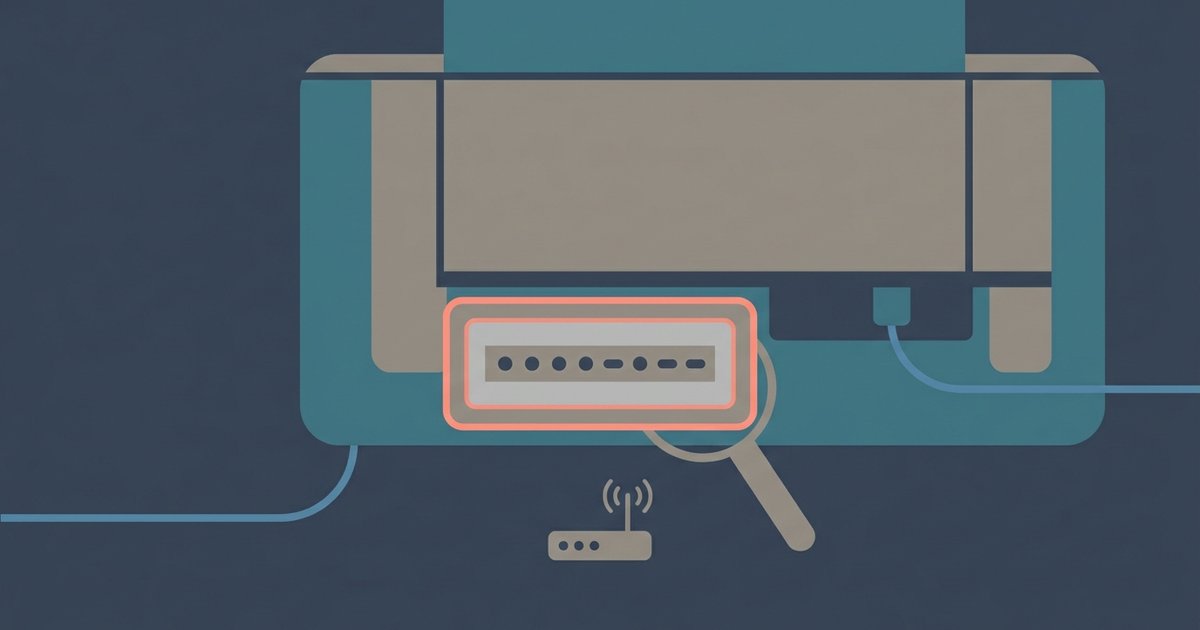
The WPS PIN is generated by your printer, not your router. Print a network configuration page from the printer's control panel or check its LCD screen during WPS setup to find the 8-digit code.
The WPS PIN printer generates, not the router
This code may be a temporary, dynamic number that your printer creates specifically for the WPS PIN method, or it may be a static PIN found on a configuration page. This printer-generated PIN is never found on a router sticker or inside your router's admin interface; the router's own default PIN is separate.
Why the printer creates its own PIN
Many users mistakenly look for the WPS PIN on their router. Routers typically have a WPS push button and a printed sticker with a default PIN for initial device enrollment. For wireless printer setup, the printer itself generates a unique, temporary PIN every time you initiate a WPS PIN connection. This PIN is created by the printer's internal firmware. It is only valid for a short window, usually two to five minutes. Your router’s setup screen is asking for this specific code, not the router’s own admin PIN. Entering the router’s sticker PIN will fail because the router expects the printer’s dynamic code. The process prevents unauthorized devices from joining your wireless. The printer proves its identity by displaying a fresh PIN that you must type into the router’s web interface or configuration utility.
Printing the network configuration page
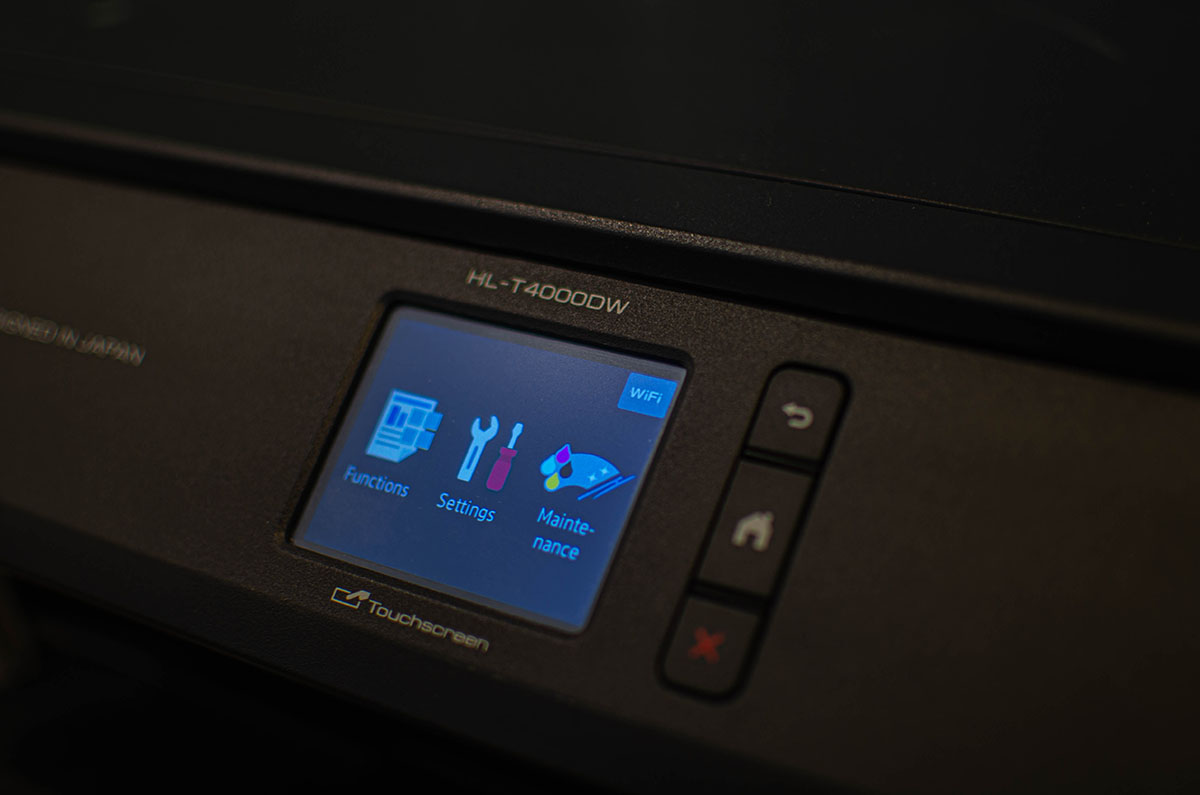
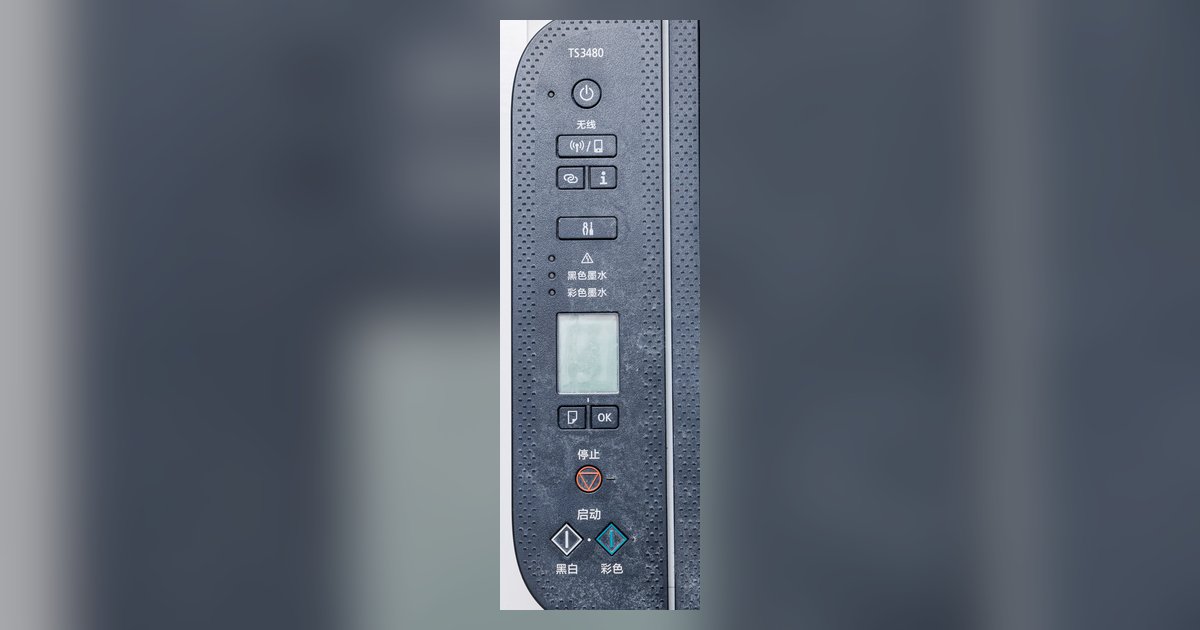
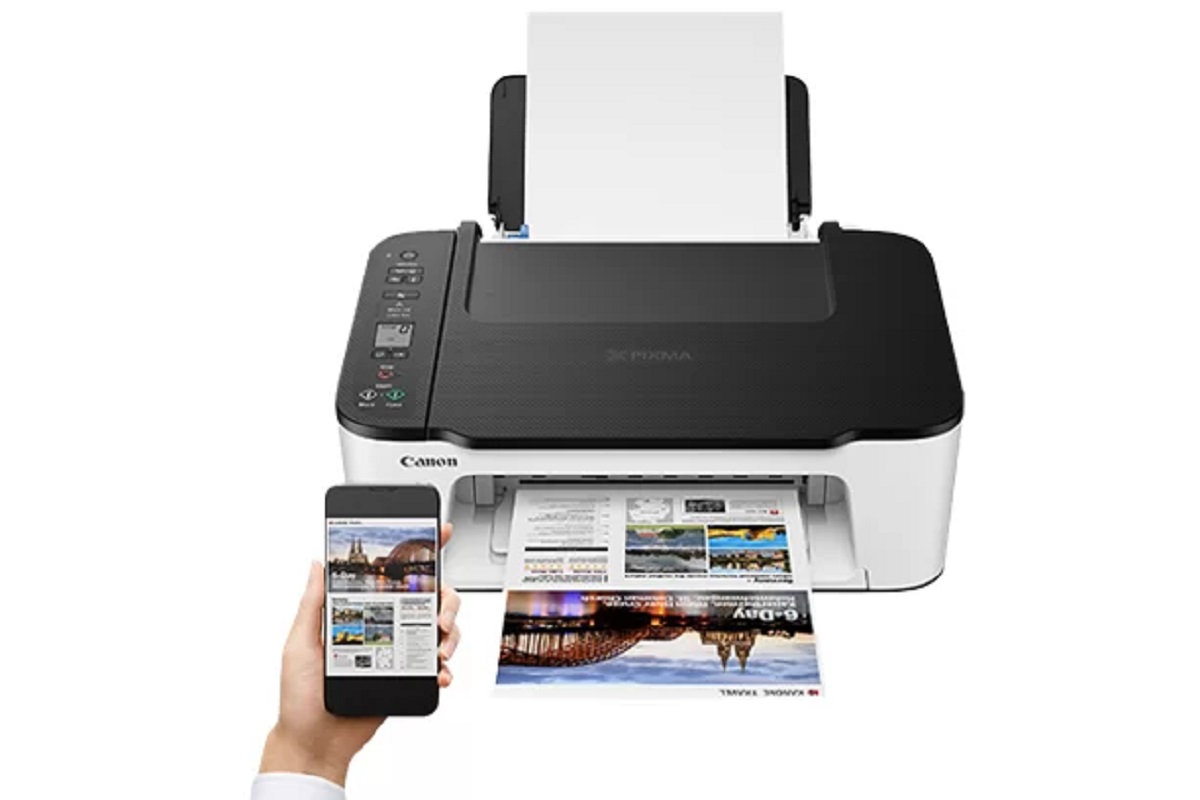
Retrieve the current WPS PIN from your printer’s control panel. The exact steps vary by brand, but the general method is consistent. On most printers, navigate to the "Settings" or "Setup" menu. Then select "Network" or "Wireless LAN Setup." Look for an option labeled "Print Network Configuration Page," "Print Network Status," or "Print LAN Details." Printers without a full LCD screen may require a specific button combination. For example, press and hold the Information or Resume button to print a Network Configuration Page. The printed page lists the current WPS PIN under a heading like "WPS PIN Code" or "PIN for WPS Method." A touchscreen printer often displays the PIN immediately after you select "WPS (PIN Code)" from the wireless menu. When you need to connect a Canon PIXMA printer to Wi-Fi using the PIN method, reach the configuration page via the printer's network settings menu, often under "Settings" > "Device Settings" > "LAN Settings" or similar. The PIN is an 8-digit number, sometimes separated by a hyphen.
When the PIN method fails
The PIN method has several common failure points. The PIN is time-sensitive and expires after a few minutes. You must initiate the WPS PIN process on the printer and then immediately type the displayed code into the router. Some routers reject a correct PIN due to security policies or firmware bugs. The router may show an error like "WPS PIN incorrect" even with the right digits. Restart both the printer and the router, then attempt the PIN method again within the time window. If the PIN method repeatedly fails, the most reliable alternative bypasses WPS entirely. Use the router’s web interface to manually enter your Wi-Fi name and password directly on the printer. When connecting printer to hotspot, the PIN method is unlikely to work because hotspots typically do not support WPS at all. You must configure the printer to connect to the hotspot’s name and password manually. When connecting canon printer to hotspot, the printer’s wireless setup wizard requires you to select the hotspot and type the password. No PIN is involved. The one method that always works when WPS fails is to setup a wireless printer by typing the credentials directly into the printer’s control panel, a process detailed further when connecting a printer to Wi-Fi. Resetting the printer’s wireless settings to factory defaults and retrying with a manual entry often resolves the issue.