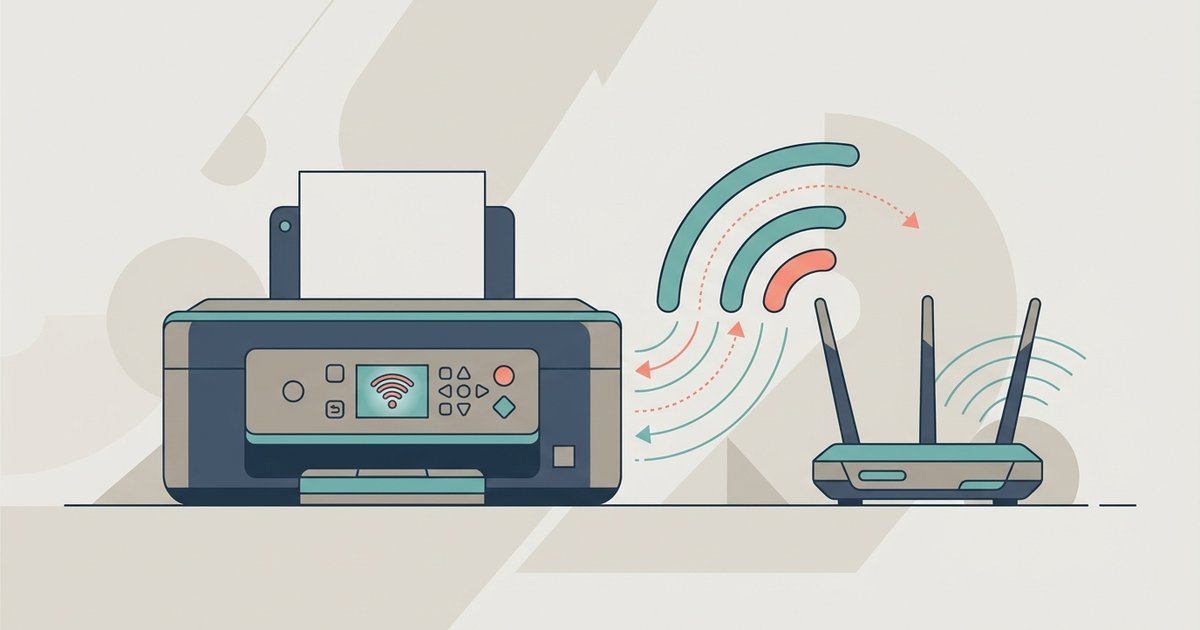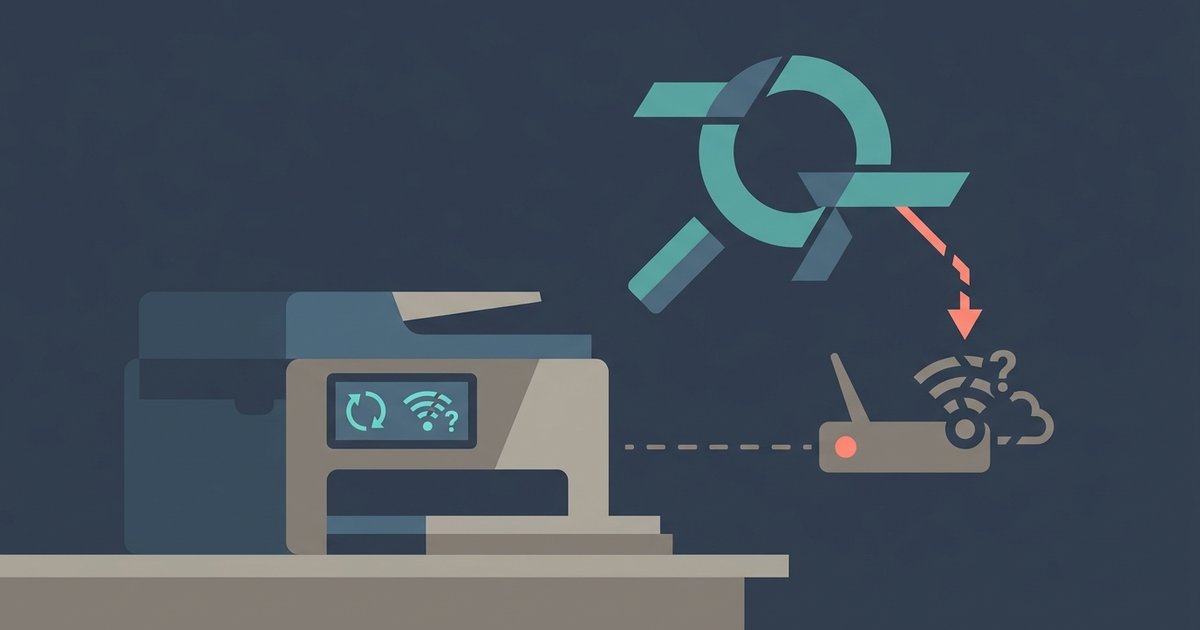
The printer’s wireless radio is likely frozen from a failed initial scan or a temporary firmware glitch. Perform a hard power cycle by unplugging the printer for 60 seconds, then manually enter your network’s SSID instead of scanning for it.
Force a hard power cycle for printer wifi setup
Using the power button to turn the printer off and on again is not enough. That soft restart leaves residual charge in the printer’s capacitors, which keeps the radio adapter in its stuck state. To force a hard power cycle, unplug the power cord from the printer and wait a full 60 seconds. This drains all residual electricity and resets the network radio hardware. While unplugged, press the power button to discharge any remaining charge. Plug the printer back in, wait for it to fully boot, and then attempt the connection. This step alone fixes the "searching for network" freeze on most HP, Canon, and Epson models. If you are following a general guide on how to setup a wireless printer, always begin with this hard power cycle before any other troubleshooting.
Type the SSID manually to bypass the scan
If the printer still spins after the hard power cycle, the automatic scan for Wi-Fi networks may be broken. Instead of letting the printer search, select the option to enter your network name (SSID) manually. On most printers, this is under "Manual Setup" or "Enter Network Name" in the Wi-Fi settings menu. Type the exact SSID, including any uppercase, lowercase, or special characters. Then enter your Wi-Fi password. This bypasses the defective discovery process entirely. If your printer supports WPS, pressing the WPS button on the router and selecting "WPS Push Button" on the printer also skips the scan. If you are unsure about any step, the full walkthrough for connecting a printer to Wi-Fi includes visual cues for manual SSID entry across brands. For a Canon model, if you need to connect your Canon Pixma printer to Wi-Fi, look for the manual entry option in the wireless LAN setup menu. For an HP device, look for the manual entry option in the wireless setup menu.
Check for 2.4ghz-only mode and router isolation
Many printers only support the 2.4 GHz Wi-Fi band, not the faster 5 GHz band. If your dual-band router is broadcasting only on 5 GHz, or if it is set to "band steering" that pushes devices to 5 GHz, the printer will never see a network. Log into your router’s admin panel and ensure a 2.4 GHz network is enabled and visible. Also check for "AP isolation" or "client isolation" settings. When enabled, these features block devices from discovering each other on the same network, making the printer invisible during the scan. Turn off AP isolation for the 2.4 GHz band. If you are connecting a printer to a hotspot, note that many smartphone hotspots also default to 5 GHz; switch the hotspot to 2.4 GHz in its settings if possible. This is a frequent oversight when users try to reconnect an HP printer to Wi-Fi after a router change.
When the printer still won’t find any network
If the printer remains stuck on "searching for network" after a hard power cycle, manual SSID entry, and router checks, the radio card may be physically faulty or the firmware is corrupt. At this point, further troubleshooting is unlikely to help. Connect the printer to your computer via USB cable and run the setup software to configure the connection through the computer, which bypasses the printer’s own radio. If the USB method also fails to detect the network, the radio card likely needs replacement. Check the manufacturer’s website for a firmware update that might revive the hardware, but if no update exists, schedule a service call. Do not waste time repeating the same steps, a hardware failure requires professional repair or replacement. The direct answer you needed was in the first paragraph: unplug for 60 seconds and type the SSID manually; everything beyond that is for edge cases where the radio itself is dead.
This resolves the most common cause of the "searching for network" loop, even after you have moved the printer closer to the router, restarted both devices, and confirmed the Wi-Fi password is correct.