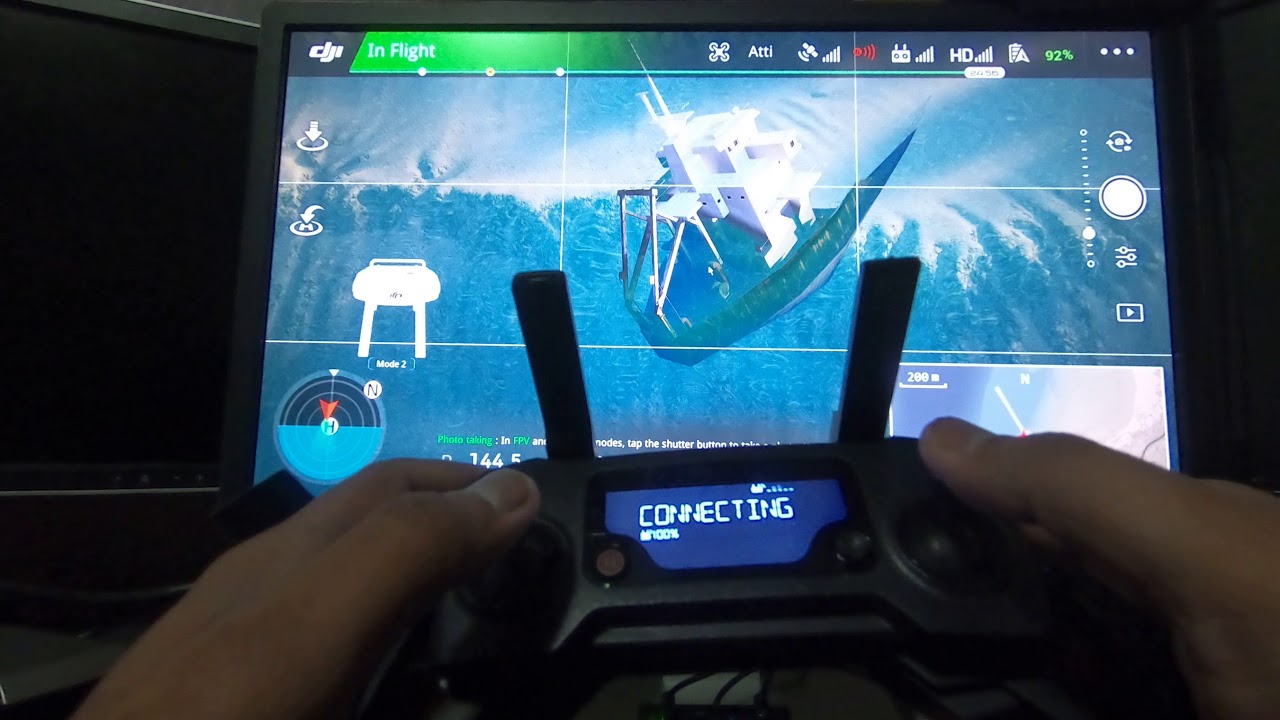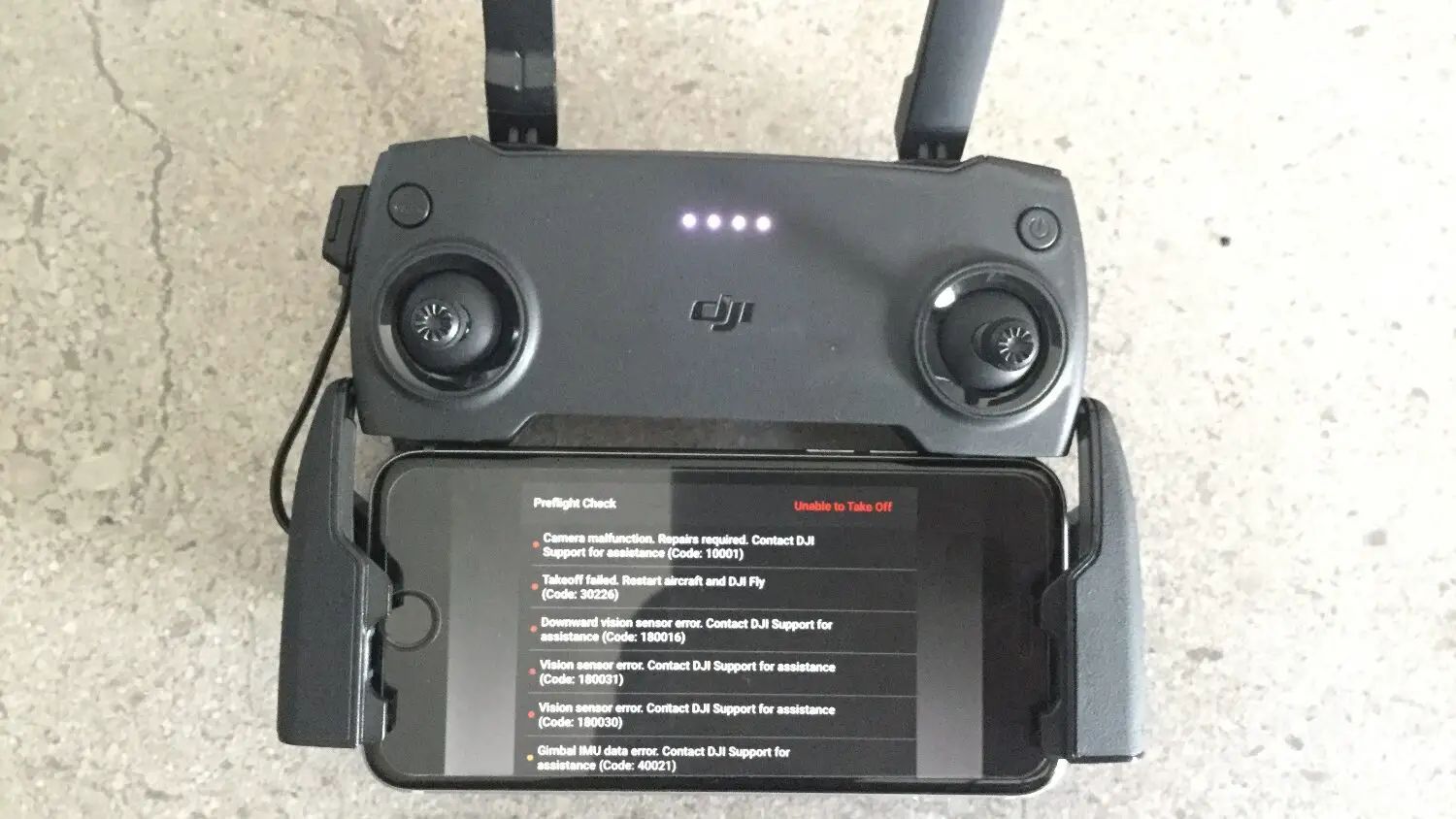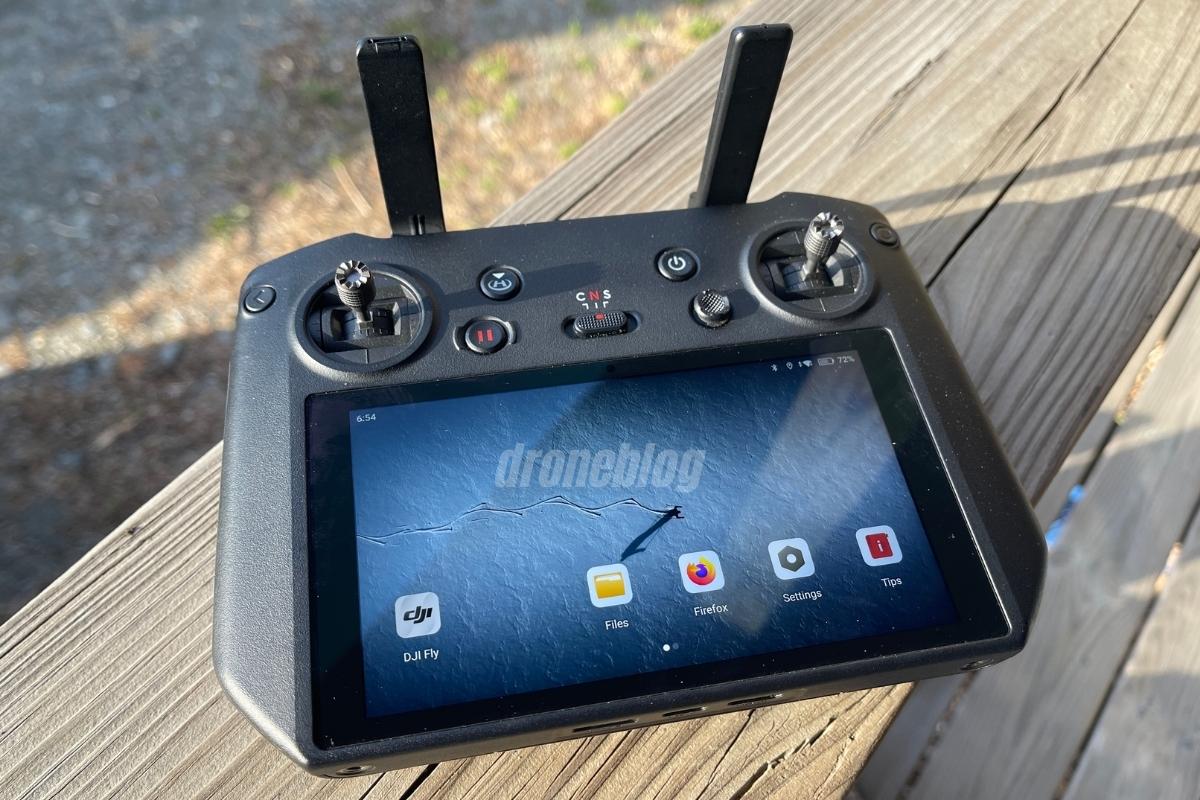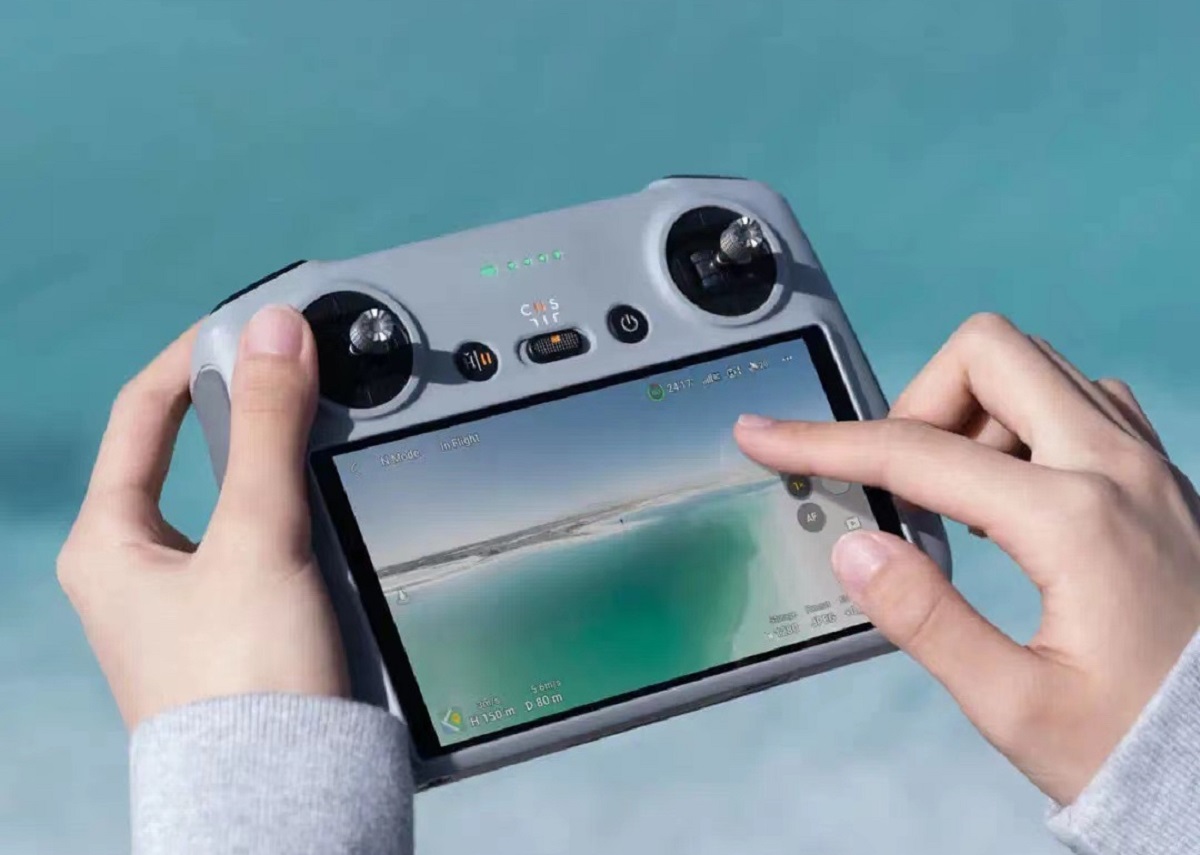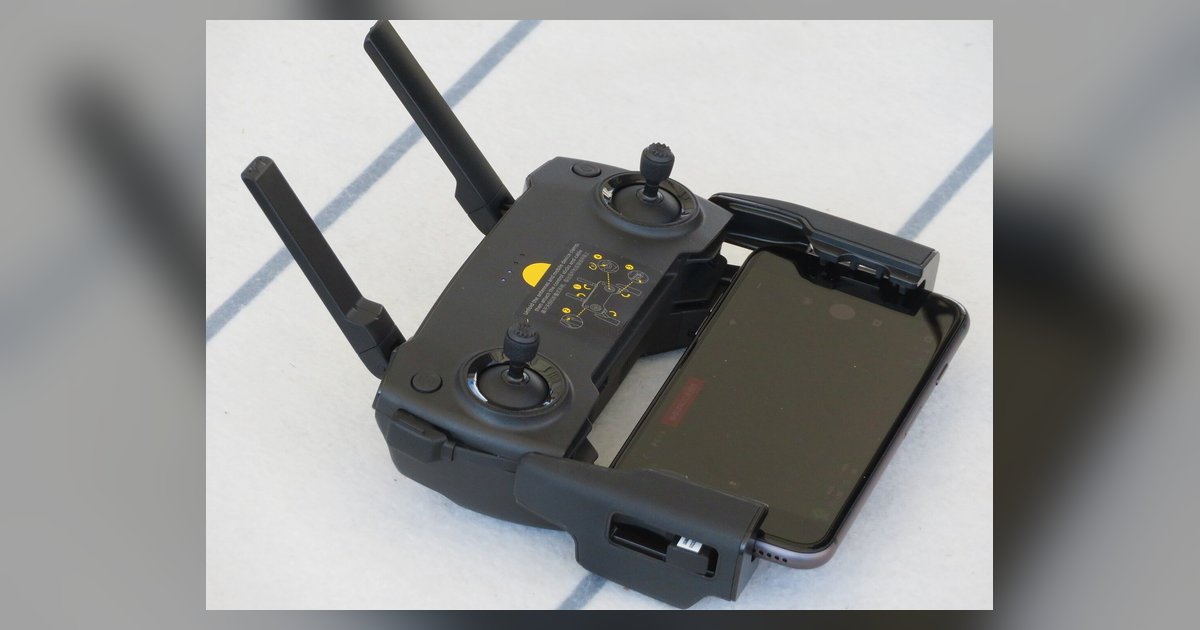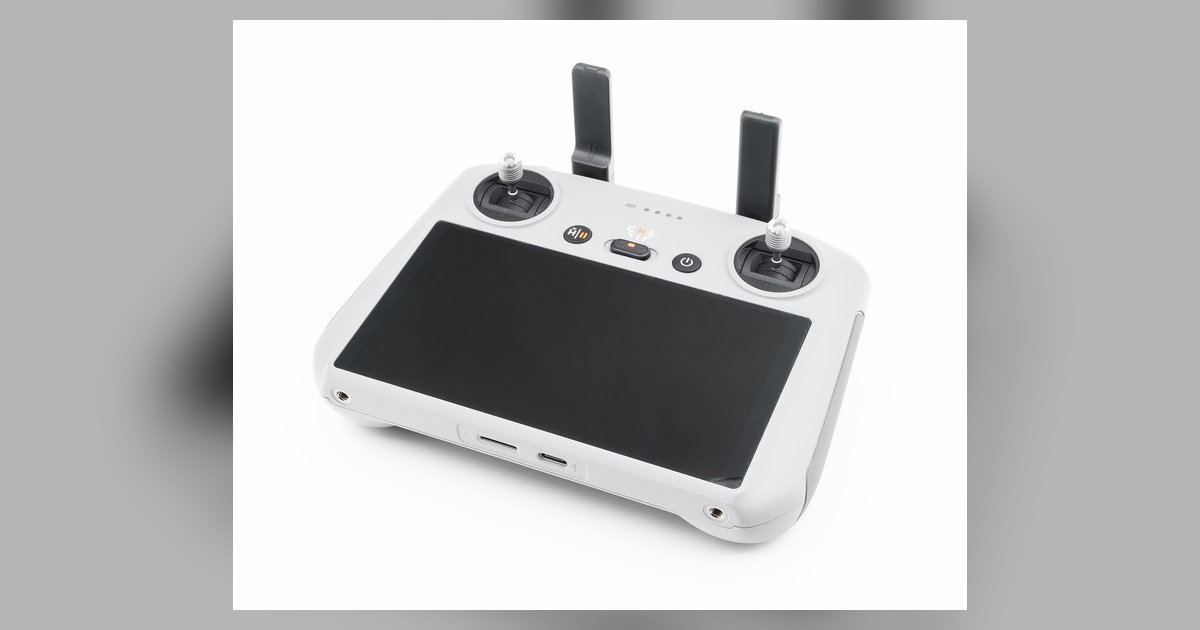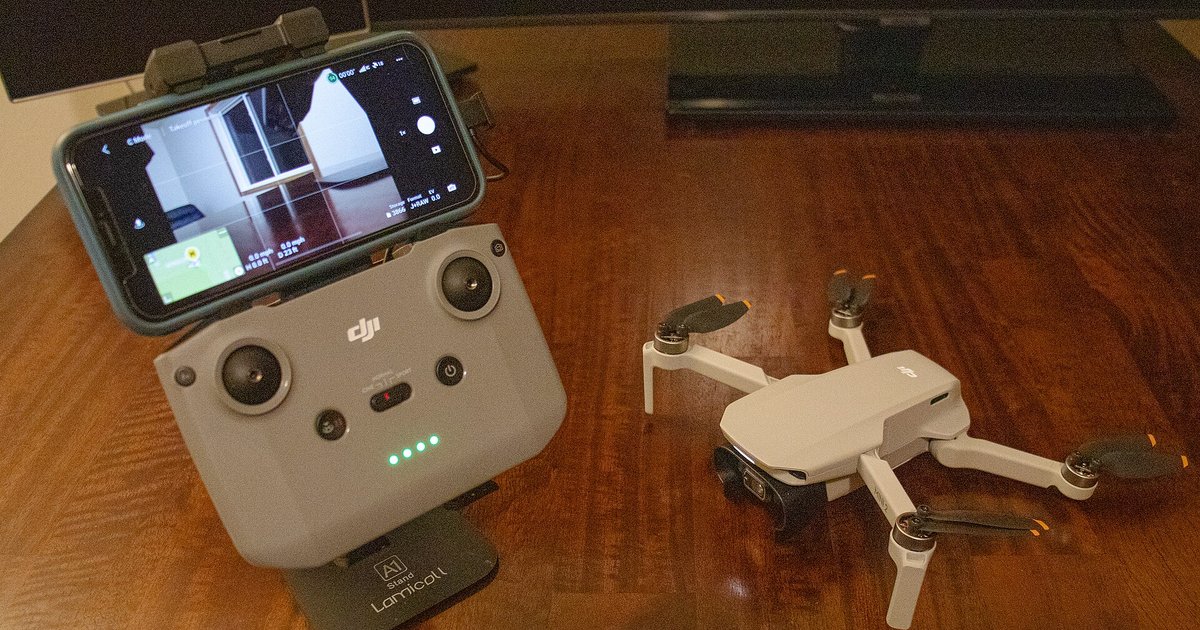
Your controller likely needs to be put into a specific data-transfer mode, or you are using the wrong version of DJI Assistant 2 for your model. Most DJI controllers do not auto-detect; you must manually trigger the connection by holding a button combo while plugging in.
The wrong DJI controller not recognized assistant 2 version
If you downloaded DJI Assistant 2 For Enterprise, your newer controller like the RC or RC 2 will never appear in the device list. The enterprise version only detects industrial drones and their matching remote IDs. You must instead download the specific Consumer Drones Series version from the DJI download center. This version supports all standard Phantom, Mavic, Air, and Mini controllers, including the smart RC and RC 2 models. Before troubleshooting further, confirm your hardware is on the DJI simulator compatible controller list to ensure it is recognized by the software at all. Installing the wrong version is the single most common reason the controller stays missing, because the software simply does not look for consumer hardware.
The hidden button combo
Even with the correct software, the controller will not show up unless you enter its bootloader mode. For the standard RC-N1, RC-N2, or the original smart controller, power on the controller normally before connecting it via USB-C. For the RC 2 or RC Pro, power on the controller normally before connecting it via USB-C. The controller should be powered on normally with its home screen visible. The PC should detect the controller once it is powered on and connected via USB-C. The controller should boot normally into its home screen for the PC to detect it. If the PC still fails to recognize it, you may first need to connect dji controller to Wi-Fi so it can download the necessary drivers. This process is the exact method you need when you want to connect dji controller to PC for firmware updates or flight log exports.
When the USB cable or port is the culprit
A charge-only USB cable will power the controller and make its screen light up, but it will never establish a data connection. The controller will sit in the device list as an unknown device or simply vanish from DJI Assistant 2. Use the original DJI cable or any cable rated for data transfer (look for a USB-IF logo or a cable marked "data sync"). Additionally, a low-power USB 2.0 port on a front-panel PC header may supply enough current to charge the battery but not enough to initialize the data interface. Plug directly into a rear USB 3.0 port on your motherboard, or use a powered USB hub. If the PC makes a chime when you plug in but the controller still does not appear, the cable is almost certainly charge-only. Finally, if you are troubleshooting why the aircraft itself will not link, you must separately pair the drone with the remote controller using the pairing button sequence inside the DJI Fly app. That process is entirely independent of the PC connection. None of those wireless steps will help if the controller itself cannot be seen by the PC for firmware updates.