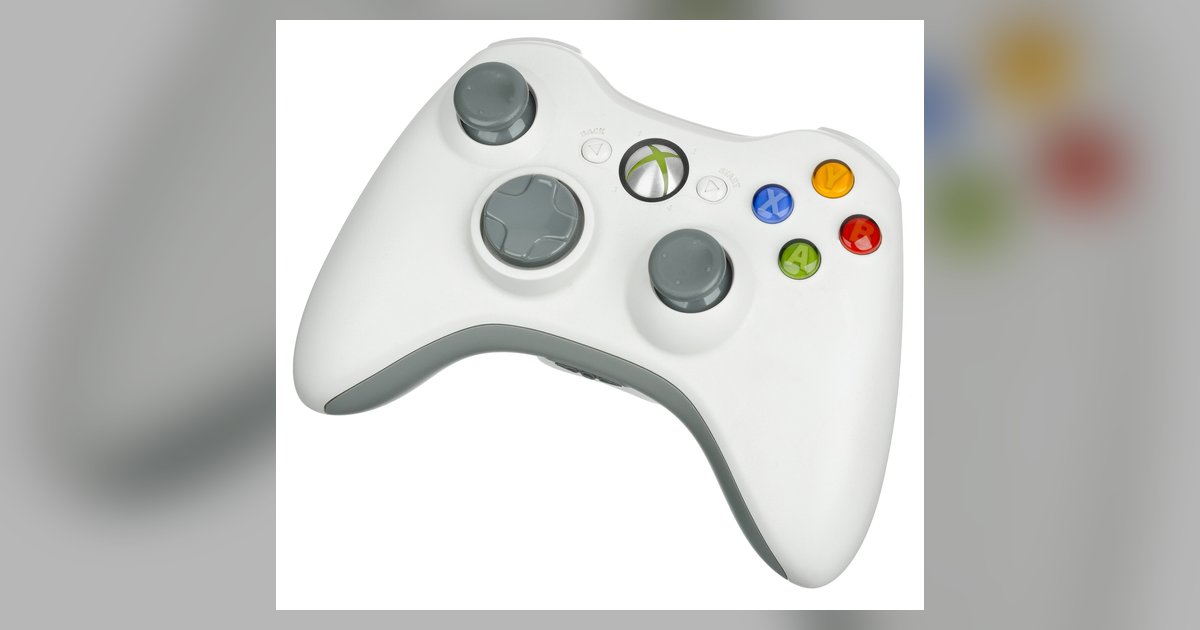
You must download and run the official Xbox Accessories app from the Microsoft Store on your Windows 10 or 11 PC, then connect the controller via USB to trigger the firmware update prompt.
Why automatic driver installs aren't enough to update third-party controller firmware
When you plug in a third-party Xbox controller, Windows automatically fetches basic HID drivers. These let the operating system recognize button presses and analog stick movements. However, generic drivers do not touch the controller’s internal firmware. Firmware is the low-level software that governs dead zones, polling rates, and compatibility with specific games. If you are experiencing stick drift or games that fail to register inputs correctly, the problem is almost certainly an outdated firmware version that Windows Update cannot address. The Xbox Accessories app communicates directly with the controller’s microcontroller to apply updates that fix these issues. These updates can recalibrate analog ranges or patch compatibility bugs for titles like Call of Duty. To verify your controller’s current status, you can open game controller settings in Windows by typing “joy.cpl” into the Run dialog. This panel shows the driver version but not the firmware revision, which is why the separate app is essential.
The manufacturer's official firmware update app is the only official way to push new firmware to a third-party Xbox controller, and it works even if you have never owned an Xbox console.
When the Xbox accessories app won't detect your controller
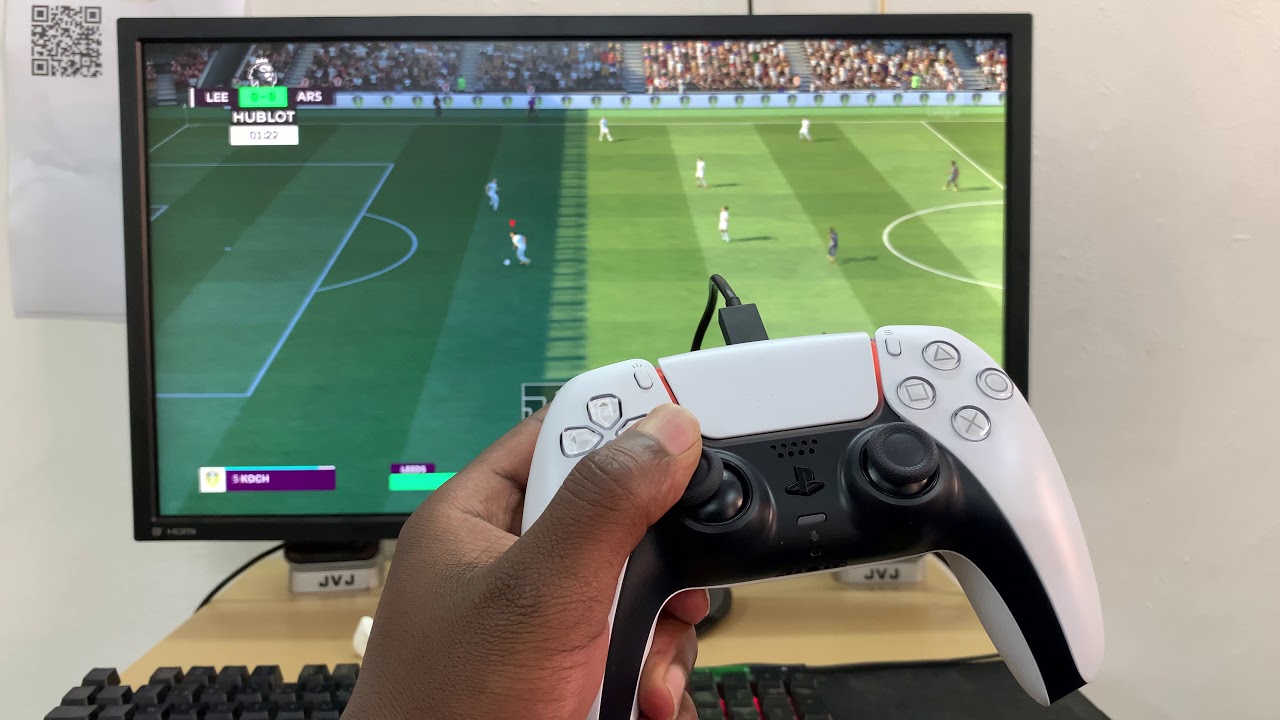
A common failure occurs when the Xbox Accessories app simply does not see your third-party controller. This happens because Microsoft’s app only whitelists controllers that use the official Xbox Wireless Protocol or are licensed through the Designed for Xbox program. If your controller is an unbranded or less common model, the app will show “No controller connected” even when the device is plugged in and working in games. In this case, you must visit the manufacturer’s support website and download their standalone updater tool. This applies to brands like PowerA, Razer, or 8BitDo. These tools are often labeled “Firmware Updater” or “Controller Utility” and require the controller to be connected via a USB cable, not Bluetooth. The manufacturer’s tool bypasses the Xbox Accessories app entirely and speaks directly to the controller’s chipset. After updating, you can set up a game controller to play Call of Duty on PC by calibrating the new dead zone settings inside the game’s control menu. This ensures the firmware patch has taken effect.
Forcing a manual firmware flash via USB recovery mode
If the manufacturer’s updater tool also fails to detect your controller, you may need to force the controller into USB recovery mode. This is often called bootloader mode or DFU mode. The update process may also have been interrupted mid-flash. For many third-party controllers, this mode is entered by holding down a specific combination of buttons while plugging the USB cable into the PC. Common triggers vary by manufacturer; check your controller's manual or the manufacturer's FAQ for the exact key combination. Check your controller’s manual or the manufacturer’s FAQ for the exact key combination. Once in recovery mode, the device will appear in Windows Device Manager with a specific identifier that varies by manufacturer; check your controller's documentation for details. You can then manually select the firmware file using a dedicated flashing tool. The file, downloaded from the manufacturer, is applied using the manufacturer's official update application. After the flash completes, reboot the controller and verify the new firmware version by using the manufacturer’s diagnostic tool. If you need to reconfigure button mappings afterward, you can install a USB game controller on Windows 10 again by running the standard setup wizard, a process detailed when setting up a game controller on Windows. The firmware update itself does not require reinstalling drivers. For games with complex control schemes, such as setting up a game controller for PC for Fallout 4, the updated firmware will ensure that analog stick response matches the game’s input expectations. This eliminates the drift or missed inputs you were experiencing.