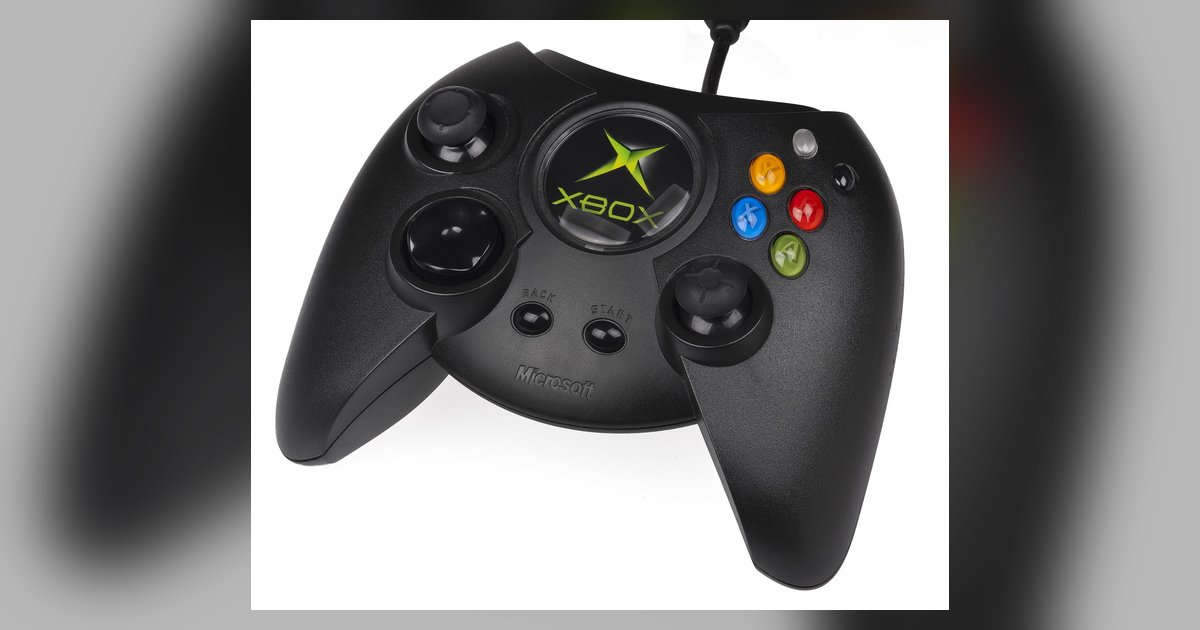
Connect and set up your controller
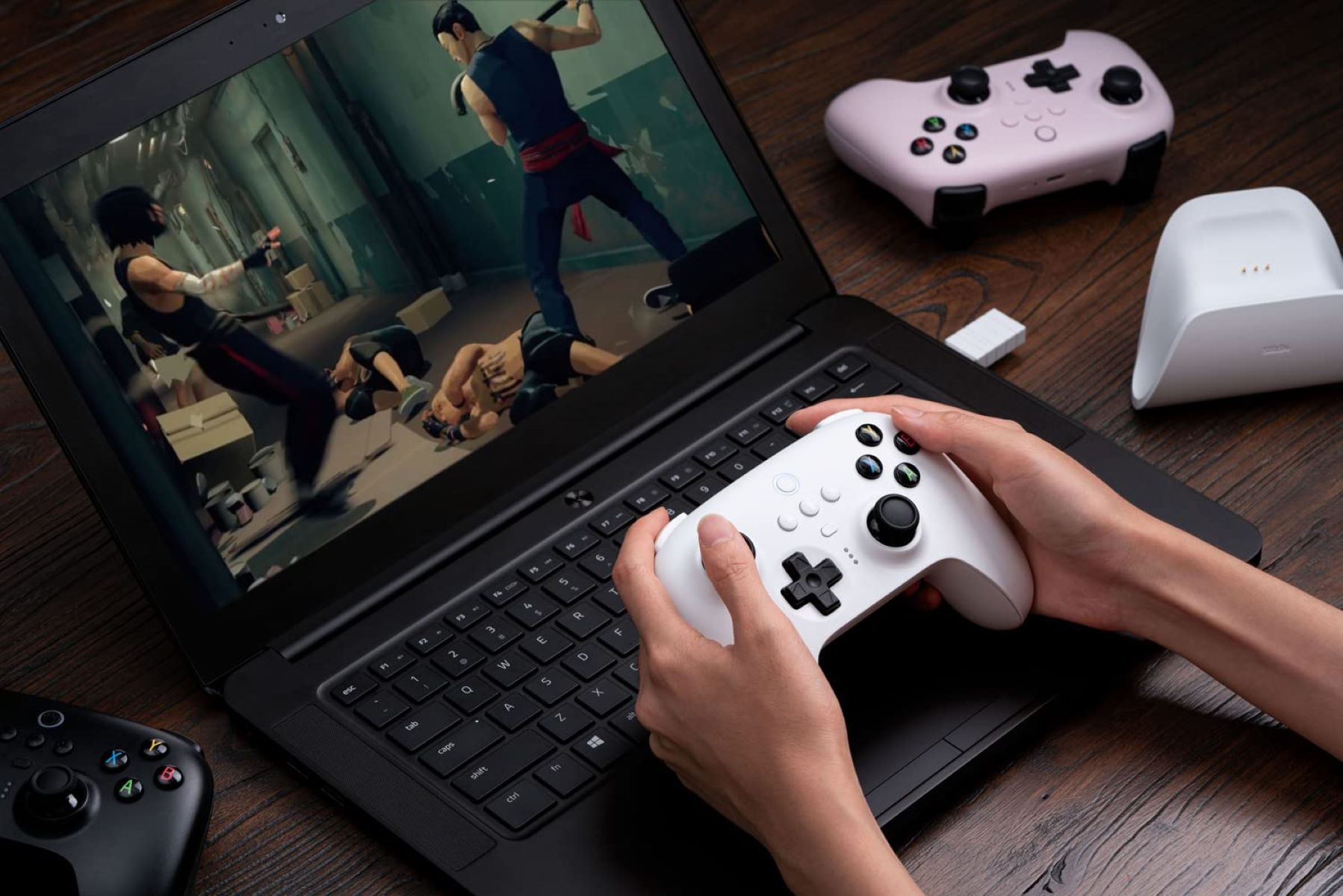
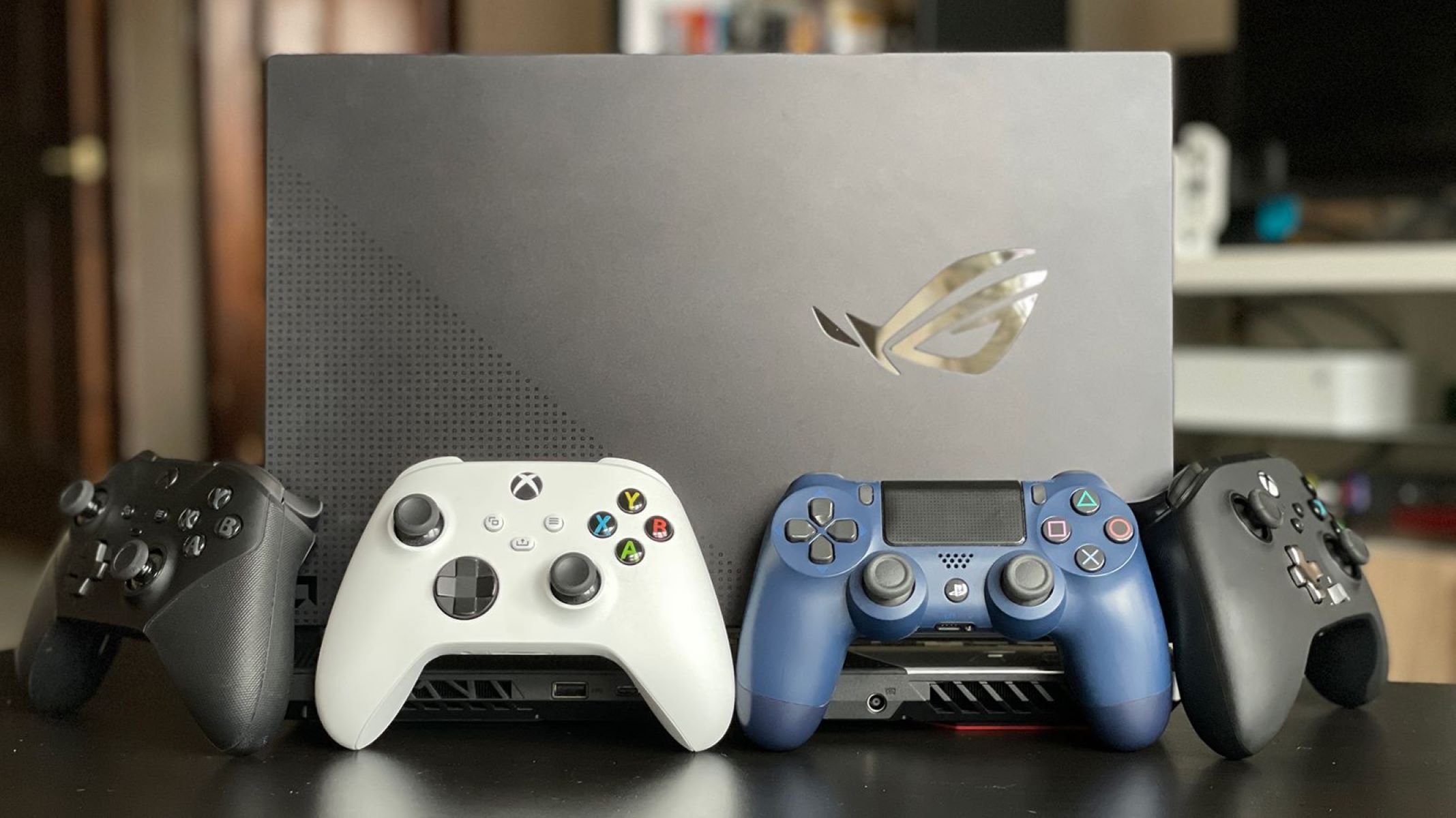
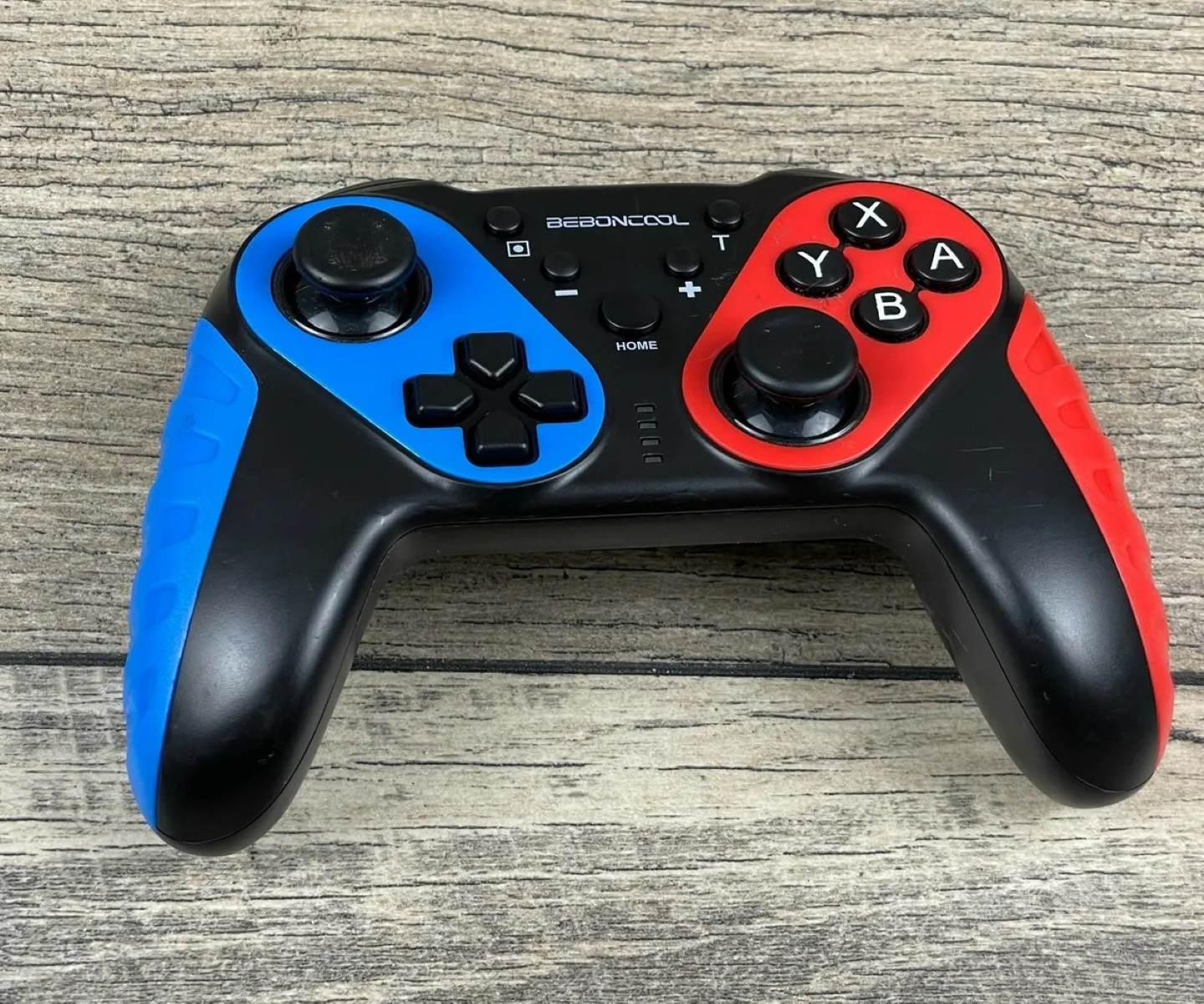
To set up a game controller on Windows, plug it into a USB port or pair it over Bluetooth if it supports wireless connections. Windows typically detects modern Xbox, PlayStation, and Switch Pro controllers automatically and installs the correct driver. For wired models, a USB-A to USB-C cable usually works best. For Bluetooth, hold the pairing button until the LED blinks, then add the device in Windows Settings under "Bluetooth & devices." If you need to install a USB game controller on Windows 10, the process is the same. Plug it in, wait a moment, and check Device Manager for any yellow warning icons. However, specialty controllers like the Logitech Extreme 3D Pro rely on older DirectInput protocols, so they may appear in joy.cpl but remain unrecognized in modern games. Should you encounter a controller not showing up in joy.cpl, try a different USB port, replace the batteries, or reinstall the driver manually. For simultaneous multiplayer setups, you can connect two different controller brands to one PC at the same time, as long as each uses a separate wireless adapter or cable. If you need to connect a beboncool game controller to PC games, follow the same basic steps, though some budget models require pressing a small reset button on the back before pairing. Once the device appears in the Game Controllers list, you can test its axes and buttons to confirm everything works.
Configure your controller for specific games
Once your controller is connected and recognized, you can fine-tune its behavior for individual games. Start by visiting the system-wide calibration tools. To do this, you can open game controller settings in Windows and calibrate the axis ranges. Dead zones and vibration feedback are usually adjusted in-game or through companion software. This baseline ensures your inputs are clean before you move on to per-game mapping. For older flight sticks, the process is different. You will need to setup Logitech extreme 3D pro using its proprietary control panel or a third-party wrapper. DirectInput devices lack the plug-and-play compatibility of modern XInput controllers. For specific titles, the configuration steps vary widely. If you want to set up a game controller for world of tanks, you will likely need to bind turret rotation and throttle to the analog sticks inside the game's own control menu. Similarly, if you want to set up a game controller to play call of duty on PC, you should enable aim assist and adjust stick sensitivity in the settings panel. Then test the response curve in a private match. For single-player RPGs, you might need to set up a game controller for PC for fallout 4. This involves mapping the pip-boy and VATS keys to the D-pad and shoulder buttons, often requiring a community-made configuration file to get full functionality. Always test each mapping in the game's tutorial or practice mode before committing to a play session.
Fix common controller problems
If your controller stops responding mid-game, start with the physical connection. Unplug the USB cable, wait five seconds, and plug it back into a different port. Ideally, use one directly on the motherboard rather than a front-panel hub. For wireless controllers, remove and reinsert the batteries or the rechargeable pack. Then press and hold the sync button on both the controller and the adapter (for Xbox controllers) or press and hold the PS and Share/Create buttons (for PlayStation controllers). If you need to fix input lag on a wired controller in Windows 11, check that the USB port isn’t sharing bandwidth with a high-speed drive. Moving the controller to its own root hub often clears up the delay. Sudden disconnections during gameplay can be traced to power settings. Open Device Manager, find your controller under “Human Interface Devices” or “Xbox Peripherals,” right-click, choose Properties, and on the Power Management tab uncheck “Allow the computer to turn off this device to save power.” A controller disconnecting when vibration activates usually points to insufficient power delivery. Try fresh alkaline batteries or a powered USB hub if you’re wired. Detection failures are common with older DirectInput sticks. If Windows doesn’t see your device at all, install the manufacturer’s legacy driver manually from the support site. For third-party pads, you may need to update firmware on a third-party Xbox controller without an Xbox. The maker’s Windows utility (often a small .exe on their downloads page) handles that directly over USB. If lag persists after all that, disable any overlay software (Discord, GeForce Experience) and test in a different game to rule out a title-specific issue.