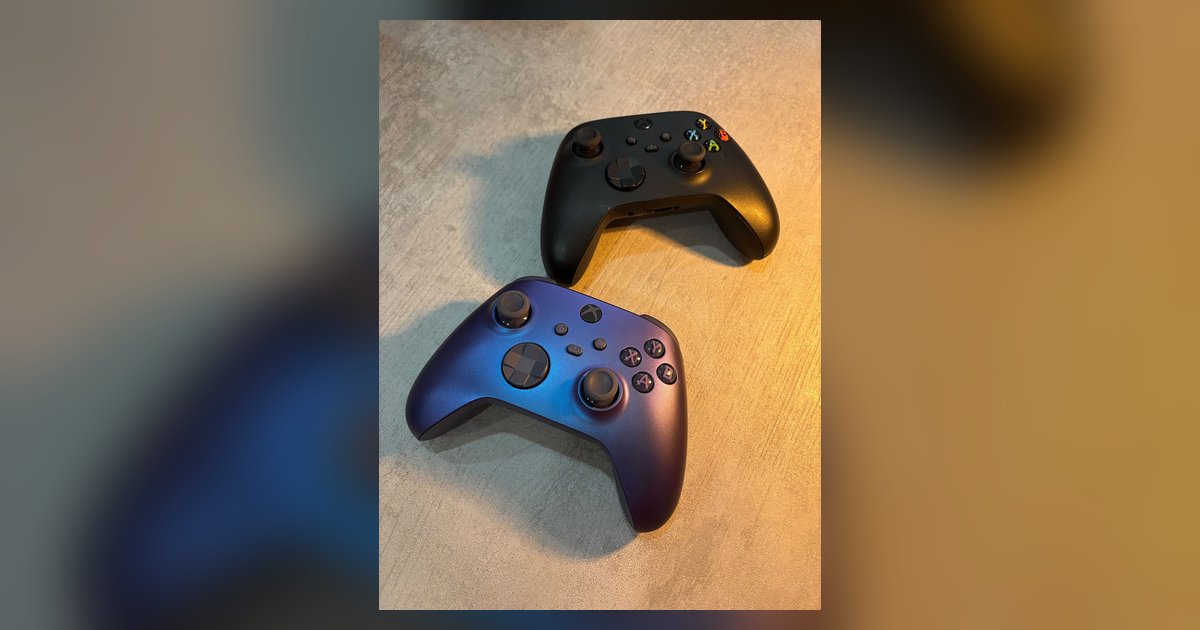
The Game Controllers panel only shows devices recognized as DirectInput gamepads, so your controller is likely connecting as an Xbox (XInput) device or has a driver conflict. Check Device Manager for an 'Unknown device' or look under 'Xbox Peripherals' instead.
Why Your Controller Is Not Showing Up in the DirectInput Panel
This legacy panel, accessible by typing joy.cpl into Run, has not changed its detection logic since Windows 7, meaning modern controllers often bypass it entirely.
XInput vs DirectInput: The Hidden Filter
The core reason your controller vanishes from joy.cpl is the protocol it uses. DirectInput is the older standard that joy.cpl was built to query, it sees every button and axis as a raw, numbered input. XInput, introduced with the Xbox 360, treats the controller as a single, standardized gamepad and deliberately hides its raw data from the DirectInput layer. Any modern Xbox, Xbox Series X|S, or third-party "Xbox-compatible" controller (like PowerA or Razer Wolverine) connects via XInput by default. To see it, you must open the Xbox Game Bar (Win+G) or navigate to Settings > Bluetooth & devices > Devices. If you need to open game controller settings in Windows for an XInput device, use the "Game Controllers" tile inside the Settings app, not joy.cpl.
Driver Conflicts and Ghost Devices
Even if your controller uses DirectInput, a corrupted or "ghost" driver can block joy.cpl from seeing it. Open Device Manager (right-click Start > Device Manager). Look under Human Interface Devices for a faded "HID-compliant game controller" icon, or under Other devices for a yellow-triangle "Unknown device". If you see nothing, click View > Show hidden devices. This reveals controllers that were once plugged in but whose driver entry remains stuck. Right-click any faded or error-marked controller entry and select Uninstall device (check "Attempt to remove the driver for this device" if prompted). Then unplug your controller, restart Windows, and plug it back in. This fix often resolves "missing from joy.cpl" cases. If you still get no response, the issue might be a missing generic driver, consult the guide to install a USB game controller on Windows 10.
When the Controller Is Actually Broken
If Device Manager shows no unknown devices, no hidden entries, and your controller does not appear under any category (not even "Xbox Peripherals" with a warning), the hardware itself is likely failing. Test with a known-good cable, many USB-C cables are charge-only and lack data wires. For wireless controllers, remove the battery or dongle and re-pair via Bluetooth Settings > Add device. If the controller still does not power on or vibrate when connected, attempt a firmware reset: on an Xbox controller, hold the Sync button for 10 seconds while plugged in. No response from any Windows tool, not joy.cpl, not Device Manager, not Game Bar, points to a dead main board, broken USB port, or corrupted firmware. In that case, the controller needs physical repair or replacement.
For the wider picture, see setting up a game controller on Windows.