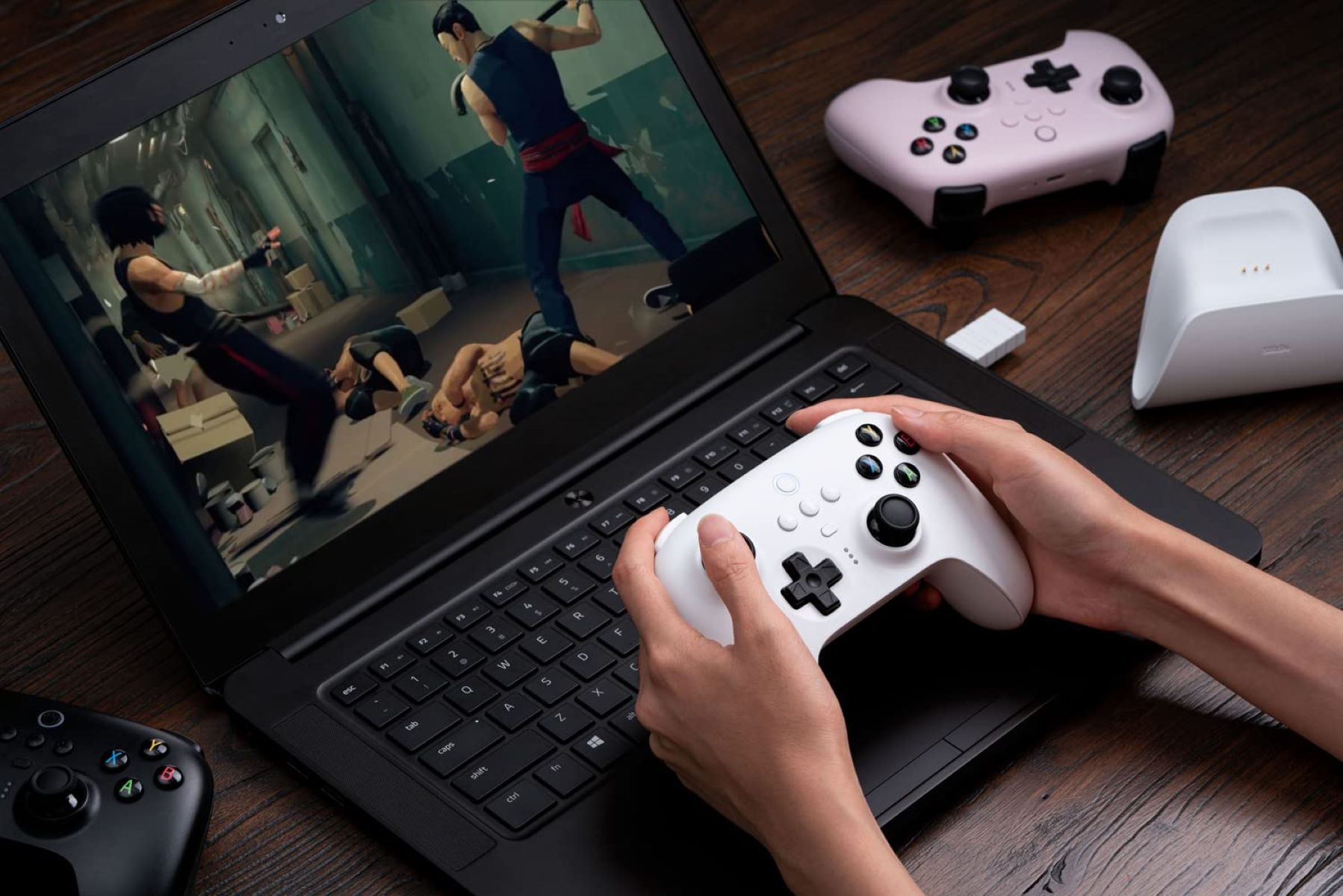
To install a USB game controller on Windows 10, simply plug the controller into an available USB port and let the operating system handle the rest, most controllers are designed for plug-and-play detection and will have their drivers installed automatically. This straightforward process is the primary method for setting up a game controller on Windows, ensuring you can start gaming with minimal effort.
How to install a USB game controller on Windows 10 automatically
Windows 10 is built to recognize most USB game controllers the moment you connect them. After inserting the USB connector into a working port, the system will automatically detect the device and install the necessary drivers. You can verify that the controller is functioning properly by searching for Set up USB game controllers in the Start menu, which you can also reach if you open game controller settings in Windows through the classic Control Panel. In the resulting window, select your controller and click "Properties" to open a test tab where you can check button presses and stick movements. Once confirmed, you can set up a game controller for world of tanks to map these inputs directly to your tank's controls.
Check for Windows updates for controller drivers
If the automatic installation doesn't provide full functionality, checking for optional driver updates through Windows Update can resolve compatibility issues. Any available driver updates for your controller may appear as optional updates that you can install to improve performance and ensure the device works correctly.
Troubleshoot a controller that isn't detected
When automatic setup fails and your controller isn't recognized, start by opening Device Manager. Look for your device under categories such as "Human Interface Devices," "Universal Serial Bus controllers," "Xbox Peripherals," or "Sound, video and game controllers." If you find it there, right-click the controller, select "Update driver," and then choose "Search automatically for updated driver software." For Xbox controllers specifically, downloading the "Xbox Accessories" app from the Microsoft Store allows you to update the controller's firmware and customize settings, which can resolve detection issues.
Prevent random USB controller disconnections
A common cause of unexpected disconnections is Windows turning off the USB port to save power. To stop this, open Device Manager and expand "Universal Serial Bus controllers." Right-click each "USB Root Hub," go to Properties, then the Power Management tab, and uncheck "Allow the computer to turn off this device to save power." This simple change keeps your controller connected reliably during gameplay.
Calibrate the USB game controller in Windows 10
To fine-tune sensitivity and accuracy, open "Set up USB game controllers" from the Start menu, select your controller, and click "Properties." Navigate to the Settings tab and launch the calibration wizard, which will guide you through moving the sticks and pressing buttons to optimize responsiveness. This process ensures your inputs translate precisely into in-game actions, giving you better control.