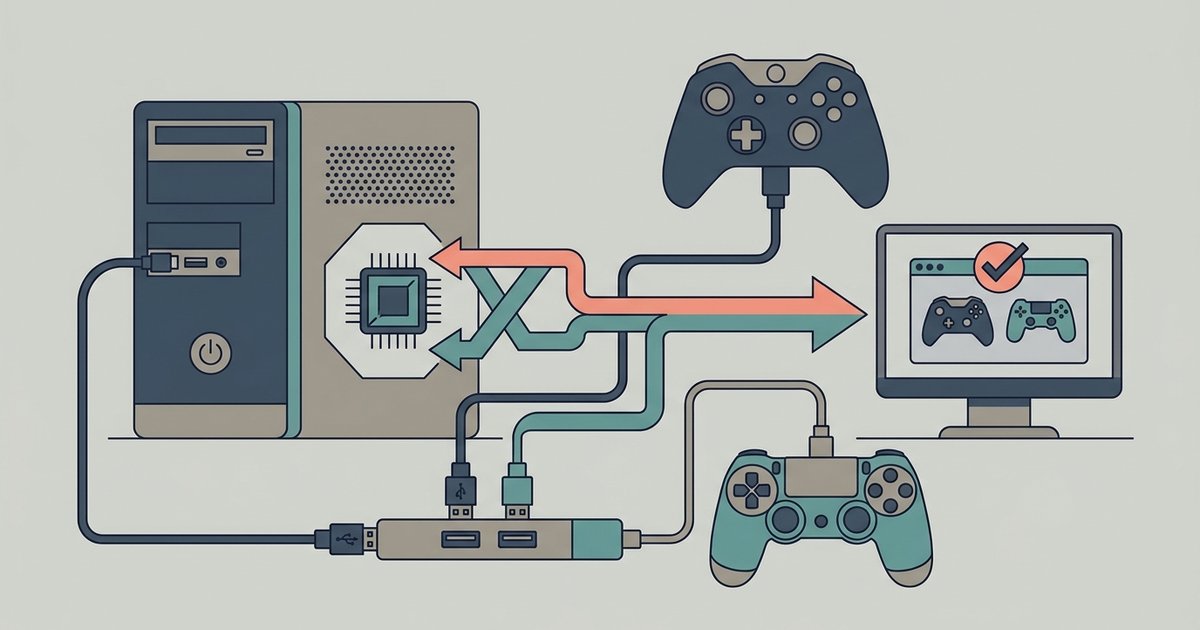
Yes, Windows recognizes multiple controller brands simultaneously with no special drivers, but many games fail to assign them correctly because of conflicting input APIs—you’ll usually need to enable Steam Input for both pads or use a wrapper like DS4Windows to make them appear as identical Xbox controllers.
Why two controllers PC setup works at the system level
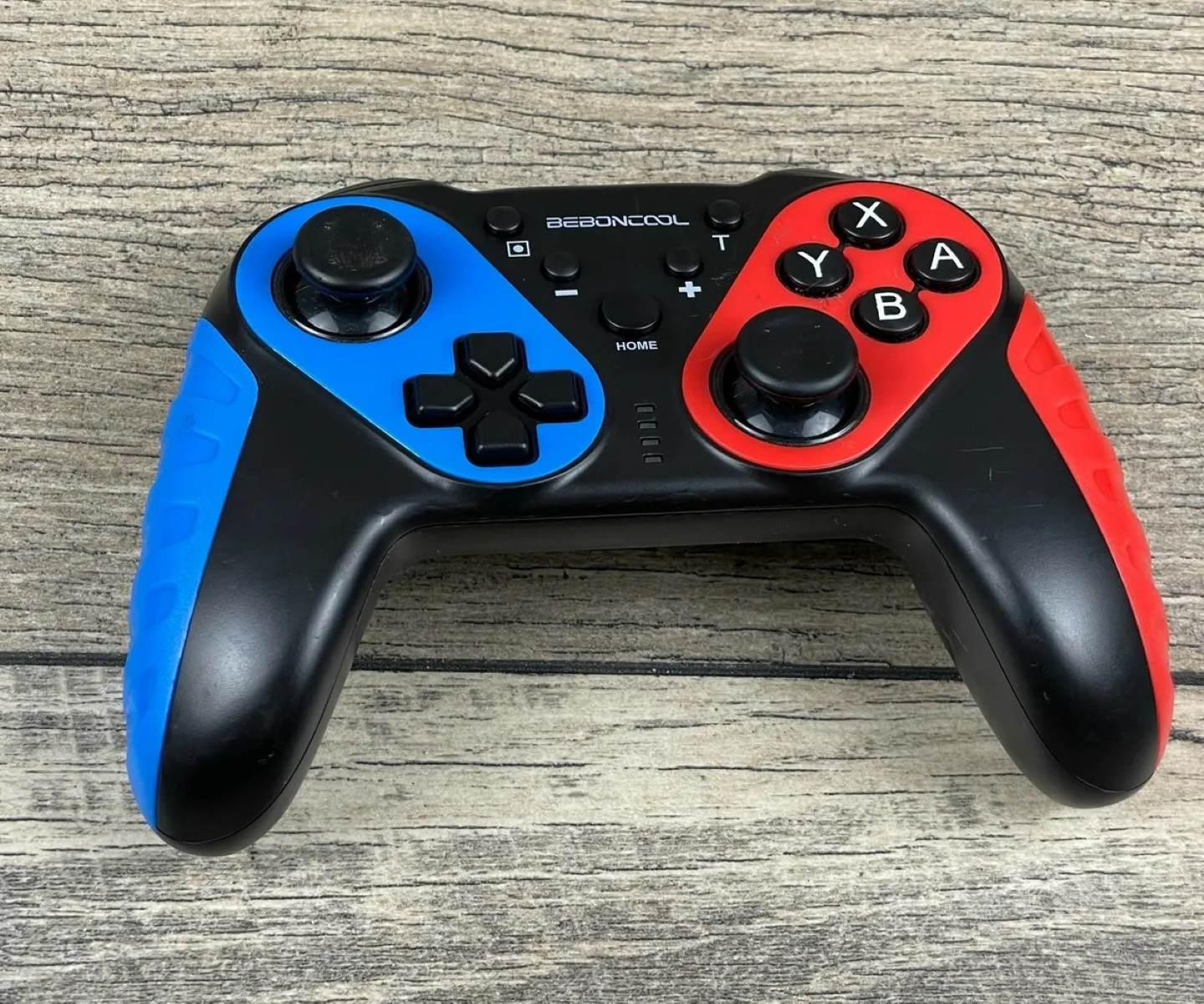
Windows natively supports two separate input APIs side by side. XInput is used by Xbox controllers and most modern gamepads. DirectInput is used by PlayStation controllers, older joysticks, and specialty devices like flight sticks. When you connect an Xbox pad via USB or Xbox Wireless Adapter, it registers as an XInput device. A PlayStation controller, whether wired via USB or paired over Bluetooth, appears as a DirectInput device. You can verify both are recognized without errors by opening the classic Control Panel and clicking “Devices and Printers.” Both should show up under “Devices.” To confirm they have no driver conflicts, you can also open game controller settings in Windows by typing “joy.cpl” into the Run dialog (Win+R). Check that both gamepads respond to button presses in the Properties window. If either pad fails to show or throws a yellow exclamation in Device Manager, the cause is usually a missing driver or a faulty cable, not a brand mismatch. If you need a step-by-step walkthrough for a specific DirectInput pad, you can connect a beboncool game controller to PC games and see the exact pairing sequence.
The real problem is how games pick player order
The core trouble begins when a game was built to support only XInput. Titles like “Cuphead,” “Overcooked 2,” or “Borderlands” expect every gamepad to speak the XInput language. Your PlayStation pad sends DirectInput signals. It gets ignored entirely or appears as a generic “ghost device” that the game can’t assign to any player slot. Even games that claim to support “any controller” often rely on a fixed player-ordering system. They scan for XInput devices first and assign Player 1 to the first Xbox pad they find. Then they treat any DirectInput pad as an unresponsive orphan. This is why you might plug in both, see both lit up in Windows, yet only one works in-game. If you’re trying to set up a Logitech Extreme 3D Pro or any other flight stick, you’ll hit the same wall. The game sees the DirectInput device but refuses to map it to a second player. Similarly, when you set up a game controller for World of Tanks, the title typically expects all input hardware to be identical XInput units. Mixing brands breaks the assignment logic outright.
The fix that works for almost every co-op title
The universal solution is to force both gamepads onto the same input API. The simplest method is to use Steam’s controller configuration. Open Steam, go to Settings > Controller > General Controller Settings, and check both “Xbox Configuration Support” and “PlayStation Configuration Support.” Steam will then intercept every pad plugged in and translate all signals into XInput. Both devices will appear to the game as identical Xbox 360 controllers. Steam handles player order based on the order they were connected. A common mistake is leaving one pad on Bluetooth while the other is wired. Bluetooth introduces a different latency profile and can cause Steam to misidentify the pad as disconnected. For best results, wire both or use the same connection method for both. If the game you want isn’t on Steam, or Steam Input doesn’t fix the issue, use DS4Windows. This free tool makes any DirectInput device appear to Windows as a virtual Xbox controller. Install it, run it, and then you can safely install a USB game controller on Windows 10 without worrying about brand conflicts. The system will treat both pads as XInput devices. In DS4Windows, go to the “Settings” tab and enable “Hide DS4 Controller.” This prevents the real PlayStation pad from also appearing as a DirectInput device, which can confuse games. After that, launch your co-op title and reassign player slots in the menu. Both gamepads should now respond correctly.
Windows itself never rejects a controller because of its brand. The operating system reads every device you plug in. The failure always happens inside the game’s own player-assignment logic. For a deeper look at the process, see the broader topic of setting up a game controller on Windows.