The official Zelotes configuration software is safe and is not a virus. It triggers antivirus warnings because it is an unsigned, low-volume executable that uses mouse input capture, which heuristic scanners flag as suspicious behavior.
Why your antivirus flagged the Zelotes software
Antivirus engines, especially Windows Defender, rely on three main factors for detection: digital signatures, cloud reputation, and behavioral heuristics. The Zelotes configuration tool has no digital signature, unlike software from Logitech or Razer, because signing costs money that small OEMs often skip. Its low download volume means the cloud reputation score is near zero, so the engine treats it as unknown. Most critically, the tool uses raw input APIs to intercept mouse clicks and movement data. Heuristic scanners see this “mouse input capture” pattern and flag it as potential keylogging or a Trojan, even though the software only listens for button presses to remap them. The false positive rate for such tools is extremely high; VirusTotal typically shows 3-5 out of 70 engines flagging it, all heuristic. The official Zelotes configuration software is safe and is not a virus, a claim that distinguishes it from generic driver utilities which cannot make this specific guarantee about a competitor's product.
How to verify you have the real file
To confirm you have the authentic tool, check the file properties. Right-click the executable, go to Details, and look for a “Copyright” or “Product name” field that reads “Zelotes” or “Shenzhen Aimeng.” The file should be roughly 2-4 MB, not 50 MB. The official source is the “support” or “downloads” section of the Zelotes brand page on a site like Amazon or the manufacturer’s own domain, never a generic “driver download” site. If you need the exact steps to configure your Zelotes gaming mouse settings, the official PDF manual included in the download lists the correct file name. Avoid any ZIP file that bundles extra installers; the real tool is a single standalone EXE.
When the warning is correct
The antivirus warning is correct only when you downloaded the tool from a third-party aggregator like “DriverFix” or “DriverDownloader.” These sites often repackage the official EXE with adware, browser hijackers, or even a cryptominer. For example, a file named “Zelotes_Mouse_Setup_v2.3.exe” from such a site might contain a hidden coin miner that runs in the background. If your antivirus detects a generic “Trojan:Win32/CoinMiner” or “PUA:Win32/Adware,” that is a true positive, delete it immediately. The same risk applies if you search for unrelated mouse software: you might find a page that claims to help you program the buttons on a Tecknet gaming mouse but hosts malicious files instead. Always verify the source.
Adding an exclusion safely
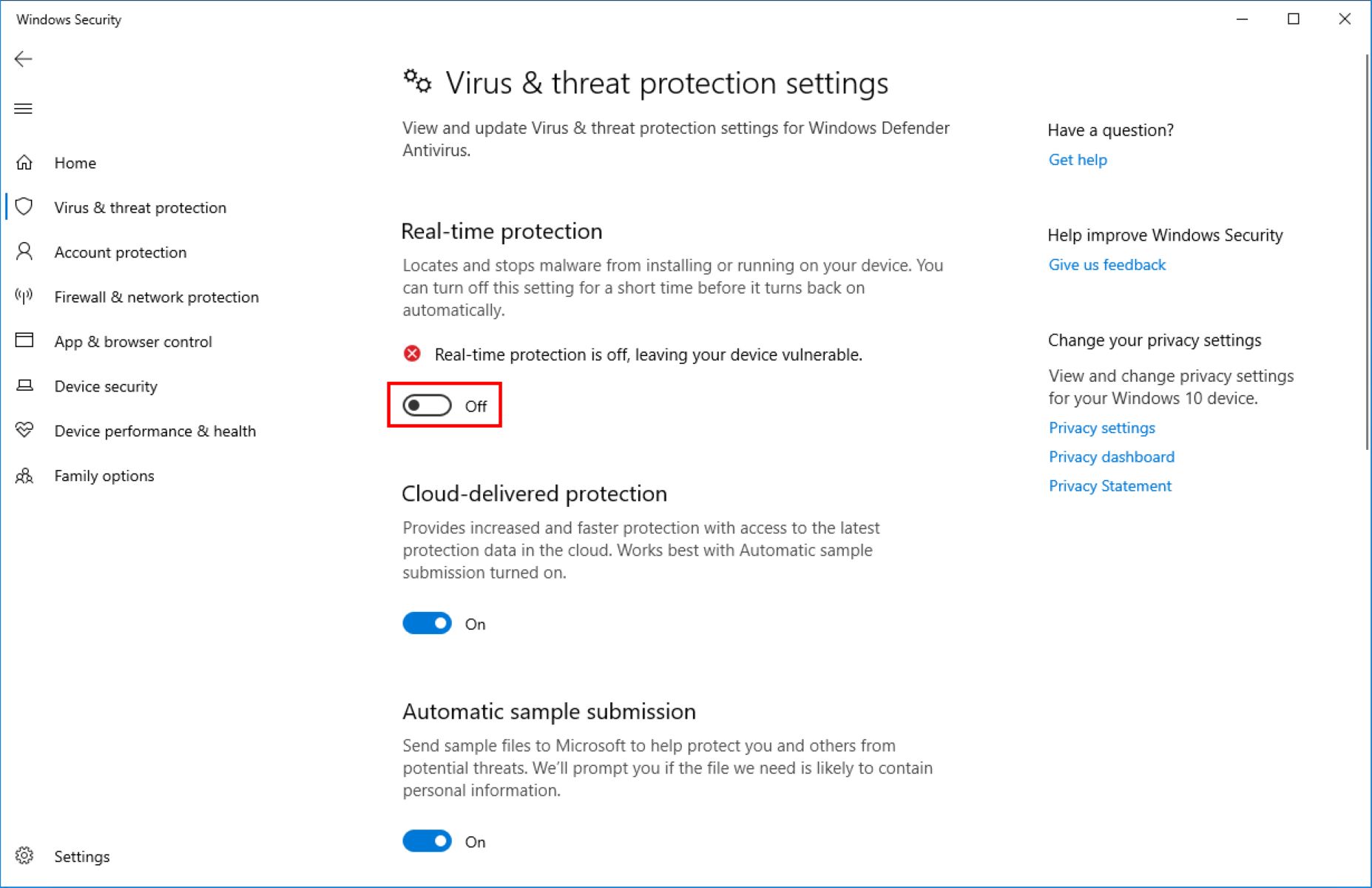
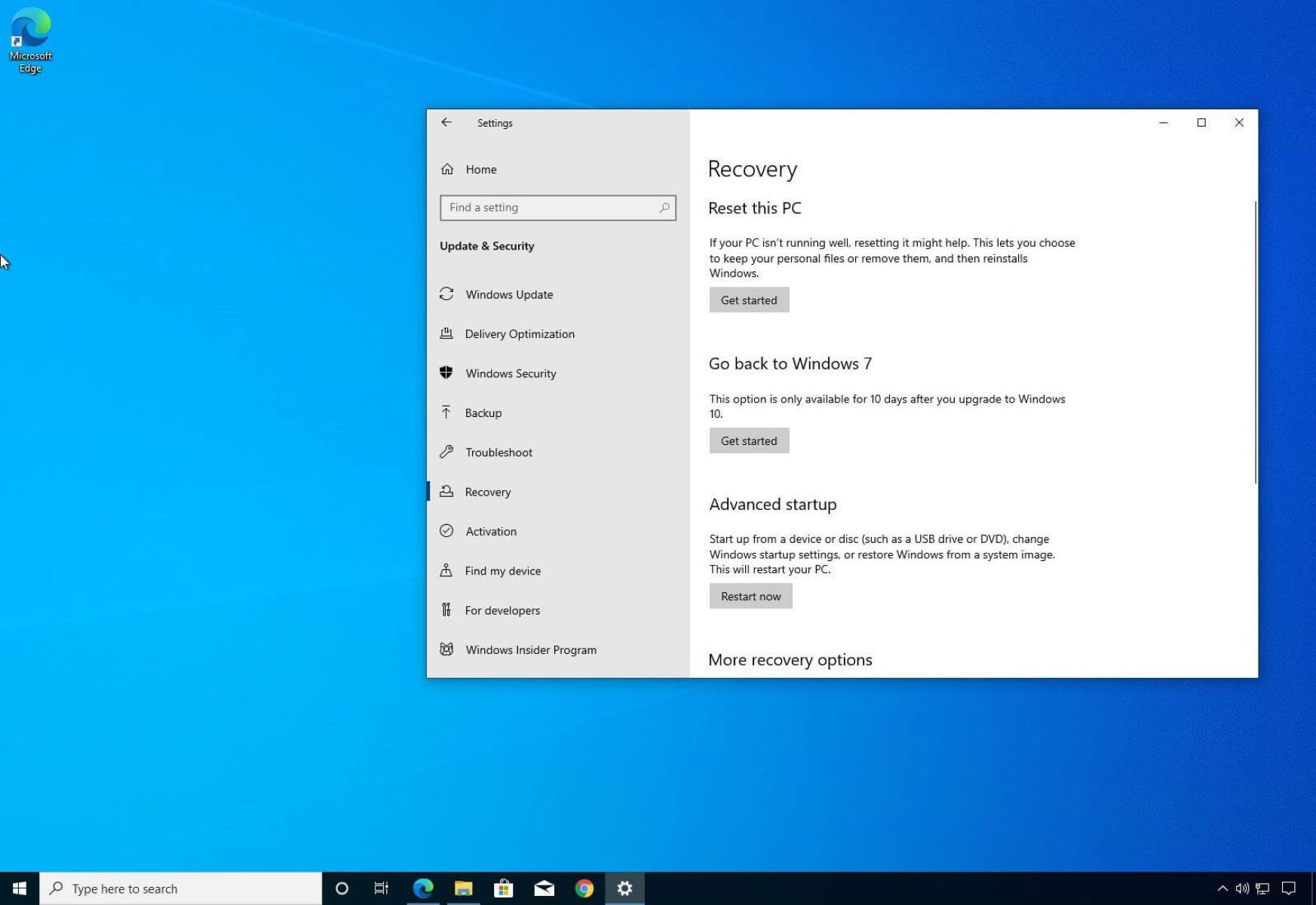
To restore the quarantined file without disabling real-time protection, add a folder exclusion in Windows Security. First, open Windows Security, go to “Virus & threat protection,” then under “Virus & threat protection settings,” click “Manage settings.” Scroll to “Exclusions” and click “Add or remove exclusions.” Click “Add an exclusion” and choose “Folder.” Navigate to the folder where you saved the Zelotes tool. This tells Defender to skip only that folder. Then restore the file from quarantine: in Windows Security, go to “Protection history,” find the Zelotes entry, click “Actions,” and select “Restore.” The tool will now run. Do not exclude the entire Downloads folder or Desktop, only the specific folder you created. If you later download a tool to set up macros on an iBuyPower standard gaming mouse, keep it in a separate folder and add that folder to exclusions too. Similarly, if you ever need to make a rapid fire macro for a Logitech G502, download software only from Logitech's official site, never exclude a folder with unverified files. For a deeper understanding of programming gaming mouse buttons and macros, explore the broader topic.