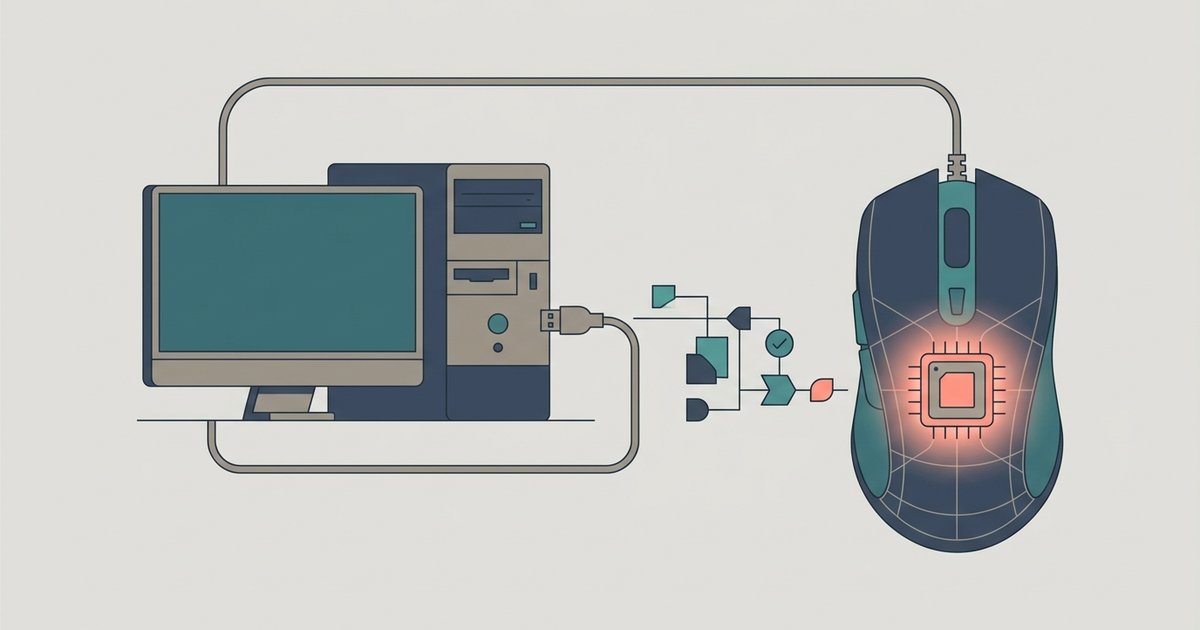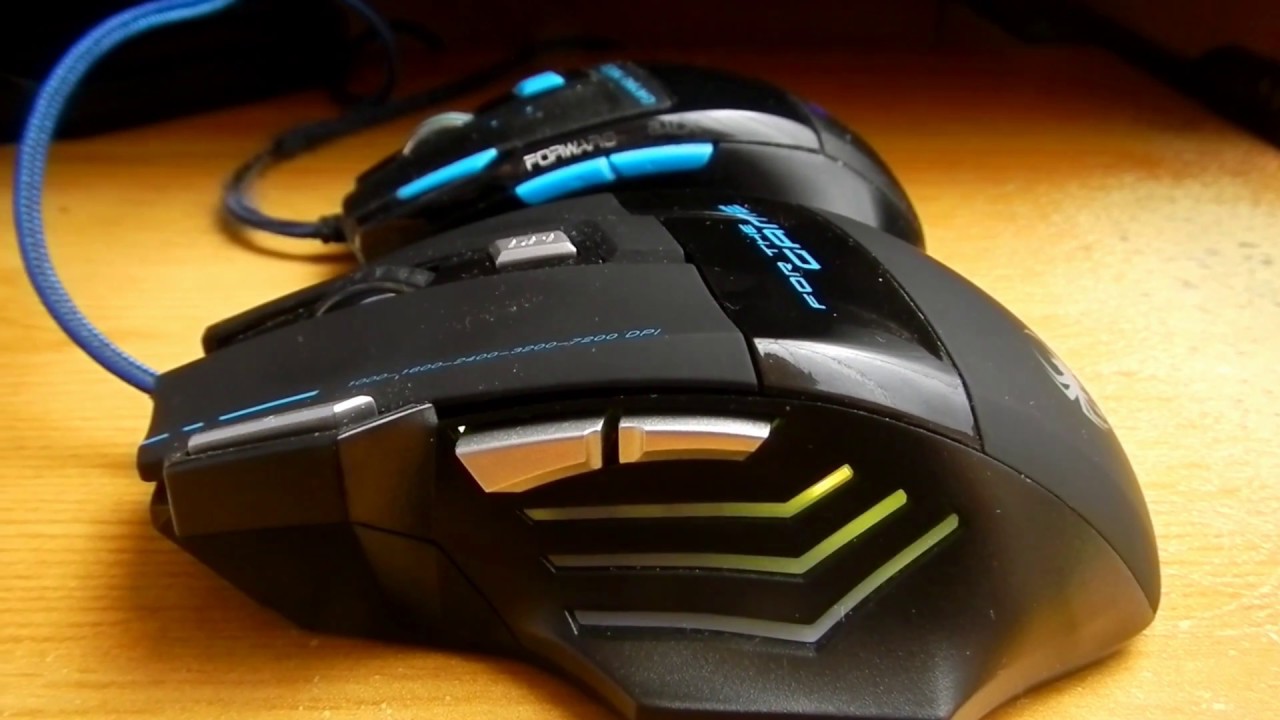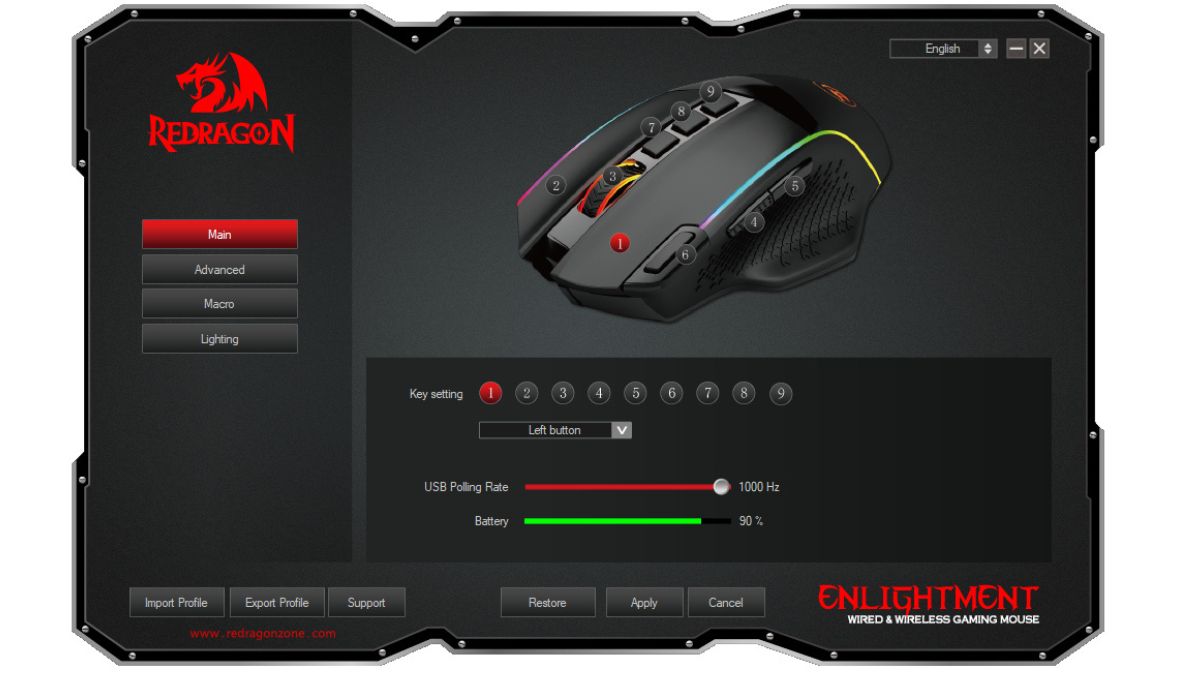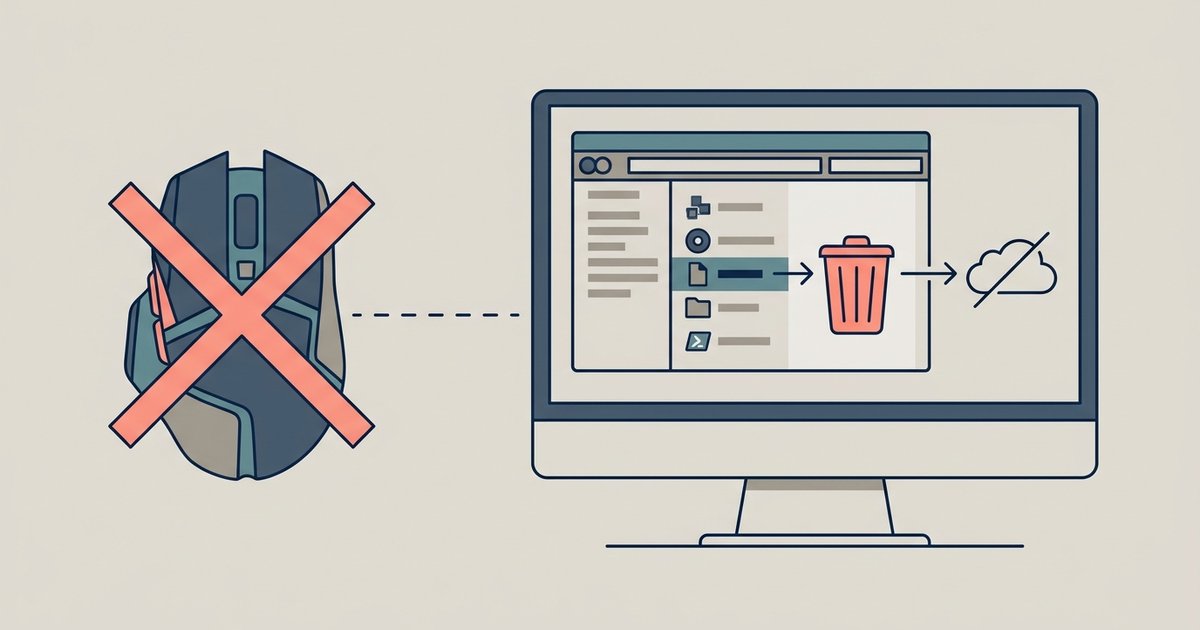
If your Zelotes mouse reset after a restart, it’s because the device has no onboard memory for custom button profiles. Configuration only works while the Zelotes Gaming Software is actively running. If the utility doesn’t auto-start with Windows, your settings will revert to default after every restart. This is a hardware limitation, not a bug. You must keep the program running in the background to maintain your custom button mappings.
Why the software must be running to prevent a Zelotes mouse reset
The Zelotes Gaming Software acts as a live translator between your mouse inputs and the commands you assigned. When you close the tool, the mouse instantly reverts to its factory default button functions. This happens whether you click the X on the window or right-click its system tray icon and select “Exit.” The hub guide for configuring your Zelotes gaming mouse explicitly instructs you to keep the utility in the system tray at all times. The application does not save any configuration to the mouse’s internal chip. It merely sends real-time commands to the device. If you shut down your PC without the tool set to auto-start, the mouse loses all knowledge of your custom mappings the moment the program stops running.
Checking if the utility actually starts with Windows
To verify whether the Zelotes Gaming Software launches at boot, open Task Manager by pressing Ctrl+Shift+Esc and click the “Startup” tab. Look for an entry named “Zelotes Gaming Software” or “Zelotes Mouse Utility.” If it is disabled, Windows will not start it automatically. Another common failure point is a block from Windows Security or a third-party antivirus. This happens because of the tool’s low-level driver access. You can check this by opening Windows Security, going to “Virus & threat protection,” then “Protection history,” and looking for any blocks on the helper. Inside the Zelotes program itself, look for an option to launch the application at startup and ensure it is enabled. If it is unticked, the application will not auto-launch even if the startup entry is enabled. Also confirm that you are not accidentally closing the helper from the system tray instead of minimizing it. Clicking “Exit” kills the process entirely.
What to do if your mouse model has no onboard memory at all
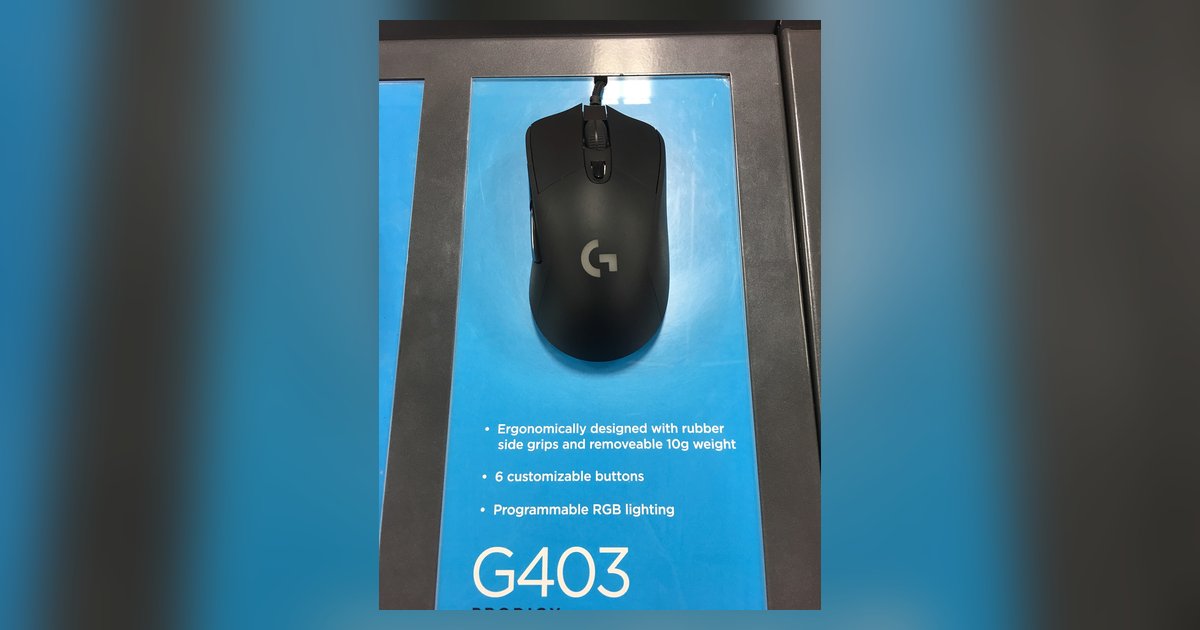
Many budget Zelotes models, such as the T-Series or C-Series, lack hardware profile storage entirely. The mouse cannot retain any custom button mappings when disconnected from the supporting application. To identify whether your model has onboard memory, try this test. Configure your buttons using the Zelotes program, then unplug the mouse and plug it into a different PC that does not have the Zelotes tool installed. If the buttons revert to factory defaults on the second PC, your mouse has no onboard memory. In that case, the only solution is to ensure the helper always runs in the background on your main computer. For comparison, other budget gaming mice face similar limitations. The instructions to program the buttons on a Tecknet gaming mouse also require the companion app to stay open. Guides to setting up macros on an iBuyPower standard gaming mouse warn that macros vanish after restart without persistent software. Even premium brands have this issue in certain models. A tutorial on setting up a Logitech auto clicker on a mouse without onboard memory will tell you to keep the Logitech G HUB running. For your Zelotes, the permanent fix is to set the tool to auto-start, confirm it is not blocked by security software, and never fully exit it from the system tray.
Unlike hardware that stores profiles directly on the device, this mouse requires the live translator to be running at all times for any custom assignment to function. For a deeper understanding of programming gaming mouse buttons and macros, explore the broader topic of How to Program Gaming Mouse Buttons and Macros.