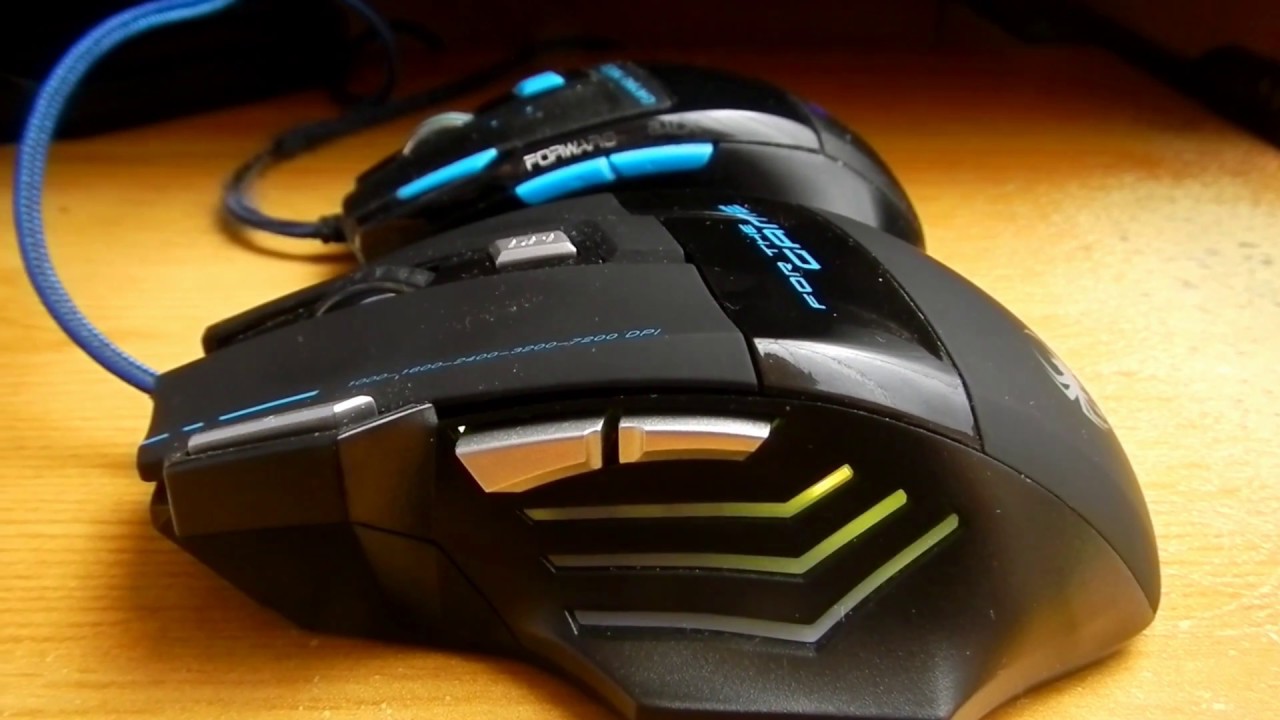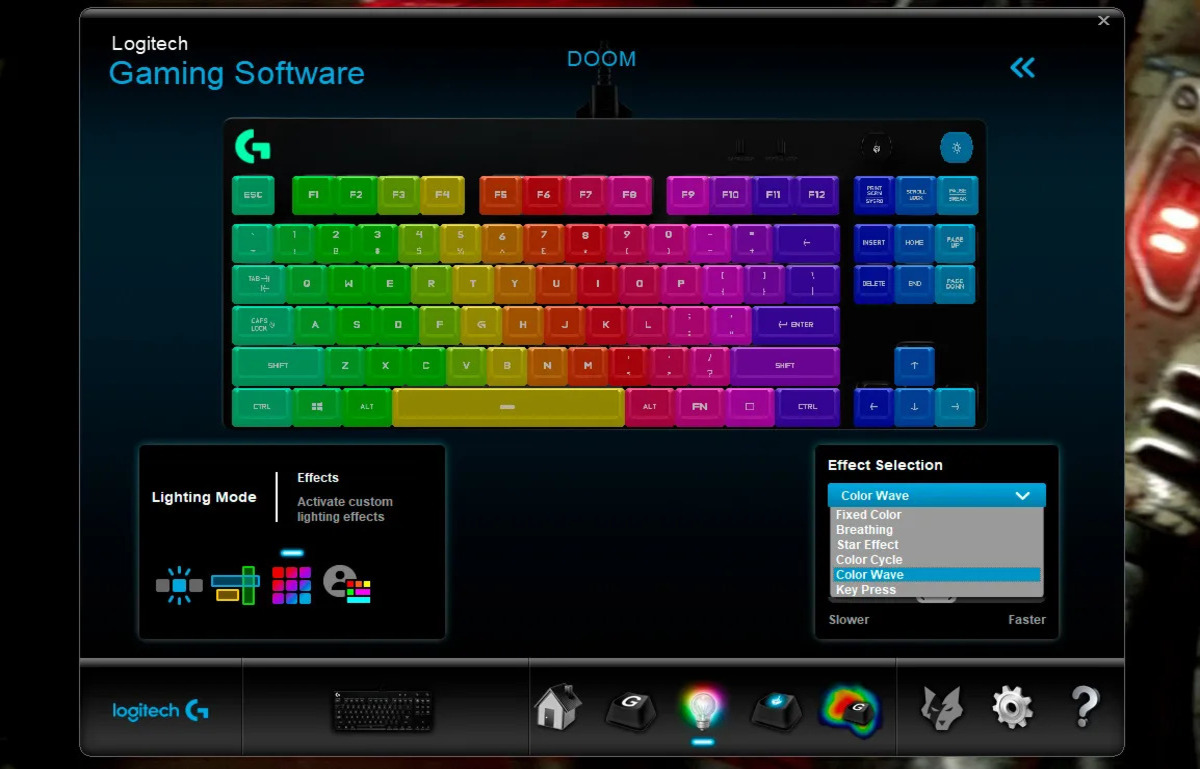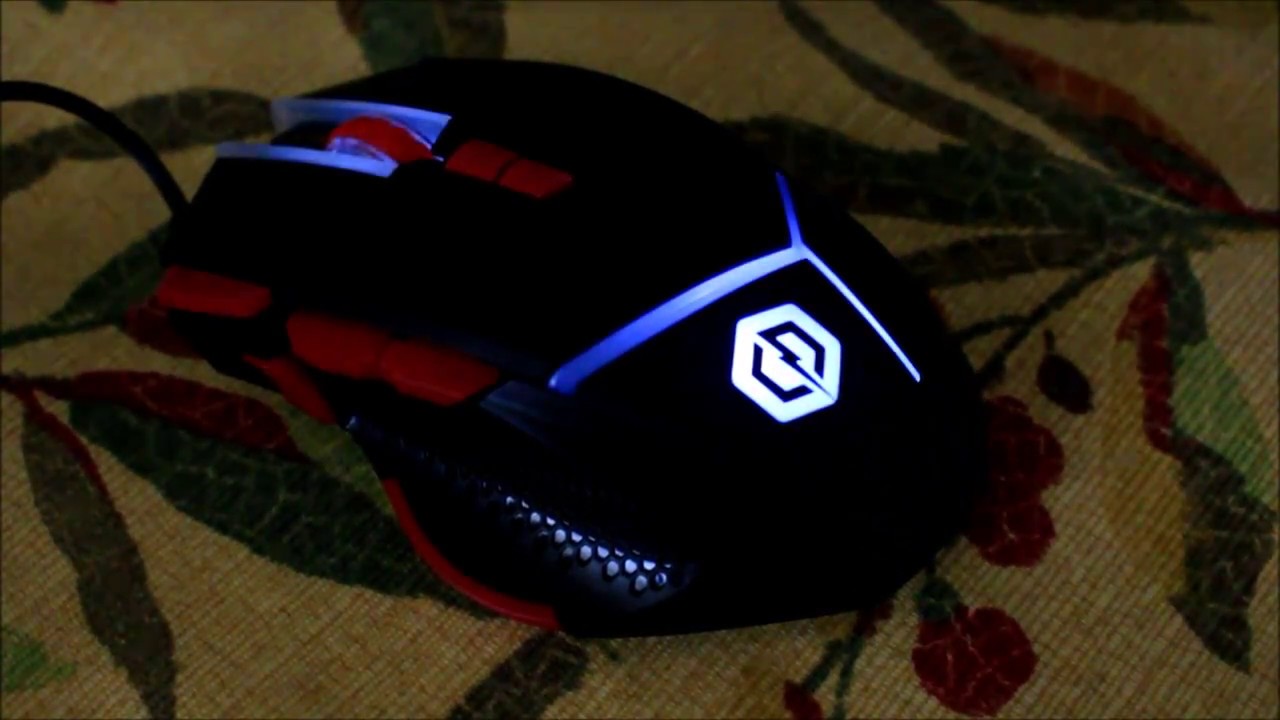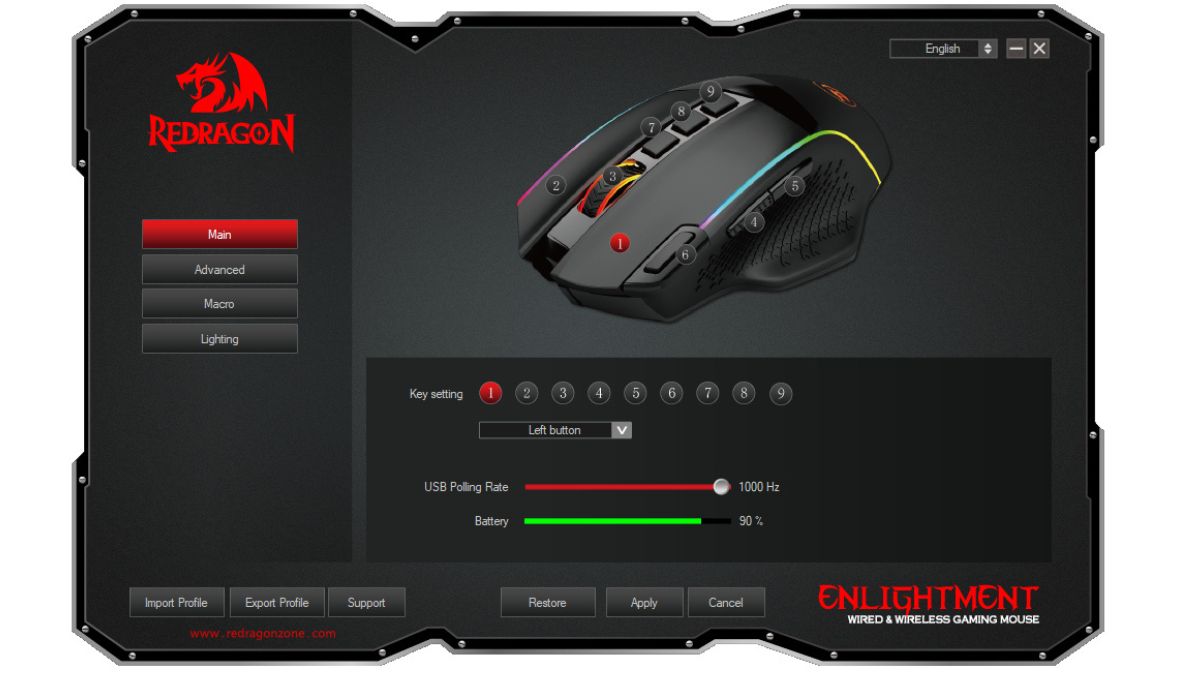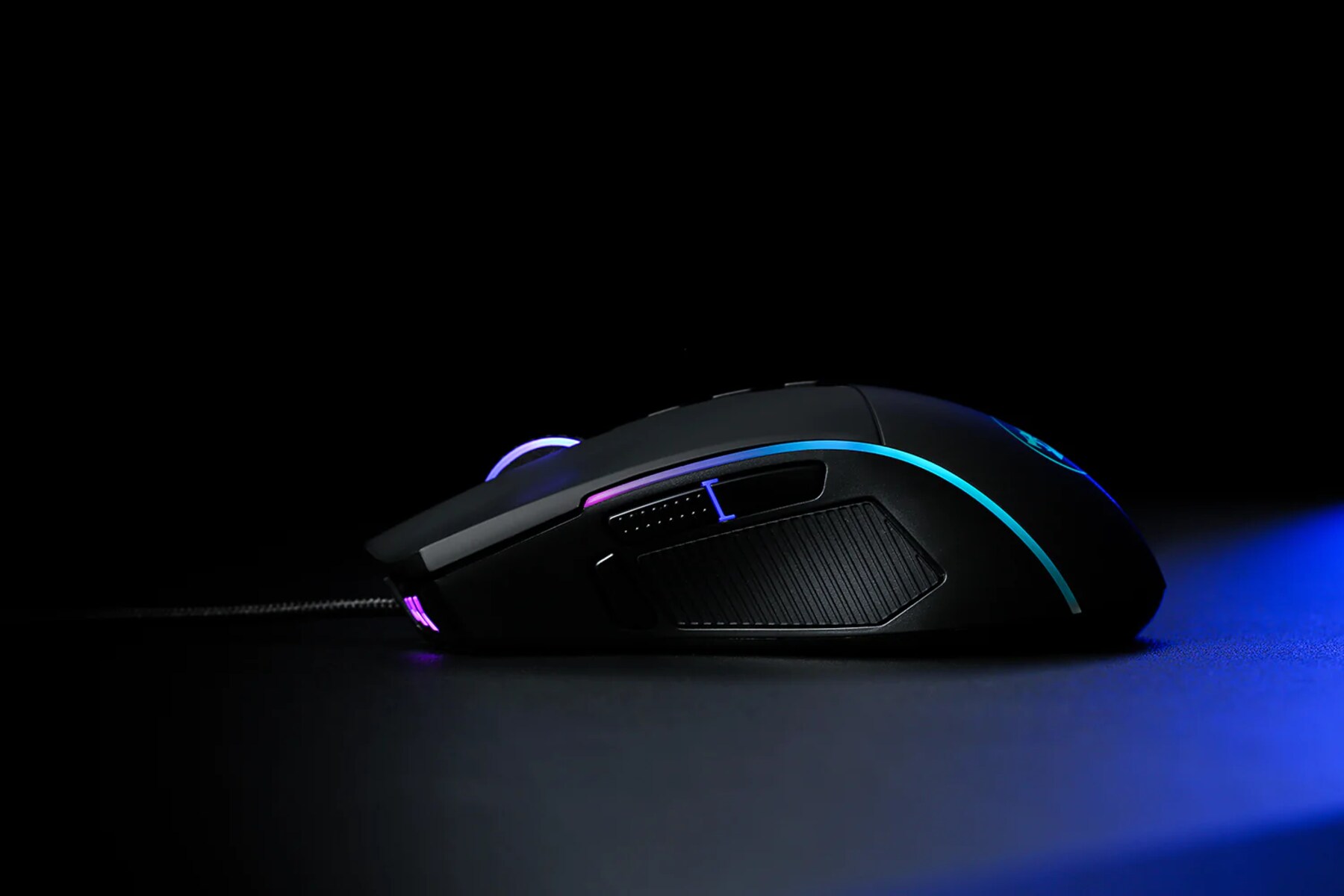
To change lighting color on a gaming mouse, open your mouse brand’s dedicated software and locate the lighting or RGB settings section. From there, use the color wheel or palette to select your desired color, and the change applies immediately.
How to change lighting color on gaming mouse with brand software
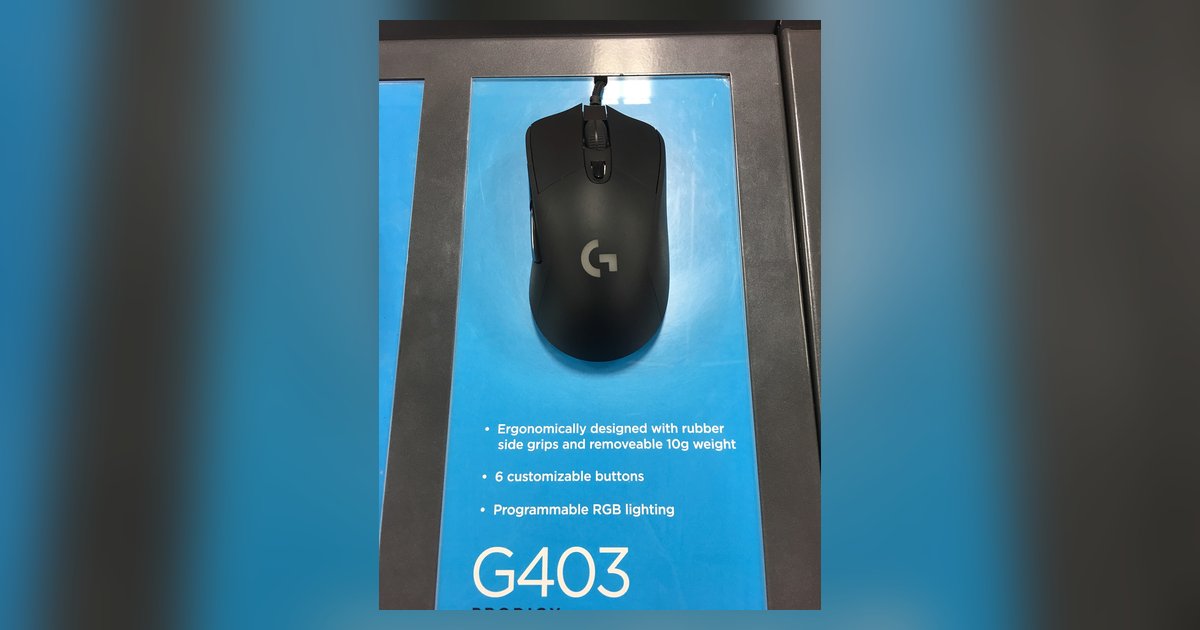
For Logitech mice that use Logitech Gaming Software 8.x, the process is straightforward. Open the software from Start > All Programs > Logitech > Logitech Gaming Software 8.x. In the software window, click on the lighted, colored part of the mouse. In the next window, locate the color wheel. To change the color, click on a different color from the palette below the color wheel. The G300 supports eight different lighting colors (seven lit colors and "black" for off). You can configure up to three different colors for each profile. Each color can be assigned a separate set of button assignments. To switch between colors and their assigned button sets, one button must be assigned to "Mode Switch". If you own a different brand, the steps to change the color on a cyberpower gaming mouse use its own dedicated software. All color changes are immediate and do not require saving.
Using Windows 11 Dynamic Lighting instead of brand apps
Windows 11 Dynamic Lighting provides centralized control of RGB/LED-enabled devices, including mice, directly from the Settings app. This feature allows for synchronized lighting effects across various devices, potentially eliminating the need for multiple vendor-specific applications. Users can configure global or device-specific settings for brightness, colors, and effects. Dynamic Lighting can be accessed in the Windows 11 Settings app under Personalization > Dynamic Lighting. Devices can be controlled either globally or individually.
What to do if your mouse brand is not listed
If your mouse brand does not appear in Windows 11 Dynamic Lighting or you cannot find the correct software on your computer, check the manufacturer’s website for the correct program. For example, Logitech Options has reached end of support and recommends switching to Logi Options+, but the G300 documentation specifically refers to Logitech Gaming Software 8.x. If you are trying to change the color of an AULA gaming keyboard, the same principle applies: visit the AULA website to find its official software. You can also change keyboard color on asus tuf gaming laptop using a similar manufacturer-specific approach. Remember, all color changes are immediate and do not require saving once you select the color in the software.
Customizing effects and profiles after changing the color
Once you have set the base color, you can explore dynamic cycling, pulsating effects, and addressable RGB zones. Many gaming mouse software interfaces allow you to create custom lighting profiles for different games or tasks. Dynamic color cycling transitions smoothly through a spectrum of colors. Pulsating effects create a breathing pattern that can be adjusted for speed and intensity. Addressable RGB lighting lets you control each lighting zone individually for intricate displays. These options let you move beyond a static color and build lighting that responds to your gameplay or matches your setup.