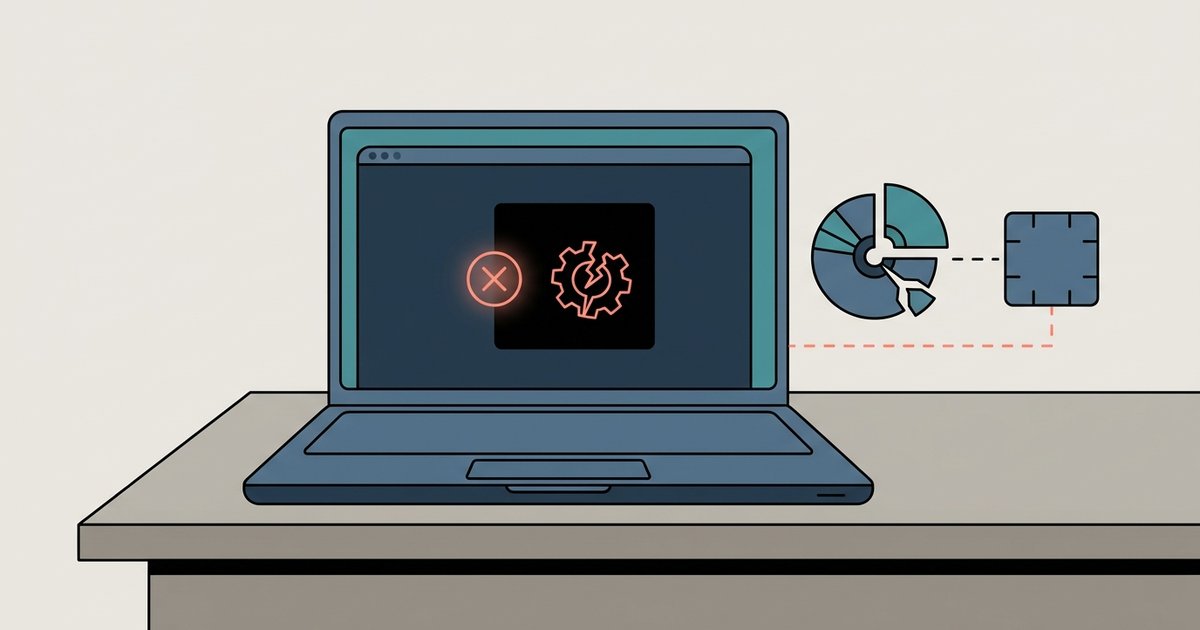
The boot failure is almost always caused by a missing VMware storage controller driver or a wrong firmware mismatch. Switch the VM's disk controller from SATA to 'SCSI (LSI Logic SAS)' or 'IDE', or boot into Safe Mode to install the VMware Paravirtual SCSI driver before normal startup.
Switch the disk adapter to fix vhd to vmdk boot
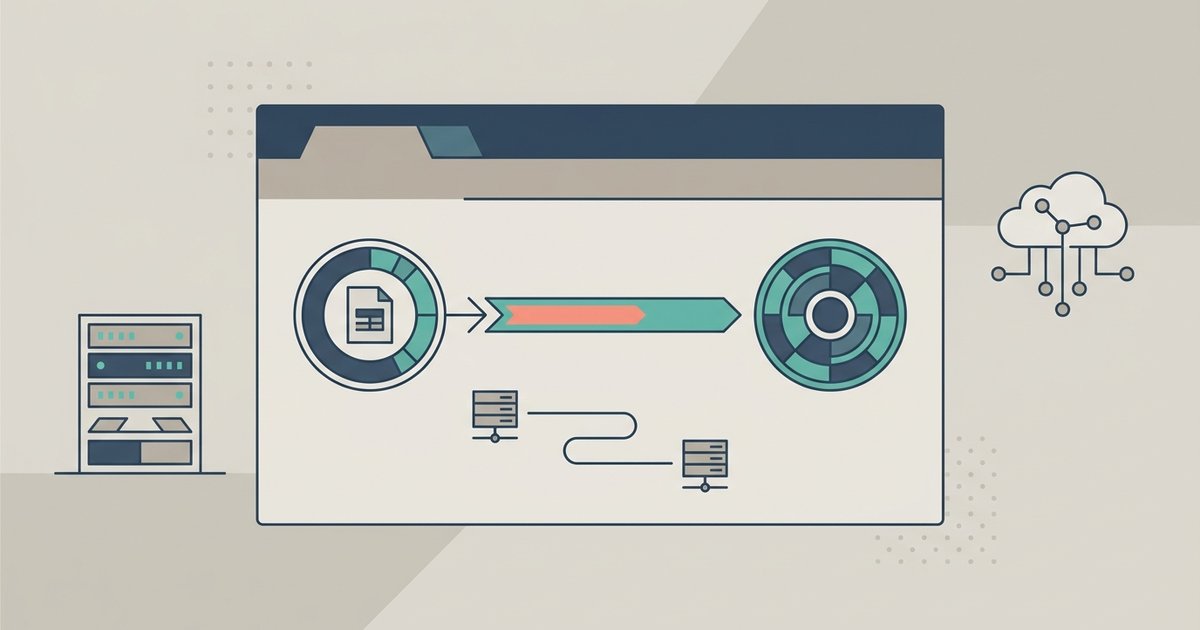
When you convert a VHD to VMDK, the original disk often used an IDE or SATA adapter inside Hyper-V. VMware Workstation defaults to a modern SATA interface for new VMs, but a converted disk still expects the legacy hardware it was built with. To fix an 'Inaccessible Boot Device' blue screen, shut down the VM, open its settings, and under the "Hardware" tab select the virtual disk. Change the "Virtual device node" from SATA to SCSI (BusLogic) or SCSI (LSI Logic Parallel). This instantly matches the driver set the Windows boot loader expects. If you need to use a VHD in VMware Workstation without re-converting, this adapter switch is the first step, though you may notice a performance difference between converted VHD and native VMDK in VMware under heavy I/O. For a disk originally from a physical server, also try the LSI Logic option.
Inject the VMware PVSCSI driver via safe mode
If you prefer to keep the high-performance VMware Paravirtual SCSI (PVSCSI) adapter rather than downgrading to IDE, boot the VM into Safe Mode. Add the VM's CD/DVD drive, attach a Windows ISO, and start the VM. As soon as the Windows logo appears, press F8 repeatedly and select "Safe Mode". Once in Safe Mode, open Device Manager, locate the storage device listed as "Unknown" or with a yellow exclamation mark, and update its driver manually from the appropriate driver media. After a reboot with the PVSCSI adapter still selected, Windows loads the correct driver and boots normally.
Fixing the firmware mismatch (EFI vs BIOS)
A black screen with no error text often means a firmware mismatch. Hyper-V Generation 2 VMs use UEFI firmware, but VMware Workstation defaults to BIOS for most guest OS types. When you convert a Gen 2 VHD, the boot loader is UEFI-only and cannot start on a BIOS VM. To fix this, edit the VM's .vmx file with a text editor. Add or change the line firmware = "efi" (without quotes). Save the file, restart the VM, and the UEFI boot process should begin. If the VM still shows a black screen, verify you also enabled "UEFI" in the VM's Options tab under Advanced. This step is critical before you try to make a VM from a physical machine using VMware Workstation, because physical machines increasingly use UEFI firmware.
When the conversion itself is the problem
If the adapter and firmware are correct but the VM still fails to boot, the conversion tool may have corrupted the boot sector or flattened the disk incorrectly. Tools like qemu-img can produce a VMDK with incorrect block size alignment, especially when converting from a dynamic VHD to a fixed-size VMDK. Re-run the conversion using a different conversion tool with appropriate disk format settings. Alternatively, use qemu-img with the -o cluster_size=8k option. After a clean conversion, attach the new VMDK and test boot again. This step is also relevant when you need to use a VMDK file in VMware Workstation after a failed conversion; always verify the disk's partition table with diskpart or gdisk before attaching it to a VM.
Unlike other hypervisors that rely on emulated IDE by default, VMware Workstation requires an exact match between the virtual storage interface and the driver present inside the guest operating system.