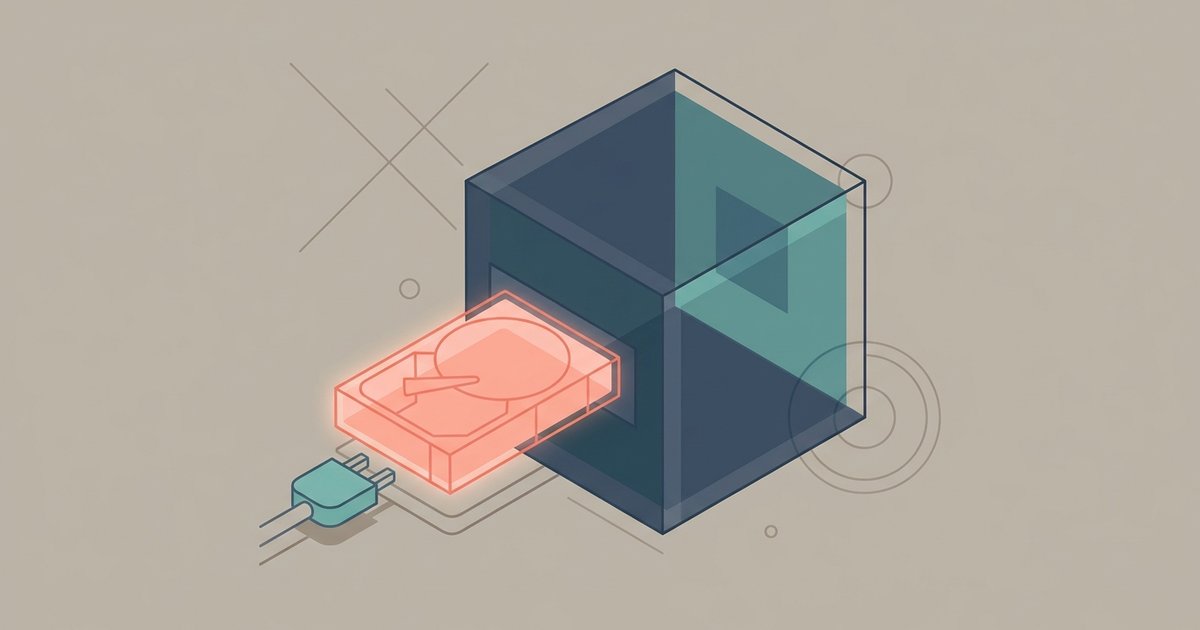
No, VMware Workstation cannot boot a VHDX file directly. The VHDX format is a proprietary Hyper-V specification that VMware does not natively support as a virtual disk, so you must convert it to VMDK or VHD first.
Why VHDX is not the same as VHD for VMware
The VHDX format, introduced with Hyper-V in Windows Server 2012 and Windows 8, uses a fundamentally different on-disk structure than the older VHD format. VHDX supports larger disks and different sector sizes than VHD. It also includes metadata structures with a log for crash consistency. In contrast, VHD uses a 2 TB limit. VMware’s disk drivers lack the code to interpret VHDX’s extended headers and journaling features. Consequently, when you try to use a VHD file in VMware Workstation, the software correctly reads the VHD format. However, it treats a VHDX file as an unrecognized binary blob, not as a valid disk image.
The common confusion with VHD support
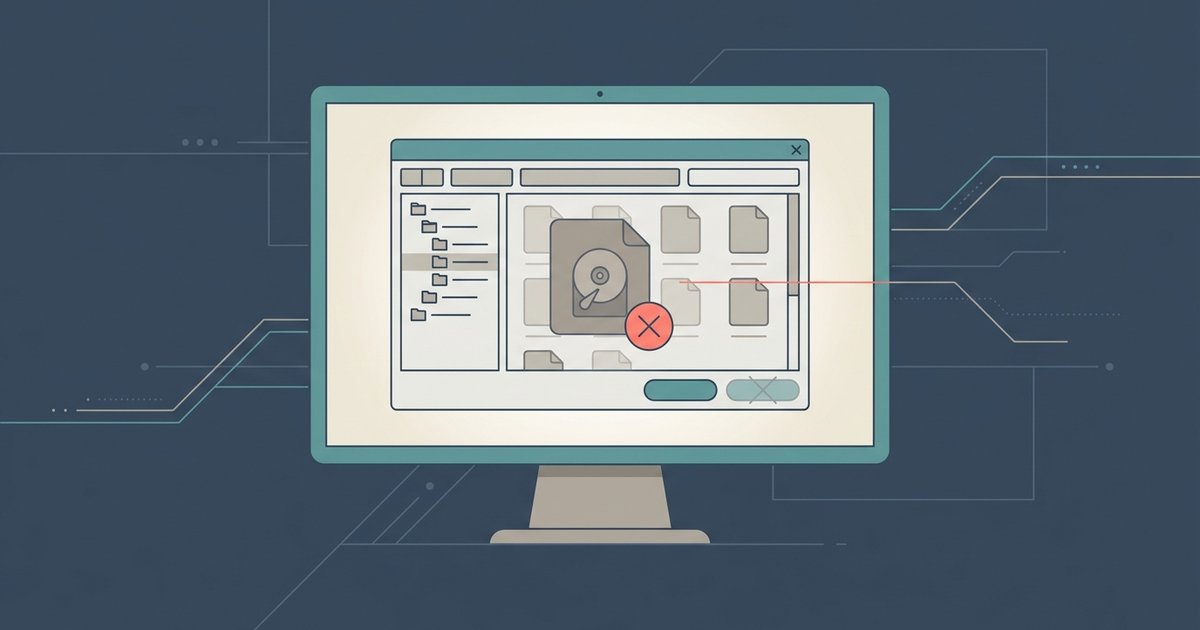
Many users see that VMware Workstation can create and boot standard VHD files natively. For example, they select "Add a new virtual disk" and choose the VHD type in the New Virtual Machine wizard. They then incorrectly assume the newer VHDX extension will work identically. This confusion is compounded because both file types share similar extensions in Windows. The "Open a Virtual Machine" dialog in VMware lists "All Files (*.*)" by default. A user might browse to their Hyper-V export, select the .vhdx file, and attempt to attach it as an existing disk. VMware Workstation will either silently reject the file or, if forced through custom configuration, produce a boot failure error during power-on. The VMM cannot interpret the VHDX metadata. This is not a bug. It is a deliberate design limitation. VMware supports VHD, not VHDX, and the two are not interchangeable.
How to actually use a VHDX disk in VMware
To use a VHDX disk in VMware Workstation, you must first convert it to a compatible format. The most reliable method is to use Microsoft’s Convert-VHD PowerShell cmdlet, which is included with Hyper-V management tools. Run Convert-VHD -Path "C:\path\disk.vhdx" -DestinationPath "C:\path\disk.vhd" -VHDType Fixed to downgrade to VHD. Alternatively, Alternatively, use a third-party converter tool that can output directly to VMDK. After conversion, you attach the resulting file to your VMware machine. Go to the VM Settings, select the hard disk controller, click "Add," choose "Existing virtual disk," and browse to the converted file. If you later need to use a VMDK file in VMware Workstation, simply select it in the same dialog with no conversion required. For more complex migrations, such as when you want to make a VM from your physical machine using VMware Workstation, you would typically use VMware Converter. That tool captures the physical disk as a VMDK directly. The key takeaway: VHDX itself is never bootable in VMware Workstation; conversion is mandatory.