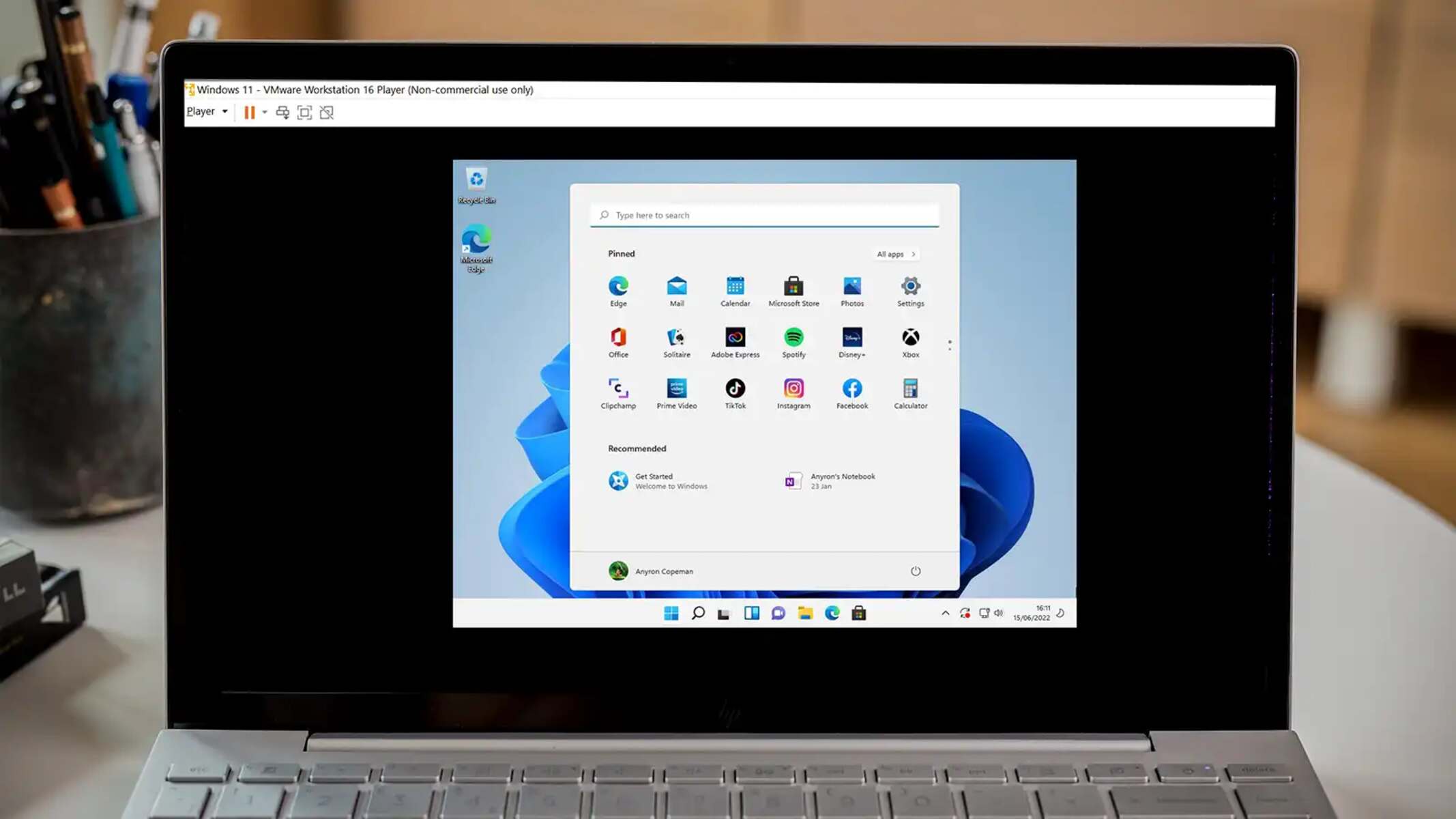
To recover password VMware Workstation, you must boot the virtual machine from an external ISO image or enter single-user mode, depending on whether the guest OS is Windows or Linux. This process works because VMware Workstation lets you attach a bootable ISO to the virtual CD/DVD drive, overriding the normal boot sequence, which gives you access to password reset tools or a root shell without needing the original credentials. If the locked VM is a Dell laptop, you can also reset password on dell laptop using its built-in recovery options, and if the guest is Windows 10 you can often get into Windows 10 without password by exploiting accessibility tools from the recovery environment.
Recover password in a VM within VMware Workstation: What you'll need
Password recovery on a VMware Workstation virtual machine is only legal on systems you own or have explicit permission to access. Attempting it on someone else’s VM without authorization is a violation of privacy and may carry legal consequences. Before starting, ensure you have administrative access to the VMware Workstation software on the host computer, a virtual machine whose guest OS password you have lost, and a bootable ISO image containing a password reset tool (for Windows) or the Linux installation media (if you prefer a rescue environment). For Windows guests, tools like PCUnlocker or Hiren's BootCD PE are commonly used; for Linux guests, you can rely on the built-in single-user mode rather than any third-party ISO. The core principle is simple: force the VM to boot from external media or interrupt the normal boot process, then use that environment to clear or change the password. If you are working with a different hypervisor, you can also reset password in virtual machine on VirtualBox Ubuntu using its own boot-interruption method.
Step 1: Configure the VM to boot from an ISO image
Open VMware Workstation and select the virtual machine whose password you need to recover. With the VM powered off, click "Edit virtual machine settings." In the hardware list, locate the CD/DVD drive (labeled either "CD/DVD (IDE)" or "CD/DVD (SATA)" depending on your VM configuration). Select that device, then choose "Use ISO image file" on the right side, and browse to the password reset ISO you have downloaded. If you are recovering a Windows password, attach an ISO such as PCUnlocker or Hiren's BootCD PE. For a Linux VM, you can attach a standard distribution ISO, but you will not need it if you plan to use single-user mode. To give yourself extra time to reach the boot menu, you can add a delay by editing the VM's .vmx file: open the file in a text editor, add the line `BIOS.bootDelay = "15000"` (15 seconds), and save it. This delay makes the BIOS screen stay visible long enough for you to press the required key.
Step 2: Power on and access the boot menu
Start the virtual machine by clicking "Power on this virtual machine." Because of the boot delay you configured, the VMware BIOS splash screen will remain visible for several seconds. Quickly press the BIOS access key, commonly F2, Esc, or F12, depending on your VMware Workstation version, to enter the boot menu. If you miss the window, restart the VM and try again. In the boot menu, select the CD/DVD drive as the first boot device, then save the changes and exit. The VM will now boot from the attached ISO image. Watch the screen for a prompt like "Press any key to boot from CD or DVD" and press a key when it appears. This action loads the recovery environment from the ISO.
Option A: Reset a Windows password with a recovery ISO
Once the recovery environment loads, you will see a graphical or text-based interface depending on the tool you chose. For PCUnlocker, select the Windows installation you want to modify, then choose the user account whose password is lost. The tool will offer options to reset the password to blank or set a new one. If you use Hiren's BootCD PE, you may need to launch a password reset utility from the desktop, then follow similar steps: locate the SAM registry hive, pick the user, and clear the password. After the tool finishes, exit the environment and remove the ISO from the virtual CD/DVD drive before restarting the VM.
Option B: Reset a Linux password via single-user mode
For a Linux guest, restart the VM and watch for the GRUB boot loader screen. As soon as GRUB appears, press 'e' to edit the boot parameters (or press 'Shift' if GRUB is hidden). Find the line that starts with `Linux` or `kernel`, it typically contains parameters like `ro quiet splash`. Move the cursor to the end of that line and add `single` or `init=/bin/bash` (if you want a root shell directly). The VM will boot into a root shell prompt, bypassing the normal login screen. This method works on most Linux distributions, including Ubuntu, Debian, and CentOS.
Step 3: Change the Linux password from the root shell
At the root shell prompt, the filesystem is likely mounted as read-only, so you must remount it with write access before making any changes. Type the following command and press Enter: `mount -rw -o remount /`. This remounts the root filesystem with read-write permissions. Next, use the `passwd` command to set a new password. To change the root password, simply type `passwd` and press Enter, then enter the new password twice when prompted. To change a specific user's password, type `passwd username` (replacing "username" with the actual account name). After the password is updated, type `reboot` and press Enter to restart the VM normally. The VM will boot back into the standard GRUB menu and the regular login screen.
Step 4: Disconnect the ISO and log in
Before logging in, shut down the VM completely. This step is critical because leaving the ISO attached will cause the VM to try booting from it again on the next start. Power on the VM normally. At the login screen, enter the new password you just set. If you reset a Windows password with PCUnlocker and left it blank, press Enter without typing anything. Once you are logged in, consider creating a secure, memorable password to avoid repeating this process. Store the new password in a password manager or a secure note, because forgetting it again will require repeating the entire recovery procedure. If you used single-user mode on Linux, the new password is already active, so simply log in normally. Test the password by logging out and back in once to confirm it works. This final verification ensures you have full access to the VM and its data.