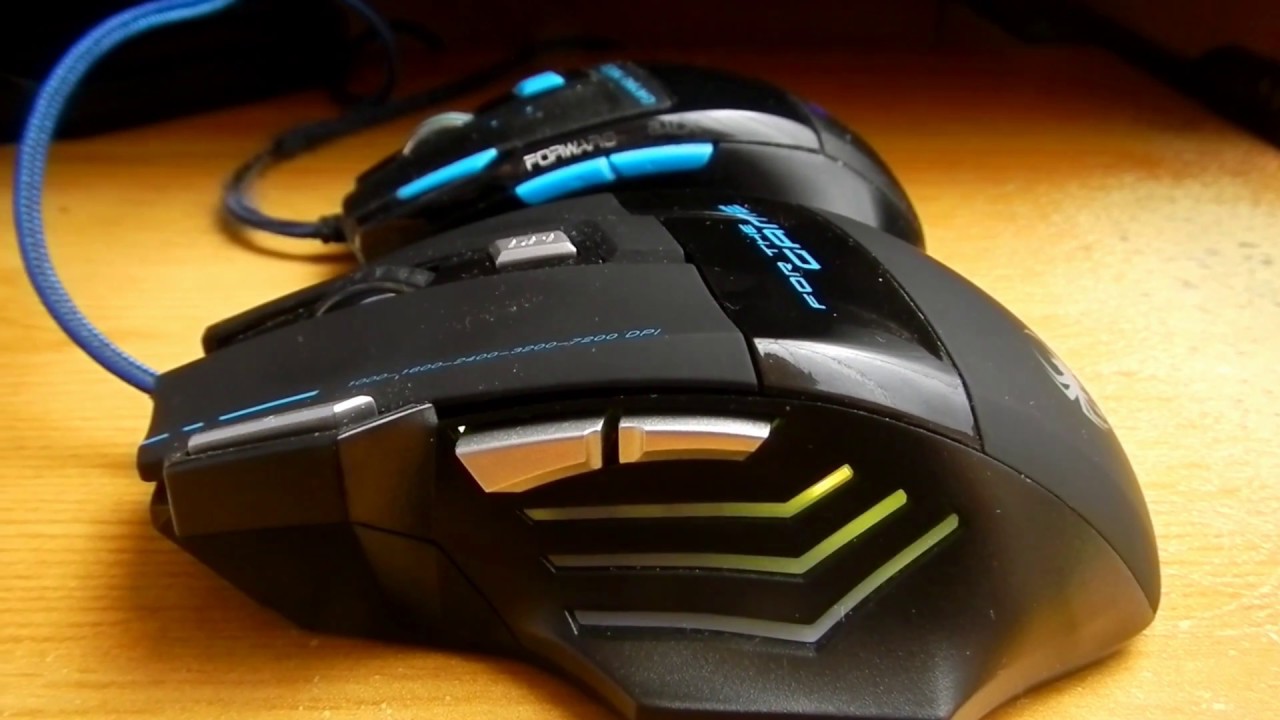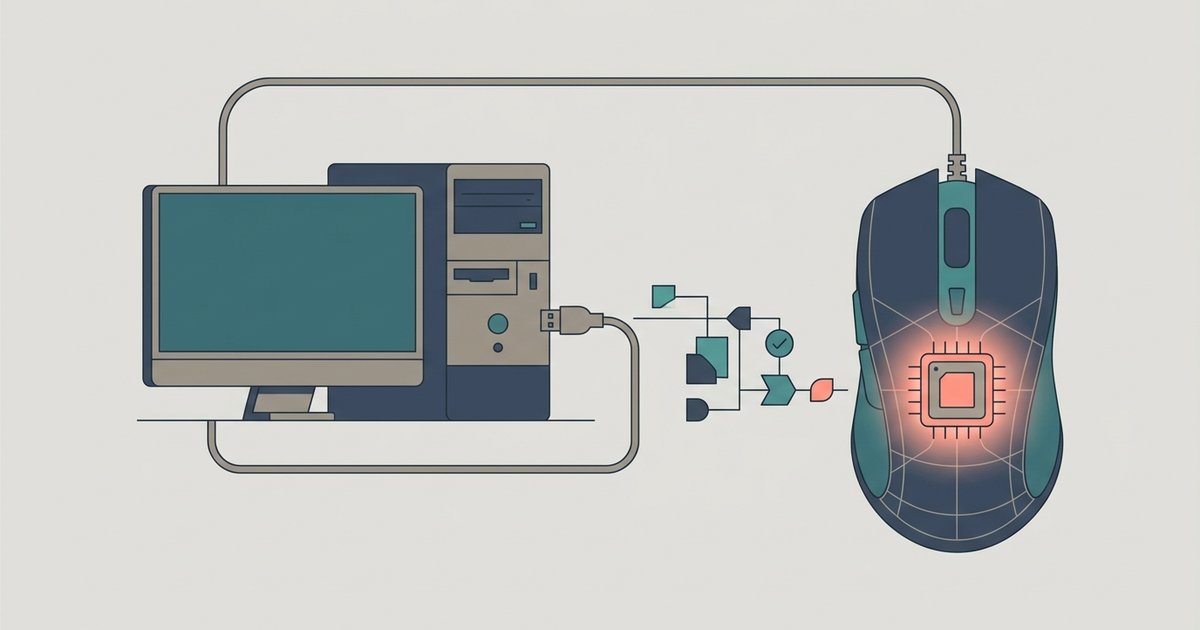
No, most Zelotes gaming mice do not have a hardware-level onboard memory profile save function accessible via a dedicated icon or menu option. The software writes settings to the current Windows profile, not the mouse's firmware, so macros and custom button assignments will not transfer to another computer unless the software is installed and running there.
Why 'Apply' and 'OK' don't save Zelotes mouse profiles
The configuration tool writes settings to the current Windows profile, not the mouse's firmware. Macros and custom button assignments will not transfer to another computer unless the program is installed and running there. This is the core reason why clicking "Apply" or "OK" in the Zelotes configuration utility fails to carry your settings to a second PC.
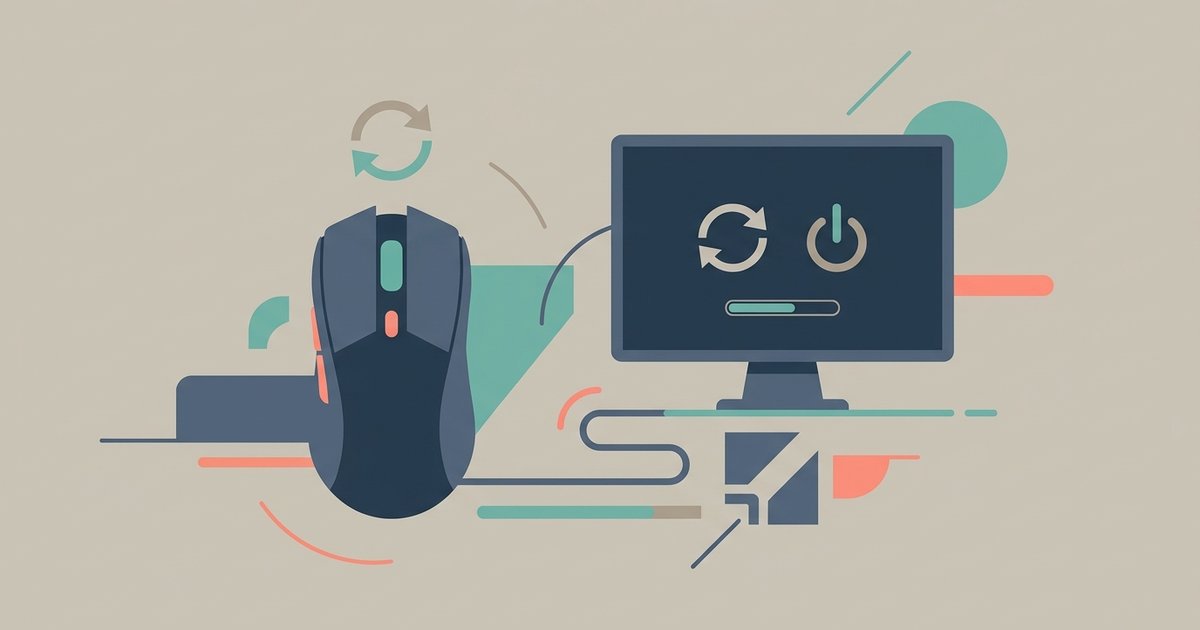
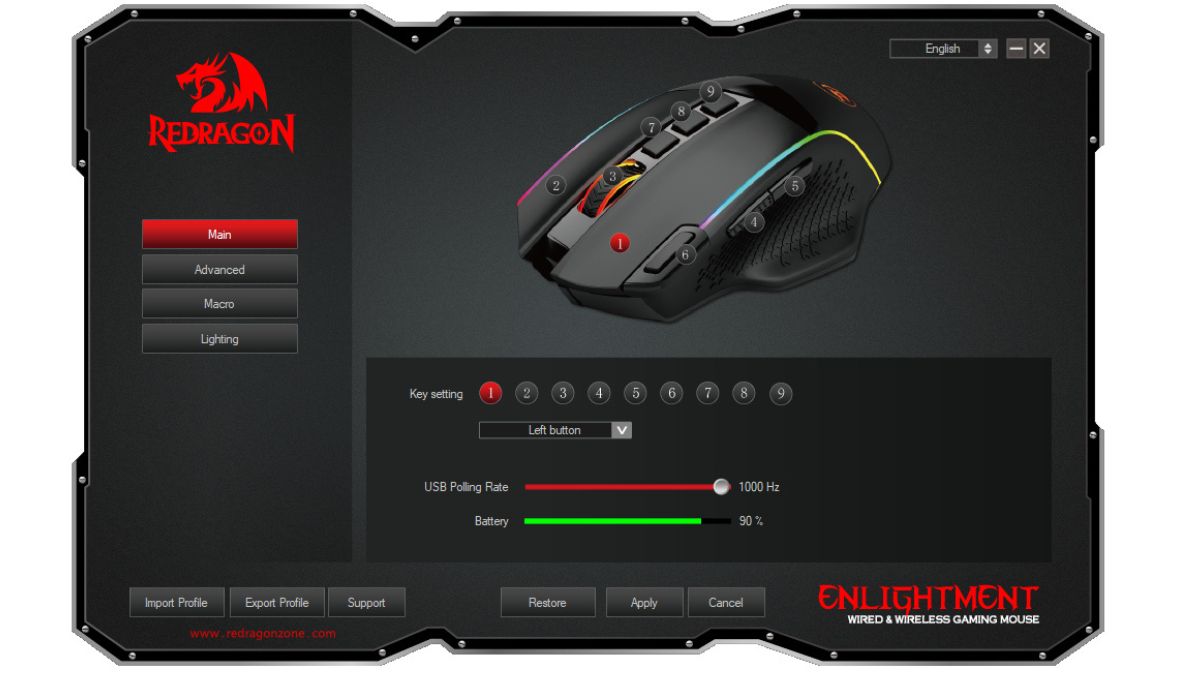
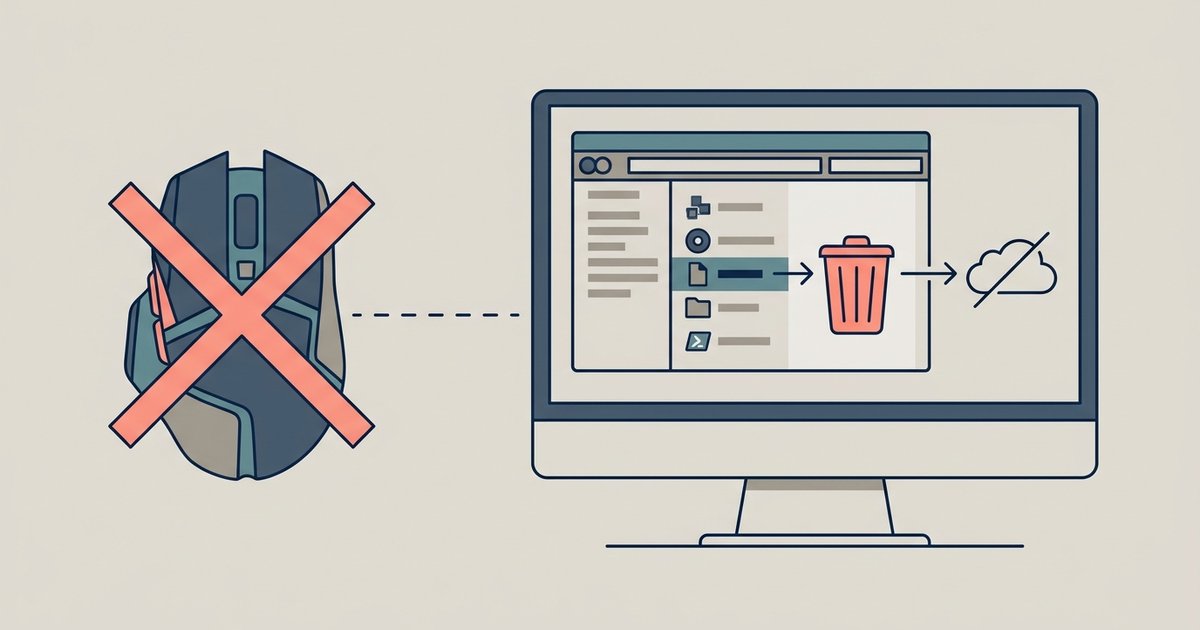
The Zelotes utility operates in a "driver-dependent" mode. When you click "Apply" or "OK," the program stores your button remaps, DPI stages, and macro sequences into a local configuration file. That file lives inside the Windows user folder, typically under a Zelotes-specific directory within AppData. The action does not trigger a firmware flash to the mouse's internal memory chip. The device itself contains only a basic USB descriptor that identifies it to the operating system. It lacks the writable EEPROM or flash storage needed to hold a full profile. The moment you unplug the mouse and connect it to a machine without the Zelotes tool, the device falls back to its factory default button mappings. The "Apply" button is, in effect, a "Save to PC" command, not a "Save to Hardware" command. If you want to wipe these PC-bound settings completely, you can uninstall or completely remove zelotes mouse drivers and profiles.
How to identify if your specific model is an exception
A tiny subset of Zelotes models may include a dedicated icon to save settings directly to the mouse's onboard memory. It is usually a small chip or memory card symbol in the top toolbar of the utility. When you click that icon, a progress bar appears and the mouse’s LED may flicker, confirming a true firmware write. To verify your model, open the program and look for a tab labeled "Profile Management" or "Onboard Memory." If you see no such tab, and no chip icon, your mouse lacks the feature. You can also check the physical underside of the device. Models with onboard memory may have a physical switch on the underside of the device. Without these indicators, the mouse cannot store profiles independently.
The workaround for using macros on a second PC
Since direct onboard saving is unsupported on most units, the only reliable method to port your macros is to install the Zelotes tool on the target computer. Download the same version from the manufacturer’s support page, then manually import or recreate the profile. You can export your existing profile from the first PC using the software's export function if available. This saves a Zelotes-specific profile file. Transfer that file via USB drive, then use the "Import" function on the second machine. For users who want to avoid reinstallation, a simpler approach is to note that you can also configure your Zelotes gaming mouse settings directly through the utility by opening the "Macro" tab and reassigning keystrokes. This is similar to the process used to program the buttons on a Tecknet gaming mouse, where the application must remain active for custom bindings to work. If you prefer to set up macros on an iBuyPower standard gaming mouse, you would follow the same install-and-import workflow, as those mice also lack onboard storage. For more advanced macro timing, such as how to make a rapid fire macro on a Logitech G502, Logitech’s G HUB does offer onboard memory. Zelotes does not. In summary, without a dedicated "Save to Mouse" icon, you must run the Zelotes application on every PC where you want your macros to function.
For a deeper dive into the broader topic of programming gaming mouse buttons and macros, explore how to configure your device's onboard memory and software settings to match your workflow.