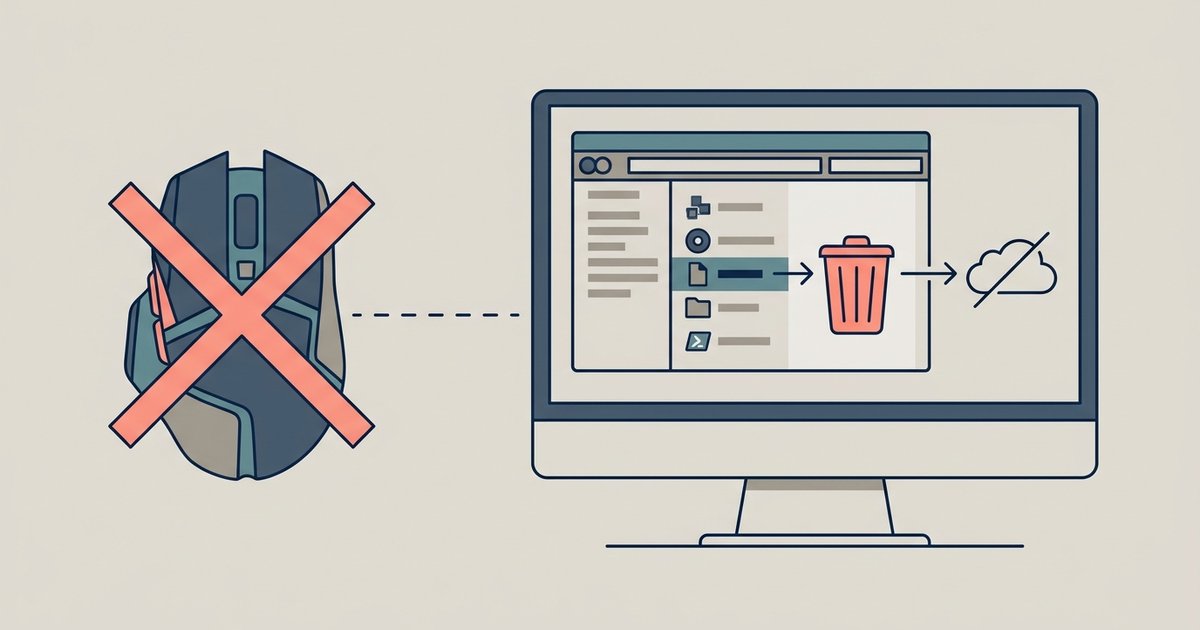
Uninstall the Zelotes Gaming Software from Windows Apps & Features, then manually delete the leftover configuration folders in %APPDATA% and Program Files to purge all saved profiles and background processes.
Standard uninstall and leftover file cleanup for zelotes mouse
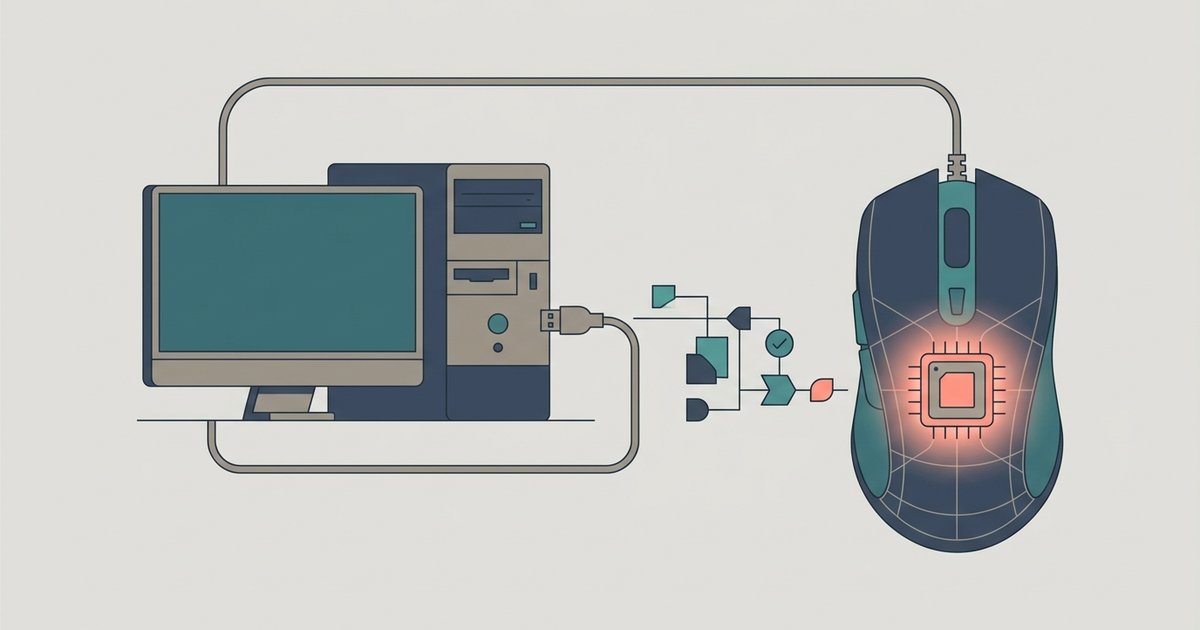
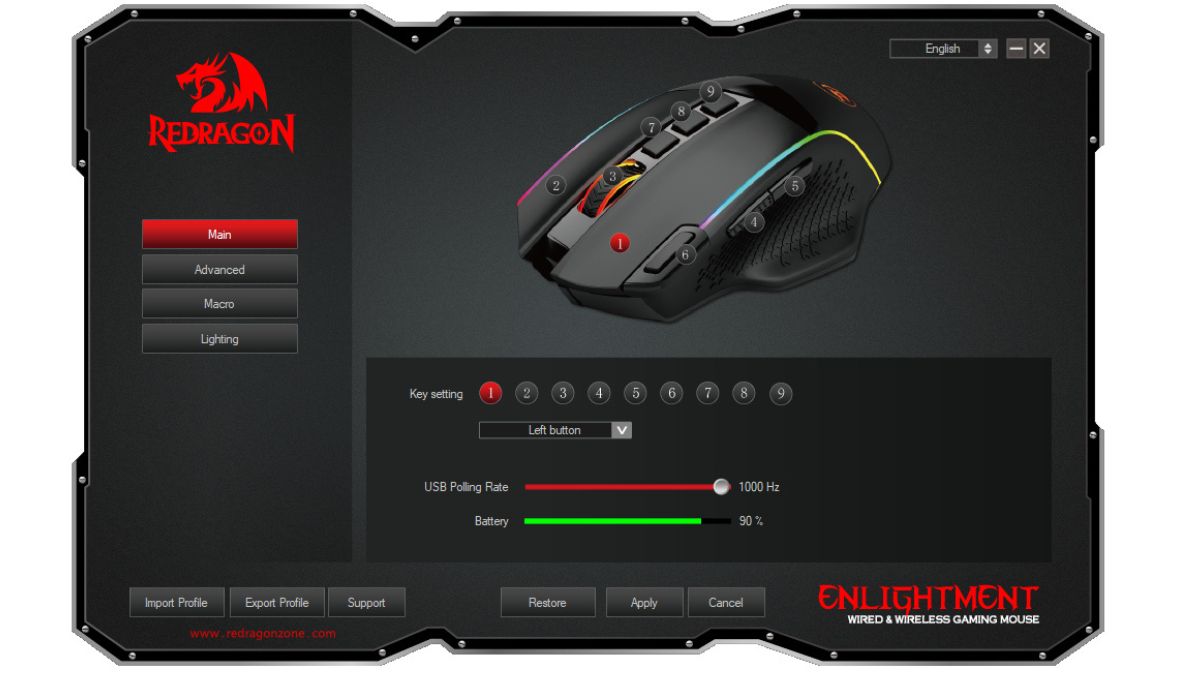
Open Windows Settings, go to Apps > Installed apps (or "Apps & features" in older Windows 10 versions), locate "Zelotes Gaming Software," and click Uninstall. Follow the prompts to remove the main application. After the uninstaller finishes, reboot your PC. Then open File Explorer and type %APPDATA% into the address bar. Look for any folder named "Zelotes," "ZelotesGaming," or similar, delete it entirely. Next, navigate to your Program Files directory and delete any remaining "Zelotes" folder if it exists and you are certain it belongs only to the uninstalled software. These folders store all your saved profiles, including DPI settings and custom button assignments, and the standard uninstaller routinely ignores them. If you later need to configure zelotes gaming mouse from scratch on another machine, these steps guarantee no old profile interferes with a fresh installation.
Killing the persistent background process
Open Task Manager with Ctrl+Shift+Esc, click the Details tab, and locate any process containing "Zelotes." Right-click it and select End Task. If the process restarts after reboot, open Services.msc, find "Zelotes Configuration Service," right-click, choose Properties, set Startup Type to Disabled, then Stop the service. This background process is a common reason the uninstall fails or files appear locked, and disabling it prevents the software from re-initializing its profiles.
When the mouse still acts weird after removal
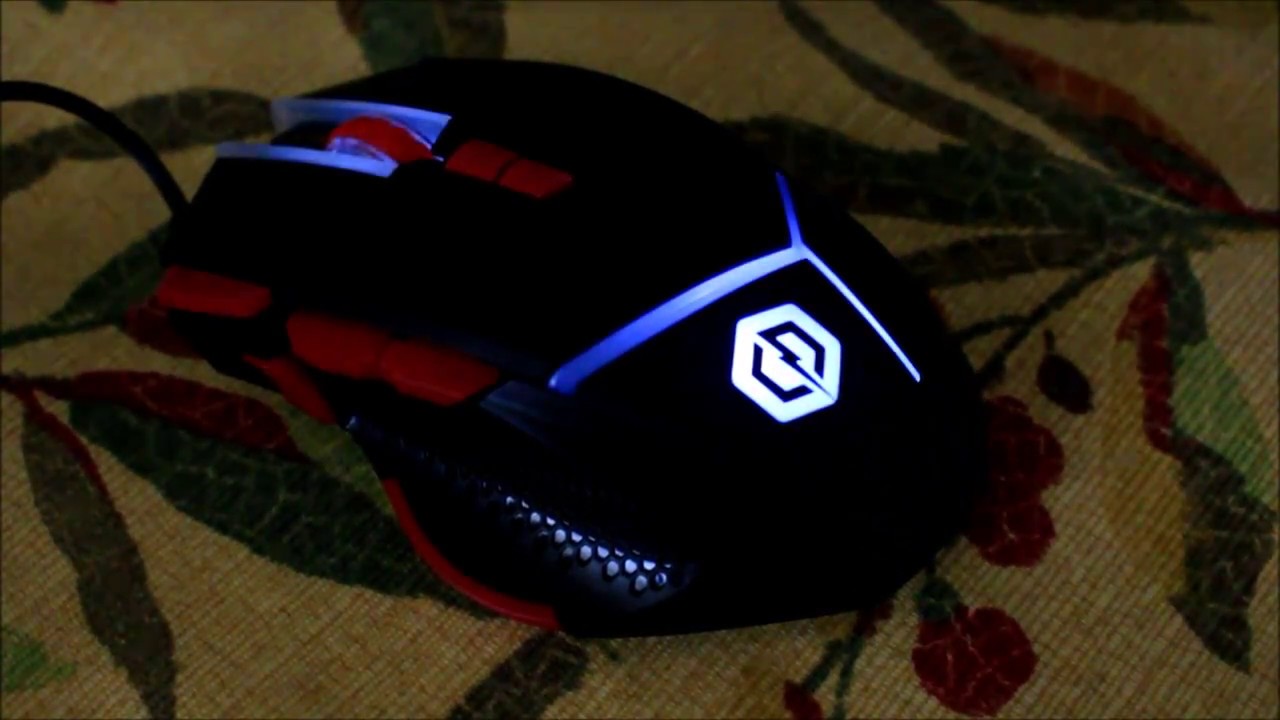
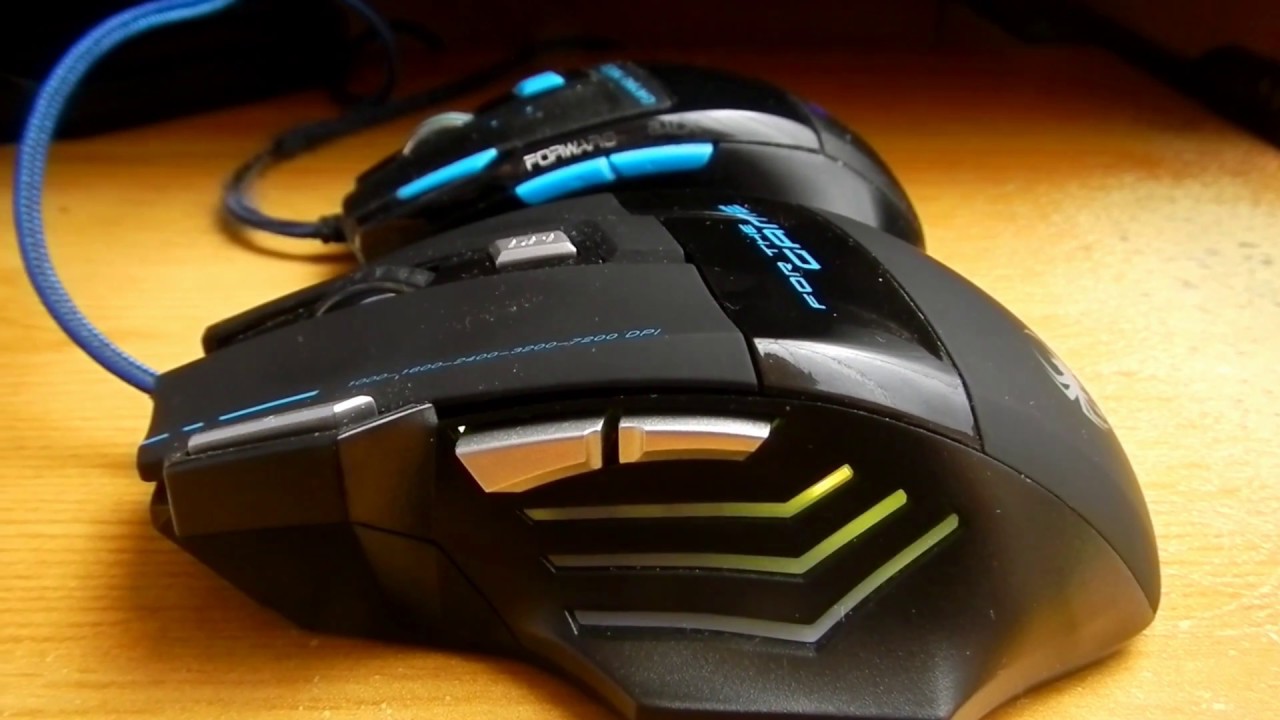
If your Zelotes mouse continues executing macros or strange DPI steps after you have removed all software and files, wipe the on-board memory by locating the factory reset button combination for your specific model. For most Zelotes gaming mice, press and hold the left mouse button, right mouse button, and scroll wheel simultaneously for 5-10 seconds until the LED blinks rapidly. Alternatively, unplug the mouse, hold down buttons 4 and 5 (the side buttons), plug it back in while holding them, and wait for a color change. This resets all onboard macros and DPI levels to defaults, so you can start fresh when programming gaming mouse buttons and macros again, or avoid a reset entirely by saving Zelotes mouse profiles to onboard memory before uninstalling. With Zelotes, only a physical reset clears the hardware memory completely.
Zelotes’ hardware approach is different because the mouse executes commands without any host software, so only a physical reset clears the hardware memory completely.