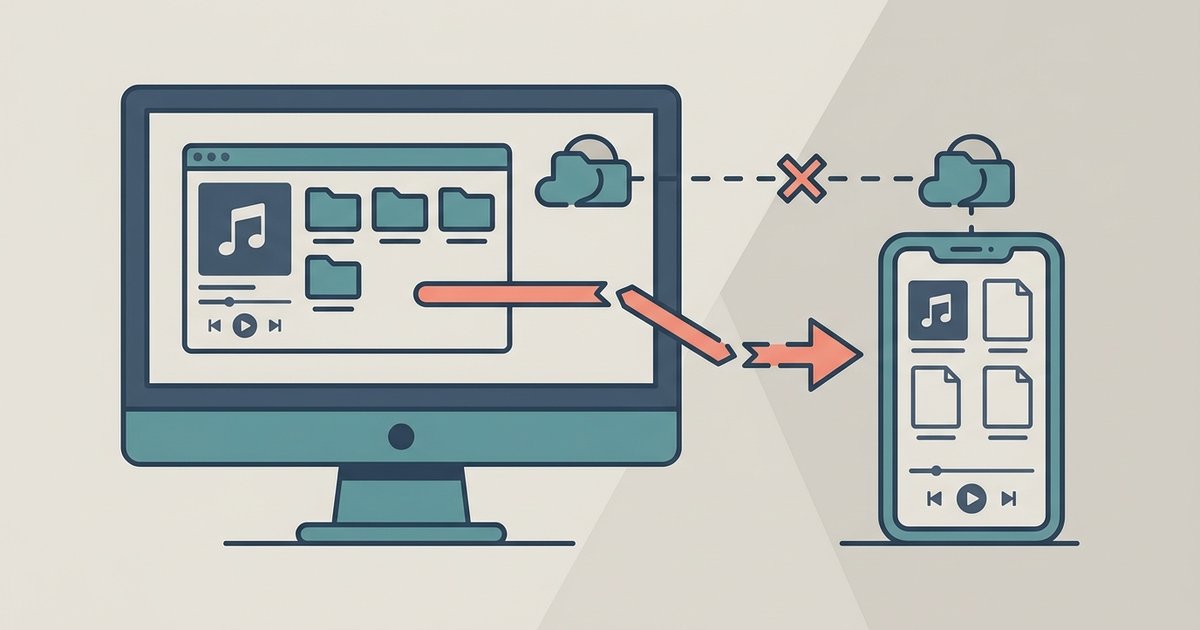
Yes, you can write on your laptop, pick up your phone, and keep going without losing a word or creating a mess of conflicting versions. The trick is picking one home for your words that both devices can reach, then sticking to a few simple habits.
Start with where your words actually live
Before you worry about apps, decide where the master copy of your writing will be stored. This is the single version of truth. When you open a file on your laptop, you are opening that exact file. When you open it on your phone, you are opening the same one. There is no "laptop version" and "phone version" competing with each other.
The simplest way to make this happen is to store your files in a folder that syncs automatically through a cloud service you already use. Both major ecosystems have this built in.
If you use Apple devices, iCloud Drive does this without any extra setup. You save a file on your Mac, and it appears inside the Files app on your iPhone. Open it, edit it, and the changes flow back to the Mac. The syncing happens quietly in the background whenever you have an internet connection. You can find the full instructions for setting this up on Apple's iCloud support page.
If you use Windows and Android, or a mix of devices, OneDrive works the same way. You install the OneDrive app on your laptop and your phone, sign into the same Microsoft account, and anything you drop into the OneDrive folder stays mirrored everywhere. Microsoft walks through the setup on their OneDrive support page.
The key rule: always open the file from inside that synced folder. If you drag a copy to your desktop and edit that, you have just created a separate version, and the whole system breaks.
Pick an app that plays nicely with plain files
Some writing apps lock your work inside a proprietary database that only that app can read. That is fine if you only ever use that one app on one device. But when you want to switch between a laptop and a phone, you need something that works with ordinary files stored in ordinary folders.
Look for an app that saves your writing as plain text or Markdown files. These are just files with names like chapter-one.md or essay-draft.txt. Any text editor on any device can open them. You are never trapped. If an app stops being updated or you decide you do not like it anymore, your writing is still right there in your sync folder, perfectly readable.
Markdown is especially useful because it lets you add formatting, headings, bold, italics, links, using simple punctuation that stays readable even as plain text. There is a clear, no-nonsense reference for how Markdown works at CommonMark. Learning the basics takes about ten minutes and pays off forever.
On a laptop, you might use a focused writing app like iA Writer, Ulysses, or Obsidian, all of which can point to a folder full of Markdown files. On your phone, you can use the same app's mobile version, or a simpler text editor like Pretext or 1Writer. The file is the constant. The app is just the tool you use to look at it right now.
Handle the offline problem before it bites you
Syncing works beautifully when you have a connection. But you will write on the subway. You will write on a plane. You will write somewhere with terrible reception. If you open a cloud file in that moment, you might find it is not there, or worse, you might create a duplicate that causes confusion later.
The fix is to make the files you are actively working on available offline. On a phone, both the Files app for iCloud and the OneDrive app let you long-press a file or folder and choose "Keep Offline" or "Make Available Offline." The file downloads to your device. You edit it. When you reconnect to the internet, the changes sync back automatically.
On a laptop, cloud services typically keep recently used files cached locally. But if you know you are heading somewhere without Wi-Fi, open the file once while connected and leave it open, or explicitly mark the folder for offline access. A quick check before you leave the house saves you from staring at a "file unavailable" message when you are ready to write.
Create a routine that prevents version chaos
The biggest risk when syncing between devices is not a technical failure. It is human error. You close your laptop without saving. You leave a file open on your phone and edit it on your laptop too. Suddenly you have a conflict file with a name like "essay-draft (conflicted copy)."
A simple routine eliminates this. When you finish writing on any device, save the file and close it. Do not leave it sitting open in the background. Before you start writing on a different device, open the file fresh and give it a second to sync the latest version. This takes almost no time and prevents nearly all sync conflicts.
If you do end up with a conflict file, do not panic and do not delete it. Open both files, compare them, copy anything you need into the main file, then delete the conflict copy. It is a minor annoyance, not a disaster.
When your writing project gets large and complex
A single file works well for a blog post, a short story, or an article. But when you are working on something longer, an essay collection, a report, a manuscript, you need a structure that stays manageable across a small phone screen and a large laptop display.
Break the project into multiple files inside one folder. Give each file a clear, numbered name: 01-introduction.md, 02-argument.md, 03-conclusion.md. On your phone, you can open just the section you are working on without scrolling through thousands of words. On your laptop, you can see the whole folder structure and jump between sections.
This is also the point where a tool designed for long-form writing becomes genuinely useful. STRUT is an AI writing workspace built specifically to turn rough notes into structured essays, articles, reports, and manuscripts. It keeps your chapters, research notes, and drafts organized in one workspace that syncs across devices, and it includes AI tools that help you rework sections, generate transitions, and refine your arguments without losing your voice. If you find yourself wrestling with a long project that has outgrown a folder of loose Markdown files, a dedicated workspace like this can bring everything back under control.
Keep your notes in the same ecosystem
Your finished writing is not the only thing that needs to sync. The ideas you capture on the go, the sentence that pops into your head while you are walking the dog, the quote you want to use, the structure you suddenly figure out, need to flow into the same place where you do your serious writing.
The simplest approach is to keep a single "inbox" note inside your synced writing folder. When an idea strikes and you only have your phone, open that note, type it at the top, and save. When you sit down at your laptop for a real writing session, open that same note and process everything you captured into the project where it belongs.
This is better than scattering ideas across a notes app that does not talk to your writing folder. It keeps the friction low and the ideas moving in one direction: from capture to finished piece.
Trust the simplest thing that works
You do not need a complicated setup. A synced folder, plain text files, a Markdown-capable editor on each device, and the habit of saving and closing when you switch. That is the whole system. It works today, it will work in five years, and it does not depend on any single company or app staying around.
The goal is to make the technology so invisible that you stop thinking about syncing and just think about writing. When you can open your phone and see exactly the sentence you were working on at your laptop, without any extra steps, you have arrived.
Start right now: pick your sync folder, move your current writing project into it, and open it on your phone to confirm it is there. That single action sets the foundation for everything else.
Frequently asked questions
What is the best file format for syncing writing between devices?
Plain text or Markdown files are the best formats. They work with any text editor on any device, so you are never locked into one app. Markdown adds simple formatting like headings and bold using punctuation that stays readable even as plain text. If an app stops working, your writing remains perfectly accessible in your sync folder.
How do I avoid creating duplicate versions of my files?
Always open the file directly from inside your synced cloud folder, never from a copy dragged to your desktop. When you finish writing on any device, save and close the file immediately. Before starting on a different device, open the file fresh and give it a moment to sync the latest version.
Can I write without an internet connection and still sync later?
Yes. Mark the files you are actively working on for offline access before you lose your connection. On a phone, long-press the file and choose Keep Offline or Make Available Offline. On a laptop, open the file once while connected or explicitly mark the folder for offline access. Changes sync automatically when you reconnect.
How should I organize a large writing project across devices?
Break the project into multiple files inside one folder, using clear numbered names like 01-introduction.md and 02-argument.md. On your phone you can open just the section you need without endless scrolling. On your laptop you can see the full folder structure and jump between sections easily.
\nRelated reading: Why Won't My Spotify Local Files Sync To My Phone and How To Insert SD Card Into Laptop.