The short answer
You can move a file from any device to any other device as long as both can reach the same tool at the same time. The method you pick depends on whether the two devices are sitting next to you, logged into the same cloud account, or on opposite sides of the world.
Start with the simplest question: are the devices next to each other?
When both gadgets are in the same room, a direct transfer skips the internet and often finishes faster. For two phones or a phone and a laptop, Bluetooth works without any cables. On Android, open the file, tap Share, pick Bluetooth, and accept it on the receiving device. On an iPhone, AirDrop does the same job over Wi‑Fi and Bluetooth; swipe into Control Center, turn on AirDrop, then tap the share icon and choose the nearby device.
If Bluetooth feels slow for a large video, a cable is your friend. Plug an iPhone into a Windows PC with a Lightning cable, unlock the phone, tap “Trust,” and the phone appears in File Explorer under “This PC.” From there you can drag photos and videos straight to a folder on the desktop. The same wired approach works for transferring pictures from Motorola Razr to PC; connect the Razr with a USB‑C cable, swipe down on the phone screen to change the USB mode to “File Transfer,” and the phone’s folders show up on the computer.
Transferring photos from iPhone without SIM card
A SIM card is only for cellular service, so transferring photos from iPhone without SIM card works exactly the same as with one. Connect the iPhone to Wi‑Fi and use iCloud Photos, AirDrop, or a USB cable. If the phone has no internet and no cable, you can still create a local Wi‑Fi hotspot on a laptop, join it from the iPhone, and send the pictures through a browser tool like ShareIt Online.
When the file is already in a cloud drive
Cloud storage turns any device with a web browser into a pickup point. Log into the same account on the second device, find the file, and hit download. The process is identical whether you need to transfer to computer from Google Drive, OneDrive, Dropbox, or iCloud.
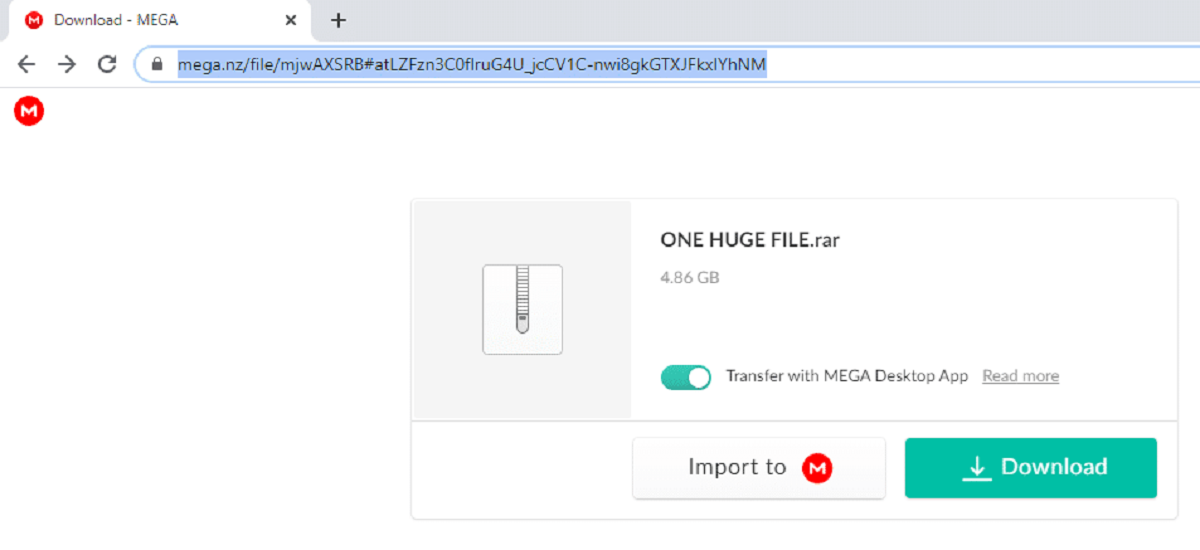
Downloading shared files from cloud storage that someone else sent you follows the same idea. Open the shared link, and if the owner gave you “viewer” or “editor” access, a download button will be visible. Click it and the file lands in your default downloads folder.
Download shared files from Google drive without permission
If a link asks you to “request access,” the owner has not opened the file to you. There is no built‑in button to download shared files from Google drive without permission. Your only real option is to click “Request access” and add a short message explaining why you need the file. The owner gets an email and can grant it with one click.
Move files from Google drive to external hard drive
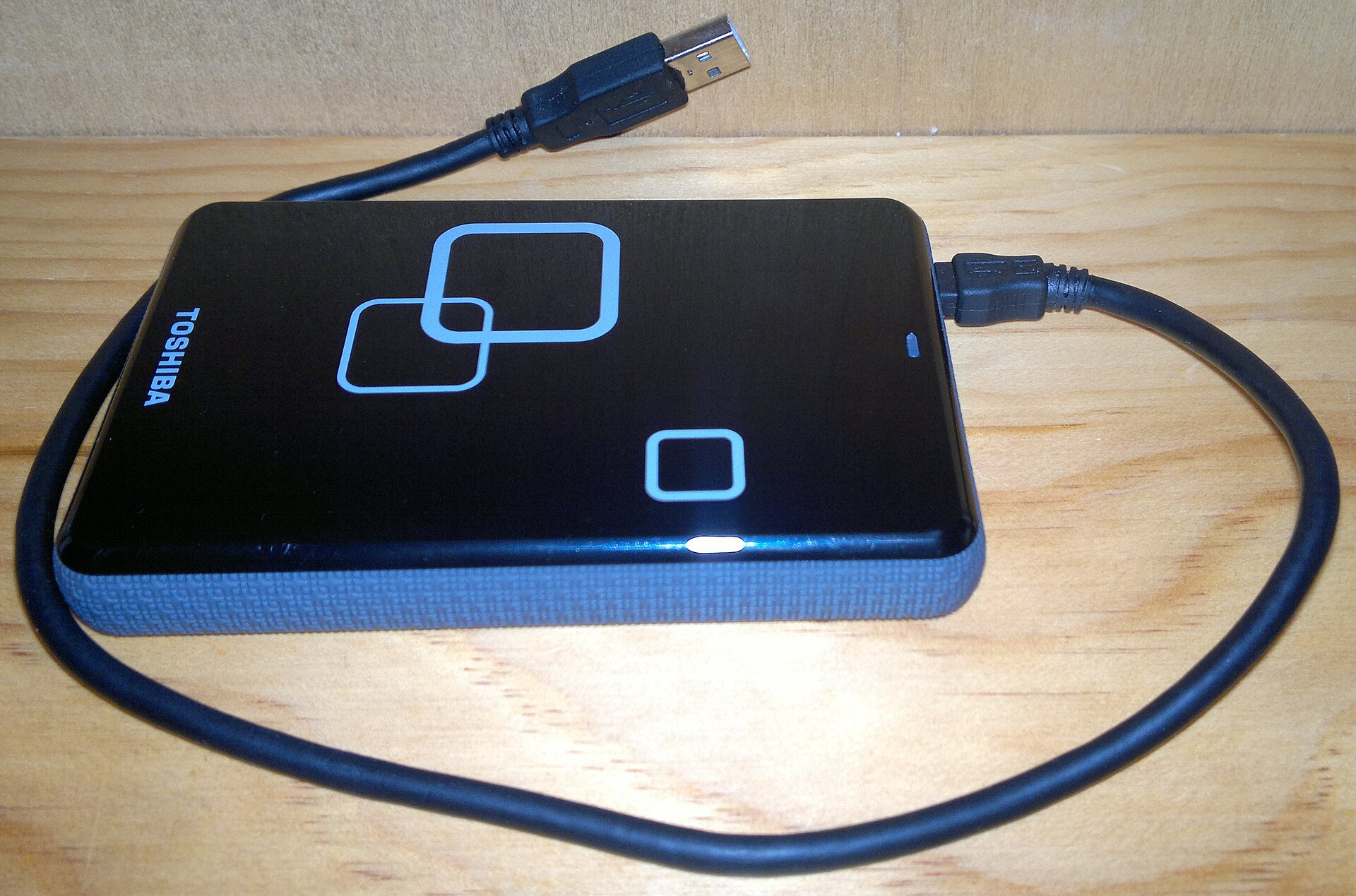
Plug the external hard drive into your computer. Open Google Drive in a browser, right‑click the file or folder, and choose “Download.” Once the download finishes, drag the file from your computer’s downloads folder onto the external drive icon. For a large batch, select everything you want, right‑click, and pick “Download”; Drive will zip them into one folder that you can unzip straight onto the external drive.
Move files from iCloud to external hard drive
On a Mac, open Finder and click “iCloud Drive” in the sidebar. Drag the files directly from that window to the external hard drive; macOS downloads them on the fly. On a Windows PC, install iCloud for Windows, open the iCloud Drive folder in File Explorer, and copy the files to the external drive the same way you would with any other folder.
Move photos from Google photos to gallery
“Gallery” usually means the local photo app on your phone. To move photos from Google photos to gallery, open the Google Photos app, tap a photo, hit the three‑dot menu, and choose “Download.” The picture saves to your phone’s local storage and appears in the gallery app automatically. For a whole album, select multiple photos and tap the download icon; the app will save them as a batch.
Transfer camcorder video to computer
Older camcorders often record onto SD cards, internal hard drives, or tapes. If the camcorder uses an SD card, pop the card out, slide it into a card reader connected to your computer, and drag the video files off like any other drive. For a tape‑based camcorder, you need a capture device: plug the camcorder’s AV or HDMI output into a USB capture dongle, connect the dongle to the computer, and use free software like OBS Studio to record the playback as a digital file. The goal is the same in every case: transfer camcorder video to computer before the tape degrades or the old battery dies.
Syncing music to an iPhone without erasing the library
The fear is real: plug an iPhone into a new computer, and iTunes or the Apple Music app may offer to wipe what is already on the phone. To avoid that, turn off automatic syncing first. Connect the iPhone, open the Apple Music app on a Mac or iTunes on Windows, click the phone icon, and under “Options” check “Manually manage music and videos.” After that, you can drag individual songs or playlists onto the phone without touching the existing library. The same manual setting is the key to syncing music to an iPhone without erasing the library, even when the music comes from a different computer.
Transfer files to my Amazon Fire tablet
A Fire tablet runs a custom version of Android, so the USB‑C cable method works: plug it into a computer, swipe down on the tablet screen, tap the USB notification, and select “File Transfer.” The tablet appears as a drive on the computer, and you can drag books, photos, and videos straight onto it. Without a cable, you can install the “Send to Kindle” website or app on your computer, which lets you send documents over Wi‑Fi. For a quick one‑off file, open the Silk browser on the Fire tablet, go to a web‑based transfer tool, and download the file directly. The question “transfer files to my Amazon Fire tablet” usually comes from people who do not realize the tablet works like any Android device once you change the USB mode.
Move WhatsApp from Android to iPhone
This is one of the few transfers that still demands a dedicated path. Apple’s “Move to iOS” app, which you download on the Android phone from the Play Store, can move your WhatsApp chats, media, and account during the iPhone setup process. Both phones must be plugged into power and on the same Wi‑Fi. When the iPhone reaches the “Apps & Data” screen, pick “Move data from Android,” open the Move to iOS app on the Android, and follow the code pairing. The app will ask if you want to move WhatsApp; say yes, and it handles the rest. If you have already set up the iPhone, you must erase it and start fresh, because Move to iOS only runs before the iPhone is configured. Third‑party desktop tools exist, but the official path is the only one that reliably preserves the full chat history when you move WhatsApp from Android to iPhone.
Transfer GTA 5 story mode progress to PC
Rockstar Games ties story mode saves to a local file, not a cloud account. On the original console or PC, find the save file. On a PC, it lives in “Documents\Rockstar Games\GTA V\Profiles.” On a console, you need to copy the save to a USB drive first. Once you have the file, place it into the same folder on the new PC, making sure the folder name matches the profile ID. The game will read it on launch. Cloud saves through the Rockstar Games Launcher only cover the PC version, so a manual file copy is the only way to transfer GTA 5 story mode progress to PC from a console.
Sync Safari bookmarks between devices
Apple builds this into iCloud. On an iPhone or iPad, go to Settings, tap your name, choose iCloud, and turn on Safari. On a Mac, open System Settings, click your Apple ID, choose iCloud, and enable Safari. Once both devices share the same Apple ID and have Safari toggled on, a bookmark saved on one appears on the other within seconds. To sync Safari bookmarks between devices that use different accounts, export the bookmarks from Safari on the Mac (File > Export > Bookmarks), then import the HTML file into the other browser or device. For a Windows PC, install iCloud for Windows and enable the Safari bookmark sync option; it will merge them with your browser of choice.
When the devices are far apart and not on the same cloud
A direct web transfer fills the gap when you cannot hand a cable to someone or log into a shared account. You upload the file through a browser page, and the other person downloads it using a link or a QR code. ShareIt Online handles files up to 3 GB this way, with no app install and no account creation on either side. The link stops working on its own after the transfer is complete, so you do not need to remember to delete anything.
For a quick photo or a short video, email still works as long as the file is under the 25 MB limit most providers enforce. Messaging apps like Signal or Telegram also let you send a file to yourself in a “Saved Messages” chat, then open that chat on the second device and download it. The file travels through the app’s servers, so both devices need an internet connection at the same time.
How the browser itself can move data
Modern browsers can read and write files without ever sending them over the internet, using something called the File API. The File API documentation on MDN explains how a web page can accept a drag‑and‑dropped file, read its contents, and present it for download, all on your own machine. This is the technology behind offline converter tools and local file organizers that run entirely in a browser tab.
Platform‑specific shortcuts worth knowing
Apple’s ecosystem has a detailed guide on moving content between Apple devices and a computer. The Apple support article on transferring files covers iPhone, iPad, and iPod touch with step‑by‑step instructions for both Mac and Windows users.
On the Android side, Google provides a clear walkthrough for moving files between an Android phone and a computer. The Android help page on file transfers explains the USB options, the notification shade menu, and how to find your files once the phone is connected.
What to do when nothing seems to work
Restart both devices. It sounds too simple, but a fresh boot clears the temporary glitches that block a handshake. Check that both devices are on the same Wi‑Fi network if you are using a wireless method. For wired transfers, try a different cable; many USB‑C cables are charge‑only and cannot carry data. If a cloud download stalls, switch from the app to a browser, or vice versa. And if a file is simply too large for any free method, split it into smaller chunks with a free tool like 7‑Zip before sending.
Pick your next move
Look at the two devices you need to connect right now. If they are in the same room, grab a cable or turn on Bluetooth. If they share a cloud account, open the app and download. If they are far apart and on different platforms, open a browser on both and use a direct link transfer. Start with the method that requires the fewest new accounts, and you will have the file where you want it in under a minute.
Frequently asked questions
How to transfer files from android to iphone after setup?
Once the iPhone is set up, a direct transfer of everything is no longer possible through Apple's official method. You must erase the iPhone and start fresh. During the new setup, when you reach the Apps & Data screen, choose Move Data from Android and use the Move to iOS app on the Android phone to migrate your content.
How to download shared files from google drive without request access?
You cannot download shared files from Google Drive if the owner has not granted you access. The only built-in option is to click the Request access button and send a message to the owner. Once they approve your request and give you viewer or editor rights, a download button will appear on the shared file page.
How to transfer photos from iphone to pc without itunes?
Plug the iPhone into the PC with a Lightning cable, unlock the phone, and tap Trust when prompted. The iPhone then appears in File Explorer under This PC. You can open it and drag photos and videos directly to a folder on your desktop without opening iTunes or any other software.
How to sync music to iphone without losing existing songs?
Connect the iPhone to the computer, open the Apple Music app or iTunes, and click the phone icon. Under Options, check Manually manage music and videos. This setting prevents automatic syncing and allows you to drag individual songs or playlists onto the iPhone without erasing the music already stored on the device.