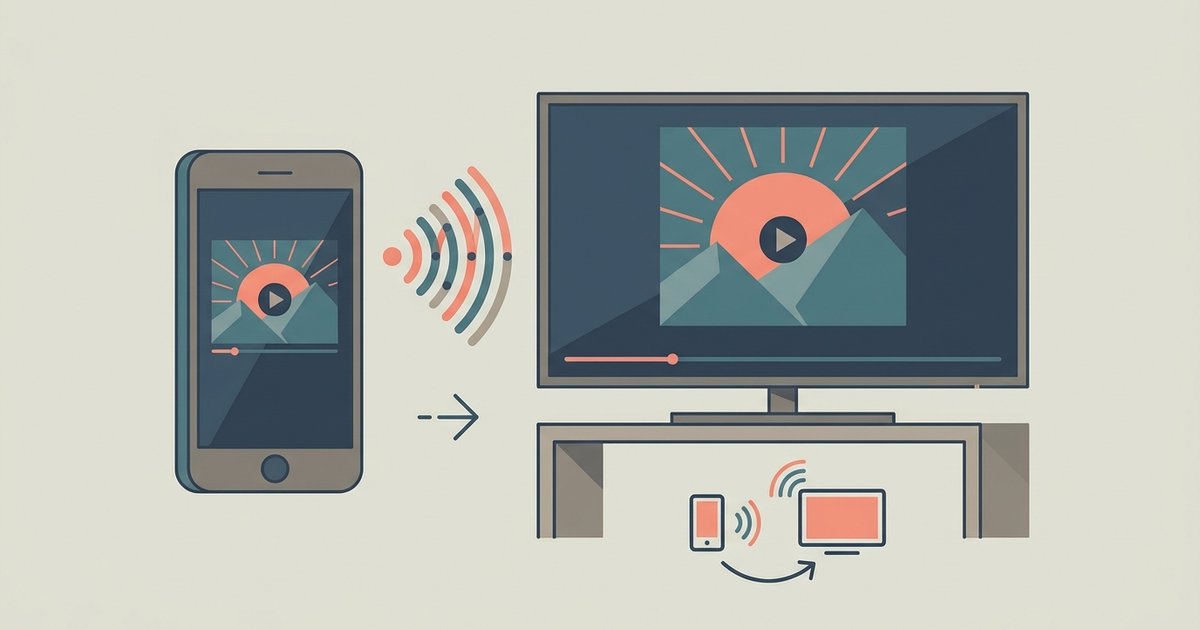
Before you start: mirroring vs. casting
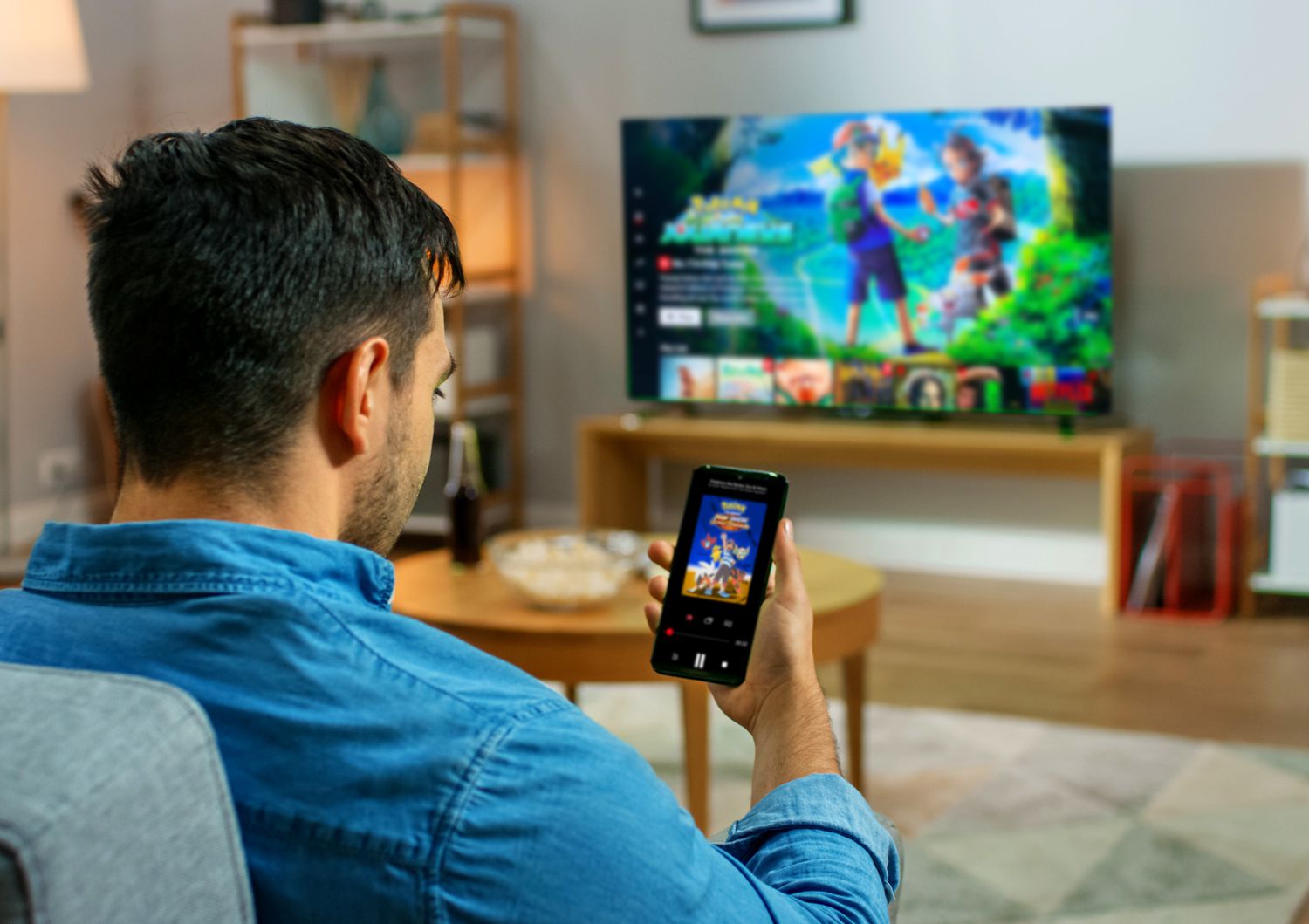
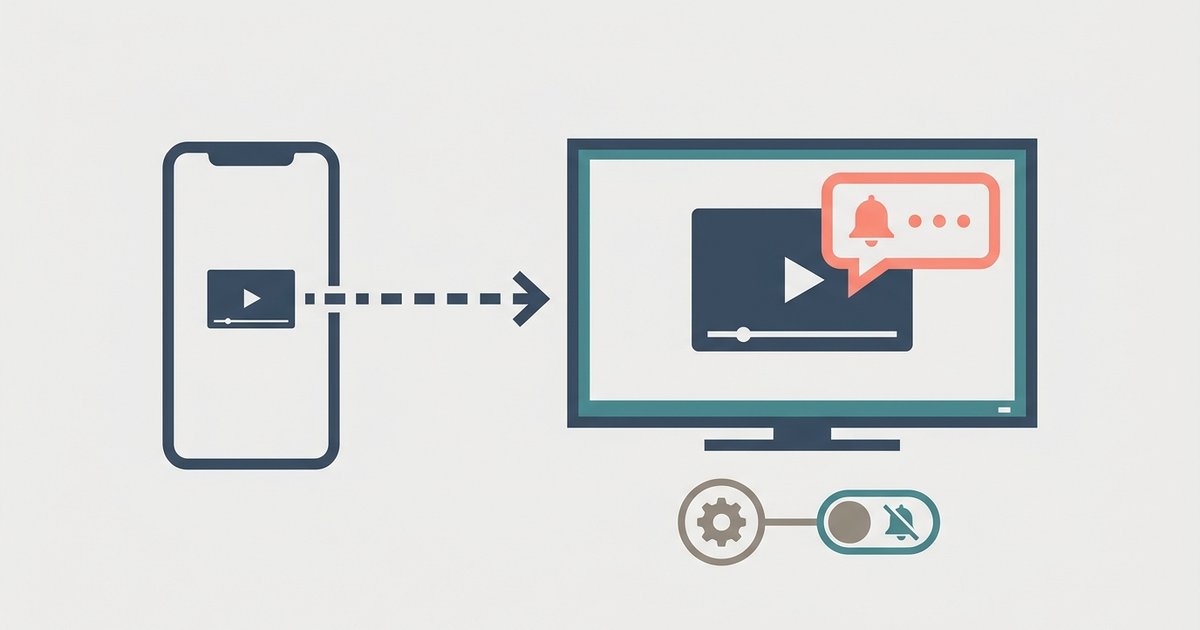
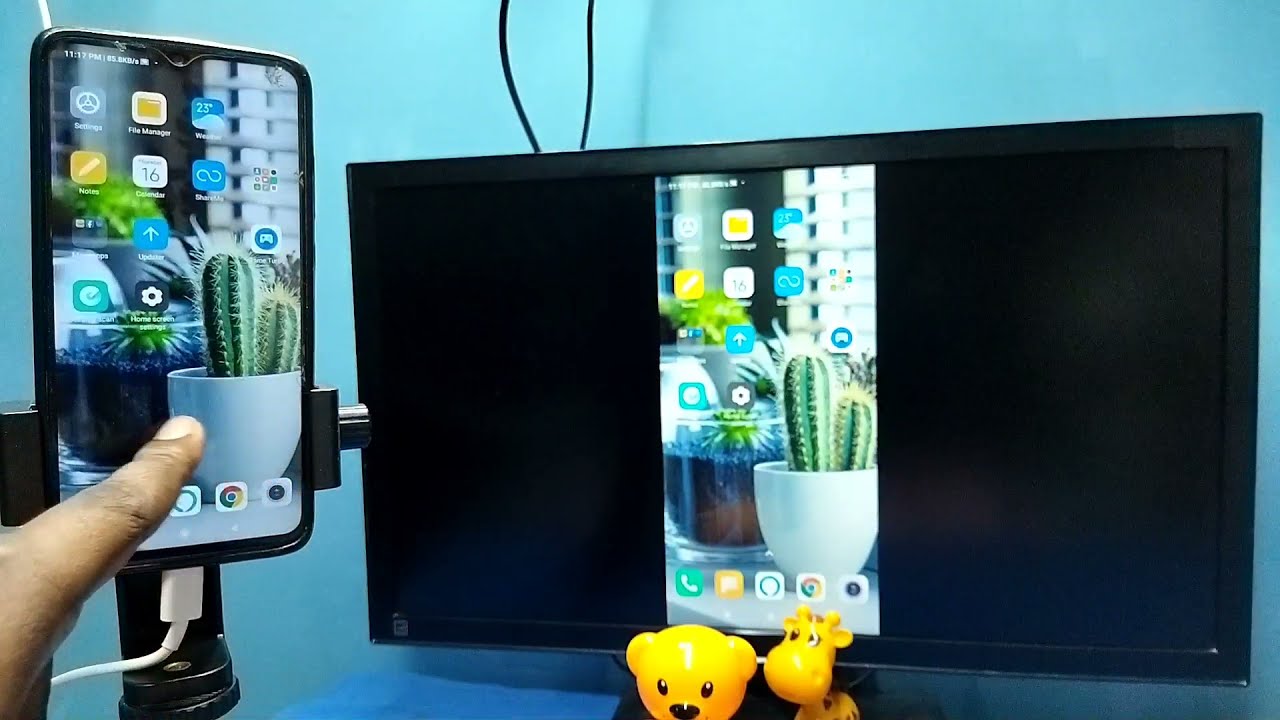
Screen mirroring turns your TV into a live duplicate of your phone's display, showing every swipe, notification, and app in real time. Before you start, it's crucial to understand the difference between mirroring and casting. Choosing the wrong method will give you a frustrating experience. Casting, on the other hand, sends a direct link to a video or playlist. Once you tap play, you can lock your phone or browse other apps without interrupting what's on the screen. Many people who want to connect your phone to your TV actually need casting, not this live display duplication, because it is simpler and less intrusive. If your goal is to watch a movie from a streaming app, you should connect phone to smart TV using the built-in cast button. For apps like Netflix, you may need to allow Netflix to detect smart TV iPhone by checking that both devices are on the same Wi‑Fi network and that the TV's Netflix app is open. If you do need true screen duplication, for example, to show a real-time game or a work document, you can stop notifications from popping up on TV while screen mirroring by enabling Do Not Disturb or turning off notification banners in your phone's settings before you begin. Picking the right method from the start saves you the hassle of seeing your private alerts on the big screen.
Mirroring your phone or tablet to a smart TV
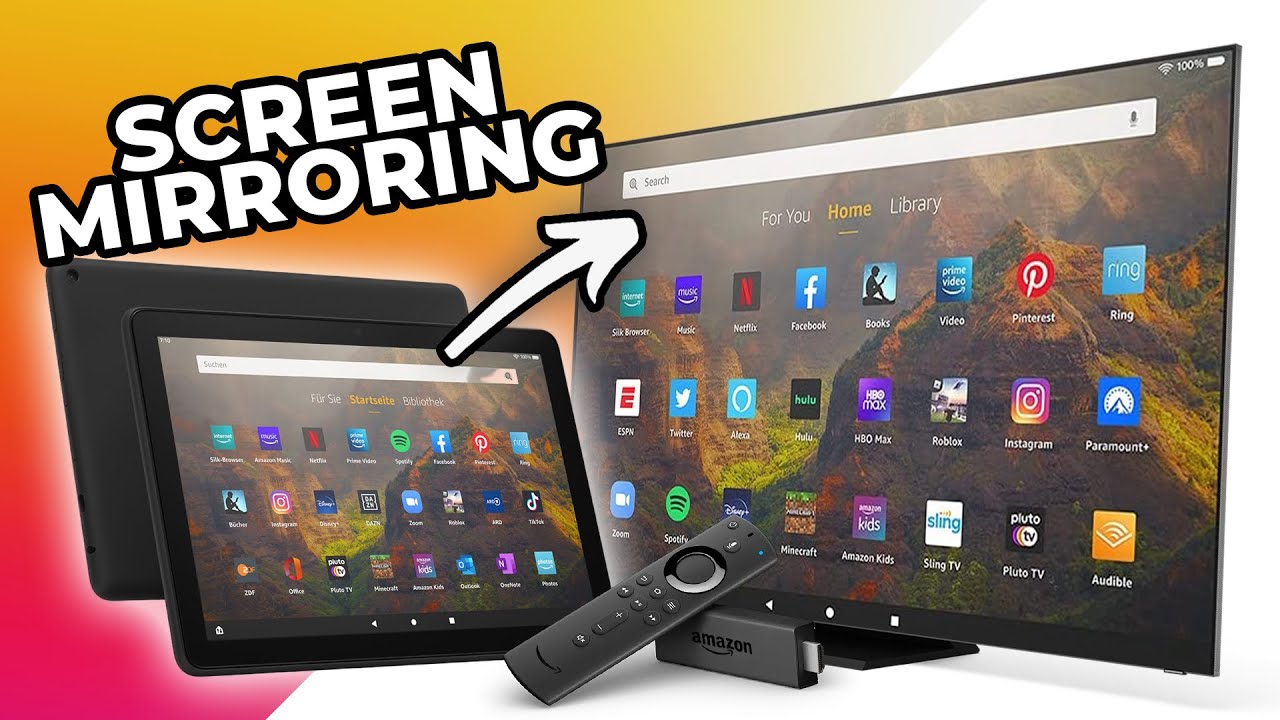
Start by ensuring your phone or tablet and the TV are on the same Wi-Fi network. This is the single most important step. On an iPhone, open Control Center (swipe down from top-right on iPhone X or later, or swipe up from bottom on iPhone 8 or earlier), tap the two overlapping rectangles (Screen Mirroring), and select your smart TV from the list. If you own a TCL set, you can follow the dedicated guide to screen mirror iPhone to TCL smart TV, which handles any menu quirks specific to that brand. An Android device works similarly. Pull down the notification shade, look for a Cast or Smart View icon, tap it, and choose your TV. For a Fire tablet, the process is nearly identical, but you will need to enable the wireless display option in the quick settings panel. You can screen mirror Amazon Fire tablet 10 by swiping down twice, tapping Cast Screen, and selecting the TV name once it appears. Most smart TVs from brands like Samsung, LG, and Sony will show up automatically under these menus. A few older models require you to first open the TV’s own casting app or input mode. If you run into a specific brand that does not appear, you will find dedicated walkthroughs for each model. For instance, if you need to screen mirror on Philips smart TV, the guide explains where to find the Miracast or screen mirroring toggle in the Philips settings. Similarly, if your goal is to screen share on Philips smart TV, the same walkthrough covers the alternative casting method that uses a different menu path. For Vizio owners, the article on how to screen mirror to Vizio smart TV addresses the unique step of enabling the screen mirroring mode under the TV’s input list. And if you have a TCL model, the instructions for screen mirror on TCL smart TV will walk you through enabling the built-in receiver. These guides cover the same core steps but adjust for slight differences in TV menus, button labels, or required apps. Scan the group of guides by your TV brand name first, then check the device you are casting from, to quickly find the exact combination that matches your setup.
Mirroring your computer to a TV
If you want to show your laptop screen on a big TV without plugging in a cable, the process depends on whether you need to duplicate your entire desktop or just play a video. For a MacBook, the quickest way to share a movie or a YouTube clip is to use the AirPlay feature. This sends the stream directly to the TV, so your laptop screen stays private and you can keep working without your notifications appearing on the Samsung or LG display.
If you actually need to show your full desktop, for a presentation or to demonstrate an app, you can click the Control Centre status menu in the menu bar on your Mac and select the TV from the Screen Mirroring menu. To do this on a Samsung model, you might first need to enable the "Screen Sharing" or "Smart View" feature in the TV's settings. Then you can cast from MacBook to TV by selecting the device from the list. On an LG TV, the setup is similar. Ensure the TV and Mac are on the same Wi-Fi network. Then you can cast MacBook to Samsung smart TV or mirror mac to LG smart TV depending on which brand you own.
The key difference to remember is that screen duplication locks your laptop into showing exactly what is on its display. Casting offloads the video to the TV and frees up your computer for other tasks. Unlike other guides that treat all wireless video as identical, your MacBook can handle video playback and desktop projection differently, even though both travel over AirPlay.
Connecting with wires and without Wi-Fi
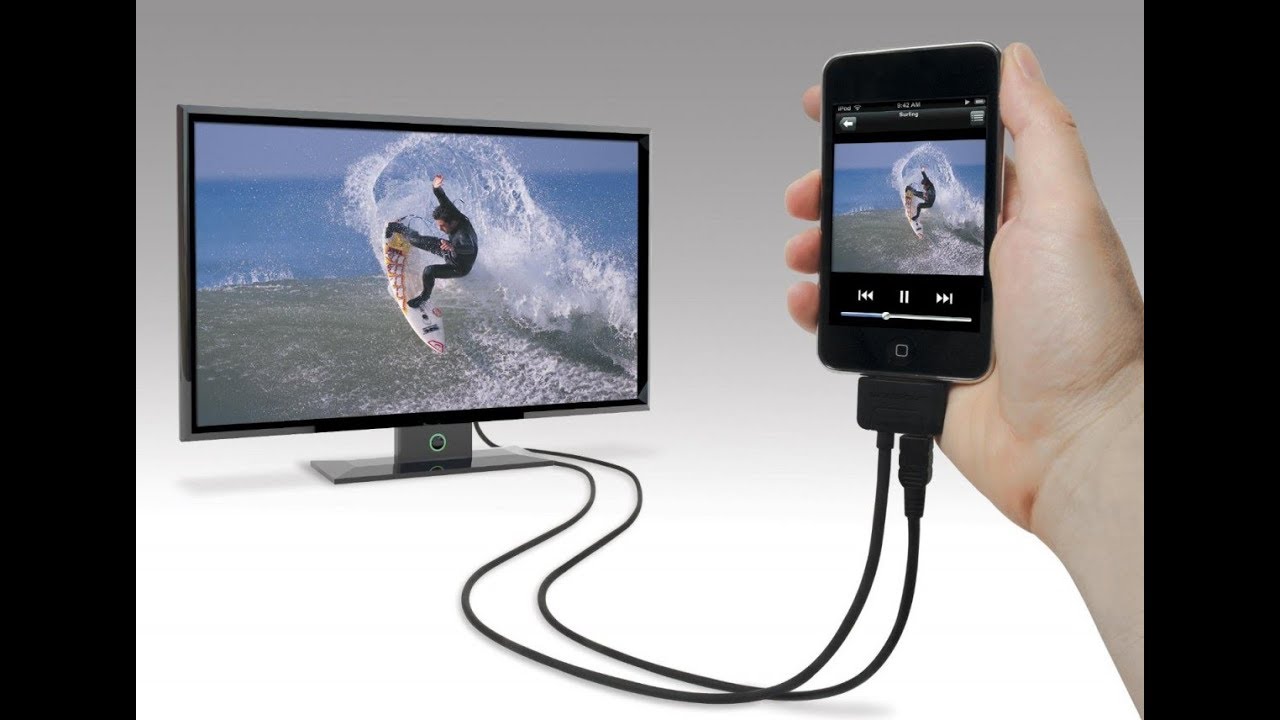
When no Wi-Fi network is available, or you simply prefer the reliability of a physical link, a wired connection is the most straightforward solution. The process of connecting phone to TV without Wi-Fi usually relies on a simple cable and adapter setup. For Android users whose device supports DisplayPort Alt Mode, a USB-C to HDMI adapter lets you plug directly into the TV. It instantly duplicates your entire phone screen, apps, photos, and all. If you own an iPad or another slate, you can connect tablet to TV with HDMI using an Apple Lightning Digital AV Adapter (for Lightning models) or a USB-C to HDMI adapter (for USB-C models). Just plug it in, switch the TV to the correct input, and you're done. For iPhone users, the key step to make iPhone full screen on TV is using Apple's official Lightning Digital AV Adapter with a standard HDMI cable. This adapter outputs a perfect 1080p signal that fills the entire television display without any black bars or cropping. Even without a wireless network, certain proprietary setups work. You can mirror Fire tablet to Fire Stick by using a direct peer-to-peer Wi-Fi connection that the devices establish between themselves, bypassing your home router entirely. This wired approach also sidesteps the common confusion between screen duplication and casting. Because you are physically replicating your display, you see every notification and app switch. That complete visibility is exactly what you want when a wireless signal is unreliable or absent. Unlike other guides that treat all wireless display technologies as interchangeable, we identify the exact moment a direct device-to-device handshake fails and a physical cable becomes the only way to preserve full interactivity without compression lag.
Fixing common screen mirroring problems
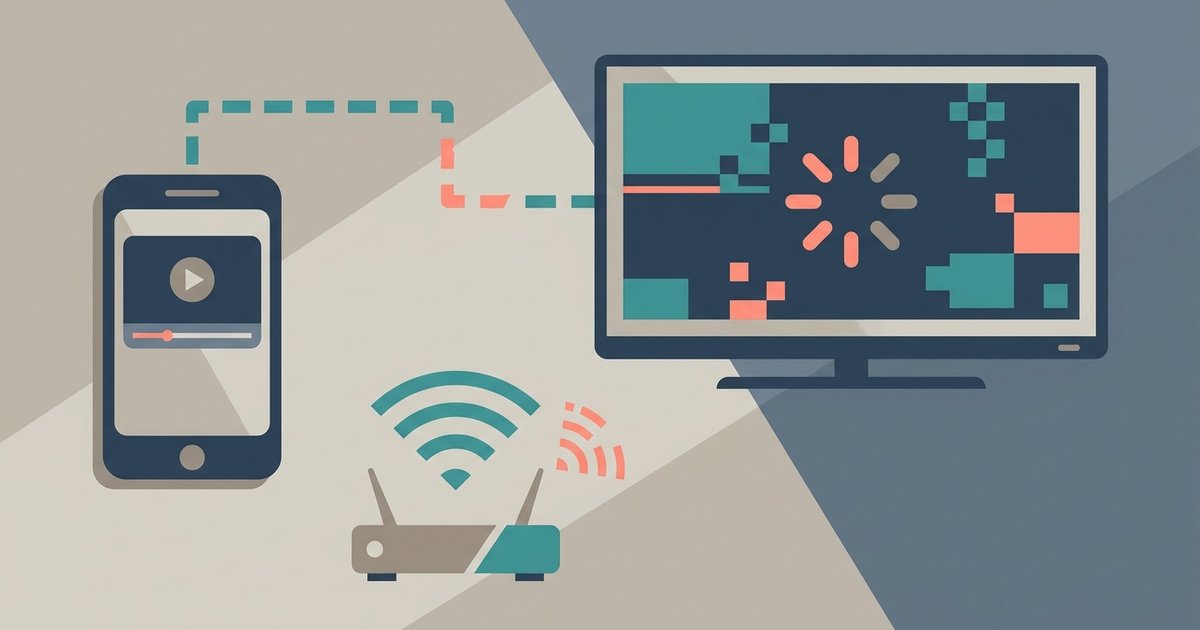
If your video is choppy or the audio drops out, start by checking your Wi-Fi connection. Screen casting demands a strong, stable network. Move the router closer or switch to a 5 GHz band if possible. When you encounter screen mirroring lagging or stuttering, it often helps to close background apps on your phone. Restart both devices before trying again. For audio issues, ensure your TV isn't muted and that the phone's volume is turned up. If you still get no sound when mirroring a phone to the TV, try disconnecting and reconnecting the session. You can also switch the TV's audio output from external speakers back to its internal ones. If you are using a Xiaomi remote and the TV isn't responding, you can find the easy steps to connect Xiaomi remote to your TV through the Bluetooth settings menu on the TV itself. This process usually involves pressing and holding the Home and Volume Down buttons simultaneously. Many frustrations with phone-to-TV display come from expecting it to work like casting. If you only need to watch a single app, use its built-in cast button instead. That way your phone stays private and notifications won't show on the big screen.