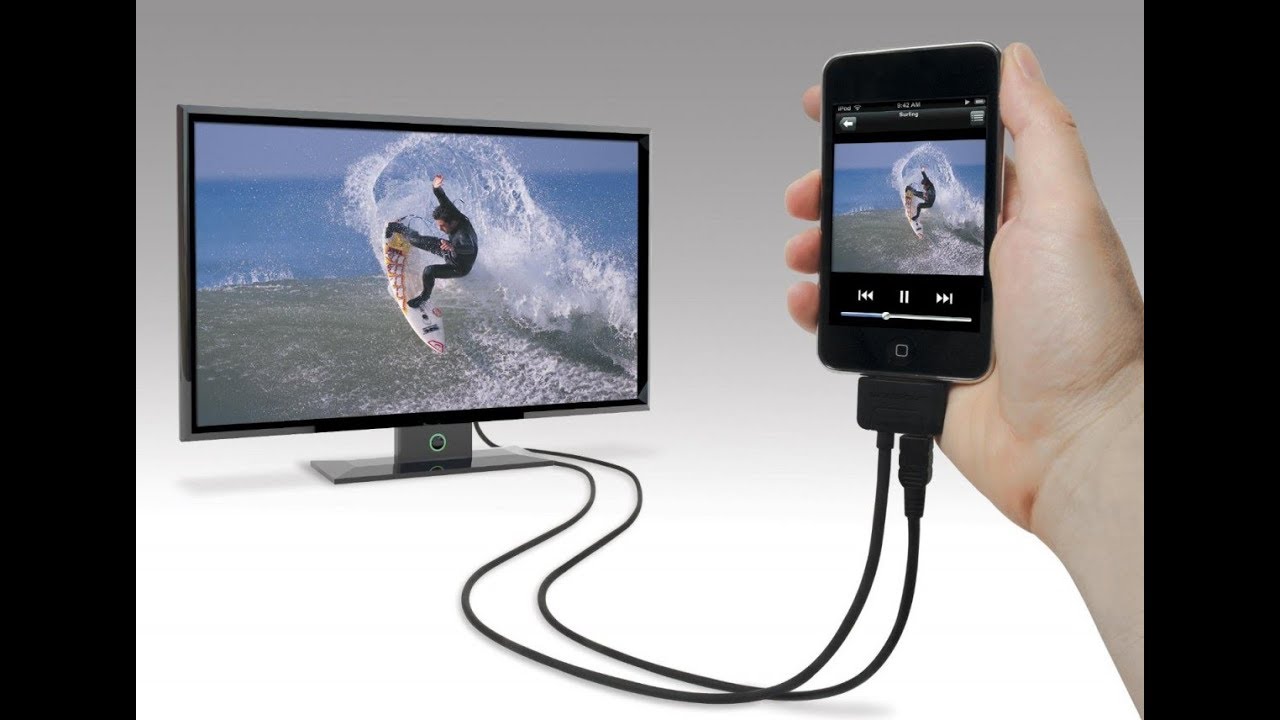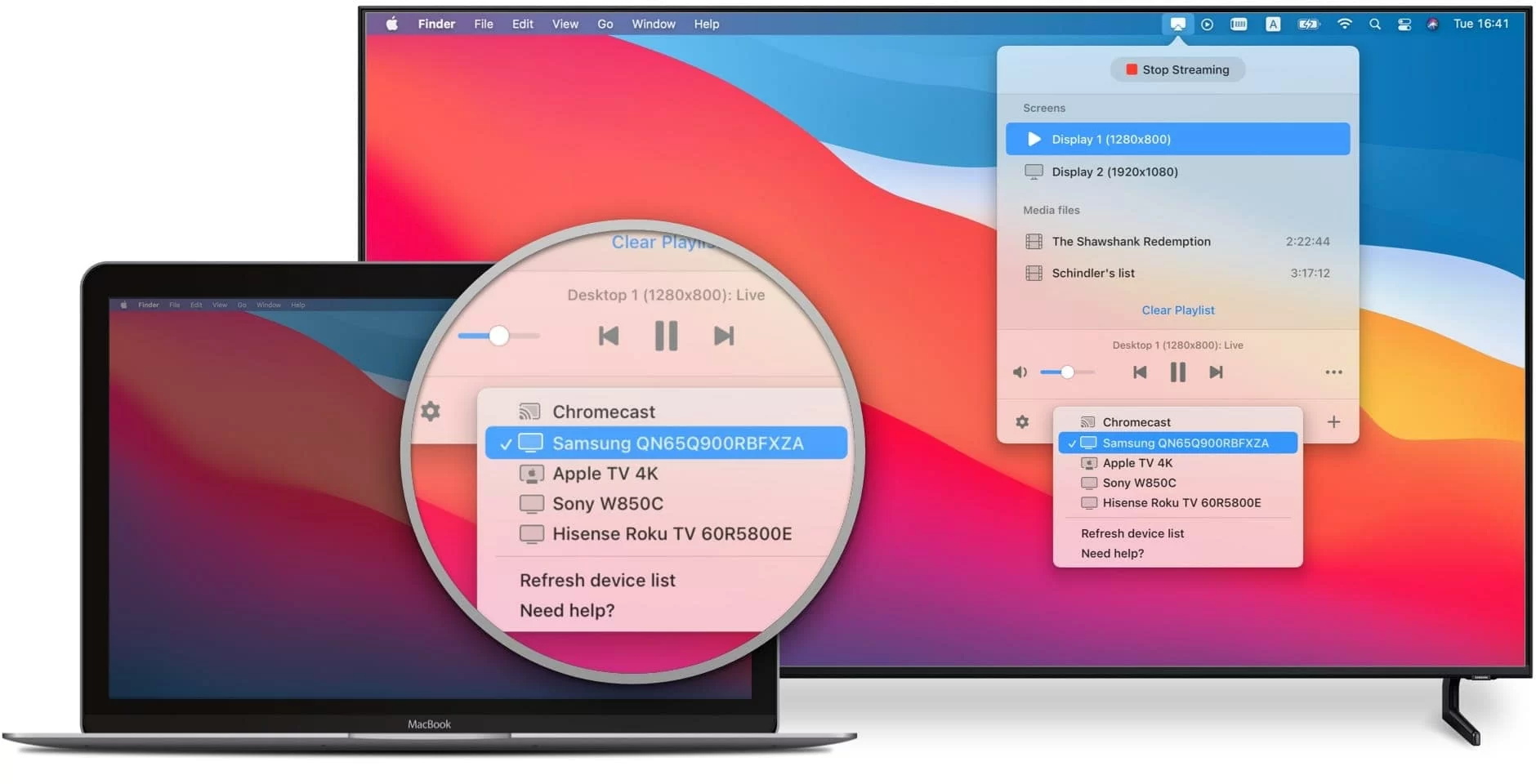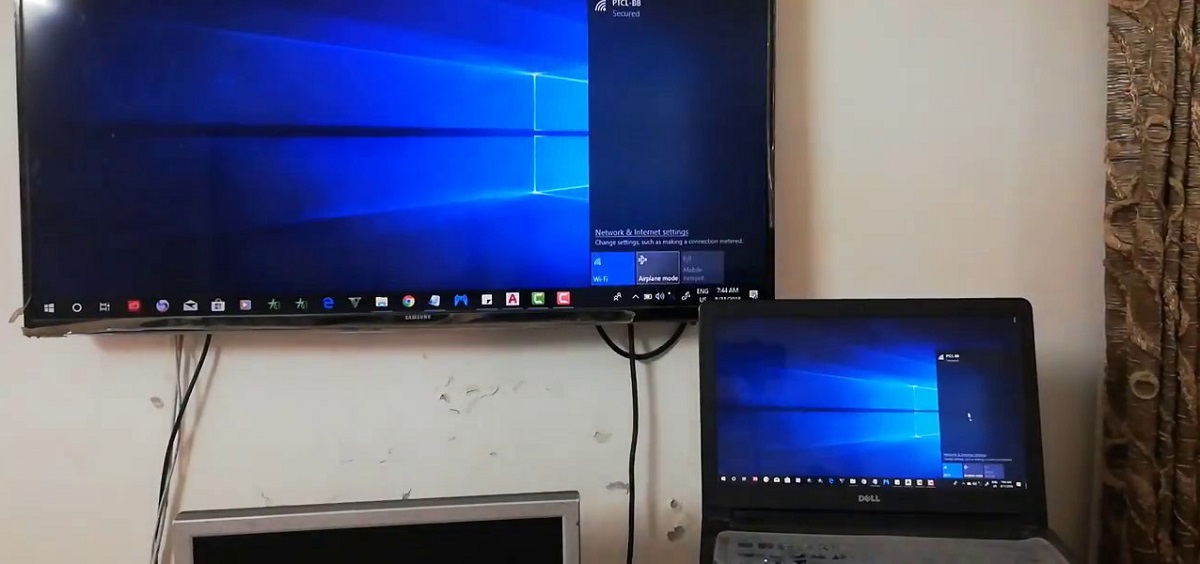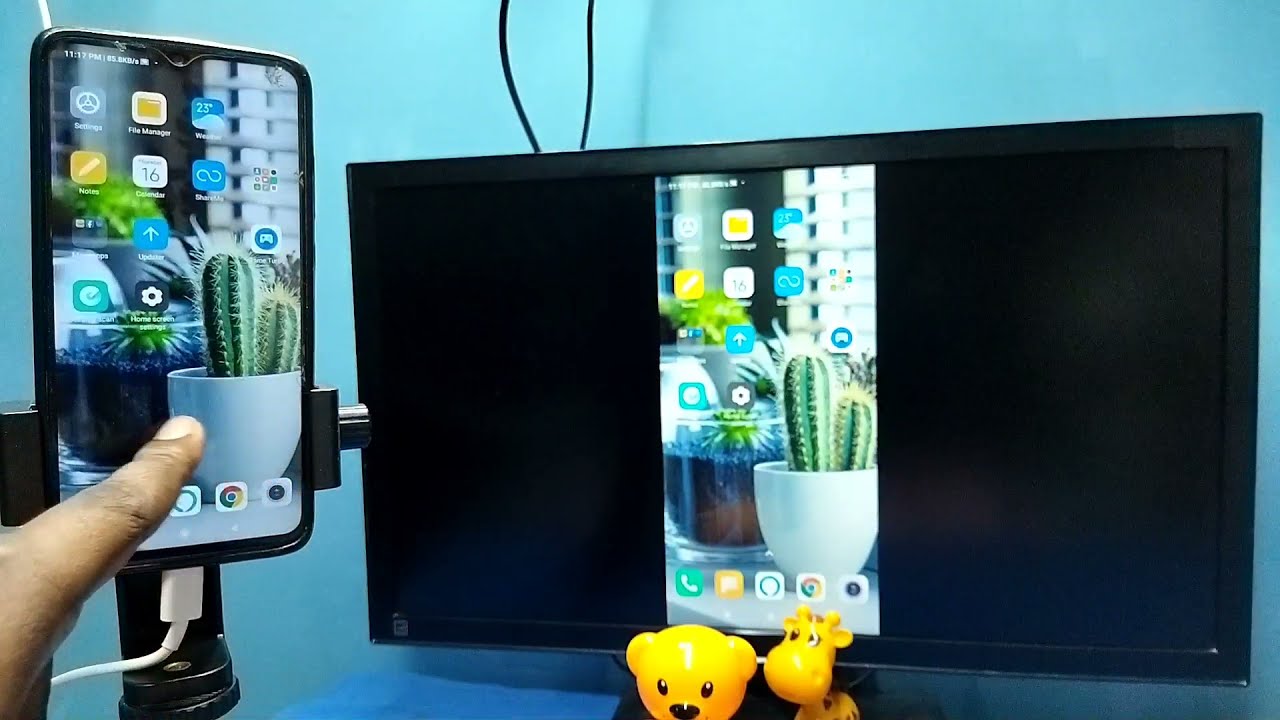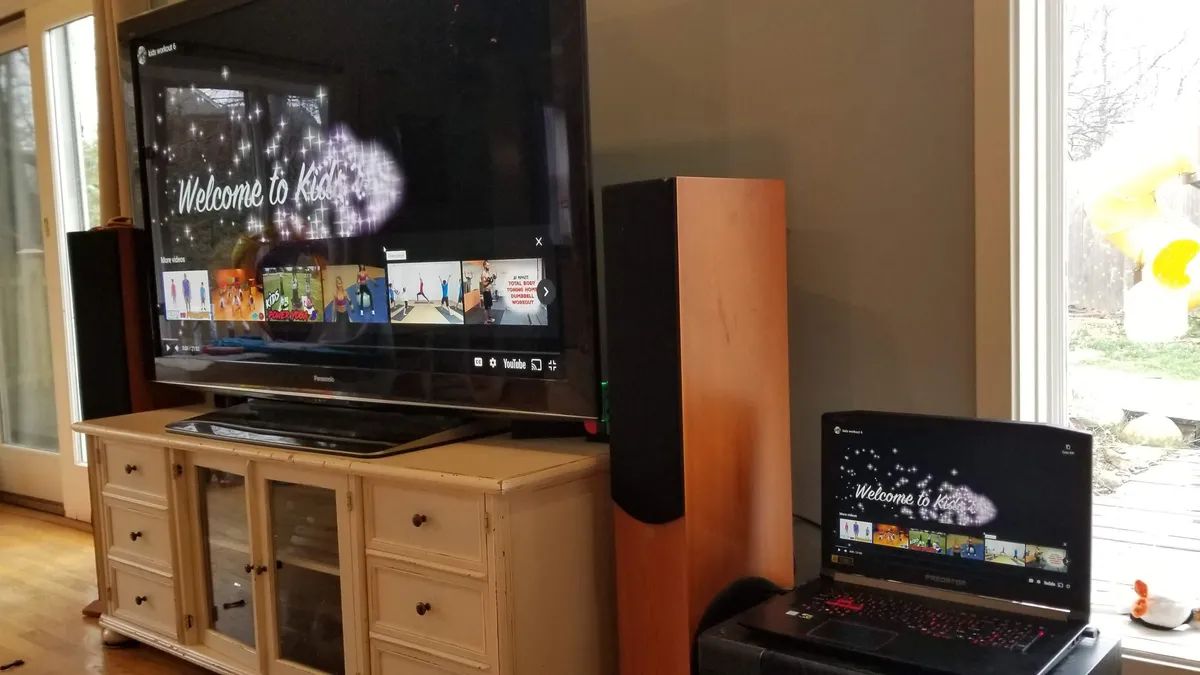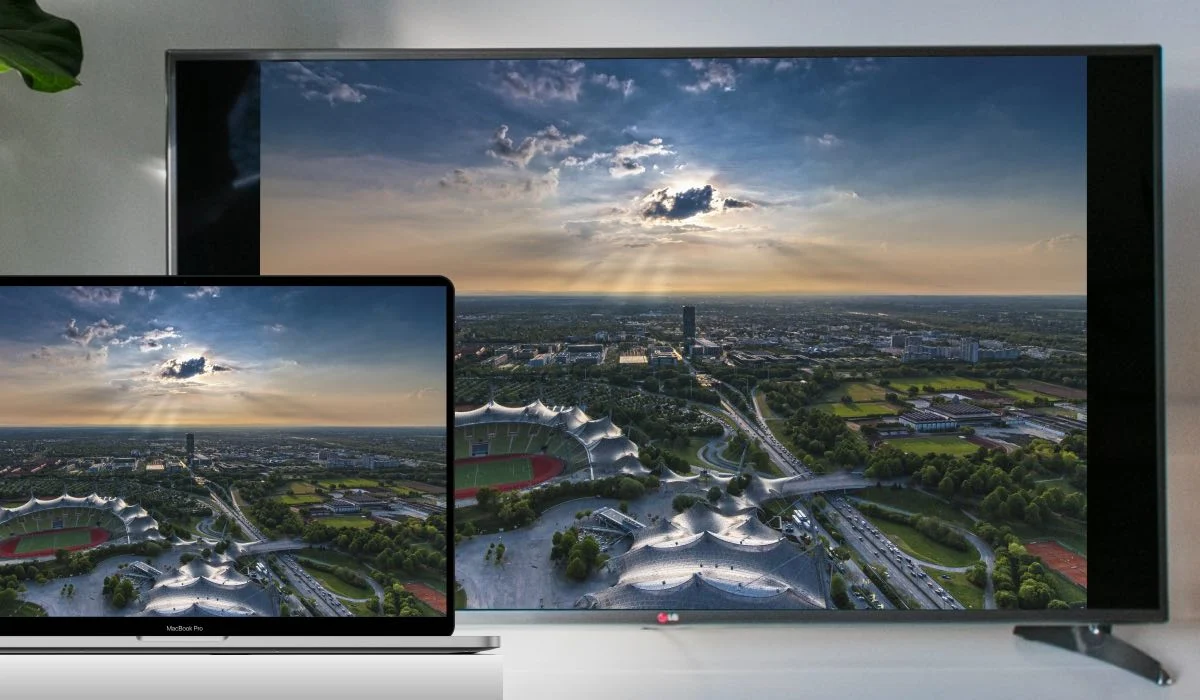
There is no NFHS Network app on the Samsung Smart TV App Store, so you cannot install it directly, but you can still watch NFHS Network on Samsung Smart TV by mirroring from your phone or tablet. The only official workarounds are screen mirroring from an Android device using Smart View or from an iPhone/iPad using AirPlay, both of which cast the NFHS Network mobile app to your TV screen. If you prefer a native app experience without mirroring, you can also watch live TV on Samsung smart TV through dedicated streaming services, or you can watch Spectrum on Samsung smart TV for a cable-style lineup with live sports.
The real way to watch NFHS network on Samsung smart TV
If you searched the Samsung App Store for NFHS Network and came up empty, you are not missing a hidden menu, the service simply does not offer a native app for Tizen-based Samsung TVs. The NFHS Network is officially available on Roku, Amazon Fire TV, Apple TV, and Google TV, but Samsung is not on that list. That leaves you with two reliable methods: mirror your Android phone's screen via Smart View or mirror your iPhone/iPad via AirPlay. Both are fully supported by Samsung and NFHS, and both give you the same live and on-demand high school sports coverage on your big screen.
Before you start: subscriptions, accounts, and network requirements
You cannot stream anything without an active NFHS Network subscription. The service costs $13.99 per month or $79.99 per year, and that subscription unlocks live and on-demand coverage of high school sports and events. A standard plan allows streaming on one device at a time, though Family or All-Access plans may support up to six devices. You will also need a standard NFHS Network account with your login credentials ready. The one non-negotiable technical requirement: both your mobile device (Android or iOS) and your Samsung Smart TV must be connected to the same Wi-Fi network. If they are on different networks, screen mirroring and AirPlay will fail silently, so verify that before you start.
How to stream from an Android phone with Smart View
Android users have the simplest path because Samsung's Smart View is built directly into the phone's Quick settings panel. Before you begin, install the NFHS Network app from the Google Play Store and log in with your subscription account. Once you are logged in, find the event you want to watch inside the app and start playback on your phone. Then pull down the Quick settings shade from the top of the screen, tap the Smart View icon (it looks like a rectangle with a Wi-Fi symbol), and select your Samsung Smart TV from the list of available devices. Your phone's screen, including the NFHS Network video, will appear on the TV. You can keep using your phone as a remote to pause, rewind, or adjust volume, but the video will play on the TV.
How to stream from an iPhone or iPad with AirPlay
iOS users can mirror the NFHS Network app using Apple AirPlay, but only if your Samsung Smart TV is a 2015 or newer model running Tizen OS. Start by installing the NFHS Network app from the App Store and logging in. Find the game you want to watch and begin playback on your iPhone or iPad. Look for the AirPlay icon, a rectangle with a triangle pointing up at the bottom, in the video player or in the app's control bar. Tap it, and your device will scan for compatible displays. Select your Samsung Smart TV from the list, and the stream will transfer to the TV. If you do not see the AirPlay icon, confirm that your TV supports AirPlay and that both devices are on the same Wi-Fi network.
Finding the specific high school game you want
Whether you are using Android or iOS, the NFHS Network mobile app gives you the same filtering tools to locate a specific game before you cast. Once you are logged in, tap the search or browse icon to open the event finder. You can filter by date, sport, gender, level, state, and school. After you have applied those filters, the app will show only matching events. Select the one you want, start playback on your phone, and then use Smart View or AirPlay to send it to your Samsung TV. This approach works for both live games and on-demand replays, so you can catch a game after it has ended as well.
What if screen mirroring is still not working?
If the stream fails to appear on your TV, the first thing to check is the Wi-Fi band. Samsung TVs and phones sometimes connect to different bands (2.4GHz vs 5GHz) on the same router, which breaks the connection even though both say they are on the same network. Go into your router settings or your device's Wi-Fi settings and force both to the same band. Next, restart both the TV and the mobile device, a simple reboot often clears the temporary handshake glitch. If you are still stuck, the issue may be unrelated to NFHS and instead tied to your TV's general mirroring behavior; that is where you would want to look into broader screen-sharing troubleshooting for your specific Samsung model. The same Wi-Fi requirement and restart steps apply whether you are watching live sports or an on-demand replay, and they are the same conditions that apply to watching live TV on a smart TV in general.