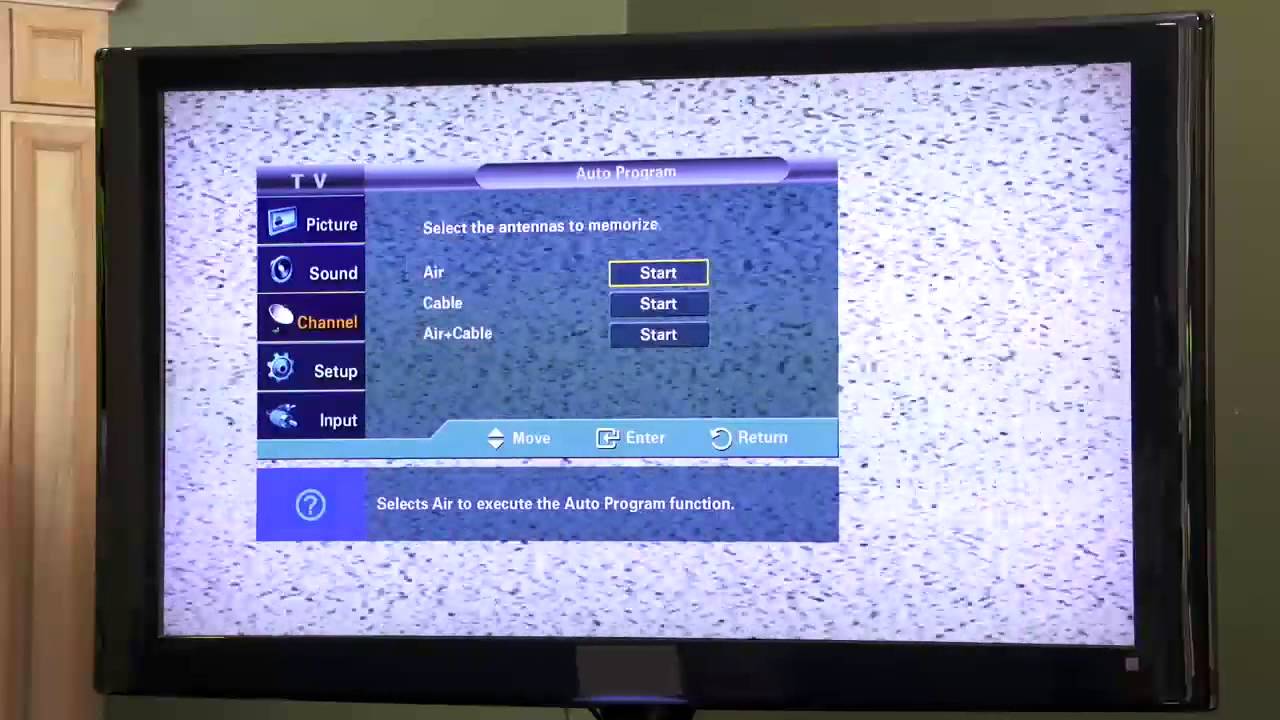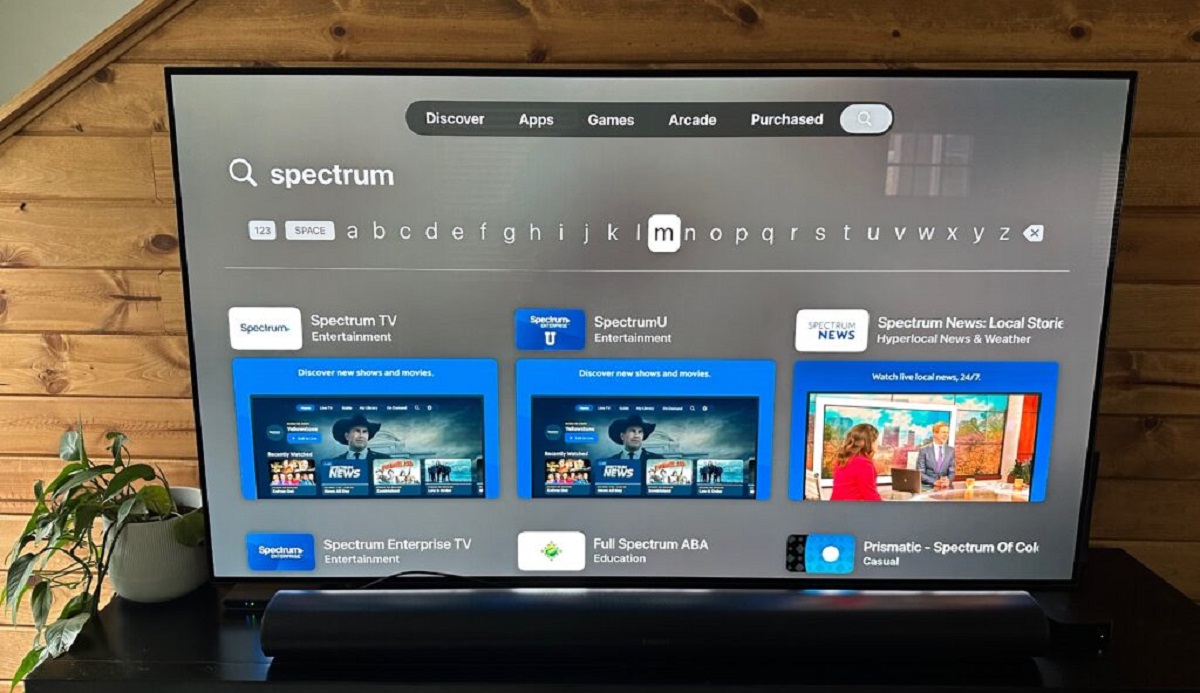
To get EWTN on your smart TV, the fastest and most reliable method is to install the free EWTN app directly from your television’s app store. You can get EWTN on smart TV models from Samsung, LG, Sony, and others by searching for “EWTN” in the built-in app marketplace, then selecting install, no subscription or cable package is required. If you also want to get teletext on smart TV, that works through your set's broadcast or app settings.
What you need to get EWTN on your smart TV
Before you start, confirm that your smart TV is connected to the internet, either through Wi-Fi or an Ethernet cable. A broadband connection with a minimum of 5 Megabytes per second is recommended for smooth streaming of live Mass, documentaries, and other Catholic programming. If your connection seems blocked or restricted, you may need to disable VPN on smart TV to allow the app to verify your regional access. The EWTN channel and its app are completely free, there are no monthly fees, hidden charges, or paywalls to access the content. You do not need a cable subscription, a login credential, or an EWTN account to begin watching. Just ensure your TV’s operating system is up to date, as older firmware may not support the latest app versions.
Method 1: Install the EWTN app directly on your smart TV
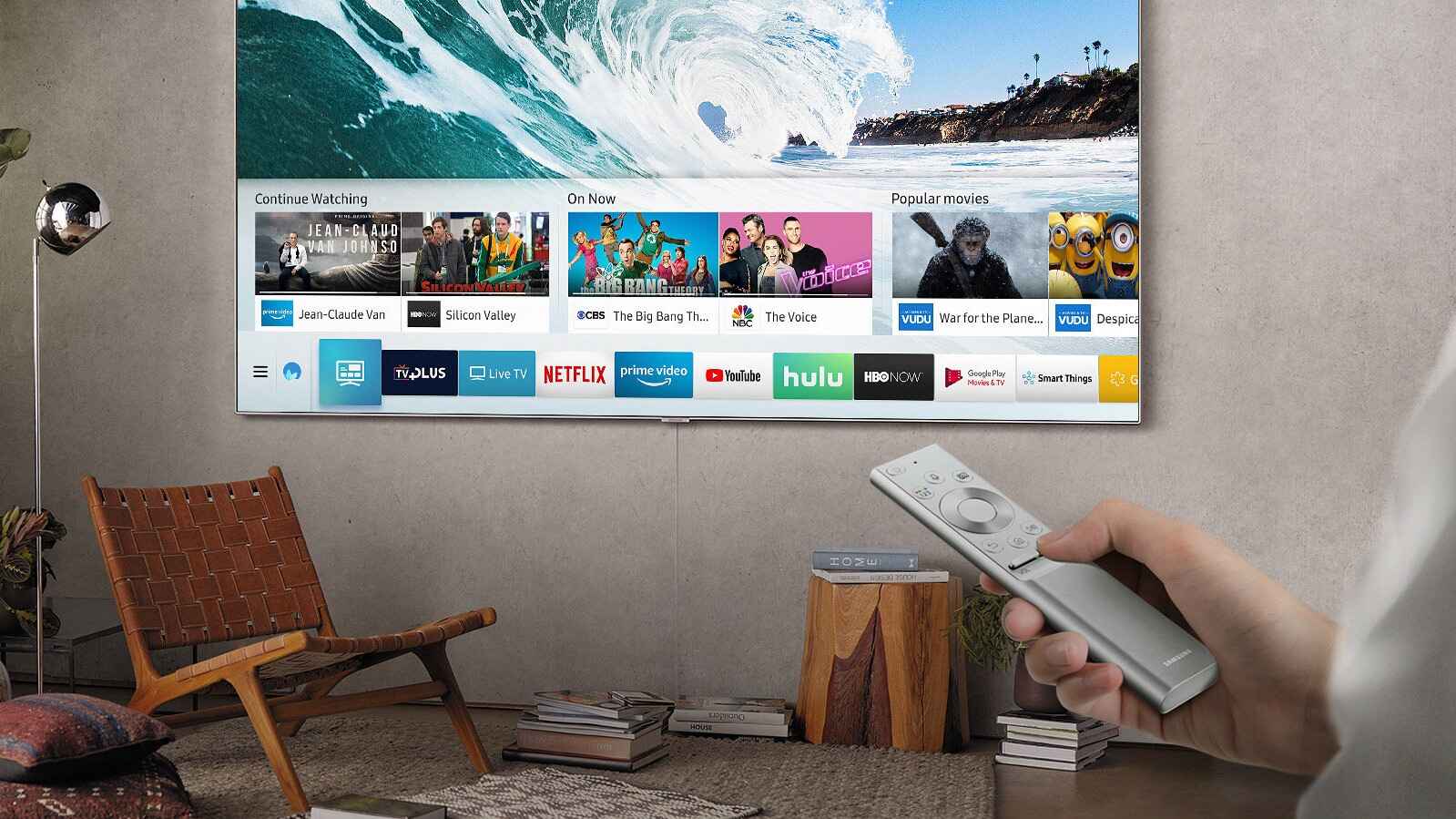
This is the most straightforward approach, and it works on most modern smart TVs that have an app store. For Samsung TVs, press the Home button on your Samsung TV remote control to open Smart Hub. Select “Apps” and then select the “Search” icon in the top-right corner. Enter “EWTN” in the search bar and download the app. After installation, you can choose to “Open” the app immediately or “Add to Home” to add it to your Home Screen for quick access next time. The EWTN app is found in the Samsung TV App Store (Smart Hub), not Google Play or the Apple App Store, because Samsung TVs run the Tizen operating system.
For other brands, the process is nearly identical but the store name differs. On LG TVs, open the LG Content Store; on Sony or Vizio, use the Google Play Store or the Vizio SmartCast app section. In every case, navigate to the search bar, type “EWTN,” select the app from the results, and press the install or download button. Once the installation finishes, the app will appear in your list of installed applications, usually under “Entertainment” or “Lifestyle.” Launch it, and you’ll have immediate access to live EWTN Television and Radio, past episodes, and on-demand Catholic content.
Method 2: Use a digital media player (Fire TV, Roku, or Chromecast)
If your smart TV does not have the EWTN app in its native store, or if you prefer a more flexible streaming device, a digital media player is an excellent alternative. Amazon Fire TV, Roku, and Google Chromecast all support EWTN, and each connects to your TV’s HDMI port. For Amazon Fire TV, plug the device into the HDMI port, switch your TV’s input to that port, and complete the on-screen setup by connecting to your Wi-Fi network. To locate the EWTN app, you may need to use voice search using either a Voice Remote or the Amazon Fire TV app on your mobile device, just say “EWTN” or type it into the search field. Select the app, choose install, and it will appear on your Fire TV home screen. Amazon Fire TV provides parental controls and allows you to uninstall channels, so you can manage what your family watches with ease. While you're securing your viewing options, you may also want to stop someone from connecting to my smart TV to keep your network and streaming private.
On Roku, go to the Roku Channel Store from the home screen, select “Search Channels,” type “EWTN,” and press OK. The channel will download automatically, and you can launch it immediately. Roku is generally recommended for EWTN because of its simple interface and reliable streaming. Google Chromecast is a small device that allows you to watch EWTN on your TV using a broadband internet connection, but it works differently: you use your phone, tablet, or laptop as the remote. Plug the Chromecast into your TV’s HDMI port, set it up with the Google Home app, then open a browser or the EWTN website on your mobile device and tap the cast icon. You can then watch live EWTN Television and Radio, as well as past episodes, on the big screen. There are no ongoing or monthly charges for Google Chromecast itself, only an initial one-off payment to purchase the device and your existing internet connection expense. For ease of use with EWTN, Amazon Fire TV or Roku are generally recommended over Google Chromecast unless there’s a specific reason to choose Chromecast, such as already owning one or wanting to cast from a computer.
Method 3: Cast from your phone or tablet to the TV
If your smart TV lacks a native EWTN app and you don’t want to buy an external streamer, you can cast from your mobile device. Download the EWTN mobile app (the EWTN GB app for UK/Europe) from the Apple App Store or Google Play Store on your smartphone or tablet. Once installed, open the app and select the content you want to watch. Then, use your TV’s built-in casting feature, for Samsung TVs, this is Samsung Smart View, which is accessible from the quick settings panel on your phone. For other brands, use standard Chromecast mirroring if your TV supports it, or enable screen mirroring from your device’s display settings. The TV will mirror your phone’s screen, and the EWTN video will play in full size. This method is especially useful for older smart TVs that cannot install new apps, and it requires only a stable Wi-Fi connection for both devices. Keep in mind that casting will use your phone’s battery, so plug it in if you plan to watch for a long time.
Troubleshooting and brand-specific tips
If you search for “EWTN” and the app does not appear in your TV’s store, the most likely cause is model compatibility. Some older or budget smart TVs do not support the EWTN app due to outdated operating systems or limited app catalogs. In that case, your best options are to use a digital media player (Method 2) or cast from your phone (Method 3). For Samsung TVs, after installing the app, you can add it to the home screen by highlighting the EWTN icon, pressing the down arrow on your remote, and selecting “Add to Home” from the options menu. This makes it easier to find the app without searching every time. On Amazon Fire TV, you can set parental controls by going to Settings > Parental Controls, entering a PIN, and restricting access to the EWTN channel or any other app. This is useful if you want to ensure that only appropriate Catholic programming is accessible to children. If the EWTN app streams but buffers frequently, check your internet speed, a broadband connection with a minimum of 5 Megabytes per second is recommended, and move your router closer to the TV or use an Ethernet cable. Finally, regularly check for system updates on your smart TV and install them to ensure compatibility with the EWTN app and to access the latest features and improvements.