To get Paramount Network on your smart TV, you need to install the free Paramount Network app and then activate it using your existing cable or satellite TV provider login. This is different from wanting to get Paramount Plus on your smart TV, which is a separate subscription service; the Paramount Network app requires a pay-TV subscription that already includes the channel.
Before you begin: what you'll need
Before you start, make sure you have the following ready. This will save you time and frustration when you begin the process of installing streaming apps on a smart TV.
- A compatible smart TV (Samsung, LG, or Vizio) connected to your home Wi-Fi network.
- Your cable or satellite TV provider login credentials (username and password).
- A valid subscription that includes Paramount Network in your channel lineup.
Install the Paramount Network app on Samsung, LG, and Vizio TVs
Each smart TV brand has its own app store. Follow the steps for your specific TV to find and download the official Paramount Network app.
Samsung smart TVs
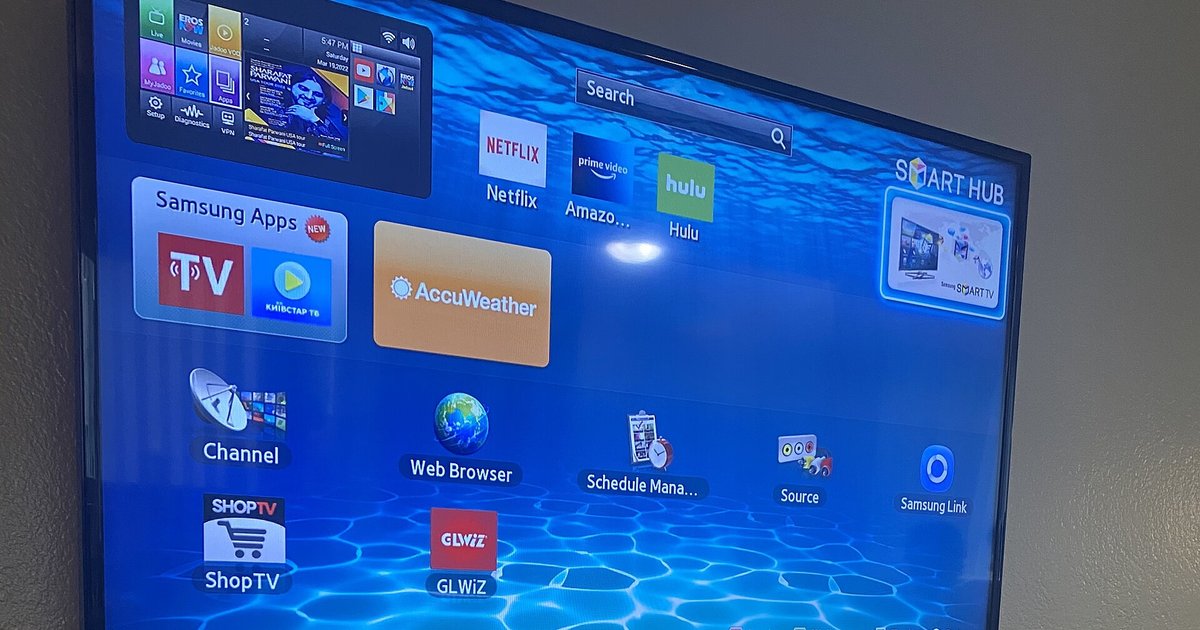
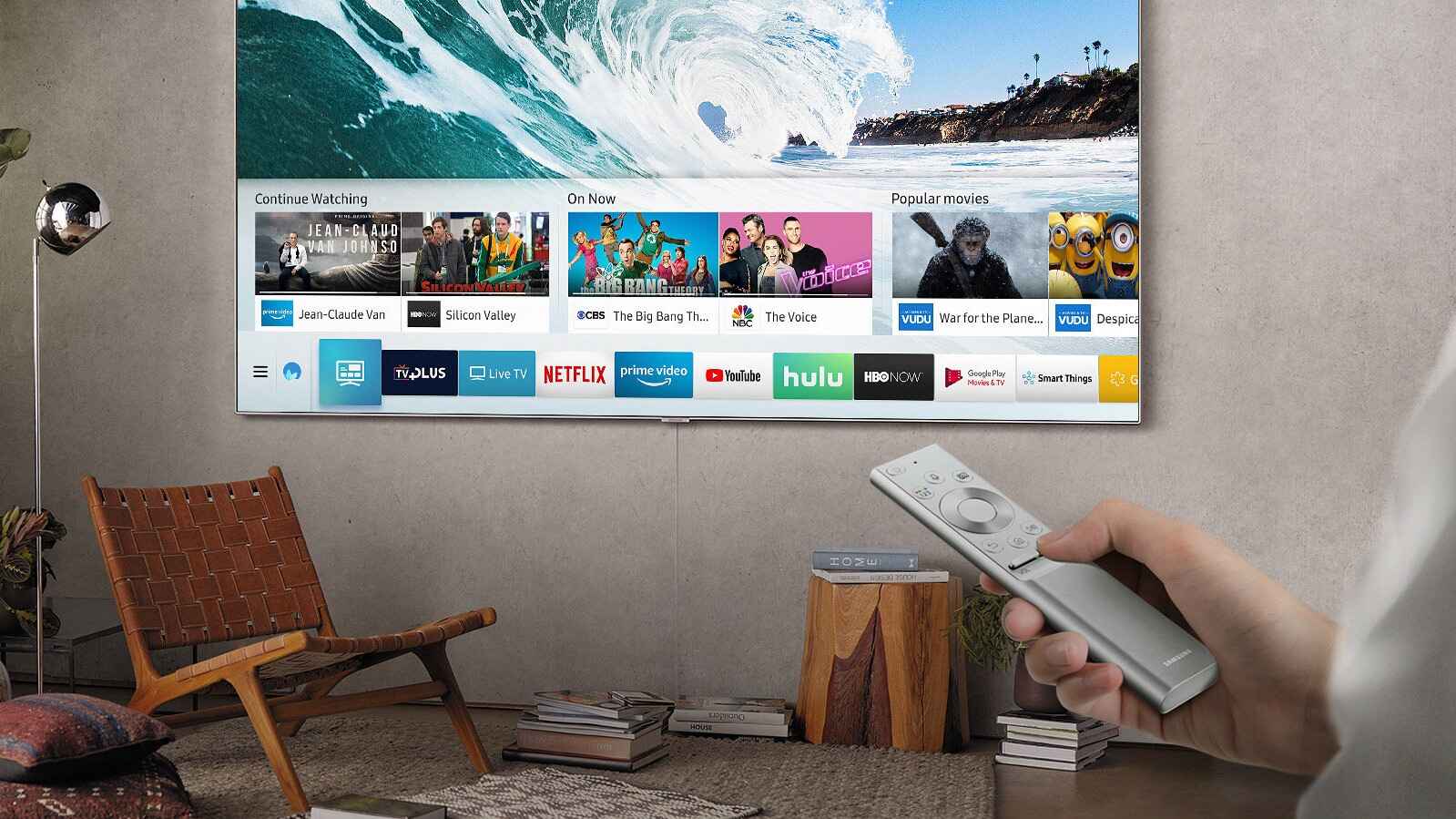
- Press the Home button on your remote to open the Smart Hub.
- Navigate to the Apps section.
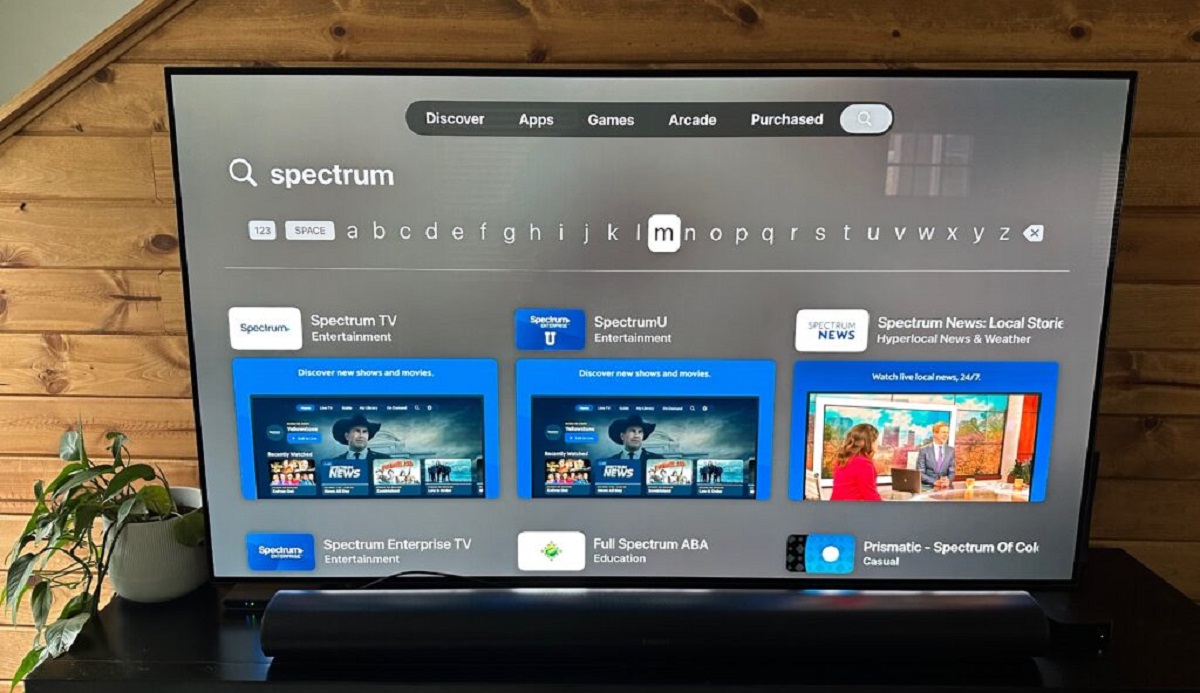
- Use the search function to type "Paramount Network".
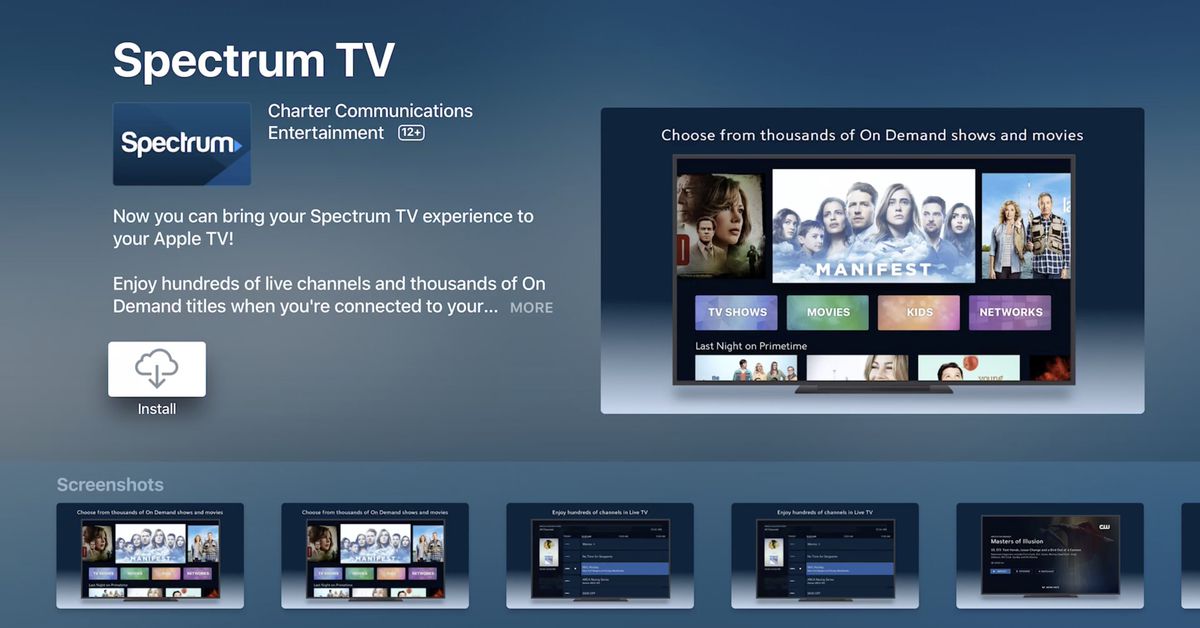
- Select the correct app from the search results and choose Install.
LG smart TVs
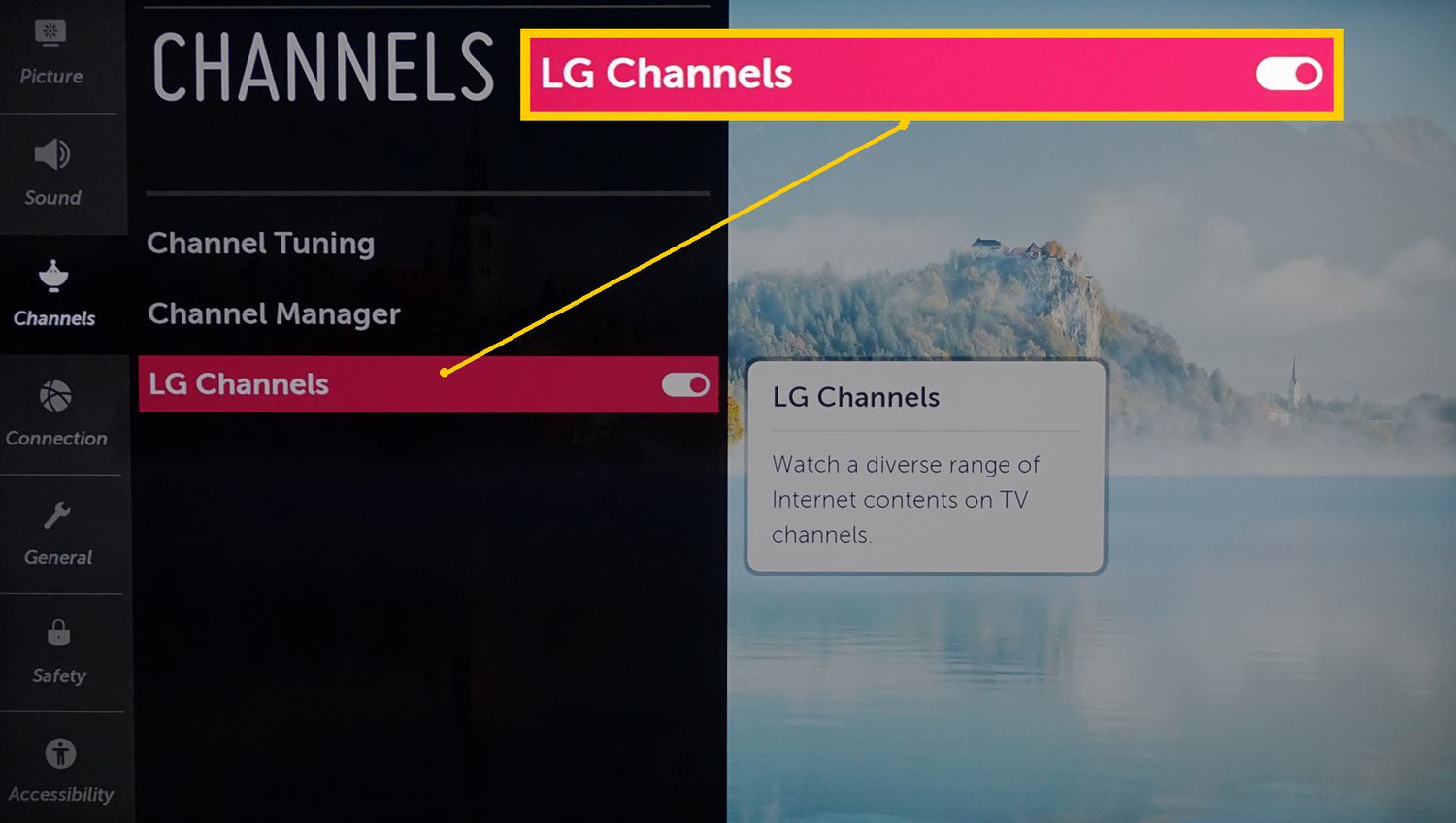
- Press the Home button on your remote to open the LG Content Store.
- Go to the Apps tab and select the search icon.
- Search for "Paramount Network".
- Select the app and click Install.
Vizio smart TVs
- Press the V button or Home button on your remote to launch SmartCast.
- Select the Apps icon at the bottom of the screen.
- Use the search bar to look for "Paramount Network".
- Choose the app from the list and select Install.
Activate the app with your TV provider
After the app is installed, you must log in with your TV provider to unlock all the content. This process is the same regardless of your TV brand.
- Launch the Paramount Network app on your smart TV.
- Look for a screen that displays an activation code (a short string of letters and numbers).
- On a phone or computer, go to the Paramount Network activation website.
- Enter the activation code shown on your TV screen.
- Sign in with your cable or satellite TV provider credentials when prompted.
Once you complete these steps, your smart TV and the app will be linked to your subscription. The app is now ready to use.
Start streaming Paramount Network
After a successful login, you will have full access to the Paramount Network library. You can browse the live feed to see what is currently airing, which is a key part of watching live TV on a smart TV. You can also explore the on-demand library to watch full episodes of hit shows like Yellowstone and Bar Rescue whenever you want.
What if the app isn't available on my smart TV?
If your smart TV is older or from a brand that does not support the Paramount Network app, you are not out of options. The simplest fallback is to use a streaming device. Devices like a Roku, Amazon Fire Stick, or Apple TV can be plugged into any TV with an HDMI port. Once connected, you can search for and install the Paramount Network app from that device's app store and activate it using the same steps above. This gives you the same experience without needing a new television.