Before you start: what to know about your TV's app system for installing apps
Before you learn how to install apps on smart TV systems, it helps to understand how your TV handles software. Most smart TVs run their own operating systems like Tizen, webOS, or Android TV. Each has a curated app store. When you search for a third-party streaming tool and see "apollo TV app not showing up in my TV app store," that is normal. The TV's store only lists apps that have been approved by the manufacturer.
If you want something like Apollo TV, you are usually looking at a process called sideloading. This means installing an app from a file rather than the store. What sideloading actually looks like depends heavily on your brand. For example, if you own an LG model, you will need to figure out how to install 3rd party apps on LG smart TV webOS. That may require switching the TV to developer mode and using a computer to push files over your network. Even then, you will need to know how to install APK on LG smart TV, because webOS does not natively run Android APK files.
Before you go through that work, you should also check whether the app you want is safe. Many users search "apollo TV app safe and legal to install" because these third-party services often stream content from unverified sources. This can expose your device to malware or run afoul of copyright rules. Knowing your TV's system limits and the risks of sideloading will save you time and keep your device secure.
We are the only guide that explains how to sideload on every major TV brand without skipping the safety warnings that most tutorials ignore.
Installing official streaming and TV provider apps
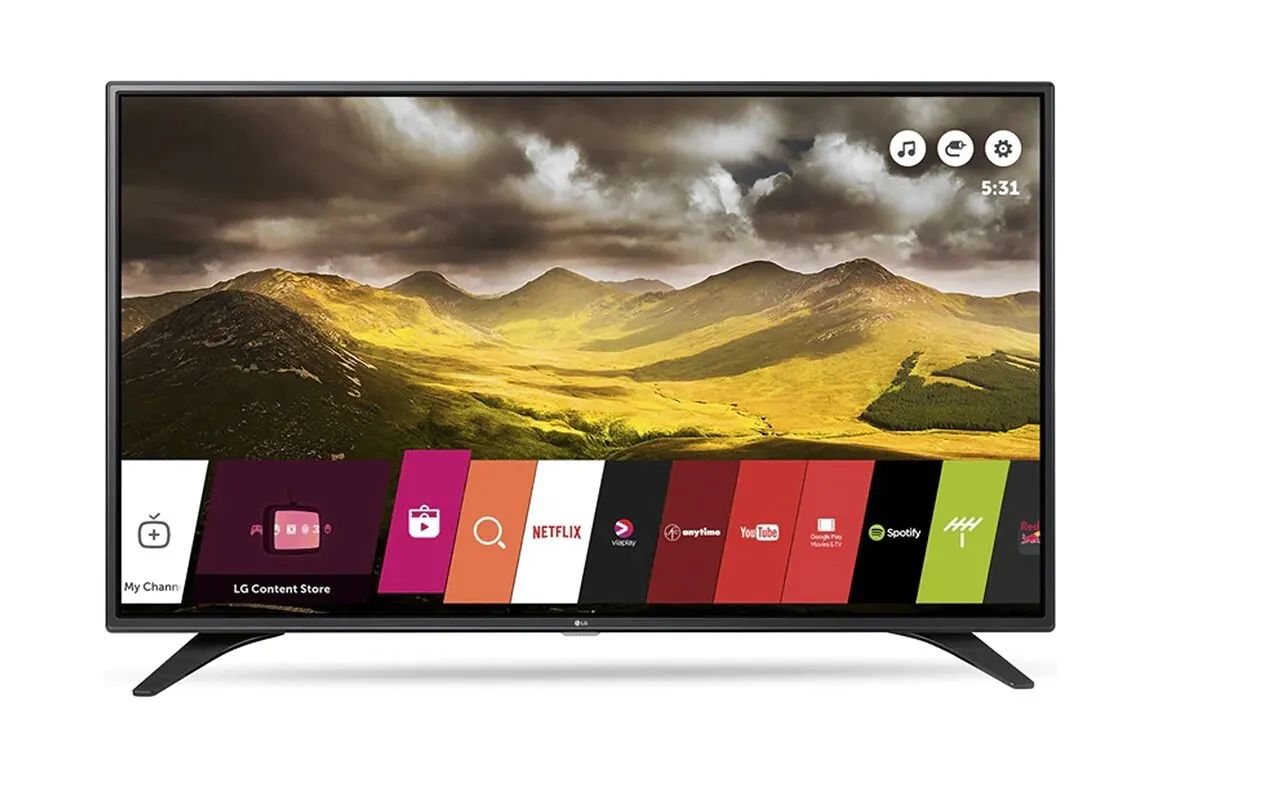
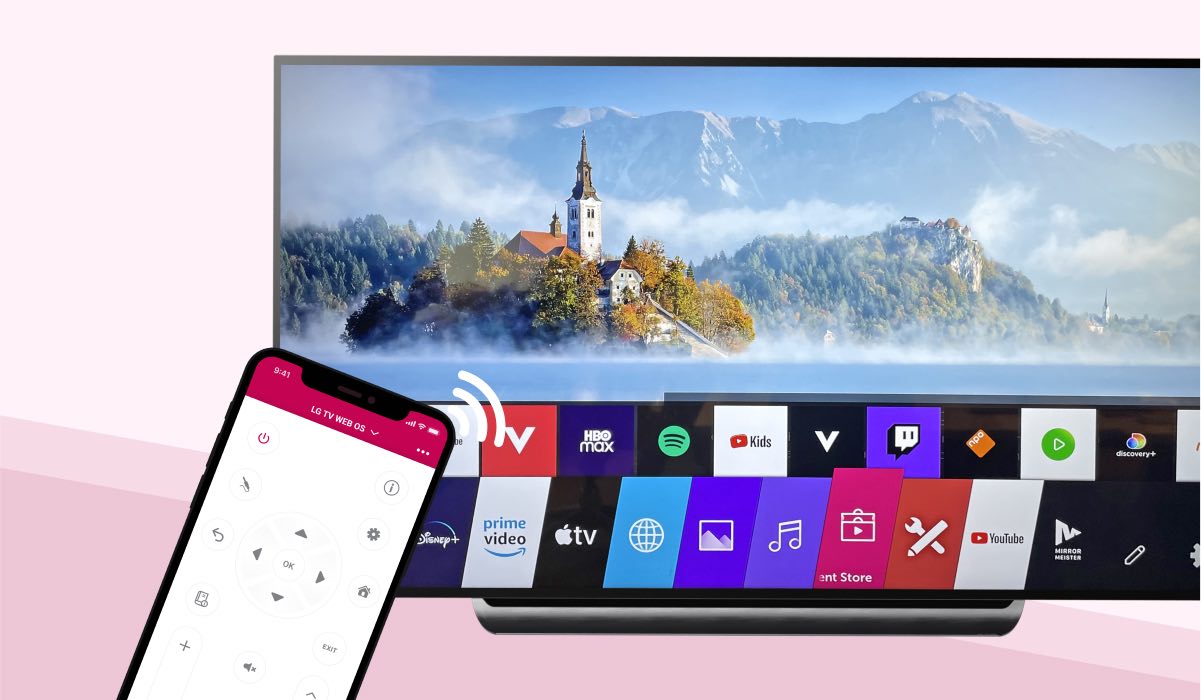
Installing legitimate apps from major TV and streaming providers follows a nearly identical process across the most popular smart TV brands. Press the Home button on your remote to open the main dashboard. Then navigate to the built-in app store, whether that's the LG Content Store, the app store on Samsung Tizen, or the Google Play Store on Android TV models. Once inside, use the search function to find the exact app you need.
To get Spectrum TV app on LG smart TV, simply type "Spectrum" into the search bar. Select the official app from the results. Choose "Install." The same basic steps apply if you want to add Fios app to Samsung smart TV; just search for "Fios" in the Samsung Smart Hub and confirm the download. You can add Apple TV app to LG smart TV by finding it in the LG Content Store, which gives you access to your purchased movies and Apple TV+ subscriptions. If you want to watch Peacock TV on LG smart TV, the app is available directly in the store as well, offering live sports and a deep library of shows.
Unlike third-party services that require sideloading, these official apps install in under a minute and receive automatic updates. This keeps your streaming experience stable and secure.
Installing apps on specific TV brands
On many smart TVs, the process for finding and installing apps follows a similar pattern. The exact menu labels and remote buttons differ by brand. For an LG TV, you press the Home button, then navigate to the LG Content Store to search for streaming services. On a Samsung TV, you use the Smart Hub to access apps. On a Panasonic TV, you can access the app store from your remote or the Home menu. If you need to install apps on Toshiba smart TV, you can browse available titles from the on-screen options. TCL TVs running Roku TV use the Streaming Store feature on the home screen. Roku’s store is more tightly curated, so you will rarely find unofficial apps there. This is worth remembering because many streaming apps like Apollo TV or BeeTV aren’t available in official TV app stores. These are third-party services that often require sideloading or workarounds. Some may carry legal and security risks you should check before installing. For each of these brands, you will also find more specific walkthroughs that cover a single task. These include how to download apps on a LG smart TV or how to download the DIRECTV app on LG TV. Each walkthrough is broken down by brand and by the app you want to install. Scan that list for the exact combination of your TV manufacturer and the app name, and follow only that set of instructions. Unlike generic guides, we provide separate, tested steps for every brand-app pairing so you never have to guess which remote button to press next. You can jump directly to how to download apps on my Panasonic smart TV, how to download app on TCL TV, or how to download jw.org app on Samsung smart TV. We also cover live TV replacements like how to download DIRECTV stream on LG smart TV and third-party players like how to download apollo TV on smart TV.
Sideloading and installing third-party apps
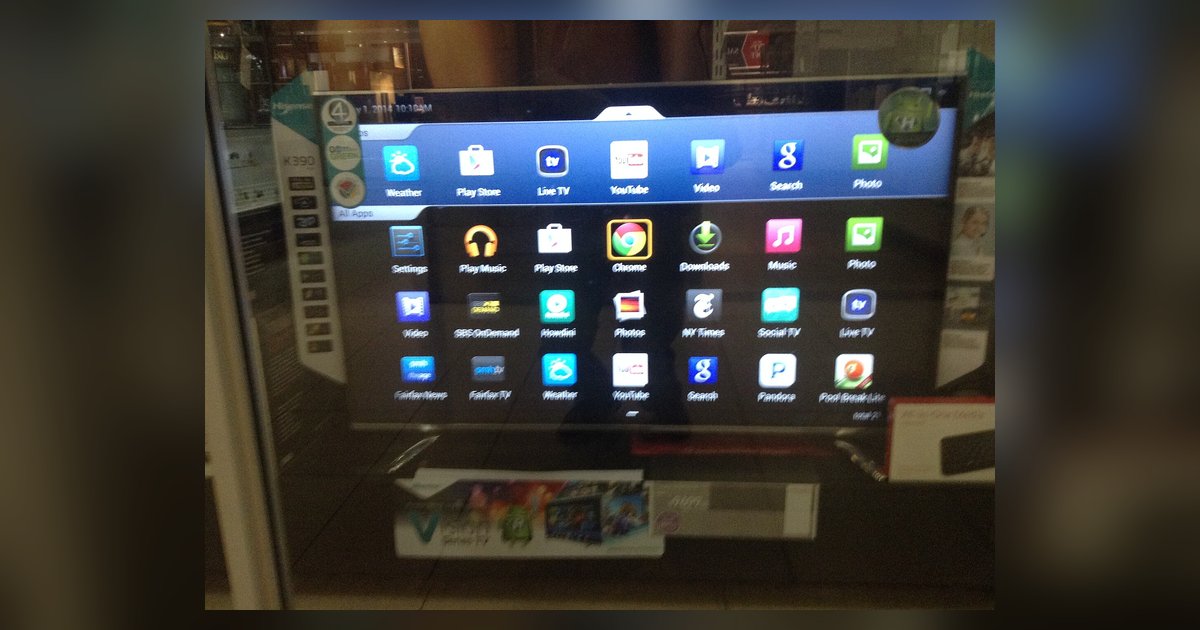
When the app you want isn't in your TV's official store, you'll need to sideload it. On Android TV/Google TV, this usually means downloading an APK file from a trusted source onto a USB drive. You can also use a file manager app already on your TV. For example, on Android TV/Google TV, to install beetv on smart TV, you first enable "Unknown Sources" in the security settings. Then you use a browser or a downloader app to get the APK. Another common method involves using a tool like "Downloader by AFTVnews." This tool lets you type in a short URL to fetch the file directly. Keep in mind that apps like Apollo TV or JW.org aren't verified by the manufacturer. Your TV may warn you about potential security issues. Because these third-party services pull content from unofficial sources, you should check local copyright laws before proceeding. The process varies slightly between brands. On a Sony TV running Android TV, you may be able to use a file manager app. On a Hisense or TCL model, you might need to use a different method. Always scan downloaded files with a security app if your TV supports it. Avoid enabling unknown sources permanently after you finish the installation.