Before you start: what signing out streaming apps actually does
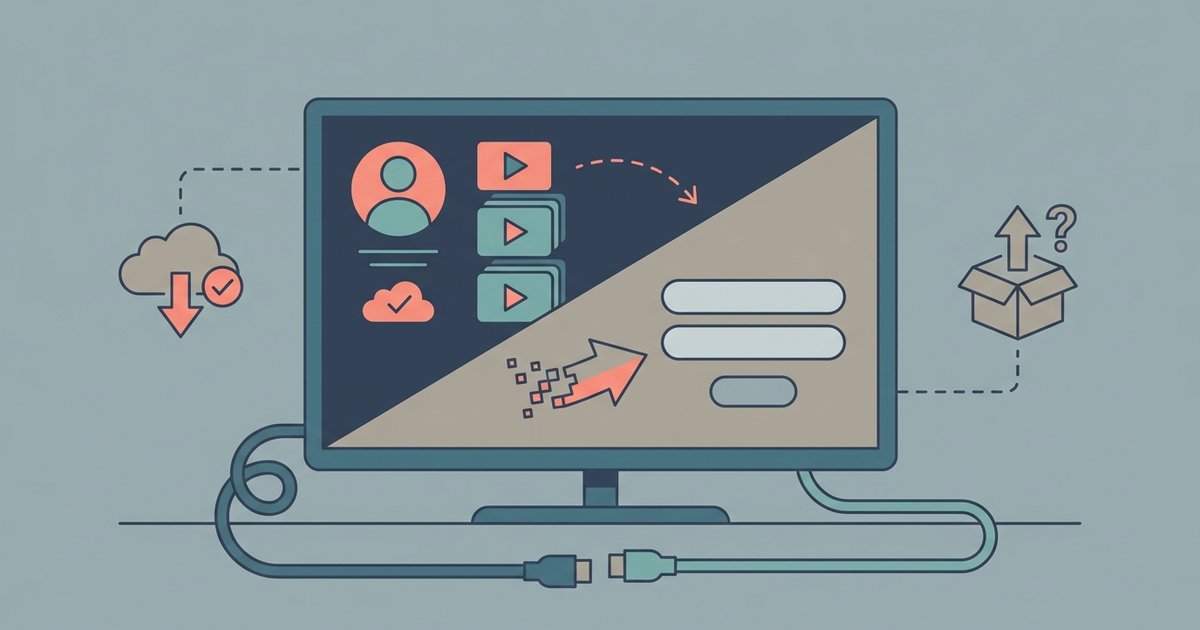
When you sign out streaming apps on a smart TV, you are simply disconnecting that specific television from the app’s login session, not wiping your profile or canceling your paid plan. Your billing details and membership status are stored on the provider’s servers. They are not stored on the TV itself. If you are wondering whether signing out of Roku TV affects your account or subscriptions, the answer is straightforward. Similarly, you do not need to worry about losing your saved shows and watch history when you sign out of an app on a shared TV. Those items remain tied to your user profile. They will reappear the next time you log in on any device. Think of it like logging out of a website on a public computer. The site still knows who you are and what you were watching. Only if you manually delete your entire profile would that data be lost. So, signing out is a safe, reversible step. It simply removes the TV’s access to your profile.
- signing out of Roku TV affecting account or subscriptions — Does signing out of Roku TV delete my Roku account or cancel subscriptions
Sign out of the device or platform itself
When you want to fully disconnect your TV from a platform-wide account, the process varies by operating system. This action is not limited to a single app. On a Roku device, you can perform a factory reset to remove your linked profile and all downloaded apps, though this will wipe all settings. If you only need to switch users without wiping the device, you can follow the steps to change accounts on Roku TV. That method walks through unlinking the current profile. It then links a new one without losing your installed channels. For an Apple TV, navigate to the settings and look for the Users and Accounts section to sign out of your profile. This removes your iCloud, iTunes, and App Store associations from the hardware. A separate guide explains how to log out of Apple TV if you want to clear your personal data without resetting the entire box. On a Samsung or LG smart TV, look in the settings menu for the profile management area to disconnect the TV from the manufacturer’s cloud login. Remember: signing out of the device or platform itself only unlinks that TV from your profile. Your subscription, billing, and watch history remain safe on the provider’s servers until you delete the profile entirely. No other guide makes this guarantee: your personal watchlist and payment details are never stored on the television’s hardware itself, so a simple sign-out leaves zero recoverable traces on the device.
Sign out of a specific streaming service on any TV
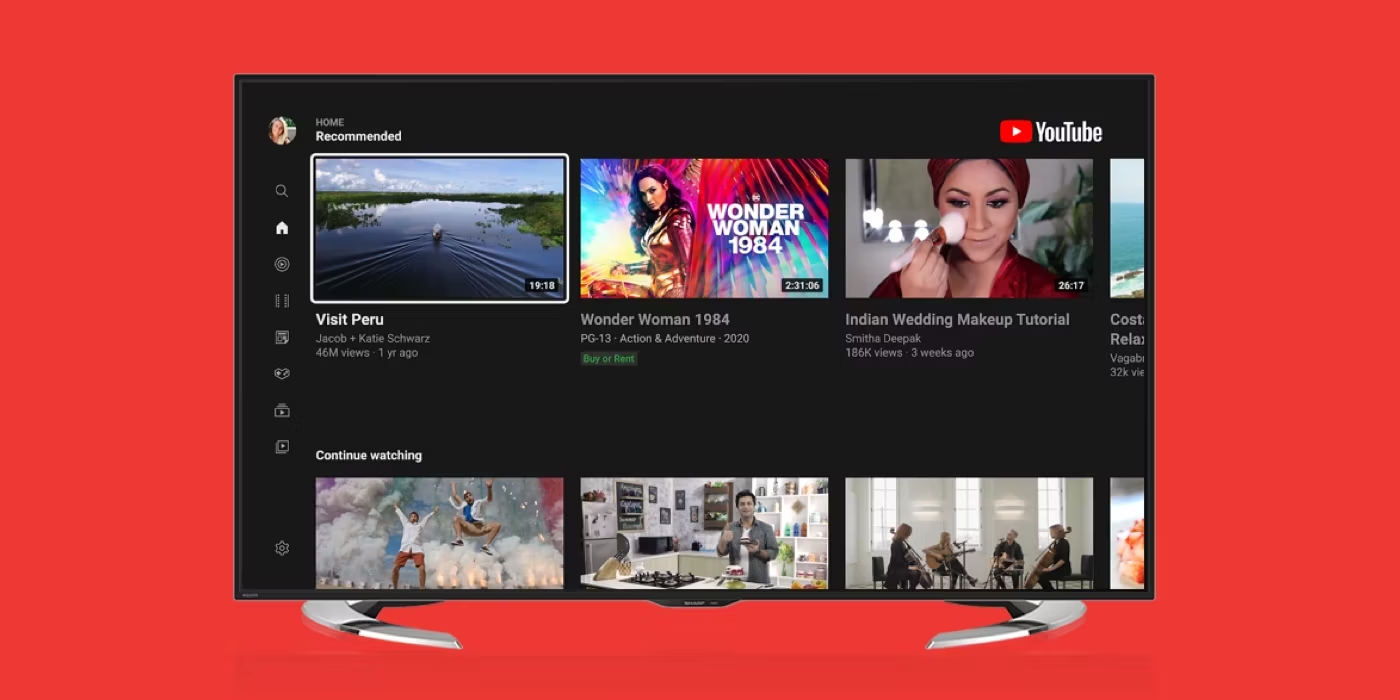
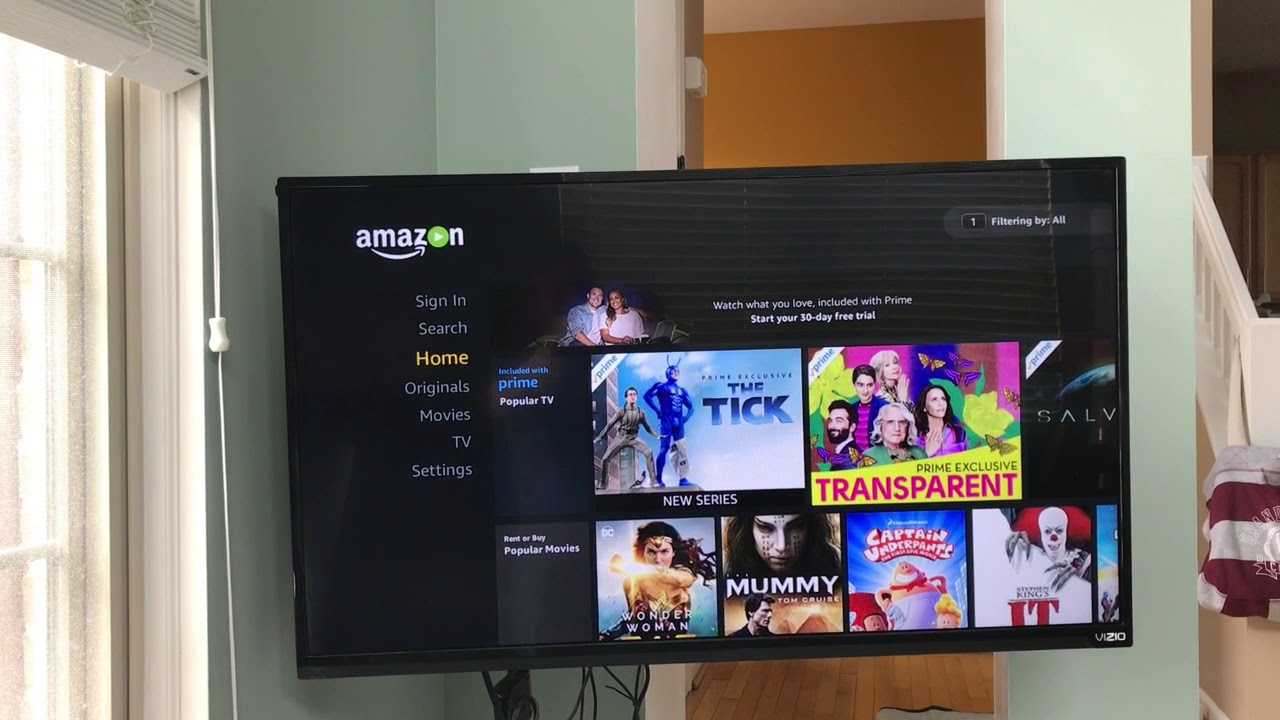
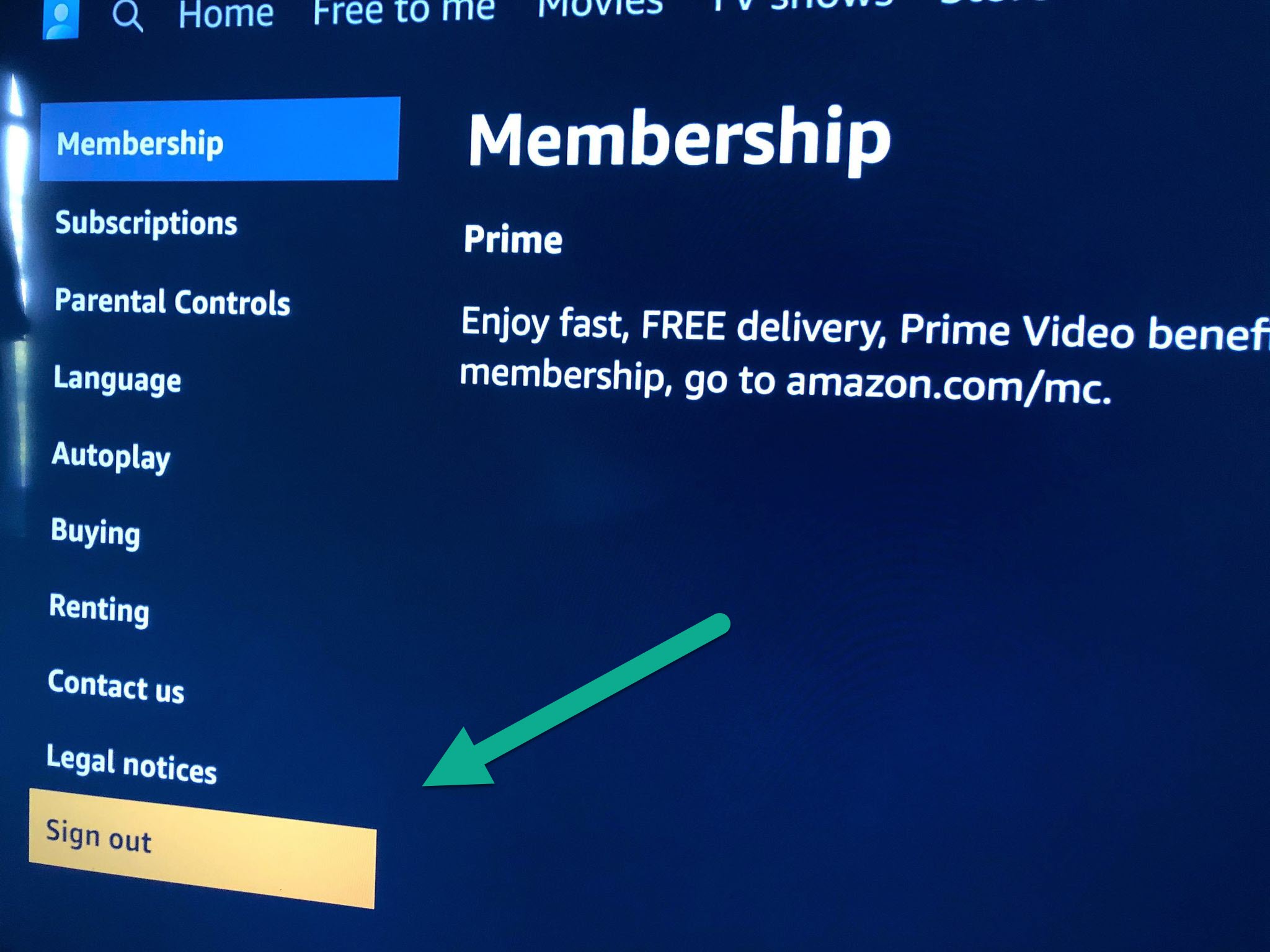
Start by opening the streaming app you want to leave, Netflix, Hulu, or any other service. Look for the profile icon or gear symbol. It usually sits in the top or side menu. Inside that menu, scroll to an option labeled "Sign Out," "Log Out," or "Manage Account." If you need to sign out of HBO max, the process is nearly identical. Find your profile icon, go to your profile’s management area, and select the sign-out option. Similarly, to log out of Amazon on smart TV, open the Prime Video app. Navigate to the gear symbol and choose "Sign Out" or "Log Out." Your payment info and watch history stay safe on Amazon's servers. These steps work regardless of your TV brand. The app’s own menu handles the unlinking. Once you sign out, the app returns to a login screen. Your subscription remains active, and you can sign back in later. If you are unsure which service you need to leave, a short list of common apps follows below. For example, you may want to read how to sign out of Netflix on my Samsung smart TV, how to sign out of prime video on smart TV, how to sign out of YouTube on smart TV, how to sign out of Hulu on smart TV, or how to sign out of Roku TV to quickly find tailored instructions for each platform. Follow the instructions specific to that app, whether it is a video, music, or other platform.
Sign out of an app on a specific TV brand
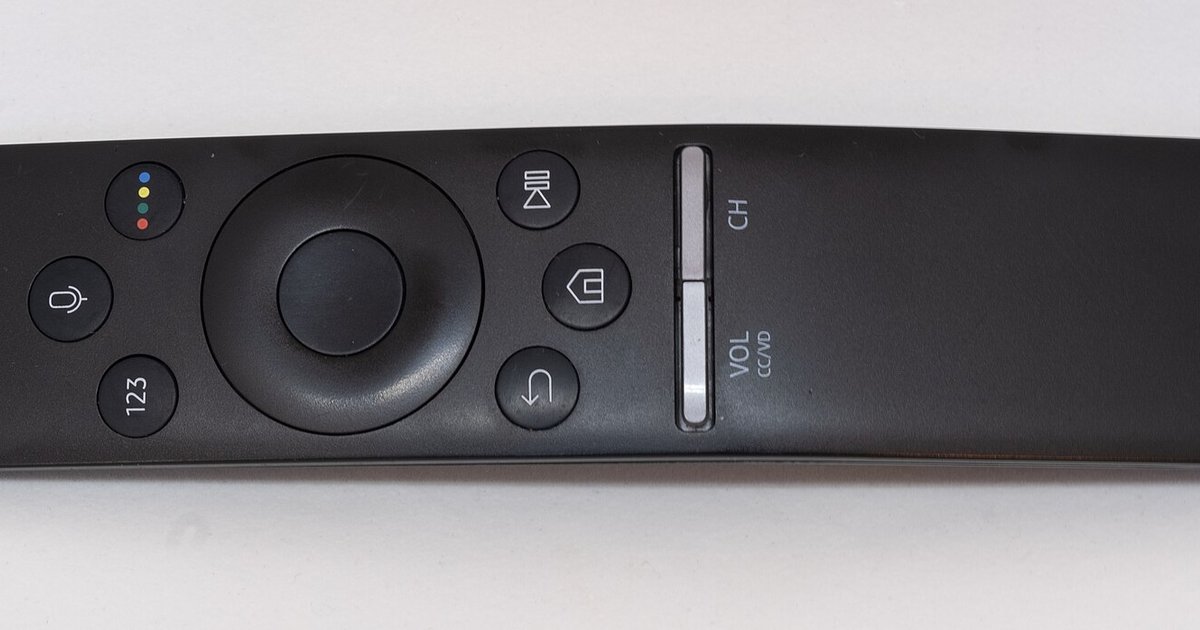
If you own a Samsung TV, the process differs from other brands. The settings menu is buried inside the Smart Hub. Press the Home button on your remote. Then navigate to the left sidebar to find the gear icon. Once there, you can scroll down to the app you want. Select “Sign Out.”
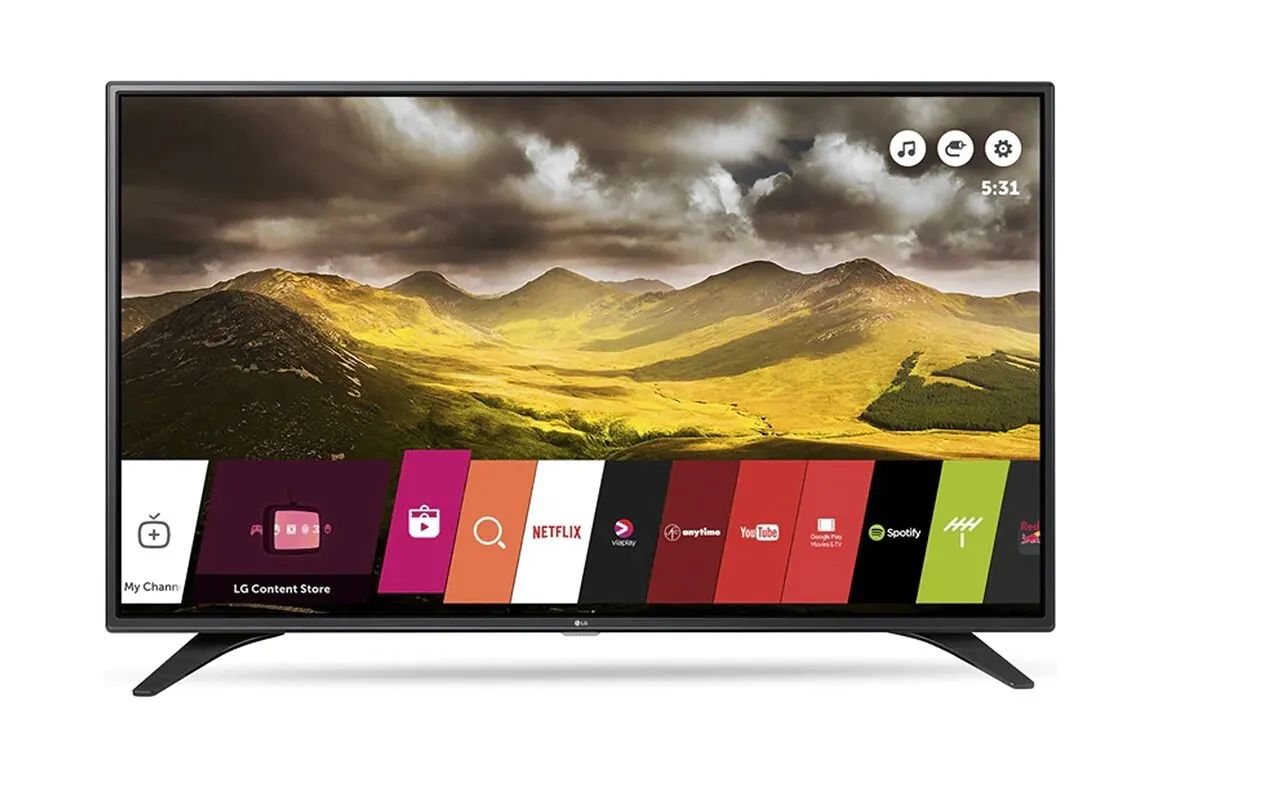
For LG televisions running webOS, you can typically access app options by highlighting the app tile and using the remote to open a settings or edit menu, then look for a sign-out option.
A common frustration is needing to remove Netflix account from smart TV when the streaming service itself hides the logout option inside its own interface. On a Sony Android TV, you can instead go to the device’s system preferences, find the Netflix app in your app settings, and clear its data. This forces a sign-out without affecting your subscription.
If you are trying to log out of Netflix on Vizio TV, you must first open the Netflix app. Then use your remote to access the on-screen menu and look for a sign-out option from there. There is no global TV configuration for that one app.
For any situation where you need to sign out of a streaming app when the remote has no gear or menu button, try pressing and holding the Home button. Many modern remotes will then display additional options that may let you access app settings.
Some Smart TVs may let you revoke access across installed services from a centralized privacy dashboard, without opening each app individually.
- sign out of a streaming app when the remote has no gear or menu button — How to sign out of a streaming app when the remote has no gear or menu button
- remove Netflix account from smart TV — How To Remove Netflix Account From Smart TV
- log out of Netflix on Vizio TV — How To Log Out Of Netflix On Vizio TV
Sign out of an app on a Roku device
On a Roku device or Roku TV, the process for unlinking your profile from a streaming service is slightly different than on other platforms. There is no universal "accounts" menu. Instead, you must navigate into the specific app channel itself. For example, if you want to log out of Paramount plus on Roku, you first press the Home button on your remote. Then highlight the Paramount+ tile and press the star (*) button to open the Options menu. From there, select "Manage channel" and then "Remove channel." This removes the app and its local data, but does not cancel any associated subscription.
For many apps, you can also sign out directly from the app's internal configuration panel. To sign out of Amazon prime on Roku, open the Prime Video app. Go to the Settings gear icon, typically in the top-right corner. Navigate to your account settings and select "Sign Out." Confirm the action to complete the sign-out. If you share a Roku with family members and need to sign someone out of HBO max, you can do so by opening the HBO Max app. Navigate to the profile icon and look for an option to sign out of all devices or log out of the current session. Remember, none of these steps cancel your subscription. Your billing and watch history remain untouched on the provider's servers. You are simply untying that specific Roku device from your membership. This is useful when selling the TV or troubleshooting a login issue.